

Every website owner knows the same frustration. A visitor lands on your site at 2 AM, has a simple question about shipping or pricing, finds no answer — and leaves forever. A Tidio AI chatbot for beginners prevents exactly that: it answers the visitor instantly, even while you sleep.
That is exactly the problem Tidio solves, and it is why I wrote this Tidio AI chatbot for beginners guide. Tidio is a customer-chat platform that combines live chat with an AI agent called Lyro, and it lets small businesses answer visitors around the clock without hiring a support team. The best part for beginners: the free plan is genuinely useful, with 50 billable conversations a month and a starter allowance of AI-powered conversations to try Lyro with.
This Tidio AI chatbot for beginners guide walks you through everything: what Tidio is, how the free plan works, how to install it on your website, how to train the Lyro AI chatbot, and how to use automation flows to capture more leads and sales. No coding skills required.
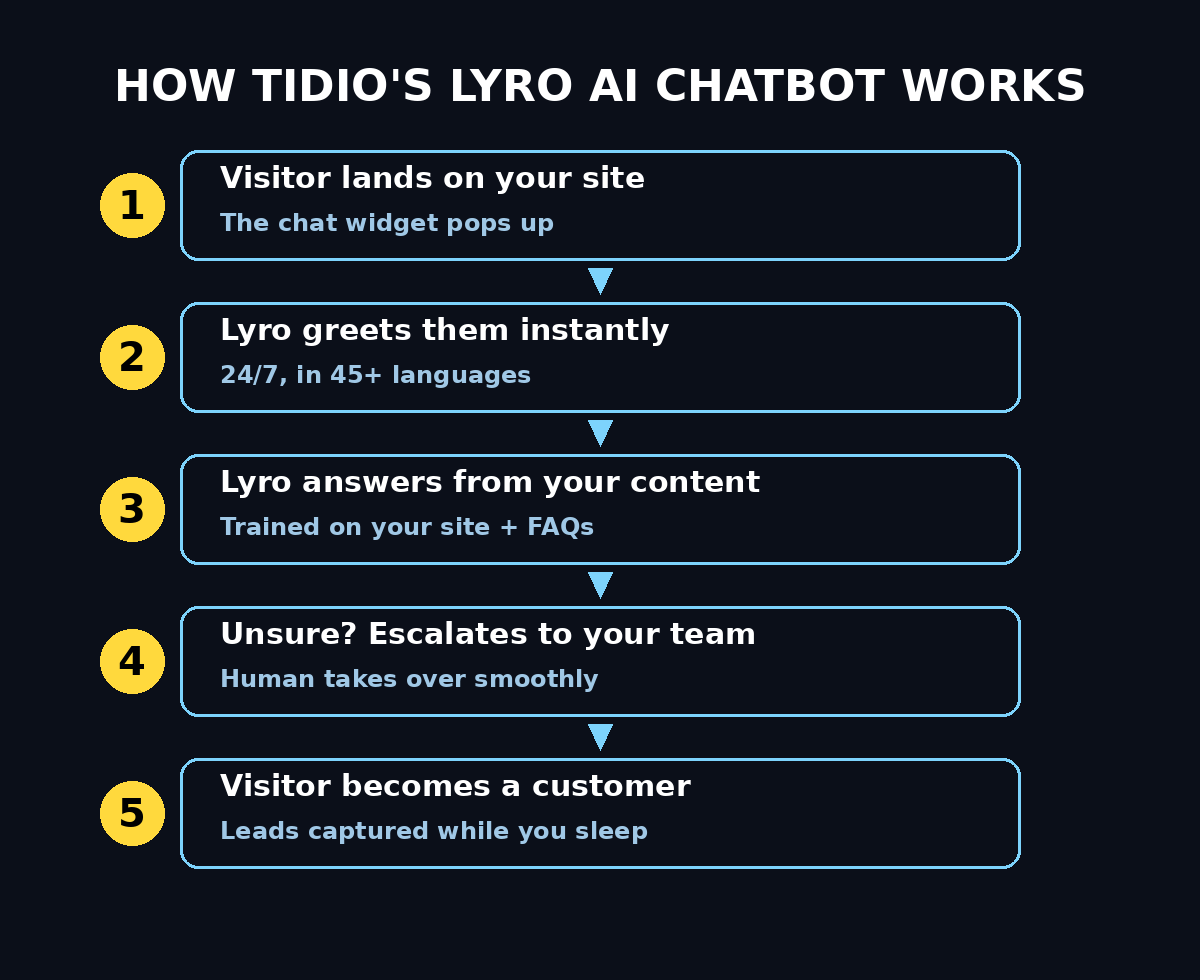
What Is the Tidio AI Chatbot for Beginners?
Tidio is an all-in-one customer communication platform built for small and mid-sized businesses. Instead of juggling separate tools for website chat, Facebook Messenger, email, WhatsApp and Instagram messages, Tidio pulls them all into one shared inbox.
There are two sides to the product:
- Live chat — a chat widget on your website where you (or your team) talk to visitors in real time, just like any chat window you have seen on modern online stores.
- Lyro AI — Tidio’s conversational AI agent. Unlike old-fashioned rule-based bots that follow rigid scripts, Lyro understands natural questions and answers them in your brand’s tone of voice. You train it simply by pointing it at your website, FAQ page or help articles — there is no conversation-tree building involved.
The whole system is designed for non-technical users. Setup takes minutes rather than weeks, and the free plan means you can test everything with real visitors before spending a single dollar — a combination that makes this Tidio AI chatbot for beginners setup genuinely risk-free.
Step 1: Create Your Free Tidio Account
Getting started costs nothing and requires no credit card.
- Go to the Tidio website and click the sign-up button.
- Enter your email address and choose a password, or sign up with a Google account.
- Follow the short onboarding wizard: it asks for your business name, your website address, your industry and your goals (support, sales or both).
- Choose the channels you want to use — most beginners start with just the website chat.
That is it. You are inside the dashboard. New accounts typically start on a 7-day trial of the paid features; if you do not upgrade when it ends, you simply drop down to the free plan automatically.
Step 2: Install the Chat Widget on Your Website
The chat widget is the little chat bubble visitors see in the corner of your website. Installing it is a two-minute job on every major platform:
- Shopify: install the Tidio app directly from the Shopify App Store and connect it with one click.
- WordPress: install the official Tidio plugin, paste in your account details, and the widget appears on your site.
- WooCommerce, Wix, Squarespace, BigCommerce: each has a native integration or app you can connect in a few clicks.
- Custom or hand-coded websites: copy the small JavaScript snippet from your Tidio dashboard and paste it into your site’s HTML just before the closing body tag.
Once installed, visit your own website in a private browser window and confirm the chat bubble appears. Send yourself a test message to make sure messages reach your dashboard.
Step 3: Customize the Widget to Match Your Brand
A chat window that matches your site looks professional; a default gray one looks like an afterthought. Open the widget settings in your dashboard and adjust:
- Colors: set the header and button colors to match your brand.
- Logo: upload your company logo so visitors see who they are talking to.
- Welcome message: write a friendly greeting, for example: “Hi there! Got a question? We usually reply in under a minute.”
- Position: choose whether the bubble sits at the bottom-left or bottom-right of the screen.
- Operator profiles: add a name and photo for each team member so chats feel human.
Tidio also lets you control the widget’s language and set operating hours, so visitors see accurate expectations about when a human is online.
Step 4: Train the Lyro AI Chatbot
This is the most powerful part of the setup, and it is surprisingly easy. Lyro is a conversational AI agent that answers your visitors automatically, day and night. You do not write scripts for it — you give it knowledge, and it handles the conversations.
There are three ways to train Lyro:
- Point it at your website. Give Lyro your website URL or FAQ page and it scans and absorbs your content — product details, shipping terms, return policies — usually within about 15 minutes.
- Upload documents. Add PDF guides, policy pages or product manuals directly.
- Paste Q&A pairs. Type common questions and their correct answers manually for maximum control.
The critical thing to understand: Lyro answers using only the material you provide. If a customer asks something outside its training, it does not invent an answer — it hands the conversation to a human agent or creates a support ticket automatically. That honesty is exactly what makes it safe to leave running unattended overnight.
Before letting it talk to real customers, use the built-in playground to test it. Ask it the tricky questions your visitors actually ask — “Where is my order?”, “Can I return this?”, “Do you ship to my country?” — and check its answers. Add anything it misses to its knowledge base, and it gets smarter with every gap you fill.
Step 5: Understand How Conversations Are Counted
Tidio bills by conversation, not by seat, which makes costs predictable — but beginners should know what a “conversation” means so the free limits make sense.
- Billable conversations: any live chat, ticket, email or social conversation that includes a message from a human on your team. Each conversation counts once no matter how many messages it contains. Conversations you never reply to do not count, and replies from Lyro or automation flows do not count as agent replies either.
- Lyro conversations: a conversation in any connected channel where Lyro, the AI agent, replied at least once. It counts once even if Lyro sends a dozen messages.
A chat that starts with Lyro and later needs a human touch can therefore count on both meters. Keep this in mind when you check your usage dashboard.
Step 6: Create Your First Automation Flow
Tidio Flows are no-code automation workflows you build with a visual drag-and-drop editor. Think of them as mini chatbots for specific jobs. Three starter flows cover most beginner needs:
- Welcome new visitors: trigger a greeting a few seconds after someone arrives, like “Welcome to our store! Need help finding something?” This simple message starts a surprising number of sales conversations.
- Abandoned cart recovery: for online stores, detect when a shopper is about to leave with items in their cart and offer help or a discount code. This flow alone can pay for the tool many times over.
- Lead capture: when nobody is online, ask visitors to leave their email so you can follow up later instead of losing them forever.
To build one, open the Flows section, pick a ready-made template, adjust the text to match your voice, choose when it triggers, and activate it. No programming needed — if you can use a presentation tool, you can build a flow, which is exactly why the Tidio AI chatbot for beginners crowd loves Flows.
Step 7: Connect Your Other Channels
One of Tidio’s biggest advantages is the unified inbox. Instead of checking your website chat, Instagram direct messages, Facebook Messenger, WhatsApp and email separately, every conversation lands in one place.
- Facebook Messenger: connect your business page so page messages appear in Tidio.
- Instagram: route Instagram direct messages into the same inbox.
- WhatsApp: connect your WhatsApp Business number for mobile-first customers.
- Email: connect your support email so emails become tickets your team can answer from the dashboard.
For beginners, start with one extra channel — usually Instagram or Messenger — and add more once the routine feels natural. The free plan supports multiple channels, so there is no extra cost to experiment.
Step 8: Invite Your Team and Set Up the Inbox
The free plan supports up to 10 seats, which is generous — most small businesses only need two or three. Invite team members by email from the settings, and assign roles so the right people see the right conversations.
Get familiar with the three views you will use daily:
- Inbox: where all live conversations from every channel appear. Reply, assign, or let Lyro handle it.
- Visitors list: see who is on your site right now, which pages they are viewing, and proactively start a chat with a hesitant shopper.
- Analytics: track how many conversations you handle, how fast you reply, how often Lyro resolves questions on its own, and which questions it could not answer — that last report is your training to-do list.
Step 9: Test Everything Before Going Live
Before announcing your new chat support, run a full rehearsal — this short Tidio AI chatbot for beginners checklist takes about 20 minutes:
- Open your site on your phone and on a desktop browser. Does the widget look good on both?
- Start a conversation as a visitor and reply as the agent. Are notifications instant?
- Ask Lyro the five hardest questions customers ask you. Are the answers correct and on-brand?
- Trigger your welcome flow by visiting as a new guest. Does the timing feel natural?
- Submit the offline lead-capture form. Does the email reach you?
- Test a handoff: ask Lyro something it does not know and confirm it escalates to a human or creates a ticket instead of guessing.
Fix any gaps now. A polished first impression teaches visitors to trust the chat button; a broken one teaches them to ignore it.
Step 10: Monitor, Measure and Keep Improving
Going live is the starting line, not the finish. Spend ten minutes a week on this routine:
- Check Lyro’s unresolved questions. Every question it could not answer is a gap in your knowledge base. Add the answer and it will handle it next time.
- Watch your conversation usage. The free plan includes 50 billable conversations a month. If you consistently hit the cap, that is a good problem — it means the chat is working — and it may be time to compare plans.
- Review response times. Fast replies convert. If live replies lag during busy hours, consider letting Lyro take first response on more topics.
- A/B test your welcome messages. Try a question (“Looking for anything specific?”) versus a statement (“Welcome! We’re here to help.”) and keep whichever starts more conversations.
Small weekly improvements compound. Stores that maintain their Lyro knowledge base and flows report that the AI resolves a large share of repetitive questions — Tidio’s own figures put average resolution around two-thirds of conversations without any human involved.
Tidio Free Plan vs Paid Plans: Which Do You Need?
| Feature | Free plan ($0) | Paid plans (Starter $29/mo and up) |
|---|---|---|
| Monthly billable conversations | 50 | 100 to custom (Starter: 100, Growth: from 250) |
| Team seats | Up to 10 | Up to 10 (custom on higher tiers) |
| Lyro AI conversations | 50 total, one-time trial allowance | Paid Lyro quotas from $39/mo for 50 per month |
| Automation flows reach | 100 visitors/month | Higher visitor limits on paid tiers |
| Channels | Website, Messenger, Instagram, WhatsApp, email | Same, plus advanced routing on higher tiers |
| Live chat essentials | Yes | Yes, plus typing preview, macros, permissions |
| Analytics | Basic | Advanced analytics on Growth and above |
| Branding | “Powered by Tidio” badge shown | Removable on paid tiers |
| Credit card required | No | 7-day trial, no card needed |
The honest beginner verdict: start free. The 50 monthly conversations and the Lyro trial allowance are enough to learn the system and prove the value with real visitors. Upgrade to Starter when your chat volume grows past 50 conversations a month or when you want Lyro answering continuously rather than on its trial allowance. Prices change over time, so always confirm the current figures on the official Tidio website before you commit.
Frequently Asked Questions
Is Tidio really free?
Yes — Tidio’s free plan costs $0 forever with no credit card required. It includes 50 billable conversations per month, up to 10 team seats, a one-time allowance of 50 Lyro AI conversations to try the AI agent, and automation flows that can reach 100 visitors per month. Paid plans start at $29 per month on monthly billing ($24.17 per month billed annually) when you outgrow those limits.
What is Lyro in Tidio?
Lyro is Tidio’s conversational AI agent. It is not a traditional scripted chatbot: you train it by feeding it your website content, FAQs and documents, and it then answers visitor questions in natural language and in your brand’s tone. If it does not know an answer, it escalates to a human agent or creates a ticket instead of guessing. Lyro can operate across live chat, email, WhatsApp, Messenger and Instagram.
How long does it take to set up Tidio?
Most beginners are live within 15 to 30 minutes. Signing up takes two minutes, installing the widget on Shopify, WordPress or similar platforms takes a few clicks, and Lyro can scan your website content and be ready for testing within about 15 minutes. Budget an extra half hour to customize the widget, build your first flow and run the testing checklist in Step 9.
Can Tidio replace a human support team?
For repetitive questions — order status, shipping times, returns, pricing — Lyro handles a large share automatically, which dramatically reduces the workload on humans. But it is not a full replacement: complex complaints, emotional situations and edge cases still need a person. The best setup is hybrid — Lyro takes the first response 24/7, and humans step in for anything tricky.
Does Tidio work with WordPress and Shopify?
Yes. Tidio has a dedicated Shopify app with one-click installation and order data sync, plus an official WordPress plugin. It also integrates with WooCommerce, Wix, Squarespace and BigCommerce, and any custom site can use the JavaScript snippet. On Shopify it scores 4.8 stars, which reflects how well the e-commerce integration works in practice.
Which languages does the Lyro AI chatbot support?
Lyro can converse in more than 45 languages and automatically detects which language each customer is writing in, then replies in that language. That makes it practical for stores and service businesses with an international audience, even on the free plan.
Final Thoughts: Tidio AI Chatbot for Beginners Guide
Tidio earns its reputation as one of the most beginner-friendly chatbot platforms for a simple reason: it removes every excuse not to start. No credit card, no coding, no weeks of setup. You can sign up in the morning and have an AI agent answering your website visitors by lunch.
Start with the free plan, train Lyro with your real frequently asked questions, set up one welcome flow, and run the testing checklist. Then let real conversations teach you what to improve — every question Lyro cannot answer is free market research handed directly to you. When your chat volume grows past the free limits, the paid plans scale with conversation volume rather than punishing you for adding team members.
Your website works for you 24 hours a day. With this Tidio AI chatbot for beginners approach, your customer support can too.
Explore More Free AI Tools
Want to keep growing your website with free AI? Check out these handy tools at aitoolsteps.com: the AI Title Generator for click-worthy headlines, the Meta Description Generator for search-ready snippets, the AI Rewriter to polish your content, and the Keyword Density Checker to fine-tune your SEO. More free AI tools and guides are waiting at aitoolsteps.com.