

Imagine waking up to a crisp summary of the morning’s top tech news, a reminder of your three most important meetings, and a fresh vocabulary word to learn — all written for you by ChatGPT while you slept. That is exactly what ChatGPT scheduled tasks do, and in 2026 this once premium-only feature is now available to free users too, with fair usage limits. If you have ever wished your AI assistant would just do things on its own instead of waiting for you to type, this beginner-friendly guide to ChatGPT scheduled tasks walks you through everything: what these tasks are, how to set them up on your phone and computer, five ready-to-copy automated tasks, and the honest limits of the free plan.
Step 1: Understand What Scheduled Tasks Actually Do
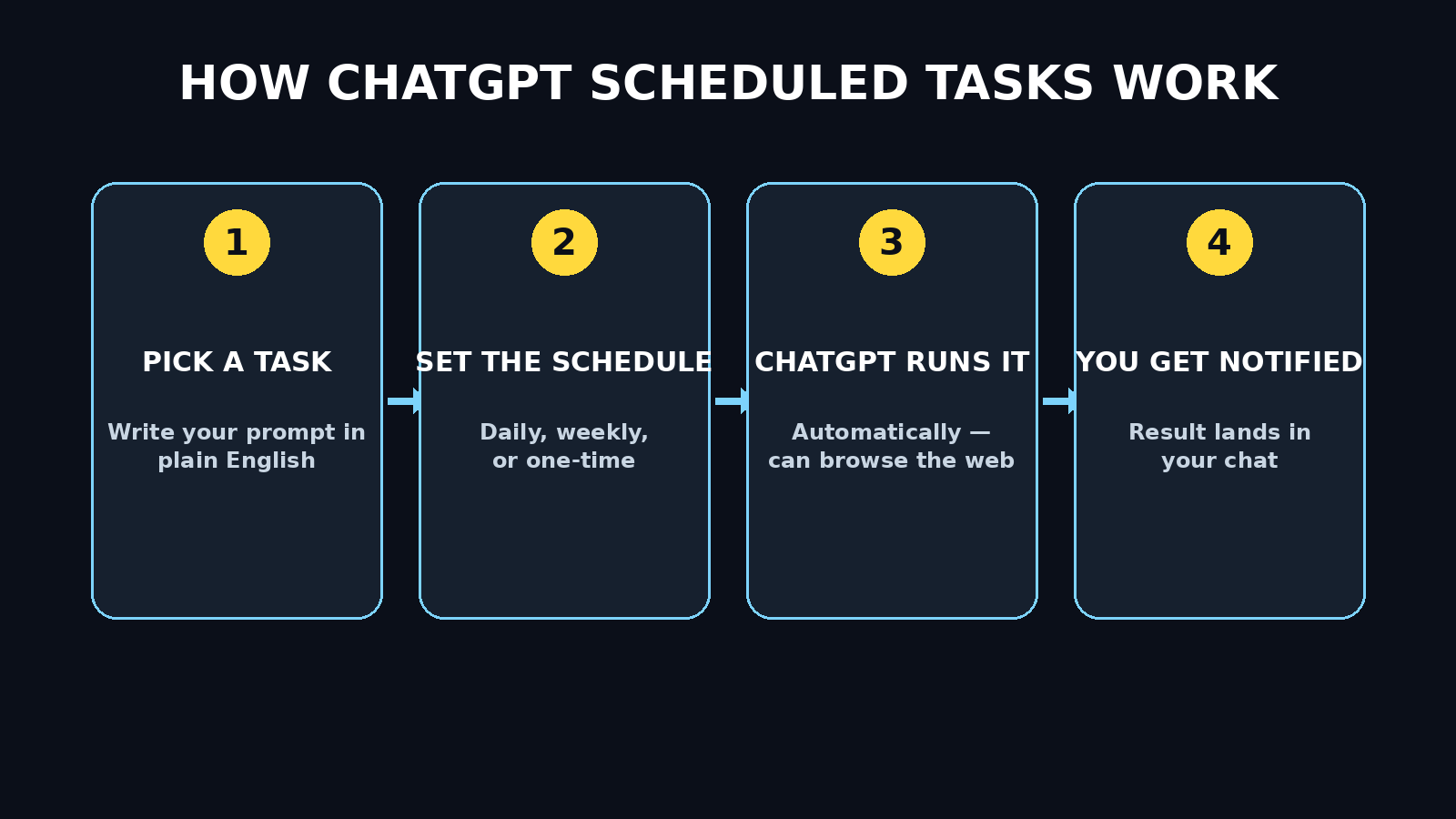
A scheduled task is simply a prompt that ChatGPT runs for you automatically at a time you choose — no typing required when the moment arrives. Think of it as setting an alarm clock, except instead of a beep, ChatGPT wakes up and does a piece of work for you: it writes your morning briefing, checks something online, reminds you of a habit, or drafts tomorrow’s to-do list.
Here is what makes the feature different from a normal chat:
- It runs on its own. You write the instruction once; ChatGPT executes it on a recurring schedule — daily, weekly, or even one-time.
- You get notified. When the task runs, you receive a push notification on your phone (or an alert in the web app), and the result appears as a new conversation in your chat history.
- It can use the web. Scheduled tasks can browse for fresh information, so a morning news briefing is genuinely up to date.
- You stay in control. Every task lives in a dedicated Scheduled Tasks panel where you can pause, edit, or delete it in seconds.
In short: normal ChatGPT waits for you. Scheduled tasks mean ChatGPT works for you.
Step 2: Check What You Get on the Free Plan
The big news for 2026: scheduled tasks are free with usage limits. You do not need a paid subscription to try them, which makes this the perfect time for beginners to experiment. That said, there is a real difference between the free tier and the paid plans, and it is worth knowing before you build your dream automation setup:
- Free plan: you can create a small number of scheduled tasks that run each day. This is plenty to automate a morning briefing plus one or two habits.
- Plus plan: higher daily limits, so you can run many more automated tasks without hitting a ceiling.
- Pro and Team plans: the highest limits, aimed at heavy automation users and workplaces.
The exact numbers can change as OpenAI tunes the feature, so treat the table further down this guide as a general picture rather than a contract. The practical takeaway: start free, and upgrade only if you genuinely hit the limit.
Step 3: Open ChatGPT Scheduled Tasks on Your Desktop
On a computer, the ChatGPT scheduled tasks panel lives right inside ChatGPT in your browser. However, the exact menu location can shift between layouts, so here is the standard way to reach it:
- Go to chatgpt.com and sign in to your account.
- Click your profile icon (bottom-left on desktop, or top-right on some layouts).
- Select Scheduled tasks from the menu. This opens the panel listing all your automated tasks.
- Click Create or the plus button to start a brand-new task.
Tip: if you do not see the option yet, make sure you are signed in and your browser tab is refreshed — the feature rolls out progressively, and a hard refresh in your browser usually surfaces it. You can also simply ask ChatGPT in a normal chat: “Can you remind me every morning at 8?” and it will offer to create the scheduled task for you.
Step 4: Set It Up in the ChatGPT Phone App
Most people will feel the magic of ChatGPT scheduled tasks on their phones, because that is where the push notifications land. The setup is nearly identical on iPhone and Android:
- Update the ChatGPT app to the latest version from the App Store or Google Play.
- Open the app, sign in, and tap your profile icon.
- Open Scheduled tasks and tap Create.
- Make sure notifications are enabled for the ChatGPT app in your phone’s settings — otherwise your automated tasks will run silently and you will miss them.
One beginner mistake: creating tasks on desktop but never enabling phone notifications, then wondering why the morning briefing “never arrived.” It arrived — in the web app. Enable notifications and the briefing taps you on the shoulder.
Step 5: Create Your First Scheduled Task in 30 Seconds
Every ChatGPT scheduled task you create has the same three ingredients. Master these and you can automate almost anything:
- 1. The instruction: what should ChatGPT do? Write it like you are briefing a smart assistant. Example: “Summarize the top 5 AI news stories from the last 24 hours in simple bullet points.”
- 2. The schedule: when should it run? Pick a time and a repeat pattern — daily, every weekday, weekly, or a single one-time run.
- 3. The format: how should the answer look? Ask for bullets, a table, or “under 100 words” and you will get consistent, easy-to-scan results.
You can create a task two ways: type a plain-English request in any chat (“Every weekday at 7am, send me a 3-bullet summary of AI news”), and ChatGPT will propose the scheduled task for you to confirm — or build it manually in the Scheduled Tasks panel with the Create button. Either way, confirm the time zone before saving; a 7am briefing set to the wrong zone arrives at lunch.
Step 6: Automation 1 — Your Morning News Briefing
This is the single best first automation, and the one most beginners fall in love with. Instead of doom-scrolling for twenty minutes, you get a tight briefing written in your style.
Copy-paste prompt: “Every weekday at 7:00 AM, send me a morning briefing: the 5 most important AI and technology news stories from the last 24 hours, each as one plain-English sentence, plus one line on why it matters for a beginner. Keep it under 150 words.”
Why it works: for example, the instruction is specific (topic, count, freshness), the format is locked (one sentence each), and the length cap keeps it genuinely quick to read. Run it for a week, then tweak the wording — maybe you want cryptocurrency news added, or the briefing at 6:30 instead.
Step 7: Automation 2 — Inbox and Day Triage
Scheduled tasks cannot read your private email inbox directly, but they are excellent at structuring the ritual of triage. Use a daily prompt that walks you through your own quick review:
Copy-paste prompt: “Every workday at 8:30 AM, send me my day-start checklist: ask me to list my top 3 priorities, then turn my answer into a timed plan for the day with 25-minute focus blocks and breaks. End with one motivational line.”
When the notification arrives, you reply with your three priorities and ChatGPT builds the plan. Students can swap in: “Every evening at 9 PM, quiz me on 5 things I learned today and turn my answers into tomorrow’s study list.” Same engine, different fuel.
Step 8: Automation 3 — Meeting Prep on Autopilot
Walking into meetings unprepared is a career tax. A scheduled task can fix it with a simple before-meeting ritual:
Copy-paste prompt: “Every weekday at 8:00 AM, ask me what meetings I have today. For each meeting I name, give me: 3 smart questions I could ask, 2 things I should know going in, and a one-line summary I can use to open. Keep each meeting’s prep under 80 words.”
Freelancers: adapt it to client calls. Job seekers: adapt it to interviews (“Every morning at 9 AM until I say stop, send me one common interview question for a digital marketing role and grade my answer”). The pattern is always the same — reminder plus structured help, arriving exactly when you need it.
Step 9: Automation 4 — Build a Learning Habit That Sticks
Habits die because we forget them. ChatGPT scheduled tasks are a memory that never forgets. Pick one small daily learning loop:
- Language learners: “Every day at 7 PM, teach me one useful Spanish phrase: the phrase, pronunciation, one example sentence, and a tiny 2-question quiz on yesterday’s phrase.”
- Coders: “Every weekday at 6 PM, give me one beginner Python challenge I can solve in 15 minutes, with the solution hidden until I ask.”
- Writers: “Every morning at 8 AM, give me one creative writing prompt and one weak sentence to rewrite.”
The trick is keeping each session under 15 minutes, because tiny daily reps beat heroic weekend sessions, As a result, the notification becomes the nudge that makes the rep happen.
Step 10: Automation 5 — Reminders and Gig Monitoring
Two flavors here — personal reminders and opportunity radar:
- Never-forget reminders: “Every Sunday at 6 PM, remind me to plan the week’s groceries and check my calendar for birthdays.” One-time versions work too: “Remind me once, tomorrow at 2 PM, to call the bank.”
- Gig and deal monitoring: scheduled tasks can check the web, so try “Every morning at 9 AM, search for new freelance writing gigs posted in the last 24 hours on major job boards and summarize the 5 best matches for a beginner.” Shoppers: “Every Friday, check the current price of [headphones model] at major online stores and tell me if it dropped below $100.”
Be realistic: web-checking tasks summarize public information. They will not log in to your accounts or see private dashboards — but for public listings, prices, and news, they are genuinely useful.
Pro tip: pair your scheduled reminders with a smartwatch — ChatGPT’s reminders land right on your wrist, so you never miss one even when your phone is in another room. Disclosure: as an Amazon Associate, AIToolSteps earns from qualifying purchases.
Step 11: Manage, Pause, Edit, or Delete Your Tasks
Automation without an off-switch is just spam. Open the Scheduled Tasks panel anytime to stay in charge:
- Pause: going on holiday? Toggle a task off instead of deleting it — your morning briefing will wait for you.
- Edit: tap any task to change its prompt, time, or repeat pattern. This is how automated tasks evolve: v1 is rough, v3 is perfect.
- Delete: a task that no longer serves you takes two taps to remove. Review your list monthly and prune ruthlessly.
- Check history: each task shows its past runs, so you can see exactly what it produced — and fix the prompt if an output was off.
Golden rule: one task, one job. A task that tries to brief you, quiz you, and remind you about groceries will do all three badly. Split them up; you have room on the free plan for the ones that matter.
Step 12: Pro Tips That Make Tasks Way Smarter
- Be painfully specific. “Send me news” is vague; “5 AI stories, one sentence each, under 150 words” is a specification. Specificity is the whole game.
- Lock the output format. Bullets, tables, word counts — formats you define are formats you get, every single time.
- Name your time zone. Add “in Pakistan time (PKT)” or your own zone to the prompt if the panel’s zone picker ever looks ambiguous.
- Test with a one-time run. Before committing to “every day forever,” schedule it once for five minutes from now and inspect the output.
- Chain with follow-ups. When a task’s result arrives, reply in that thread to dig deeper — the scheduled result is just the starting point of a conversation.
- Review monthly. Needs change. A 10-minute monthly audit of your task list keeps your automation lean and relevant.
Free vs Plus: Scheduled Tasks Limits Compared
Here is an honest side-by-side so you can decide whether the free plan is enough for you. Exact numbers shift as OpenAI updates the product, so treat these as the general shape of the deal:
| Feature | Free Plan | Plus Plan |
|---|---|---|
| Scheduled tasks included | Yes — free with daily usage limits | Yes — higher daily limits |
| Tasks you can run per day | A small number (enough for 2–3 core automated tasks) | Many more (full automation setups) |
| Recurring schedules | Daily, weekly, one-time | Daily, weekly, one-time |
| Web browsing in tasks | Yes | Yes |
| Push notifications | Yes (via app) | Yes (via app) |
| Best for | Beginners trying automation | Power users & professionals |
Bottom line: because the free plan is a genuine on-ramp rather than a demo, Most beginners will not outgrow it for months.
Frequently Asked Questions
Are ChatGPT scheduled tasks really free?
Yes. As of 2026, scheduled tasks are available on the free plan with daily usage limits — you can create and run a small number of automated tasks each day at no cost. Paid plans simply raise those limits.
How many scheduled tasks can I create on the free plan?
Free users get a limited number of scheduled task runs per day — enough for a couple of core automated tasks like a morning briefing and a daily reminder. OpenAI adjusts the exact cap over time, so check the Scheduled Tasks panel for your current limit.
Do scheduled tasks work on the ChatGPT phone app?
Yes — iPhone and Android both support creating, editing, and receiving scheduled tasks. Just keep the app updated and enable notifications, since the push alert is how you will know a task has run.
What happens if I miss a notification?
Nothing is lost. Every run is saved as a conversation in your chat history, so you can open ChatGPT later and read the briefing, quiz, or reminder exactly as it was generated.
Can scheduled tasks browse the web for fresh information?
Yes. Tasks can search the web, which is what makes morning news briefings, price checks, and gig monitoring possible. They cannot log in to your private accounts — only public information.
Why didn’t my ChatGPT scheduled task run?
The usual suspects: the task is paused, notifications are disabled, the time zone is wrong, or you hit the free plan’s daily limit. Check the task’s run history in the Scheduled Tasks panel — it shows exactly what happened.
Final Thoughts
ChatGPT scheduled tasks turn the world’s most popular AI assistant from a tool you open into an assistant that shows up. Start with one automation — the morning briefing is the classic for a reason — and let it prove itself for a week before adding more. Keep prompts specific, formats locked, and your task list pruned, and you will have a quiet little automation engine running your day in the background. Best of all, the on-ramp is free: the only thing it costs you is the thirty seconds it takes to create your first task.
Explore More Free AI Tools
Want to level up your content game alongside your new automation habit? aitoolsteps.com offers a free toolkit built for creators and beginners: the AI Title Generator for headlines that get clicks, the Meta Description Generator for search snippets that convert, the AI Rewriter for polishing rough drafts, and the Keyword Density Checker for keeping your SEO on track. Explore them all free at aitoolsteps.com — and put your new scheduled-task skills to work by automating a daily writing prompt with one of them.