

If you copy the same information between apps every day, you are doing work a robot should do for you. Learning how to use zapier ai for beginners changes that in one afternoon. Zapier connects the apps you already use, like Gmail, Google Sheets, Slack, and Notion, and moves information between them automatically whenever something happens. Its newer AI features let you describe what you want in plain English and help you build the automation for you.
In this guide you will learn how to use zapier ai for beginners step by step, even if you have never automated anything before. You will create a free account, understand what a Zap is, build your first working automation, use AI to draft emails and summarise messages inside your workflows, test everything safely, and avoid the beginner mistakes that waste free tasks. By the end you will have a real automation running and a clear plan for what to automate next.
Step 1: Understand What Zapier AI for Beginners Actually Does
Zapier is a connector. It sits between more than seven thousand apps and passes data from one to another when a trigger event happens. That trigger could be a new email, a new form entry, a new row in a spreadsheet, or a new customer in your store.
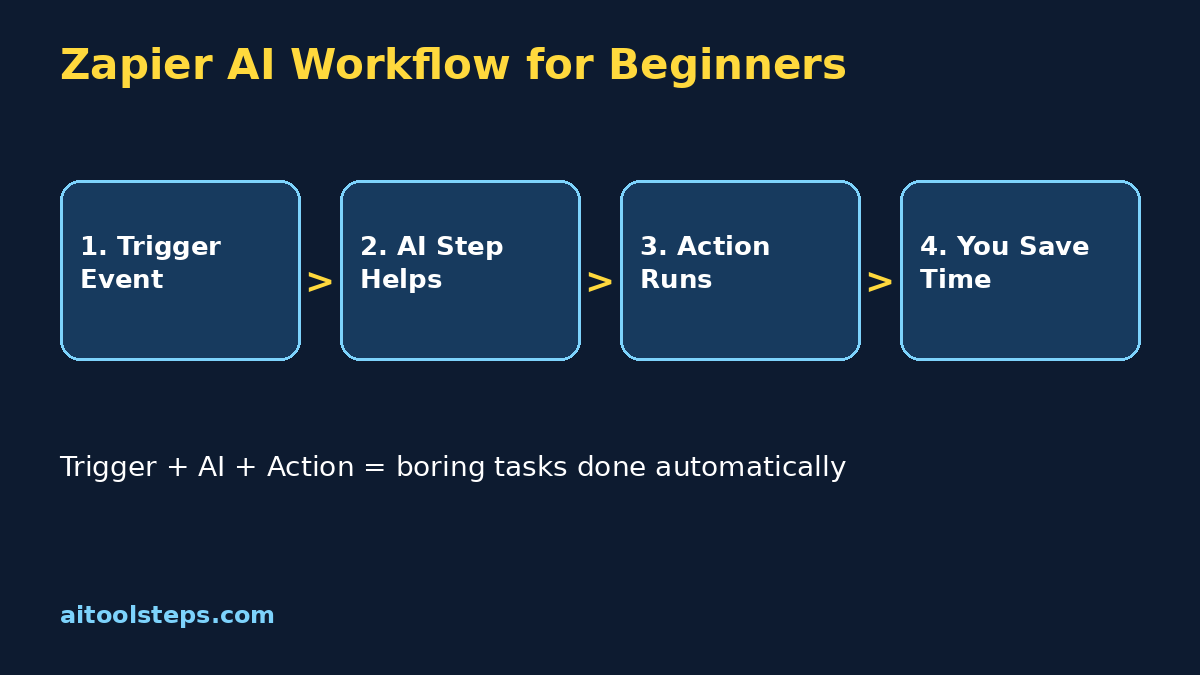
Every automation, called a Zap, has two simple parts:
Zapier AI adds a helpful layer on top of this. You can describe your goal in normal language, and the AI builder suggests the trigger and actions for you. Inside a Zap, AI steps can also write, summarise, classify, and reformat text, so your automation can do smarter work than simple copying. For a beginner, this combination is powerful: the connections move the data, and the AI handles the reading and writing.
Step 2: Create Your Free Zapier Account
Getting started is free and takes only a few minutes, which is why zapier ai for beginners is such a friendly first automation tool.
Pro tip: a task is counted when an action runs successfully. Testing carefully before you switch a Zap on protects your free tasks from being wasted on a broken workflow.
Step 3: Plan Your First Automation on Paper
Beginners who plan for two minutes build better Zaps than people who click randomly for twenty minutes. Write one simple sentence before you touch the editor: When this happens in App A, do that in App B.
Good first automations for beginners include:
Keep your first Zap to one trigger and one or two actions. You can add filters, delays, and extra steps later. A small Zap that works every day is worth far more than a giant Zap that never gets finished. This planning habit is the real secret behind zapier ai for beginners success.
Step 4: Build Your First Zap With the AI Builder
Now build the automation you planned. The AI builder makes this step much easier than the old manual method.
Field mapping is the one new skill here, and it becomes natural quickly. Click a field, pick the data item from the trigger, and move on. If you are unsure, choose the obvious match first and fix it after testing.
Therefore, take your time with the setup. In short, a careful first hour saves many hours later, especially when you are learning zapier ai for beginners for the first time.
Step 5: Test Your Zap Before You Switch It On
Never publish an untested Zap. Testing takes one minute and saves you from messy data in your real apps.
Keep a small test folder, test form, or test label for this purpose. Testing with harmless sample data means your real customers, students, or clients never see your learning mistakes.
Step 6: Add an AI Step to Make Your Zap Smarter
This is where zapier ai for beginners gets exciting. An AI step can read incoming text and produce useful new text inside the automation itself.
Popular beginner AI uses include:
Prompt the AI step the same way you prompt any AI tool: state the task, the format, and the tone. For example: Summarise this email in two sentences, list any deadline you find, and keep the tone neutral. Then map that AI output into your next action, such as a Slack message or a new sheet row. Always review AI drafts before anything is sent to a real person in your name.
Step 7: Add Filters, Paths, and Delays Carefully
Once your basic Zap works, three features let you control it like a professional, without writing any code.
Add only one of these at a time, test again, and watch the Zap history for a day. Slow, careful upgrades keep a working automation working, which matters more than clever design.
| Method | Cost to Start | Setup Time | Best For |
|---|---|---|---|
| Doing it manually | Free | None | One-off tasks done once |
| Zapier AI | Free plan available | Minutes | Beginners connecting popular apps |
| Make | Free plan available | Longer learning curve | Visual builders who want complex flows |
| Custom code or APIs | Developer time | Hours to days | Apps with no ready-made connector |
As a result, your workflow becomes more reliable. In addition, these small checks help zapier ai for beginners users build confidence before they add more steps.
Step 8: Compare Zapier With Doing It Manually and With Other Tools
For most beginners, Zapier wins on ease: the app library is huge, the AI builder shortens setup, and the editor explains each step in plain language. If you later need very complex branching or much higher volume, you can explore alternatives with the skills you learned here, because triggers, actions, and mapping work the same way everywhere.
Step 9: Monitor Your Zaps — Zapier AI for Beginners Maintenance
A Zap is not finished when it is switched on. Check it like you would check any helpful assistant during its first week of work.
Five minutes of monitoring a week keeps your automations trustworthy. The moment you stop trusting a Zap, you start double-checking it by hand, and then it saves you nothing.
Step 10: Avoid the Common Beginner Mistakes
Most Zapier problems come from a short list of habits. Avoid these and your zapier ai for beginners journey will stay smooth.
Finally, remember that automation is a habit, not a one-time project. Consequently, zapier ai for beginners users who review their Zaps weekly get the best long-term results.
Frequently Asked Questions About Zapier AI for Beginners
Is Zapier AI free for beginners?
Yes, you can start on a free plan with a limited number of tasks and active Zaps. Limits and included AI features can change, so check the official pricing page for the current free allowance before you build a workflow that depends on a specific number.
Do I need coding skills to use Zapier AI?
No. Zapier is a no-code tool. You connect accounts, choose triggers and actions from menus, and describe goals in plain English for the AI builder. If you can fill in a form, you can build a useful Zap.
What is a Zap and what is a task?
A Zap is one automation workflow, made of a trigger and one or more actions. A task is counted each time an action runs successfully. One Zap run can use several tasks if it has several actions, so simple Zaps stretch a free plan further.
Which apps can Zapier connect?
Zapier connects thousands of popular apps, including email, spreadsheets, forms, calendars, chat tools, CRMs, and online stores. Search the Zapier app directory for your exact tools before you sign up, so you know your main apps are supported.
Is it safe to connect my accounts to Zapier?
Zapier uses standard secure sign-in permissions for each app, and you can disconnect any app at any time from your settings. Use strong passwords, turn on two-step verification on your main accounts, and only connect apps you genuinely need for an automation.
What should my first Zap be?
Choose a task you repeat every week, such as saving email attachments, copying form responses into a sheet, or drafting follow-ups. A weekly repeated task teaches you the whole system and starts saving you time immediately.
Final Thoughts
Learning how to use zapier ai for beginners is really about one mindset shift: stop moving information by hand between apps that can talk to each other. Start with one small, well-tested Zap, add one AI step to summarise or draft for you, and watch your history for the first week. Then automate the next boring task, and the next. Within a month, those small savings add up to hours every week, and you will wonder why you ever copied and pasted between tabs at all.
Explore More Free AI Tools
Discover more free tools and step-by-step guides on AIToolSteps:
Visit https://aitoolsteps.com/ to explore all free AI tools and beginner guides.