

Most AI assistants wait for you to type something. Hark Pro tries to be different — it aims to do the boring stuff before you even remember to ask. Launched on October 6, 2026 by the startup Hark (founded by serial entrepreneur Brett Adcock), Hark Pro is a free AI personal assistant built on a model trained specifically for "computer use" — meaning it can operate websites, handle your digital tasks, and even anticipate what you need next.
If you have never used an AI agent before, this beginner guide will teach you exactly how to use Hark Pro, walking you through everything: what Hark Pro is, how to set it up, how to give it your first task, and how to use it safely. By the end, you will know exactly how to make this free AI assistant work for your daily life.
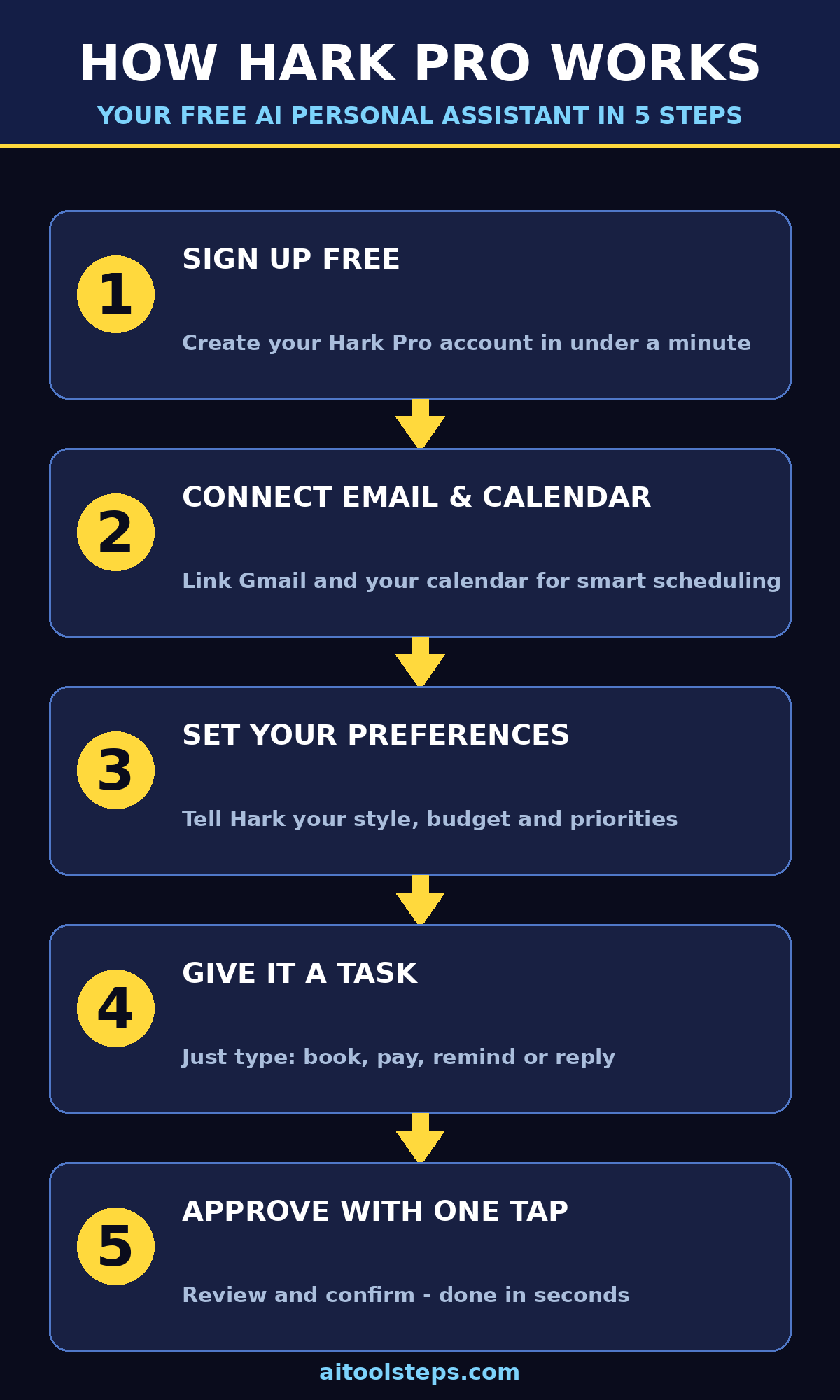
Step 1: Understand What Hark Pro Actually Does
Before you sign up, it helps to know what makes Hark Pro different from the assistants you already know, like ChatGPT, Siri, or Google Assistant.
A normal chatbot answers your questions. Hark Pro is an AI agent — it takes action. (New to the idea of agents? Read our beginner guide to AI agents first.) Instead of just telling you how to pay a bill, it can actually go to the website and do it (with your approval). Here is what it can handle, according to the company's launch announcements:
- Digital errands: order groceries, pay bills, book transportation, and complete online tasks for you.
- Inbox and schedule help: flag emails that need replies, draft responses, and remind you about upcoming meetings.
- Proactive suggestions: notice things you have not finished — for example, a child's lunch card running low — and offer to fix them.
- Research and planning: plan a movie outing by finding seats, checking parking availability, and reserving a garage space, then hand you the entry QR code.
The technology behind this is called Handoff, Hark's cloud computer, which the company says can run as many as six browsers at once and log into millions of websites on your behalf. You see the results through "panels" — mini-dashboards on your Hark Pro homepage — and approve sensitive actions like payments with a single tap on Action Buttons.
The key idea: Hark wants to build a user interface for AI, not just another chatbot. You configure it once with access to your digital life (email, calendar, and so on), and then it works in the background.
Step 2: Create Your Free Hark Account
Getting started is simple and, importantly, free for the standard version.
- First, open your web browser and go to Hark's official website.
- Click Sign up or Get started and create an account with your email address.
- Verify your email by clicking the confirmation link Hark sends you.
- Choose your plan: Hark Pro is free for its standard version. Paid tiers exist for heavy users — $20 per month gives you twice the normal usage, and $100 per month gives you ten times the usage, according to the company's launch pricing.
- Download the app if you want it on your phone — Hark Pro is available on the web, iOS, and Android.
- Central chat dialog: this is where you type requests, just like any AI assistant.
- Action feed: a stream of prompts for things Hark thinks you might need — expenses to approve, emails to answer, meetings to prepare for.
- Panels: visual mini-dashboards that track things you care about, such as travel plans or spending.
- Go to Settings → Integrations (or the equivalent connections page in the app).
- Connect your email provider (for example, Gmail or Outlook) using the official sign-in flow — never type your password into a random pop-up.
- Connect your calendar the same way so Hark can see meetings and deadlines.
- Review the permission screen carefully: Hark will list exactly what it can read and do. Grant access only to what you are comfortable with.
- Tell Hark your name, timezone, and city so reminders and bookings are accurate.
- Share your preferences — for example, "I prefer morning flights," "I am vegetarian," or "Remind me about bills three days early."
- Ask it directly: "What do you remember about me?" to see its current memory, and tell it to forget anything you do not want stored.
- "Summarize the unread emails from today and tell me which ones need a reply."
- "What meetings do I have tomorrow, and do I need to prepare anything?"
- "Find me three highly-rated Italian restaurants near me that are open tonight."
- An expense approval panel appears when it spots a charge that looks unusual.
- A travel panel might note that a flight you mentioned is coming up and offer to check you in.
- A household panel could remind you that a subscription renews next week and ask whether to keep it.
- Pick a simple, reversible task, such as "Check the price of this product on three different stores" or "Find the cheapest flight for my trip dates."
- Watch Hark open browsers and navigate the sites. It should narrate what it is doing.
- When it reaches a step that costs money or changes something permanent (a purchase, a booking, a cancellation), it will pause and ask for approval via an Action Button.
- Approve only actions you fully understand. If something looks wrong, cancel and redo the request with clearer instructions.
- Read before you tap. The button shows what Hark is about to do — check the amount, the recipient, and the website.
- Reject freely. Saying no to a suggested action is not rude; it is how you stay in control and how Hark learns your boundaries.
- Set limits. If the settings allow spending caps or approval rules, turn them on. For example, require approval for anything over a small amount.
- Review history. Check your activity log regularly to see everything Hark did on your behalf.
- Audit connections monthly. Go to Settings → Integrations and remove anything you no longer use.
- Check memory. Periodically ask "What do you remember about me?" and delete entries you do not want kept.
- Use the free tier thoughtfully. Free AI products still need a business model — the paid tiers ($20 and $100 per month) are how Hark makes money, which is healthier than an ads-based model.
- Keep sensitive accounts separate. Consider using a dedicated email address for AI assistant integrations rather than your primary personal inbox.
- AI Title Generator — craft catchy headlines in seconds: https://aitoolsteps.com/
- Meta Description Generator — write perfect SEO descriptions fast: https://aitoolsteps.com/
- AI Rewriter — rewrite any text in a fresh voice: https://aitoolsteps.com/
- Keyword Density Checker — analyze your content's SEO health: https://aitoolsteps.com/
Beginner tip: Start with the free plan. The standard version is enough to learn every skill in this guide, and you can upgrade later only if you find yourself hitting usage limits.
Step 3: Take the Tour of Your New Homepage
When you first log in, Hark Pro opens a full-screen experience that looks different from a normal chatbot app:
Next, spend five minutes clicking around. Open the settings menu, look at the integrations page, and read the short onboarding tips. The interface is designed to feel like a homepage for your digital life rather than a single chat window, and getting comfortable with the layout now will save you time later.
Step 4: Connect Your Email and Calendar (Safely)
Hark Pro becomes truly useful only when it can see the parts of your digital life you want it to manage. The two most important connections are your email and your calendar.
Safety rule for beginners: First, connect email and calendar, and leave payment methods, credit cards, and shopping accounts disconnected until you fully trust the system. You can always add them later — and removing access should be just as easy as granting it.
Step 5: Set Up Memory and Preferences
One of Hark's selling points is that it remembers things about you, so it gets more helpful over time. You can guide what it remembers:
In addition, think of this step as training a new personal assistant on their first day. The clearer your instructions now, the fewer corrections you will need later.
Step 6: Give Hark Your First Simple Task
Start small as you learn how to use Hark Pro. Pick one low-risk task so you can see how Hark Pro works before trusting it with anything important. Good first tasks include:
Watch how Hark responds. For web tasks, it may open its cloud browsers and work through the steps visibly. For questions, it answers directly in the chat. Notice when it asks for confirmation — that is the Action Button system working, and you should get used to approving or rejecting each action deliberately.
Step 7: Use Proactive Suggestions and Panels
This is where Hark Pro starts feeling different from a chatbot. Instead of waiting for you, it watches for patterns and surfaces suggestions in your feed. For example:
Treat these suggestions like a helpful colleague's sticky notes: some will be spot-on, some will be wrong. Tap to accept the good ones, dismiss the bad ones, and correct Hark when it misunderstands — that feedback is how its memory improves.
Step 8: Try Web Automation with Handoff
Handoff is Hark's cloud computer — the feature that lets it actually use websites for you. Here is how to try it safely:
Beginner tip: However, never let any AI agent make a purchase or payment on your first week. Use Handoff for research and price-checking first, and only enable payment actions after you have seen it behave reliably.
Step 9: Approve Actions with Action Buttons
Action Buttons are Hark's safety system — every consequential action requires your tap before it happens. Build these habits:
In short, think of Action Buttons as the difference between an assistant who acts and an assistant who acts recklessly. The approval step is the feature — do not try to bypass it.
Step 10: Manage Privacy Like a Pro
Hark markets itself as a privacy-focused assistant, and its founder has talked about building a user interface for AI rather than harvesting data. Still, you are giving an AI agent access to your email, calendar, and browsing — so manage privacy actively:
Privacy is not a one-time setting; it is a habit. The five minutes you spend each month reviewing permissions is the cheapest insurance you can buy.
Hark Pro vs Other AI Assistants: Quick Comparison
How does Hark Pro stack up against the assistants you might already use? Here is a beginner-friendly comparison:
| Feature | Hark Pro | ChatGPT | Siri / Google Assistant |
|---|---|---|---|
| Price (basic use) | Free | Free tier available | Free (built into devices) |
| Takes real-world actions | Yes — web automation via Handoff | Limited (with plugins/tools) | Limited (device-level tasks) |
| Proactive suggestions | Yes — feed and panels | No | Basic reminders only |
| Platforms | Web, iOS, Android | Web, iOS, Android | Tied to Apple/Google devices |
| Privacy positioning | Privacy-focused marketing | Standard data policies | On-device processing claims |
| Best for | Automating digital errands | Writing, coding, brainstorming | Quick phone commands |
Bottom line: Hark Pro is the most action-oriented of the three. ChatGPT is still better for writing and thinking tasks, and Siri/Google Assistant win for hands-free phone control. Many people will end up using more than one.
Frequently Asked Questions
Is Hark Pro really free?
Yes. Hark Pro's standard version is free, according to the company's launch announcement. Paid tiers exist for heavy users: $20 per month doubles your usage limits, and $100 per month gives you ten times the usage. For most beginners, the free version is more than enough to learn the system.
Is Hark Pro safe to connect to my email?
Hark uses official sign-in flows for integrations, and consequential actions require your approval through Action Buttons. That said, no AI agent is risk-free — start by connecting only email and calendar, skip payment methods until you trust it, and audit your permissions monthly. Never share passwords outside official login screens.
What devices does Hark Pro work on?
Hark Pro is available on the web, iOS, and Android, so you can use it from your computer or your phone. The company has also hinted at future hardware devices, reportedly planned for 2027, but for now the apps and website are the way in.
Does Hark Pro replace ChatGPT?
Not really — they do different jobs. ChatGPT excels at writing, coding help, brainstorming, and answering knowledge questions. Hark Pro excels at doing things: managing email triage, booking, shopping research, and proactive reminders. Most users will find the two complement each other. If you want another free assistant to compare, see our Meta AI beginner guide.
Can Hark Pro spend my money without asking?
No — and this is important. Actions like purchases, payments, or bookings pause for your approval via Action Buttons before they execute. Never approve an action you do not understand, and consider setting spending limits in the app's settings if that option is available.
Who made Hark, and can I trust a new startup?
Hark was founded by serial entrepreneur Brett Adcock and launched Hark Pro on October 6, 2026 (see TechCrunch's launch coverage for details). As with any young startup, it is wise to be a little cautious: start with the free tier, limit the accounts you connect, and keep an eye on how the product and its privacy practices evolve before going all-in.
Final Thoughts
Hark Pro is one of the most interesting AI launches of October 2026 — a free AI personal assistant that does not just answer questions but actually does the work: triaging your inbox, planning outings, checking prices, and nudging you about the things you forgot. Now you know how to use Hark Pro from signup to your first automated task. For beginners, the learning curve is gentle: sign up free, connect email and calendar, start with small tasks, and let the proactive feed show you what an agentic assistant feels like.
The golden rules stay the same as with any AI agent: start small, approve every consequential action yourself, audit your permissions regularly, and never connect payment methods until you trust the system. Follow those, and Hark Pro can genuinely give you back time every single day.
Ready to try it? Sign up for the free tier today, run through the ten steps above, and see how it feels to have an assistant that works before you ask.
Explore More Free AI Tools
Want to keep exploring? AIToolSteps publishes beginner-friendly guides to the best free AI tools every day. Check out these handy free tools right here on our site:
Visit https://aitoolsteps.com/ for the full library of free AI tools and daily how-to guides.