

If you have heard everyone talking about AI assistants but never tried one yourself, Google Gemini is one of the easiest places to start. It is Google’s free AI assistant, available at gemini.google.com, and it can answer questions, write text, explain confusing topics, summarize documents, create images, and even hold a voice conversation with you. You do not need any technical skills — if you can type a message in WhatsApp, you can use Gemini.
This beginner-friendly guide walks you through everything step by step: opening your account, writing your first prompt, uploading files, generating images, talking with Gemini Live, and trying advanced tools like Deep Research and Canvas. By the end, you will know exactly how to get real value from Gemini without paying a single rupee — and you will also learn when the paid plans are (and are not) worth it.
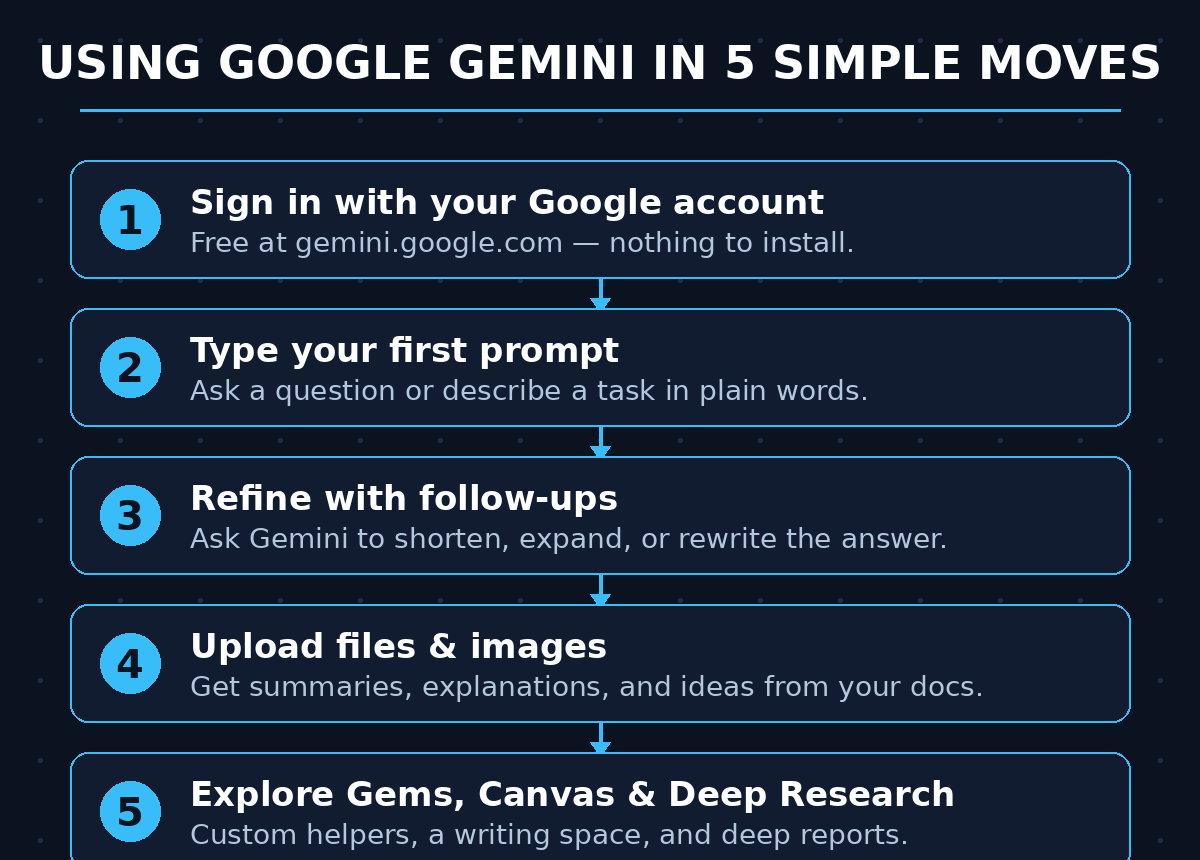
Step 1: Open Google Gemini on Your Phone or Computer
Gemini works on almost every device. On a computer, simply open your browser and go to gemini.google.com. On a phone, you can download the free Gemini app from the Google Play Store or the Apple App Store, or use the same website in your mobile browser. Many newer Android phones already have Gemini built in as the default assistant.
To use it, you need a Google account — the same one you use for Gmail or YouTube. If you already have one, just sign in and you are ready. If you do not have a Google account, create one for free at accounts.google.com, which takes only a few minutes.
- Best for first-timers: start on a computer screen, where it is easier to read long answers and explore the side menu.
- Mobile tip: on Android, you can summon Gemini the same way you used to summon Google Assistant — a long-press on the home button in many regions.
- No installs required: the website works fully in any modern browser, so there is nothing to download if you are on a desktop.
Step 2: Meet the Google Gemini Interface
Once you sign in, you will see a clean screen with a chat box at the bottom and a greeting from Gemini at the top. This is your main workspace. Type anything in the chat box and press Enter — Gemini answers within seconds. Every chat you start is saved in the left-hand panel (click the menu icon on mobile), so you can return to old conversations any time.
Above the chat box you will usually see a model picker — a small menu that lets you choose which Gemini model answers. At the time of writing, free users typically get Gemini Flash (fast, great for everyday questions) with some access to the more powerful Pro model for harder tasks. You rarely need to change this manually, but it helps to know it exists.
- New chat button: starts a fresh conversation; use it when you switch to a completely different topic.
- History panel: shows your past chats so you can revisit answers without asking again.
- Microphone icon: lets you speak your prompt instead of typing — handy on phones.
Step 3: Write Your First Prompt
A “prompt” is simply the message you send to Google Gemini. This is the core skill of using any AI tool, so let us practice. Start with something simple and personal, for example: “Explain how a credit card works in simple words, like I am 15 years old.”
You will notice something magical: the better your prompt, the better the answer. Vague prompts get vague answers; specific prompts get useful ones. Compare “Write about fitness” with “Give me a 3-day beginner workout plan I can do at home with no equipment.” The second one gives you something you can actually use.
- Add context: tell Gemini who you are and what you need (“I am a student…”, “for my small shop…”).
- Ask for a format: say “make it a table”, “use bullet points”, or “keep it under 200 words”.
- Follow up: if the first answer is not perfect, reply with “make it simpler” or “add one more example” — you do not need to start over.
Step 4: Upload Files and Images to Gemini
Gemini can “see” files you attach. Click the plus (+) or paperclip icon near the chat box to upload a photo, PDF, document, or spreadsheet, then ask Gemini about it. This is one of the most underrated beginner features.
Imagine you get a long contract, a confusing medical report, or a restaurant menu in another language. Take a photo or upload the file and ask: “Summarize this in 5 bullet points” or “What is the most important thing I should know from this document?” Gemini reads it and answers in seconds.
- PDF summaries: upload study notes and ask Gemini to quiz you on them.
- Photo questions: snap a photo of a plant, a broken gadget, or a math problem and ask what it is or how to fix it.
- Privacy note: avoid uploading sensitive documents (bank statements, ID cards) to any AI service, including Gemini.
Step 5: Talk to Google Gemini with Voice Mode (Gemini Live)
Typing is not the only way. Gemini Live is the voice mode where you have a natural spoken conversation with Gemini, like calling a knowledgeable friend. Tap the voice or waveform icon in the app to start it. You can interrupt it mid-sentence, ask follow-up questions, and talk naturally — no need for robotic commands.
This is perfect for hands-free moments: learning a language while cooking, rehearsing for an interview, or asking quick questions while walking. Gemini Live can even talk through topics in multiple languages, making it a surprisingly good language-practice partner.
- Start with a topic: say “Let’s practice English speaking” or “Quiz me on world capitals”.
- Interrupt freely: you can cut in with “Wait, explain that last part again” — it keeps up.
- End anytime: just close the voice screen; a transcript of the conversation usually remains in your chat history.
Step 6: Create and Edit Images with Gemini
You do not need a design degree to make images anymore. Just describe what you want in words: “Create an image of a cozy reading corner with warm lights, watercolor style.” Gemini generates the picture in under a minute, free of charge on the free tier.
Even better, you can edit images by talking about them. Upload a photo and say “Remove the person in the background” or “Make the sky sunset-colored.” The edits are surprisingly realistic. Beginners love this for social media posts, school projects, birthday cards, and small-business flyers.
- Be descriptive: mention style (cartoon, realistic, watercolor), mood, colors, and setting.
- Specify what to avoid: add “no text in the image” if you want a clean graphic without garbled words.
- Try variations: ask “make 3 different versions” and pick your favorite.
Step 7: Use Canvas for Writing, Code, and Projects
Canvas is Google Gemini’s built-in workspace for anything longer than a quick answer — essays, blog posts, study guides, code, lesson plans. When you ask Gemini to write something long, look for the option to open it in Canvas. You get a clean document on one side and a chat panel on the other.
The beauty of Canvas is the easy editing. Instead of copying text out and rewriting it yourself, highlight a paragraph and ask Gemini to “make this shorter”, “change the tone to professional”, or “add an example here”. It rewrites only that part. Students use it for assignments, freelancers use it for client drafts, and bloggers use it for first drafts of articles.
- Draft first, refine later: get a rough version in Canvas, then polish it with short follow-up requests.
- Export easily: copy the final text into Google Docs, Word, or your blog with one click.
- Code too: ask Canvas to write a small program or fix an error, then test the changes right there.
Step 8: Let Deep Research Write Full Reports for You
Deep Research is one of Gemini’s most impressive free features. Instead of answering from memory alone, Gemini browses many sources, reads them, and writes you a multi-page report with citations — like hiring a research assistant for ten minutes.
Try this: “Research the best free AI image tools in 2026 and write a comparison report with pros and cons for each.” Deep Research will take a few minutes, then deliver a structured document with links to sources. This is gold for students writing papers, shoppers comparing products, or business owners researching competitors.
- Give a clear research question: the more specific the question, the better the report.
- Be patient: a good report takes a few minutes — do something else and come back.
- Verify important facts: always double-check critical numbers or claims against the cited sources before using them professionally.
Step 9: Build Gems — Your Own Custom Assistants
A Gem is a saved, personalized version of Gemini tuned for one recurring task. For example, you could make a “Study Buddy” Gem that always explains things simply, a “Fitness Coach” Gem that remembers your workout schedule, or a “Grammar Fixer” Gem that only corrects your writing without changing your meaning.
Creating one is easy: open the Gems section, click to create a new Gem, give it a name, and write instructions like “You are my friendly math tutor. Explain every solution step by step and ask me a practice question at the end.” From then on, opening that Gem gives you a specialized assistant every time. Beginners love Gems because they turn one generic AI into many personal helpers.
- Start with one Gem: pick your most repeated task (studying, writing emails, workouts) and build a Gem for it.
- Write clear instructions: the Gem behaves exactly as you describe, so be specific about tone and format.
- Edit anytime: you can update a Gem’s instructions as your needs change.
Step 10: Connect Google Gemini to Your Google Apps
Google Gemini works best when it can reach the apps you already use. With your permission, it can connect to Gmail, Google Docs, YouTube, Google Maps, and more. This unlocks questions like “Summarize the unread emails about my flight booking”, “Find me highly-rated restaurants near me”, or “Summarize this YouTube video’s main points” (by pasting the link).
You control which connections are on, and you can turn them off anytime in settings. This step turns Gemini from a clever chatbot into a genuine personal assistant that knows your context — your inbox, your calendar, your documents — while you stay in charge of what it can see.
- Enable connections gradually: turn on one app at a time so you understand what each unlock gives you.
- Ask location questions: “What is the weather today?” and “directions to the nearest ATM” work out of the box.
- Review permissions occasionally: check settings every few months and disconnect apps you no longer need.
Google Gemini Free vs Paid: Which Plan Do You Actually Need?
Here is the honest truth most articles skip: the free tier is enough for most beginners. At the time of writing, the free plan includes the fast Flash model with some access to the Pro model, image generation and editing, Deep Research, Gemini Live, Canvas, and Gems — all for $0 with a free Google account. Google also sells paid Google AI plans (AI Plus, AI Pro, and AI Ultra tiers) with higher usage limits, more access to the most powerful models, video generation, and extra cloud storage.
| Feature | Gemini Free | Google AI Pro (paid, ~$19.99/month at time of writing) |
|---|---|---|
| Price | $0 | ~$19.99/month |
| Chat models | Flash + some Pro access | Full access to Pro models, higher limits |
| Image generation | Yes | Yes, higher limits |
| Gemini Live voice mode | Yes | Yes |
| Deep Research | Yes | Yes |
| Canvas & Gems | Yes | Yes |
| Video generation | Limited / not included | Yes (with dedicated credits) |
| Usage limits | Standard | About 4x higher than free |
| Extra cloud storage | 15 GB included | Up to 5 TB |
| Gemini in Gmail/Docs | Limited | Yes |
Rule of thumb: stick with free until you actually hit a limit that bothers you. If you use Gemini daily for heavy research or video creation, the paid tier may pay for itself — otherwise, free is genuinely generous. Prices and plan names change, so check the official Google AI plans page for the latest details.
FAQ
Is Google Gemini really free?
Yes. The free tier costs nothing with a Google account and includes chat, image generation, Gemini Live voice mode, Deep Research, Canvas, and Gems. Usage limits apply, but for normal daily use you will rarely hit them. Paid Google AI plans exist for heavier users — check Google’s official plans page for current pricing.
Is Gemini the same as Bard?
Yes and no. Bard was the original name of this product when it launched. Google renamed Bard to Gemini in 2024, and the name now also covers the family of AI models behind it. If you used Bard before, your history moved over — you are using the same service under its new name.
Is Gemini better than ChatGPT?
It depends on what you need. Gemini is deeply connected to Google’s ecosystem — Gmail, Docs, YouTube, Maps — which is a big advantage if you live in Google apps, and its free tier is very generous (including Deep Research and image generation). Other assistants have their own strengths. The best approach is to try both free versions for a week and keep the one that fits your daily workflow.
Can Gemini generate images for free?
Yes. Image generation and even image editing (describing changes in words) are included in the free tier at the time of writing. Just describe the picture you want in plain language. Paid plans give you higher limits and sometimes early access to newer image models, but casual image creation works fine on free.
Does Gemini save my conversations?
By default, Gemini keeps your chat history so you can revisit past conversations, and Google may use some activity data to improve the service depending on your settings. If this concerns you, open Gemini’s settings and review the activity and data controls — you can turn off history saving and delete old chats anytime. Never paste passwords, bank details, or other sensitive information into any AI chat.
Do I need the Gemini app, or is the website enough?
The website at gemini.google.com does everything the app does, so it is completely fine to start there — especially on a computer. The mobile app adds convenience: voice conversations with Gemini Live, camera-based questions, and quick access from your home screen. Try the website first; install the app only if you want Gemini in your pocket.
Final Thoughts: How to Use Google Gemini
Learning how to use Google Gemini is less about memorizing features and more about building one habit: asking good questions. Start with the free website today, practice writing clear prompts, and explore one new feature each week — Live for conversations, Canvas for writing, Deep Research for reports, Gems for recurring tasks. Within a month, Gemini will quietly become one of your most-used apps, saving you hours on research, writing, and everyday problem-solving.
The paid plans are there when you need them, but do not rush. Most beginners discover that the free tier handles everything they throw at it. The real upgrade is not a subscription — it is your prompting skill, which gets better every time you use it. So open gemini.google.com, type your first question, and start learning. Your AI assistant is waiting.
Explore More Free AI Tools
Want to keep leveling up your AI skills? Try these free tools from AIToolSteps:
- AI Title Generator — instantly creates catchy, SEO-friendly titles for your blog posts, videos, and articles. Try it free at AIToolSteps.
- Meta Description Generator — writes perfect meta descriptions under 160 characters that boost your click-through rates. Try it free at AIToolSteps.
- AI Rewriter — rewrites any text in seconds to make it clearer, more unique, or more professional. Try it free at AIToolSteps.
- Keyword Density Checker — analyzes your content to make sure your keywords appear the right number of times for SEO. Try it free at AIToolSteps.