

Imagine describing the app of your dreams in a single sentence — “a fitness tracker with a dark theme and a step-count dashboard” — and watching a complete, professional-looking interface appear in front of you in under a minute. That is exactly what Google Stitch does. It is Google’s free AI-powered UI design tool, available at stitch.withgoogle.com, that turns plain-language text prompts into full app and website designs you can preview, tweak, and hand off to a developer.
You do not need design experience. You do not need to know how to code. If you can describe what you want, Google Stitch can design it. In this beginner’s guide, you will learn how to use Google Stitch from scratch: how to sign in, how to write prompts that produce great results, how to customize themes, colors, and components, how to generate variations, and how to export your designs to code so a developer (or an AI coding assistant) can turn them into a real product. By the end, you will be able to create landing pages, app mockups, portfolio pieces, and client previews on your own — for free.
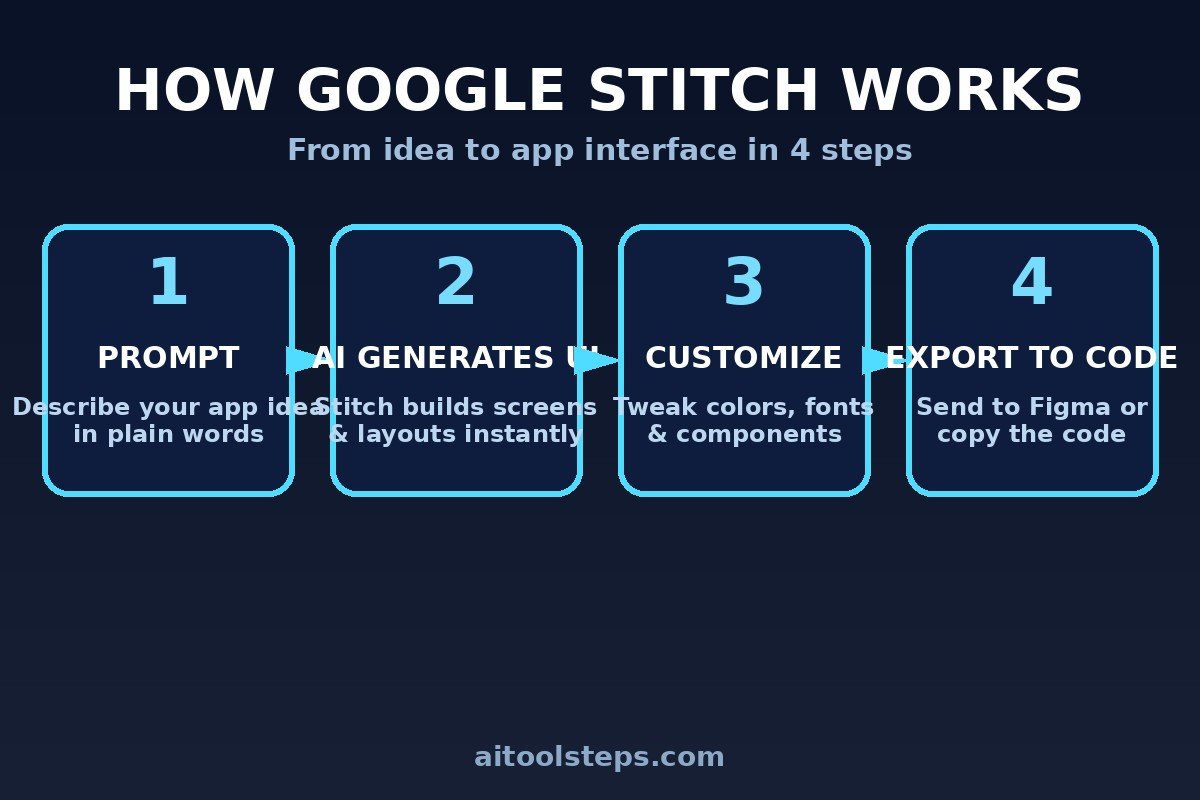
Step 1: Open Google Stitch and Sign In With Your Google Account
Getting started takes about a minute. Open your browser and go to stitch.withgoogle.com. Google Stitch is a web-based tool, so there is nothing to download or install — it works in Chrome, Edge, Firefox, or Safari on any computer.
Click the sign-in button and log in with your Google account. At the time of writing, Google offers a free way to start using Stitch, so most beginners can experiment without paying anything. Once you are signed in, you will land on the Stitch home screen, which typically shows a prompt box, a few example projects for inspiration, and a way to start a new design from scratch.
Take two minutes to click through one of the example projects first. Seeing what Stitch produces — complete screens with buttons, navigation bars, cards, and images — will give you a much clearer sense of what to ask for when you write your own prompt. This small step saves a lot of trial and error later.
Step 2: Write Your First Text Prompt to Generate a UI Design
The prompt box is the heart of Google Stitch. Instead of dragging boxes and buttons around a canvas, you describe the interface you want in plain English, and the AI generates the screens for you. Think of it as giving instructions to a very fast junior designer.
A good first prompt includes three things: the type of product, the key screens or features, and the visual style. For example:
- “A mobile fitness tracking app with a home dashboard, workout history screen, and profile page, dark theme, modern minimal style”
- “A landing page for a coffee shop with a hero section, menu cards, and a booking form, warm cozy colors”
- “A personal portfolio website with a projects gallery, about section, and contact form, clean light theme”
Type your prompt, press generate, and wait while Stitch builds your design. The first generation usually takes a couple of minutes. When it finishes, you will see a set of finished screens rendered with realistic placeholder content, icons, and layouts. Do not worry if it is not perfect — the next steps are all about refining it.
Step 3: Choose a Theme — Light Mode, Dark Mode, or Custom Colors
One of the first decisions Stitch helps you make is the visual theme of your design. Most generated designs arrive with a default theme, but you can switch between light and dark modes or adjust the color palette to match your brand or taste.
Look for the theme or style controls in the editing panel. Switching from light to dark mode instantly changes backgrounds, text contrast, and accent colors across every screen — this is a great way to see how the same design feels in two very different moods. A banking app might feel trustworthy in light blue tones, while a music app often looks sleeker in dark mode with neon accents.
Beginner tip: if you have brand colors (for example, from a logo), tell Stitch in your original prompt — “use teal and orange as brand colors” — and it will apply them from the start. Fixing colors with words in the prompt is usually faster than adjusting them manually screen by screen afterward.
Step 4: Generate Multiple Variations and Compare
Stitch does not give you just one design — it can generate multiple variations of the same idea. This is one of its most powerful features for beginners, because it replaces the blank-page problem with a gallery of options.
After your first design is generated, look for the option to create variations. Stitch will produce alternative versions of your screens with different layouts, typography, spacing, and component arrangements — all from the same original prompt. You might get one version with a bold, image-heavy hero section and another with a clean, text-focused layout.
Compare them side by side and ask yourself:
- Which layout makes the most important information easiest to find?
- Which style matches the mood of my product (playful, professional, luxury, friendly)?
- Which version would be simplest to actually build?
Pick your favorite as the base, and refine from there. Remember: it is far easier to edit a strong starting point than to build from nothing.
Step 5: Customize Layouts, Text, and Components
Once you have a base design you like, it is time to make it yours. Stitch lets you select individual elements — headlines, buttons, images, navigation bars, cards — and edit them directly, much like a simplified version of a professional design tool.
Click on any text to rewrite it. Change a button’s label, update a headline, or swap placeholder copy for your real content. You can also move components around, resize them, add new sections (like a testimonials row or a pricing table), and delete things you do not need.
The learning curve here is gentle on purpose. You are not configuring complex design systems — you are clicking things and changing them, the same way you would edit a document. A few practical customizations every beginner should try:
- Replace all placeholder text with real or realistic content
- Update button labels to clear calls to action (“Start Free Trial”, “Book a Demo”)
- Reorder sections so the most important content appears near the top
- Adjust spacing so the design does not feel cramped on small screens
Step 6: Add and Style Interactive Elements
A UI design is more than a pretty picture — it should show how the product works. Stitch includes common interactive components like navigation menus, dropdowns, tabs, toggles, forms, and buttons, and you can add or restyle them as your design grows.
Think through the user’s journey: what should someone be able to click, tap, or fill in on each screen? On a landing page, that usually means a navigation bar, a hero call-to-action button, and a contact or signup form. On an app dashboard, it might mean tabs, filters, and action buttons.
Stitch keeps these components visually consistent for you. When you add a new button, it typically matches the style of the existing ones — same corner rounding, same hover color logic — so your design looks professionally coherent even if you have never studied design systems. If something looks off, describe the fix in plain words using Stitch’s edit or regenerate options for that section.
Step 7: Preview Your Design on Different Screen Sizes
Real users will open your product on phones, tablets, and laptops, so your design needs to look good on all of them. Before you call a design finished, preview it at multiple screen sizes.
Stitch’s preview mode lets you see how your screens adapt to mobile, tablet, and desktop widths. Watch for the classic beginner problems:
- Text that overflows or gets cut off on narrow phone screens
- Buttons stacked too close together to tap comfortably on mobile
- Hero images that look great on desktop but crop awkwardly on phones
- Navigation menus that need to collapse into a hamburger menu on small screens
Fix what you find by editing the mobile layout directly or by asking Stitch to regenerate that screen with mobile in mind (“make this screen mobile-friendly with larger tap targets”). Catching these issues now saves painful redesigns after development starts.
Step 8: Export Your Design to Code for Developers
Here is where Stitch goes from “fun mockup tool” to “serious product tool”: it can export your designs as frontend code that developers can use as a starting point. This bridges the gap between design and development that normally takes weeks of back-and-forth.
Look for the export or “get code” option in Stitch. Depending on the current version, it can generate HTML/CSS or frontend framework code that mirrors your screens. A developer can take this code, connect it to real data and backend logic, and turn your mockup into a working app or website far faster than coding the interface from scratch.
Even if you never hire a developer, exported code is useful: you can paste it into an AI coding assistant and ask it to build out the functionality, or use it as a precise visual specification when briefing a freelancer. Export early versions too — sharing code plus screenshots communicates your vision far more clearly than screenshots alone.
Step 9: Use Stitch for Mockups, Portfolios, and Client Previews
Google Stitch is not just for personal experiments. Beginners use it to produce professional-looking work for real goals. Here are the most practical use cases:
- Startup mockups: Founders create clickable-looking app screens to pitch investors or validate ideas before spending money on development. A Stitch mockup can make a pitch deck dramatically more convincing.
- Portfolio pieces: Aspiring designers and freelancers generate polished UI case studies — show the prompt, the variations, and the final screens as a design process story.
- Client previews: If you sell websites or apps, generate two or three design directions in an afternoon and let the client pick. It turns a vague “I want a modern website” into concrete choices.
- Landing pages: Marketers and small business owners mock up campaign pages, test different hero sections and calls to action, and hand the winner to a developer.
- Learning design: Because Stitch produces professional layouts, studying its output — spacing, hierarchy, color use — is a genuinely good way to train your design eye.
Pick one of these goals for your first serious Stitch project. Designing with a real purpose in mind forces you to make decisions, and decisions are how you learn.
Step 10: Iterate With Better Prompts to Get Professional Results
Your first Stitch designs will be decent. Your tenth will be genuinely good — because prompting is a skill, and it improves fast with practice. The difference between an average result and a professional one is almost always the quality of the instructions.
Weak prompt: “a food app”
Strong prompt: “A mobile food delivery app with a home screen showing restaurant cards with ratings, a search bar with cuisine filters, an order tracking screen with a map and progress steps, warm red and cream color scheme, rounded modern cards, friendly casual tone in the copy”
Notice what the strong prompt adds: specific screens, specific components, colors, shapes, and even tone of voice. Stitch follows detail faithfully, so the more concrete your description, the closer the output matches your vision. When a result is close but not right, do not start over — regenerate just that screen with a more specific instruction (“make the hero section taller with the headline on the left and a signup form on the right”).
Keep a small notebook of prompts that worked well. Over a few weeks you will build a personal library of prompt patterns for dashboards, landing pages, forms, and mobile screens — and each new project will start from a stronger foundation.
Google Stitch vs Other Design Options
How does Google Stitch compare with the alternatives a beginner might consider? This table gives you a quick overview at the time of writing — exact features and pricing of third-party tools change often, so treat this as a general guide, not a precise specification.
| Google Stitch | Canva (AI features) | Figma | Manual design (from scratch) | |
|---|---|---|---|---|
| Ease of use | Very easy — describe in words | Easy — templates + AI assists | Moderate — real learning curve | Hard — needs design skill |
| Cost | Free to start | Free tier, paid Pro plan | Free tier, paid plans | Free but very time-consuming |
| Best for | Full UI mockups from prompts | Social graphics, quick visuals | Professional team design systems | Fully custom, unique work |
| Code export | Yes — frontend code output | Limited | Via plugins | You write it yourself |
| Learning curve | Minutes | Minutes | Days to weeks | Months |
The takeaway: if your goal is to go from an idea to a realistic app or website interface as fast as possible with no design background, Google Stitch is the shortest path. Figma remains the professional standard for teams building real design systems, and Canva is unbeatable for marketing graphics — but for AI-generated UI mockups, Stitch is purpose-built for the job.
Frequently Asked Questions
Is Google Stitch really free?
At the time of writing, Google offers a free way to start using Stitch at stitch.withgoogle.com — you just sign in with a Google account and begin generating designs. Google may introduce usage limits or paid tiers over time, as it does with many AI products, so check the current terms on the site itself. For learning and small projects, the free access is more than enough to get real value.
Do I need design or coding skills to use Google Stitch?
No — that is the whole point. You describe what you want in plain language, and Stitch produces the design. Basic familiarity with how apps and websites look (which you already have as an internet user) is enough to judge and refine the results. Coding skills only become useful at the export stage, and even then, you can hand the exported code to a developer or an AI coding assistant.
Can I use Stitch designs for commercial projects?
Generally, designs you create with Stitch are yours to use, including for client work and commercial products — but you should verify the current terms of service on stitch.withgoogle.com, since AI tool policies can change. One practical note: Stitch often uses placeholder images and icons, so replace those with properly licensed assets before shipping anything commercial.
How is Google Stitch different from asking ChatGPT to design a UI?
ChatGPT can describe a design or write HTML/CSS for you, but Stitch is purpose-built for interface design: it generates complete multi-screen visual mockups with consistent components, themes, and layouts in a visual editor you can click and edit. Think of ChatGPT as a brilliant generalist and Stitch as a specialist design partner — many people use both, drafting ideas in ChatGPT and building the visual mockup in Stitch.
What should I do if Stitch’s design doesn’t match my vision?
Do not throw it away — iterate. First try regenerating with a more detailed prompt (name the screens, components, colors, and style explicitly). Then use the variation feature to see alternative directions. Finally, edit the closest version manually: swap text, move sections, change the theme. Nine times out of ten, a design that is “almost right” becomes exactly right within two or three rounds of refinement.
Can Google Stitch build a complete working app by itself?
Not yet. Stitch excels at the visual interface — the screens, layouts, and components. A working app also needs backend logic, databases, user accounts, and real data, which is beyond a design tool’s scope. The realistic workflow is: design in Stitch, export the frontend code, then connect it to functionality yourself, with a developer, or with an AI coding assistant.
Final Thoughts
Google Stitch removes the biggest barrier that stops beginners from creating professional interfaces: the belief that design requires years of training and expensive software. With a Google account and a clear sentence describing what you want, you can generate full app and website designs, refine them through variations and manual edits, preview them on any screen size, and export code a developer can actually use.
Start small. Pick one project — a landing page for a hobby, a mockup of an app idea you have had for months, a portfolio piece — and run it through all ten steps in this guide. Your first design will teach you more than ten tutorials. And because Stitch is free to start, the only investment is an afternoon of experimenting. The gap between “I have an idea” and “here is what it looks like” has never been smaller — go close it.
Explore More Free AI Tools
Want to keep building with free AI tools? Check out these handy helpers on AIToolSteps: