
Imagine recording a professional presenter video without a camera, a microphone, or even leaving your desk. That is exactly what HeyGen AI does: you type a script, pick a realistic AI avatar, and the platform turns your words into a talking-head video with natural lip movement, gestures, and voice. In this beginner-friendly guide, you will learn how to use HeyGen AI step by step — from creating a free account to publishing your first avatar video and even translating it into dozens of languages.
What Is HeyGen AI?
HeyGen is an AI avatar video generator. Instead of filming yourself, you choose a digital presenter — called an avatar — paste in your script, and HeyGen animates the avatar to speak your words with realistic lip-sync, facial expressions, and hand gestures. It is popular with content creators, marketers, teachers, and small businesses because it removes the most expensive parts of video production: cameras, lighting, studios, and re-takes.
Key things HeyGen can do for you:
- Turn plain text into a presenter-led video in minutes
- Offer 500+ stock avatars (digital twins) plus photo avatars you can create from a single picture
- Clone voices and generate voiceovers in 30+ languages on the free plan (175+ on paid plans)
- Translate an existing video into another language while keeping the speaker’s lip movements in sync
- Generate full videos hands-free with its Video Agent feature
- Export in up to 4K resolution on paid plans
The best part for beginners: HeyGen has a genuinely free plan that requires no credit card. You get 3 videos per month, each up to 1 minute long, in 720p with a watermark — more than enough to learn the platform and decide whether it fits your workflow.
Step 1: Create Your Free HeyGen Account
Getting started takes less than two minutes.
- Go to the HeyGen website and click Sign Up (or “Get started for free”).
- Register with your Google account or an email address — no credit card is required for the free plan.
- Verify your email if prompted, and you will land on the HeyGen dashboard.
The dashboard is your mission control. From here you can start a new video, browse the avatar library, check your remaining free-plan credits, and open the Video Agent. Take a minute to look around before you create anything — knowing where the avatar library and templates live will save you time later.
Beginner tip: HeyGen’s free plan gives you 3 videos per month with a maximum length of 1 minute each. Plan your first experiments so you do not burn all three on test clips. Write your script first, then generate.
Step 2: Choose Your Avatar (Stock, Photo, or Custom Digital Twin)
The avatar is the face of your video, so choose carefully.
- Stock avatars (Digital Twins): HeyGen offers 500+ ready-made presenters of different ages, styles, and backgrounds. Browse the library and preview how each one looks when speaking.
- Photo avatars: Upload a single photo and HeyGen animates it into a talking presenter. The free plan includes a few photo avatars, which is a fun way to test the feature.
- Custom Digital Twin: On the free plan you get 1 custom digital twin — an avatar built from your own likeness. Paid plans unlock full custom video avatars with more natural movement.
To pick one, click Avatars in the dashboard, filter by style (professional, casual, young, and so on), and preview your favorites. Choose an avatar whose look matches your video’s purpose: a business-casual presenter for a product explainer, or a friendly casual avatar for social media content.
Beginner tip: For your very first video, use a stock avatar. Save your custom digital twin and photo avatars for later, once you understand the workflow.
Step 3: Write or Paste Your Script
Your script is the most important ingredient — the avatar can only be as good as the words you give it.
- Click Create Video and choose the Landscape (16:9) or Portrait (9:16) canvas depending on where you will publish (YouTube vs. TikTok/Reels/Shorts).
- Select your avatar, then click the script box and type or paste your text.
- Keep sentences short and conversational. HeyGen’s voices handle natural phrasing better than long, formal paragraphs.
- For a 1-minute free-plan video, aim for roughly 130–150 words.
A few script-writing rules that make avatar videos sound human:
- Write the way you speak, not the way you write essays. Read each line out loud before pasting it in.
- Break long ideas into two short sentences instead of one long one.
- Add natural pauses with commas and periods — the AI voice respects punctuation.
- Avoid abbreviations and symbols the voice might misread (write “for example” instead of “e.g.”).
Step 4: Pick a Voice (and Clone Your Own Later)
HeyGen includes hundreds of AI voices across 30+ languages on the free plan.
- In the editor, click the voice selector next to your script.
- Filter by language, gender, and style (narration, conversational, energetic).
- Press play to preview each voice with your actual script text.
- Pick the voice that fits your content: calm and clear for tutorials, upbeat for marketing.
The free plan even includes 1 voice clone — you can record a short sample of your own voice and HeyGen will recreate it. That means your avatar can literally speak in your voice. Save this for a project that matters, since you only get one on the free tier.
Beginner tip: Always preview the full script with your chosen voice before generating the video. Fixing a mispronounced word in the script takes seconds; re-generating a video costs you one of your 3 monthly videos.
Step 5: Design Your Scene — Backgrounds, Captions, and Music
A talking head on a blank background works, but a designed scene looks professional.
- Background: Replace the default backdrop with a branded color, an office scene, or one of HeyGen’s 300+ templates. Match the background to your topic.
- Text and captions: Add your headline as on-screen text and turn on auto-captions. Most social video is watched on mute first — captions keep viewers watching.
- Music: Add subtle background music from HeyGen’s library and keep it low under the voiceover.
- Branding: Upload your logo and place it in a corner. It takes ten seconds and makes the video look like yours.
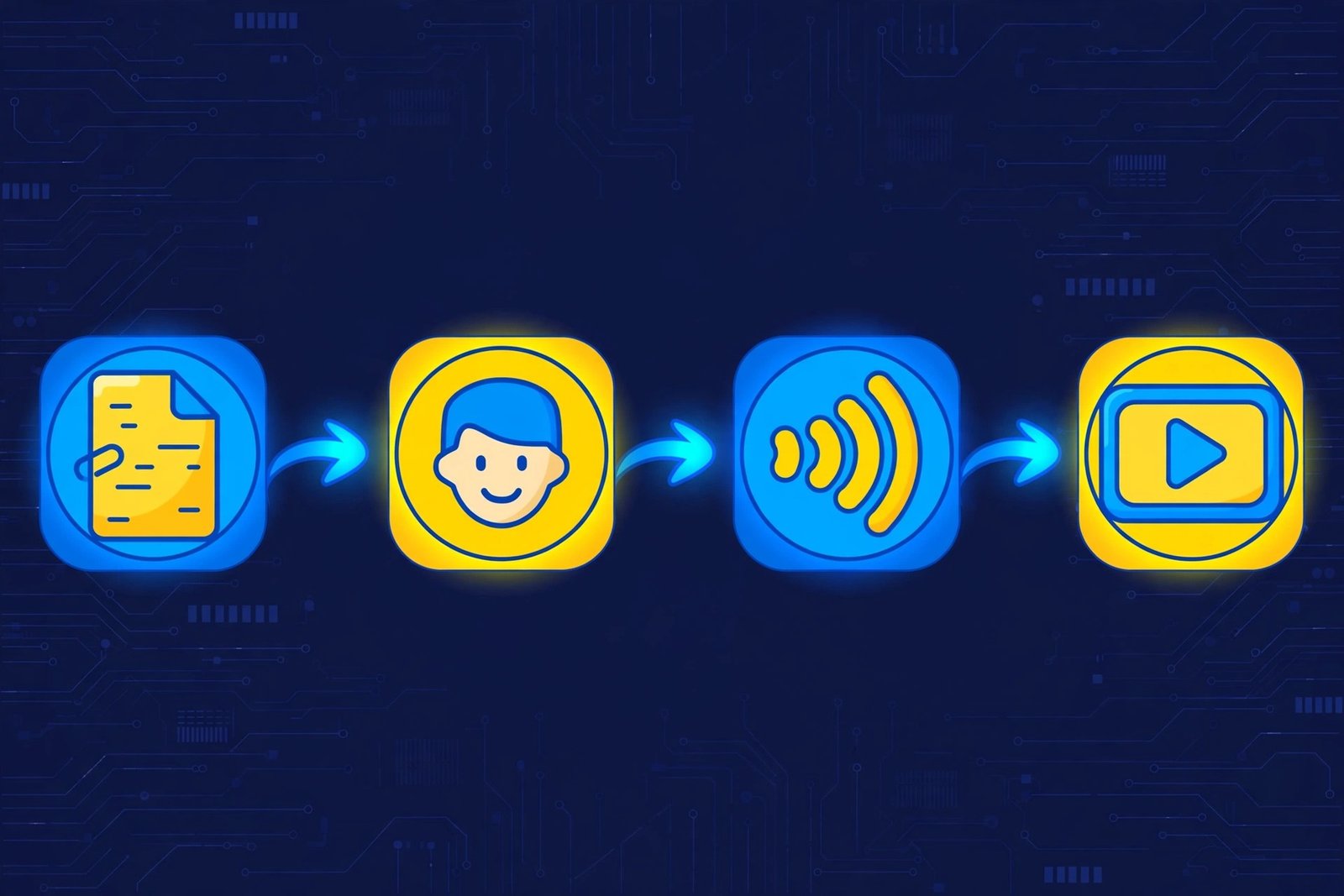
Do not overdesign your first video. One clean background, your headline text, captions, and a logo are plenty. You can experiment with multi-scene layouts once the basics feel easy.
Step 6: Generate Your First Video
This is the fun part — turning your script into a finished video.
- Click Submit or Generate in the top-right corner of the editor.
- HeyGen will show you the estimated processing time. A short 1-minute video typically renders in a couple of minutes on standard processing.
- Wait for the render to finish, then preview the result inside the dashboard.
- Watch the whole thing once: check lip-sync, pronunciation, caption timing, and the background.
If something is wrong, do not panic. Edit the script text, swap the voice, or adjust the scene, then generate again. Each generation uses one of your monthly videos, so batch your fixes: note every issue in one watch-through, fix them all at once, and re-generate a single time.
Step 7: Translate Your Video into 30+ Languages with Lip-Sync
This is HeyGen’s standout feature and the reason many creators choose it over competitors.
- Open your finished video and select Translate.
- Choose the target language — the free plan supports 30+ languages, paid plans unlock 175+ languages and dialects.
- HeyGen translates your script and re-renders the avatar with new lip movements matched to the translated audio.
- Preview the translated version before exporting.
The result is remarkable: the same presenter appears to fluently speak Spanish, French, Urdu, or any other supported language, with lips that actually match the words. For creators, this means one video can reach audiences in many countries without re-recording anything.
Beginner tip: Translation quality is best with simple, clear scripts. Idioms and slang often translate awkwardly, so keep your original script plain if you plan to translate it.
Step 8: Try the Video Agent for Hands-Free Creation
If the manual editor feels like too many steps, HeyGen’s Video Agent can build a video for you.
- Open Video Agent from the dashboard.
- Describe the video you want in plain language — for example, “a 30-second product announcement for a fitness app, friendly tone.”
- The agent picks an avatar, writes a draft script, selects a voice, and assembles the scenes automatically.
- Review the draft, tweak anything you dislike, and generate.
Think of the Video Agent as a junior video producer: it does the heavy lifting, and you act as the director giving notes. It is an excellent way for beginners to see what a well-structured HeyGen video looks like, and you can study its choices to improve your manual projects.
Step 9: Download, Share, or Embed Your Video
Once your video looks right, get it out into the world.
- Click Export or Download. The free plan exports at 720p with a HeyGen watermark.
- Share directly to social platforms, download the MP4 for editing in another tool, or grab an embed link for your website.
- For YouTube Shorts, TikTok, or Reels, create your video on the 9:16 portrait canvas from the start so no awkward cropping is needed later.
A note on the watermark: free-plan exports carry a HeyGen watermark. For learning and testing, that is fine. If you want clean exports for client work or a business channel, the Creator plan ($29/month, or $24/month billed yearly) removes the watermark and raises limits to 30-minute videos, 1080p export, and 175+ languages.
Step 10: Upgrade Smart — When the Free Plan Is Not Enough
The free plan is perfect for learning, but you will outgrow it if HeyGen becomes part of your content routine. Here is how to decide:
- Stick with free if you make an occasional video and do not mind the watermark and 1-minute limit.
- Upgrade to Creator ($29/month) when you need watermark-free exports, videos longer than a minute, voice cloning beyond the single free clone, or 175+ languages. Annual billing drops it to $24/month.
- Consider Pro (from $49/month) when you need 4K exports, much higher monthly usage, and faster processing.
Never upgrade on day one. Spend your 3 free videos learning the workflow first — then you will know exactly which limits are actually blocking you, and you will buy the right plan instead of guessing.
HeyGen vs. Popular Alternatives
How does HeyGen compare with other AI avatar video tools? Here is a quick beginner-focused comparison:
| Feature | HeyGen | Synthesia | D-ID | Colossyan |
|---|---|---|---|---|
| Free plan | Yes — 3 videos/month, 1 min max, watermarked | Limited trial | Limited trial credits | Limited trial |
| Avatar realism | Very high (Avatar IV/V) | Very high | High (photo-based) | High |
| Languages | 30+ free / 175+ paid | 140+ | 100+ | 70+ |
| Video translation with lip-sync | Yes, standout feature | Yes | Basic | Yes |
| Starting paid price | $29/month | Higher (enterprise-leaning) | Lower tiers available | Mid-range |
| Best for | Creators, marketers, multilingual content | Enterprise training teams | Quick photo-avatar clips | Learning & development |
The bottom line: HeyGen is the friendliest choice for individual creators and small businesses, mainly because its free plan is genuinely usable and its translation lip-sync is best in class. Synthesia leans toward large corporate training teams, while D-ID is great for quick photo-to-video clips.
Frequently Asked Questions
Is HeyGen really free?
Yes. HeyGen’s free plan costs $0 and requires no credit card. You get 3 videos per month (up to 1 minute each) in 720p with a watermark, plus access to 500+ stock avatars, a few photo avatars, 1 custom digital twin, 1 voice clone, and 30+ languages. It is designed for evaluation, not publishing at scale.
How long can videos be on the free plan?
Each free-plan video can be up to 1 minute long. If you need longer videos (up to 30 minutes), you will need the Creator plan or higher.
Do I need a camera or microphone to use HeyGen?
No — that is the whole point. You only need a script. The avatar provides the face and the AI provides the voice. You never record yourself unless you choose to create a custom digital twin or clone your voice.
Can I make the avatar look and sound like me?
Yes. You can build a custom digital twin from your own footage (1 included free) and clone your voice (1 clone included free). Many creators use this to produce videos in their own likeness without filming. Always get consent before creating an avatar or voice clone of any real person — doing it without permission can be illegal.
Is HeyGen good for YouTube Shorts and TikTok?
Absolutely. Create your project on the 9:16 portrait canvas, keep the script under a minute, add captions (most viewers watch muted at first), and you have a faceless short-form video ready to post. Just remember free exports carry a watermark.
What are the best free alternatives to HeyGen?
Synthesia, D-ID, and Colossyan all offer limited free trials but no permanent free tier as generous as HeyGen’s. For fully free experimentation, HeyGen’s 3 videos per month is currently the best deal in the AI avatar space.
Final Thoughts
HeyGen AI removes the biggest barrier to video creation: being on camera. With a free account, a decent script, and about fifteen minutes, any beginner can produce a talking-avatar video that looks professionally made. Start with the free plan, master the 10 steps above, use the translation feature to multiply your reach, and only upgrade when the watermark or the 1-minute limit genuinely holds you back.
The creators winning with AI video in 2026 are not the ones with the best cameras — they are the ones publishing consistently. HeyGen gives you the speed to do exactly that.
Explore More Free AI Tools
Want more free AI firepower for your content workflow? Try these free tools on AIToolSteps:
- AI Title Generator — craft click-worthy headlines in seconds: https://aitoolsteps.com/
- Meta Description Generator — write perfect SEO snippets fast: https://aitoolsteps.com/
- AI Rewriter — polish and rephrase any text instantly: https://aitoolsteps.com/
- Keyword Density Checker — keep your SEO perfectly balanced: https://aitoolsteps.com/