

If video editing has always felt too complicated, too slow, or too expensive, Descript will change your mind. Descript is an AI-powered video and audio editor built around one genius idea: your video is a text document. Every word you or your speaker says gets transcribed into editable text. As a result, deleting a sentence in the transcript removes that part of the video instantly. No timelines, no razor blades, no hours of scrubbing.
For beginners, this means you can produce polished YouTube videos, podcasts, and social clips in a fraction of the time traditional editors demand. And yes — Descript has a genuinely useful free plan. Therefore, you can learn the full workflow before spending anything.
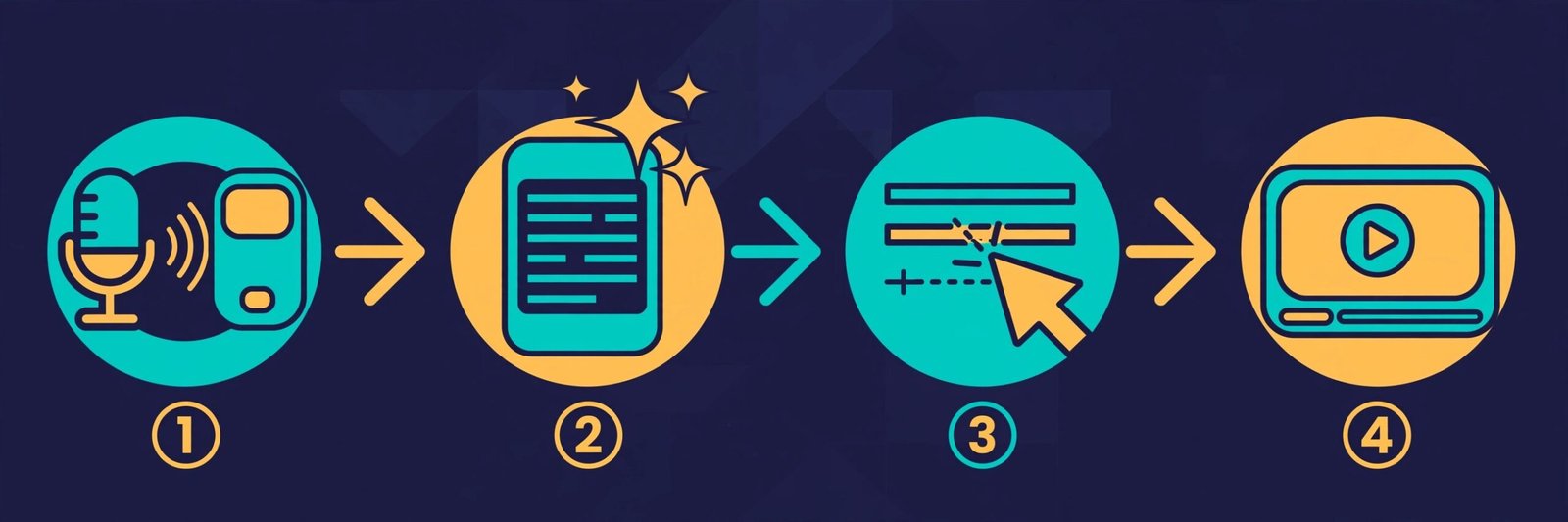
This beginner's guide to how to use Descript walks you through the entire process: creating an account, transcribing your first recording, editing by editing text, cleaning up audio with AI, adding captions, and exporting your finished project. By the end, you will be able to go from raw recording to a publish-ready video in a single sitting.
Step 1: Create Your Free Descript Account
Start by heading to Descript's website and signing up with your Google account or email address. The free plan gives you a monthly allowance of transcription time plus access to the core editing features. For beginners, that is more than enough to learn the workflow and produce real projects.
After signing up, Descript will ask you to download the desktop app (available for Windows and Mac) or continue in the web app. The desktop app is recommended because it handles large video files more smoothly. However, the web version covers the same essentials. Install it, sign in with the account you just created, and you are ready.
What the free plan typically includes:
- A monthly allowance of AI transcription minutes (renewed each month)
- Text-based video and audio editing
- Automatic subtitle and caption generation
- Export to video, audio, and shareable web links
- A library of royalty-free music and sound effects
Free allowances change from time to time. Therefore, check the current plan details on Descript's site if you are planning a big project. For learning and weekly content, however, the free tier is surprisingly generous.
Step 2: Start a Project and Import Your Media
Open the app and click New Project. Then choose Video Project. Descript gives you three ways to get footage in:
- Import existing files (MP4, MP3, WAV, MOV, and most common formats) by dragging them into the project
- Record directly into Descript using your webcam, screen, or microphone — perfect for tutorials and podcasts
- Write a script first and let Descript generate a voiceover from it (we will cover the voice feature in Step 9)
For this walkthrough, import any recording you have — a phone video, a Zoom recording, or a voice memo. Descript will then place it in your media bin and drop it onto the timeline automatically.
Step 3: Let AI Transcribe Your Recording
The moment your media lands in the project, Descript starts transcribing it. Depending on length, this takes anywhere from seconds to a few minutes. Meanwhile, you can watch the transcript appear live in the document view.
When transcription finishes, you will see your entire recording as paragraphs of text, each word time-stamped to the video. Next, click any word and the video jumps to that exact moment. This is when most beginners realize how fast their editing life is about to become.
If Descript mishears anything, just click the word and retype it. You can also tag speakers and name the project. As a result, everything stays organized as you take on more videos.
Step 4: Edit Your Video by Editing the Text
This is the core Descript magic. Instead of cutting clips on a timeline, you highlight and delete text.
- Want to cut a rambling sentence? Highlight it in the transcript and press delete — the video cut is made instantly.
- Want to move a story earlier in the video? Copy the paragraph and paste it where you want it.
- Made a mistake mid-sentence? Select the wrong words and type the correction (or just delete them).
Because every word is anchored to its video frame, text edits are video edits. Moreover, Descript smooths the resulting cuts so they do not feel jarring. Beginners routinely cut a 30-minute recording down to 10 tight minutes in less time than it takes to make coffee.
Pro tip: Do a first pass deleting entire paragraphs (the big-picture cuts). Then do a second pass trimming individual words and phrases. Working big-to-small keeps you fast.
Step 5: Remove Filler Words and Dead Air in One Click
Every beginner recording is full of "um," "uh," awkward pauses, and dead air. Fixing these manually used to take forever. In Descript, however, you just select the transcript (or press Ctrl/Cmd + A) and run Remove filler words and Shorten word gaps from the AI actions menu.
In seconds, Descript deletes the filler words and tightens the pauses between sentences. As a result, an amateur recording can sound like a professionally edited podcast. You can preview each proposed deletion before accepting it, so nothing disappears without your say-so.
- Remove filler words: wipes "ums," "uhs," and "likes" from the audio and video simultaneously
- Shorten word gaps: trims silences longer than your chosen threshold (try 0.7 seconds)
- Remove retakes: detects repeated takes of the same line and keeps only the best one
Step 6: Make Your Audio Sound Pro with Studio Sound
Recorded on a laptop mic in a noisy room? Descript's Studio Sound is an AI audio enhancer. It removes background noise, echoes, and room tone. In addition, it makes your voice sound like it was recorded in a studio. First, select your audio track and enable Studio Sound. Then choose an intensity level.
This feature alone is worth the signup for podcasters and course creators. For example, a $20 microphone plus Studio Sound can genuinely rival a $200 setup — and it is available on the free plan. Toggle it on and off while previewing so you can hear exactly what it is doing. If it makes your voice sound too processed, dial the intensity back.
Step 7: Add Captions and Subtitles Automatically
Captions are no longer optional. Most viewers watch social video with the sound off, and captions boost watch time dramatically. Fortunately, Descript generates them automatically from your transcript.
- Click the captions tool and choose Captions to burn stylish, animated word-by-word subtitles directly into the video (great for Shorts, Reels, and TikTok)
- Or export a Subtitle (SRT) file for platforms like YouTube, which let viewers toggle captions on and off
Customize the font, colors, position, and animation style to match your brand. Because the captions are generated from your already-corrected transcript, they will be accurate. And if you spot an error, fix it in the transcript — the caption updates automatically.
Step 8: Polish with Text, Music, and Templates
Descript includes a library of scenes, layouts, and elements. Consequently, your videos look designed rather than recorded:
- Add your intro title and end screen as text layers with animation presets
- Insert B-roll by typing a forward slash and searching the built-in stock library
- Add background music from the royalty-free library, then use the automatic ducking feature to lower it under your voice
- Use templates for consistent lower thirds, quote cards, and chapter titles across a series
Keep it simple at first: one title, one end screen, and light background music. When you are building an audience, consistency beats complexity.
Step 9: Fix Mistakes Without Re-Recording (Overdub)
Here is the feature that feels like science fiction. Descript's Overdub lets you train an AI model of your own voice (it takes about 30 minutes of sample audio, guided inside the app). Once trained, you can type new words into the transcript. Descript then speaks them in your voice, seamlessly patched into the recording.
Forgot to mention the discount code? Just type the sentence into the transcript where it belongs. Mispronounced a name? Type the correction and delete the original. For YouTubers, podcasters, and course creators, this eliminates the most painful part of content creation: re-recording sessions over one flubbed line.
Note that Overdub is a premium feature tied to voice consent and identity verification. This is a good thing, because it means nobody can clone your voice without you. On the free plan, first experiment with the core editing workflow. Then decide whether voice cloning earns its place in your process.
Step 10: Export and Publish Your Finished Video
When your edit is done, click Publish and choose your destination:
- Export video (MP4) in your chosen resolution for YouTube, Instagram, or TikTok
- Export audio only (MP3/WAV) for podcast feeds
- Share a web link so a client or collaborator can watch and comment without installing anything
- Export the transcript or SRT for blog posts and accessibility
For YouTube Shorts and TikTok, export in vertical 9:16 if you recorded that way. Alternatively, use Descript's auto-reframe templates to convert a horizontal video into vertical with the subject kept in frame. Then upload to your platform and watch the watch time roll in.
Descript vs Other Free Editors: Quick Comparison
| Feature | Descript | CapCut | Clipchamp | Premiere Pro |
|---|---|---|---|---|
| Text-based editing | ✅ Core feature | ❌ | ❌ | ❌ |
| AI transcription | ✅ Built-in | Auto captions only | Auto captions only | ❌ (paid add-on) |
| Filler word removal | ✅ One click | ❌ | ❌ | ❌ |
| Voice cloning (Overdub) | ✅ | ❌ | ❌ | ❌ |
| Free plan | ✅ Generous tier | ✅ Very generous | ✅ Windows free | ❌ Trial only |
| Learning curve | ⭐ Easiest | Easy | Easy | Hard |
Descript is not the only free editor. For example, CapCut is arguably better for trendy social effects, and Clipchamp is solid for quick Windows edits. But for anyone whose content is spoken — tutorials, podcasts, courses, talking-head YouTube — Descript's text-based workflow is in a league of its own.
FAQ
Is Descript really free for beginners?
Yes. Descript offers a free plan with a monthly transcription allowance, text-based editing, captions, and export — enough to produce real videos and podcasts every month. Paid plans add more transcription hours, Overdub voice cloning, and collaboration features. Therefore, start free and upgrade only when your output outgrows the allowance.
How accurate is Descript's AI transcription?
For clear, well-recorded English speech, accuracy is typically in the 90–95% range. Accents, crosstalk, and background noise lower it. However, Descript highlights low-confidence words so you can spot-check them quickly. Fixing a transcript takes minutes — far less than transcribing manually.
Can I use Descript's free plan for commercial work?
Generally yes for content you create. However, the stock music and video library items carry their own licenses, so check the license details on any asset you use in monetized videos. When in doubt, use your own recordings or royalty-free sources you control.
Descript vs CapCut — which should a beginner choose?
Choose Descript if your videos are speech-heavy (tutorials, podcasts, courses) because text-based editing is dramatically faster. On the other hand, choose CapCut if your content is visual-first (trends, transitions, effects) because its template library is unmatched. Many creators use both: Descript for the rough cut, CapCut for the finishing effects.
Does the free plan add a watermark to exports?
No. Descript's free plan exports are watermark-free, which is rare among free editors and one of the reasons beginners love it.
Do I need a powerful computer to run Descript?
Not necessarily. Much of the heavy AI processing happens in the cloud, so even modest laptops handle typical projects well. Very long 4K projects will still benefit from a stronger machine. For 1080p tutorials and podcasts, however, almost any recent computer works.
Final Thoughts
Learning how to use Descript as a beginner comes down to one mindset shift: stop editing video, start editing text. Once you internalize that the transcript IS the timeline, a 10-step editing session becomes a 10-minute one. First record, then transcribe. Next, delete the fluff and remove the filler words. Then enhance the audio, add captions, and export. That is the entire workflow, and it is repeatable for every video you will ever make.
Start with the free plan and make five videos. Then time yourself. Most beginners find their editing time drops by 70–80% compared to traditional editors. In the creator economy, that time savings is the whole game: more output, more experiments, and more chances to find what your audience loves.
Explore More Free AI Tools
Ready to level up your content even further? Check out these free AI tools on aitoolsteps.com:
- AI Title Generator — craft click-worthy titles for your videos and articles in seconds
- Meta Description Generator — write perfect SEO snippets that boost your click-through rate
- AI Rewriter — polish your scripts and descriptions with one click
- Keyword Density Checker — optimize your articles so they rank higher on Google
Visit aitoolsteps.com for step-by-step guides to dozens of free AI tools — new guides published every day.