

Sharing a 3D model used to be the hardest part of making one. You could spend days building a beautiful scene in Blender or Unreal Engine, and then the person you wanted to show it to needed the same software, a powerful computer, and a 40-minute download just to look at it. Verse Engine AI changes that completely. It turns any 3D file into a single link that opens in any browser, on any device, with no app and no download.
Verse Engine by Ctruh launched on 16 November 2026 and finished as the number two product on Product Hunt on 19 November 2026. In its launch demo, the team streamed an entire 10.3-billion-triangle city into a desktop browser from one link. That sounds like a magic trick, but the idea behind it is simple: Verse Engine only streams the triangles your camera can actually see, at the detail your screen can show, and throws the rest away before it costs you anything. Rendering happens on the viewer’s own device, so a link costs almost nothing to share, whether ten people open it or ten million.
This beginner guide walks you through the whole process step by step. You will learn how to use Verse Engine AI from scratch: create a free account, upload your first 3D file, publish straight from Blender, Unity or Unreal Engine in one click, share the link anywhere, embed it on a website, and even publish 3D from Claude or ChatGPT. You do not need to be a developer, and you do not need to pay anything to start.
Step 1: Understand What Verse Engine AI Is
Before you click anything, it helps to understand what Verse Engine actually does in one sentence. It is a browser-native 3D and XR engine that takes a 3D file and turns it into a streamable scene that opens from a link.
Here is how that is different from the old way of sharing 3D work:
- No downloads for the viewer. The link opens in Chrome, Safari, Firefox or Edge on Windows, macOS, Linux, Android and iOS. It even opens inside WhatsApp and Instagram.
- No sign-up for the viewer. The person who opens your link never pays and never needs a Verse account.
- No “web version” of your project. You do not export a low-quality copy, decimate your mesh, or rebuild the scene for the web. The same file you made in your editor is the one people see.
- Huge scenes still work. Because Verse Engine streams only what the camera sees, a 1.8-billion-triangle Unreal Engine scene can run interactively on a desktop, and a whole city can open from a link on a laptop.
- Materials stay true. Materials from Blender, Unity and Unreal arrive as they were designed, so your lighting and textures look the way you made them.
Verse Engine is built for 3D artists, game studios, architects, interior designers, real estate teams, construction and manufacturing firms, automotive and product brands, and digital-twin teams. If your work lives in Unreal, Unity, Blender, Revit, SketchUp, 3ds Max or a scanner, Verse Engine is the fastest way for the rest of the world to see it.
Step 2: Create Your Free Verse Engine Account
Getting started takes only a few minutes, and the free plan costs nothing.
- Open the website. Go to verse.ctruh.com in your browser. This is the home of Verse Engine.
- Sign up for a free account. Create your account with an email address and a password, or sign in with Google if that option is offered.
- Claim your 14-day Pro trial. Every new account gets 14 days of Pro included, so you can try the paid features before you decide anything.
- Open your dashboard. After sign-in you land on your Verse dashboard. This is where your scenes live, where you upload files, and where you copy links and embed code.
The free plan is the right place to learn. Paid plans start at 29 dollars a month, but you should not pay until you have published a few scenes and you know which limits actually matter to you. Viewers never pay, so your audience costs you nothing either way.
Step 3: Upload Your First 3D File and Get a Link
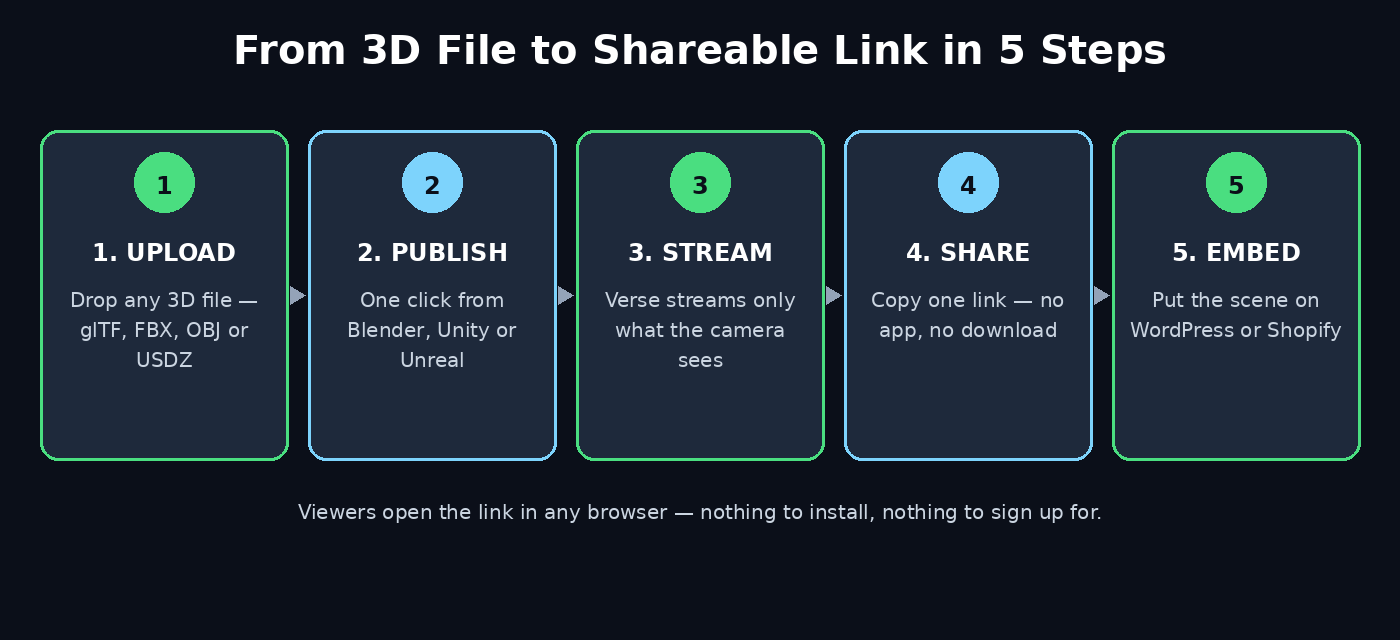
The fastest way to learn how to use Verse Engine AI is the plain upload flow. You do not need a plug-in, and you do not need to open your 3D software at all.
- Prepare a file. Verse Engine accepts more than 20 formats, including glTF, FBX, OBJ, USDZ, CAD files, BIM models through IFC, laser scans and splats. If you have a model in any of these formats, it will work.
- Drag it into the dashboard. Drop the file onto the upload area, or use the upload button and pick the file from your computer.
- Wait for processing. Verse Engine prepares your scene for streaming. Small models take seconds. The team reports a public GLB file going from upload to live link in as little as 4 seconds through the AI assistant flow, and a full Blender project taking about 45 seconds from plug-in to link.
- Copy your link. When processing finishes, Verse gives you a shareable link. That is it. Anyone who opens it sees your interactive 3D scene in their browser.
If you do not have a 3D file yet, you can make one first with a free AI tool. Our guide to Meshy AI shows how to create 3D models in your browser, and the file you export from Meshy uploads straight into Verse Engine.
Step 4: Publish from Blender in One Click
If you work in Blender, this is the flow you will use most, because you never leave your editor.
- Install the Verse plug-in for Blender. Download it from your Verse dashboard and install it in Blender like any other add-on. It works on Mac and Windows.
- Open your scene. Work on your model exactly as you normally would. There are no export settings to learn and no decimation pass to run.
- Press Publish. Click the Verse Publish button inside Blender. The plug-in prepares the scene and uploads it for you.
- Copy the link. In about 45 seconds on the sample project the team tested, your scene is live and you have a link to send to anyone.
The important thing for beginners is what you do not have to do. You do not export an FBX, you do not compress textures by hand, and you do not build a separate web version. Press Publish, send the link, and the person on the other end sees your work.
Step 5: Publish from Unity and Unreal Engine
The same one-click idea works for game engines, and this is where Verse Engine really earns its keep, because game scenes are usually far too heavy to share any other way.
- Unity: Install the Verse plug-in for Unity, open your project, and press Publish. The team measured about 101 seconds from the plug-in’s Publish button to a shareable link on their sample project, including preparing the scene and uploading it.
- Unreal Engine: Install the Verse plug-in for Unreal Engine and publish the same way. The same sample project took about 70 seconds from Publish to link.
- Substance 3D Painter: Integration is in beta, so texture work flows into Verse Engine too.
A 1.8-billion-triangle Unreal Engine scene that would be impossible to email or host as a normal web file becomes a link your client can open on a laptop. That is the whole point of the tool: the size of your scene stops deciding who can see it.
Step 6: Share the Link and Embed It on Your Website
A Verse link is useful because it goes anywhere a normal link goes, and your viewers need nothing installed.
- Send it in a chat or email. Paste the link into WhatsApp, email, Slack or a text message. It opens in the browser right inside those apps.
- Post it on social media. Share the link on LinkedIn, X or Facebook, and people can explore your 3D work without leaving their feed.
- Embed it on your website. Verse Engine provides a simple viewer tag and embeds for WordPress, Shopify, Webflow, Wix and Squarespace. Paste the embed code into your page and visitors can orbit your product or walk through your building right there.
- Use it in a portfolio or pitch. A single link in your portfolio replaces a screen recording, because the viewer can rotate the model themselves and look at the details that matter to them.
This is also where a Verse link quietly becomes a marketing asset. A digital agency showing a client a 3D product configurator, or a real estate team sharing a walkable apartment, can put the same link in a proposal, on a landing page and in an email campaign, and every viewer gets the same interactive experience. If you want your 3D work to bring you clients, the link is the deliverable, not the file.
Step 7: Publish 3D from Claude, ChatGPT or Cursor with the MCP Server
Verse Engine was the first 3D engine to ship a hosted MCP server, and it is the feature that makes the tool feel like it belongs to 2026. MCP, the Model Context Protocol, lets an AI assistant call Verse Engine directly.
- Add the connector. In Claude, ChatGPT, Cursor or VS Code, add https://verse.ctruh.com/mcp as a connector and sign in with your Verse account. There is no API key to copy.
- Ask in plain words. Tell your assistant to publish a 3D file or a public URL. For example, “publish this GLB file to Verse and give me the link.”
- Get the link back. The assistant hands back a live Verse link, plus embed code and private share links.
In the team’s production test, a public GLB file went from a prompt to a live link in 4 seconds. For beginners this removes the last piece of friction: you do not even have to learn the dashboard to publish your first scene. If you already use AI assistants for your daily work, this is the fastest way in.
The same idea is reshaping how small teams work with AI. When an assistant can publish a 3D scene, write the caption and prepare the web page, one person can ship what used to need a whole studio. Teams that follow AI automation services will recognise the pattern: the assistant handles the plumbing, and the human keeps the creative decisions.
Step 8: Turn a Floor Plan into a Walkable Space with Verse Home
Verse Home is the feature built for architects, interior designers and real estate teams, and it is a good example of how Verse Engine goes beyond a simple viewer.
- Start from a floor plan. Upload a floor plan and Verse Home turns it into a furnished, walkable space.
- Walk through it in the browser. Your client opens the link and walks through the apartment or office as if they were there, on a phone or a laptop.
- Share it before anything is built. A developer can sell or present a property that only exists on paper, because the buyer can already walk through it.
A large interior opens on an everyday device on a typical 4G connection and looks complete in about 29 seconds, with no app installed. That matters, because the person opening your link is usually on a phone, on mobile data, and will not wait for a download.
Step 9: Control Privacy, Private Links and Analytics
Sharing a link is easy, and that is exactly why you should understand the controls before you send your first one to a client.
- Private share links. Verse Engine can create private links for scenes you do not want the public to find, so you can share a draft with one client without publishing it to the world.
- Signed, streamed packages. Every scene is served from signed, streamed packages, not as a downloadable file. Viewers see your work, but they do not walk away with the source file.
- Embeds and API access. Developers get a REST API and SDK to upload assets, publish experiences, create private links and read analytics, so Verse Engine can sit inside a bigger product or pipeline.
- Check who opened it. Use the analytics in your dashboard to see how your scenes are being viewed, then follow up with the people who actually spent time exploring them.
For client work, the rule is simple: send a private link for drafts and approvals, and a public link only when the work is final.
Step 10: Understand the Free Plan and When to Upgrade
Verse Engine is free to start, and the free plan is genuinely useful. Here is how to think about the money.
- Free plan. Costs 0 dollars. You can upload scenes, publish them and share links, and your viewers never pay or sign up.
- 14-day Pro trial. Every new account gets it automatically, so try the Pro features on real work before you judge them.
- Paid plans. Paid plans start at 29 dollars a month, with Starter, Pro and Scale tiers and team and enterprise options. India pricing is available in rupees.
- When to upgrade. Upgrade when you hit a real limit: you need more scenes, bigger uploads, team seats, or the API for a production pipeline. Do not upgrade because a feature sounds nice. Publish ten scenes on the free plan first, and the right tier will be obvious.
One honest note for beginners: Verse Engine is a young product, launched in November 2026. Expect the dashboard and the plug-ins to change quickly in the first months. Treat verse.ctruh.com and the official documentation as the source of truth for the latest pricing and features.
Step 11: Seven Beginner Mistakes to Avoid
Most beginners who struggle with Verse Engine make the same small mistakes. Avoid these and your first week will be smooth.
- Uploading a file with missing textures. If your model references textures that are not in the file, the scene will look grey or broken. Export a self-contained file, such as a GLB, when you can.
- Publishing before checking the scale. A model built at the wrong scale can look tiny or enormous in the viewer. Open the link yourself and orbit the model before you send it to anyone.
- Sharing a public link for a client draft. Use a private link for anything unfinished. A public link is hard to take back once it has been forwarded.
- Skipping the link test on a phone. Most of your viewers will open the link on a phone. Test it there, on mobile data, before you call the job done.
- Forgetting the embed. If you have a website, embed the scene on the page instead of only linking to it. Visitors who can play with the model stay longer.
- Ignoring the MCP shortcut. If you already work in Claude or ChatGPT, the MCP connector publishes a scene faster than the dashboard. Learn it early.
- Paying before you need to. The free plan and the 14-day Pro trial cover your first projects. Upgrade only when a real limit blocks real work.
Verse Engine vs Other Ways to Share 3D Work
| Method | What the viewer needs | Setup time | Best for |
|---|---|---|---|
| Verse Engine link | Just a browser, no app or sign-up | Seconds to about 2 minutes | Sharing huge scenes, client reviews, embeds |
| Sketchfab page | A browser and a Sketchfab account to upload | A few minutes | Public 3D portfolio and discovery |
| Sending the raw file | The same 3D software and a strong PC | Minutes to hours of download | Working with a teammate who edits the file |
| Screen recording | Nothing, but the viewer cannot interact | Time to record and edit | A quick demo video on social media |
The table makes the trade-off clear. A screen recording is easy, but the viewer cannot rotate the model. Sending the raw file gives full control, but only to someone with the same software. A Verse Engine link is the only option where a client with a phone and a 4G connection can explore a billion-triangle scene in under a minute.
Frequently Asked Questions About Verse Engine AI
Is Verse Engine AI free?
Yes. There is a free plan that costs 0 dollars, and every new account gets a 14-day Pro trial. Viewers never pay and never need to sign up to open a link. Paid plans start at 29 dollars a month if you need more scenes, bigger uploads or team features.
What is Verse Engine AI used for?
Verse Engine turns any 3D file, scan or floor plan into a single link that opens in a browser. Architects share walkable buildings, game studios share huge Unreal scenes, product brands embed 3D products on their websites, and 3D artists share portfolios that clients can explore instead of just watch.
Which file formats does Verse Engine support?
More than 20 formats, including glTF, FBX, OBJ, USDZ, CAD files, BIM models through IFC, laser scans and splats. Unreal, Unity and Blender projects publish with one click through the plug-ins, and Substance 3D Painter integration is in beta.
Do viewers need to install anything to open a Verse link?
No. A Verse link opens in any modern browser on Windows, macOS, Linux, Android and iOS, with no app, no plug-in and no sign-up. It even opens inside WhatsApp and Instagram.
Can I publish 3D from Claude or ChatGPT?
Yes. Verse Engine ships a hosted MCP server. Add https://verse.ctruh.com/mcp as a connector in Claude, ChatGPT, Cursor or VS Code, sign in with your Verse account, and ask the assistant to publish a 3D file or a public URL. It returns a live link, embed code and private share links.
How is Verse Engine different from Sketchfab?
Sketchfab is a public gallery for 3D models, while Verse Engine is a streaming engine built for delivery. Verse Engine streams only what the viewer sees, so it can open scenes with billions of triangles that would be impractical as a normal web file, and it focuses on private links, embeds and one-click publishing from the tools you already use.
Final Thoughts
Verse Engine AI solves the least glamorous problem in 3D work, and that is exactly why it matters. Making a beautiful scene is hard, but showing it to someone used to be harder. Now you upload a file or press Publish in Blender, copy a link, and anyone with a phone can walk through your work. The 10.3-billion-triangle city demo is impressive, but the real test is simpler: send your first link to a friend, watch it open on their phone in seconds, and notice that they never had to install anything.
Start on the free plan today. Publish one small scene, test the link on your phone, and embed it on your website. Once you have felt how fast sharing 3D can be, going back to emailing huge files will feel like sending a letter by horse.
Explore More Free AI Tools
Want to keep building with free AI? Try the AI Title Generator, Meta Description Generator, AI Rewriter and Keyword Density Checker at aitoolsteps.com — free tools that help you write, polish and optimise every guide, caption and product page you publish.