

If your email lives in five different places, you already know the pain: Gmail for personal mail, Outlook for work, iCloud for an old Apple address, and maybe a Yahoo account you forgot you had. Every morning you open four apps, hunt for the same thread, and still miss the one message that mattered. SuperMailbox AI fixes exactly that. It brings Gmail, iCloud Mail, Outlook, Yahoo Mail, Fastmail and other IMAP accounts into one browser inbox, adds search that understands meaning instead of exact words, and lets an AI assistant you already use — ChatGPT or Claude — work with the mail you choose. It launched on Product Hunt on November 21, 2026, landing at number 4, and this beginner guide walks you through every step, from your first sign-up to asking AI questions about your own inbox.
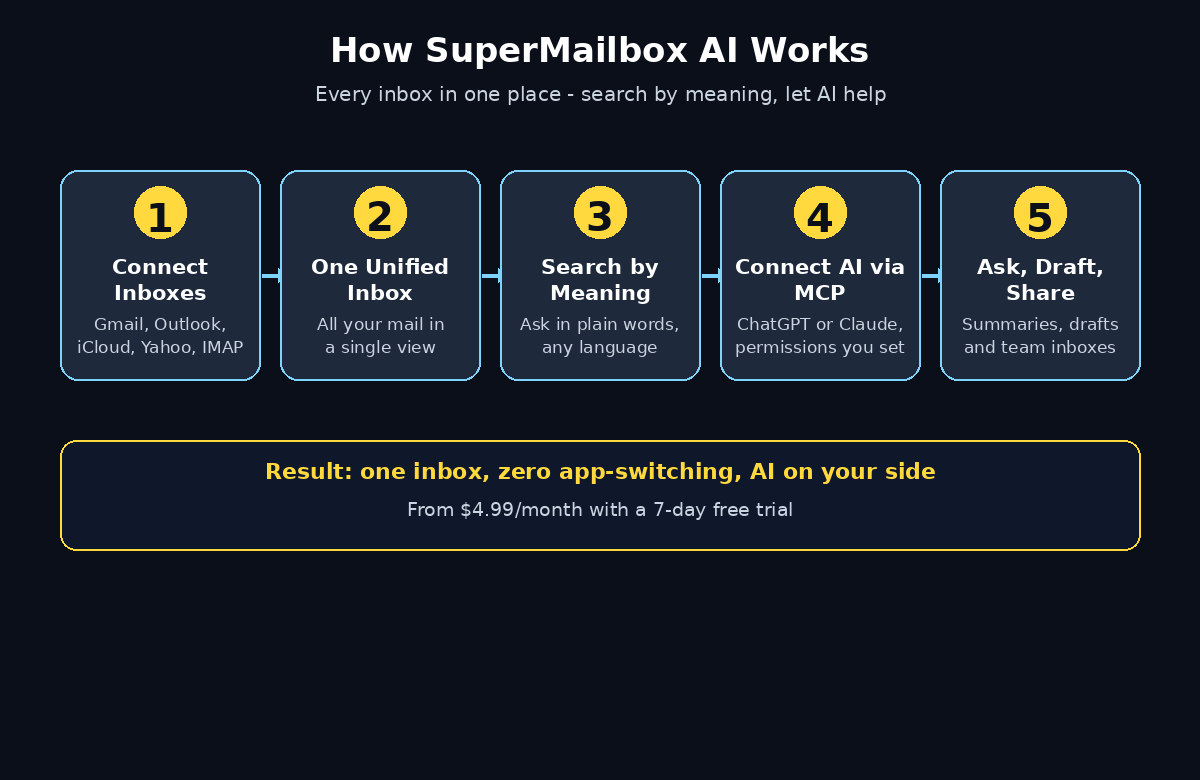
Step 1: Understand What SuperMailbox AI Actually Does
SuperMailbox is a unified email inbox with an AI layer on top. It does not replace your email accounts — Gmail stays Gmail, Outlook stays Outlook. Instead, it connects to them and shows everything in one clean view. Three ideas make it different from a normal mail app:
- One inbox, every provider: Gmail, iCloud Mail, Outlook, Yahoo Mail, Fastmail and any standard IMAP account appear together, so you stop switching apps.
- Semantic search: you can find an email by meaning, even if you search in another language or cannot remember the exact words. Ask for “the invoice from last month” and it finds it, even if the email never used the word “invoice”.
- AI you control: connect ChatGPT, Claude or another compatible AI assistant through MCP (Model Context Protocol). You choose exactly what the AI can read, draft, send or change — nothing happens behind your back.
For a freelancer juggling client inboxes, or a small team sharing a support address, that combination saves real hours every week. A digital agency handling email for several clients, for example, can keep every client inbox in one place instead of logging in and out all day.
Step 2: Create Your SuperMailbox Account
Getting started takes about two minutes:
- Open the SuperMailbox website and click Sign up or Start free trial.
- Create your account with an email address and a strong password, or sign in with Google if that option is offered.
- Confirm your email address by clicking the verification link sent to your inbox.
- Choose your plan. Plans start at $4.99 per month with a 7-day free trial, so you can test everything before paying anything.
Use the trial properly: connect your real inboxes on day one, not a throwaway account, because the value only shows up when your actual mail is inside. Set a calendar reminder for day six so you can decide about the paid plan before the trial ends.
Step 3: Connect Gmail, Outlook, iCloud and Your Other Inboxes
This is the core setup step, and it is simpler than it sounds. Inside SuperMailbox, go to Settings > Accounts and click Add account:
- Gmail: pick Google sign-in, choose the account, and approve the permissions SuperMailbox asks for. It only reads and manages mail — it never changes your Google password.
- Outlook: the same flow with Microsoft sign-in. Personal Outlook.com and work Microsoft 365 accounts both work.
- iCloud Mail: sign in with your Apple ID. If you use a custom domain with iCloud+, note that you can later share that inbox with teammates who do not even need an Apple ID.
- Yahoo, Fastmail and other IMAP accounts: enter your email address, password (or an app-specific password if your provider requires one), and the IMAP server details your provider publishes.
Connect your busiest inbox first, wait for the first sync to finish, then add the rest one by one. If an account asks for an app password — Gmail and iCloud do this when two-factor authentication is on — generate one in that provider’s security settings and paste it in. Never share your main password with anyone; app passwords are the safe route.
Step 4: Set Up Your Unified Inbox View
Once your accounts are connected, SuperMailbox shows one combined inbox. Take five minutes to arrange it so it matches how you actually work:
- Choose your default view: all mail together, or grouped by account. Most people start with “all together” and switch to per-account only when triaging one client.
- Turn on the important filters: unread first, starred, or by account colour, so a work email never hides behind a newsletter.
- Set your sending identity: decide which address replies come from by default. You can still switch the “From” address on any single email.
- Learn the keyboard shortcuts: archive, reply, snooze and search all have shortcuts. Ten minutes of practice here pays off every single day.
Think of the unified inbox as your mission control. The goal is simple: open one tab in the morning and see everything that needs you, with nothing scattered across four apps.
Step 5: Search Emails by Meaning, Not Just Keywords
Normal email search fails when you cannot remember the exact wording. SuperMailbox’s semantic search fixes that. Instead of guessing keywords, describe what you want:
- Type “the contract the client agreed to last month” and it surfaces the thread, even if the word “contract” never appears in it.
- Search in another language: ask in English for an email that was written in Spanish, and it still finds it.
- Ask about a topic rather than a sender: “emails about the refund” pulls every related message across all connected accounts at once.
Try it with a real question on your first day. Pick an email you remember roughly — a receipt, a quote, a promise a client made — and describe it in plain words. When the right message appears at the top, you will understand why this feature is the heart of SuperMailbox.
Step 6: Create Mail Rules to Auto-Route Your Email
Rules are small “if this, then that” instructions that sort mail before you ever see it. They are the difference between an inbox you manage and an inbox that manages itself:
- Invoices: route every email with an invoice attached into an “Invoices” folder, so month-end accounting takes minutes.
- Newsletters: send marketing mail straight to a “Read Later” folder so it never competes with client work.
- VIP clients: flag or star mail from your top five clients automatically, so their messages always sit at the top.
- Team routing: send support requests to a shared folder your whole team can see.
Start with three rules only — invoices, newsletters, and one VIP sender. Add more after a week, once you see which kinds of mail keep interrupting you. Too many rules on day one just creates folders you never open.
Step 7: Connect ChatGPT or Claude with MCP
This is the step that turns SuperMailbox from a nicer inbox into an AI workspace. MCP (Model Context Protocol) is the open standard that lets AI assistants connect to tools like SuperMailbox safely:
- Open Settings > AI Connections in SuperMailbox and choose ChatGPT, Claude, or another compatible assistant.
- Follow the connect flow to link your AI assistant to SuperMailbox through MCP.
- Set permissions deliberately: allow the AI to read mail and draft replies first. Only enable send later, once you trust the drafts it writes.
- Decide which inboxes the AI can see. You can give it access to your work inbox and keep your personal inbox completely private.
The permission screen is the whole point: you choose what your AI connection can read, draft, send or change. If you run AI automation services for clients, this is also how you show them the boundary — the assistant helps with email, but it only touches what you explicitly allow.
Step 8: Ask AI Questions About Your Inbox
With the AI connected, stop searching and start asking. Open your assistant and try questions like these:
- “Which deadlines did we agree on with the client in this thread?” — you get a short summary instead of re-reading forty emails.
- “Summarise the invoices from this month and give me the total.” — combined with your invoice rule from Step 6, this is a one-line accounting check.
- “Draft a polite follow-up to Sarah about the proposal.” — review the draft, edit anything that sounds off, then send it yourself.
- “Find the creator replies in the outreach inbox and draft follow-ups.” — a sales rep’s whole morning, done in minutes.
Two habits keep this safe: always read an AI draft before sending it, and never let the AI send mail on its own until you have reviewed at least twenty of its drafts. AI is fast, but your name is on the email.
Step 9: Share an Inbox with Your Team Without Sharing Passwords
Sharing an inbox the old way means sharing a password — and then changing it every time someone leaves. SuperMailbox handles it properly:
- Pick an inbox, for example a shared support@ or hello@ address, and invite a teammate from inside SuperMailbox.
- Your teammate gets access to that inbox only, with their own login. They never see your password and never get your personal mail.
- Let a contractor cover your inbox for a week: grant temporary access, then revoke it when the week ends — no password change needed.
- Share an iCloud custom-domain inbox with teammates who do not have an Apple ID or their own iCloud+ plan — they just use SuperMailbox.
Give a sales rep the outreach inbox so their AI can find creator replies and draft follow-ups, while your finance inbox stays invisible to them. Permissions are per-inbox, so sharing stays precise.
Step 10: Bring Customer Emails into Your CRM
Email is where customer relationships actually live, but most CRMs only see what someone manually copies in. SuperMailbox closes that gap:
- Connect your CRM from the integrations or AI settings.
- Choose which inboxes feed the CRM — usually the sales and support inboxes, not your personal one.
- Customer emails from your connected inboxes now flow into the CRM automatically, attached to the right contact or deal.
- When you ask your AI assistant about a customer, it can use the full email history, not just the last message.
For a small business, this one connection replaces a weekly admin chore: no more forwarding threads to the CRM by hand, and no more “I didn’t see that email” moments in a sales call.
Step 11: Build a Daily Routine That Keeps Inbox Zero in Reach
Tools do not create good habits, but they make good habits easy. A simple daily routine with SuperMailbox looks like this:
- Morning (10 minutes): open the unified inbox, archive the newsletters your rules already sorted, and star anything that needs a real reply.
- Midday: ask the AI to summarise any thread longer than ten emails before you reply — you will answer faster and miss less.
- End of day (5 minutes): check the “waiting for reply” pile, send the two follow-ups that matter, and archive the rest.
- Weekly: review your rules. If a folder is filling up with mail you never read, change the rule or unsubscribe from the sender.
The goal is not a permanently empty inbox — that is a fantasy for most people. The goal is an inbox where everything in it is either waiting for a decision from you or already handled, with nothing hiding in an app you forgot to open.
SuperMailbox AI vs Gmail, Outlook and Superhuman
How does SuperMailbox compare with the tools you already know? The short answer: it is not trying to replace Gmail or Outlook — it sits on top of them. The table below makes the trade-offs clear.
| Feature | SuperMailbox AI | Gmail / Outlook alone | Superhuman Mail |
|---|---|---|---|
| Unified inbox (Gmail + Outlook + iCloud + IMAP) | Yes, in one browser inbox | No, separate apps | Gmail and Microsoft 365 only |
| Semantic search (search by meaning) | Yes, across languages | Keyword search only | AI search, paid tiers |
| AI assistant connection (MCP) | ChatGPT, Claude and more | Gemini inside Gmail only | Ask AI on Business plan |
| Shared inbox without password sharing | Yes, per-inbox permissions | No | Team features included |
| Starting price | $4.99/month, 7-day free trial | Free (basic) | $30/month, no free plan |
| Best for | Beginners who want one AI-ready inbox | Single-account users | High-volume executives |
SuperMailbox wins on price and flexibility for beginners: it costs a fraction of Superhuman, connects more providers, and its 7-day free trial lets you test the AI features with your real mail before committing.
Frequently Asked Questions
Is SuperMailbox AI free?
SuperMailbox has no permanent free plan. Plans start at $4.99 per month, and every new account gets a 7-day free trial, so you can connect your real inboxes and test semantic search and the AI connection before paying anything.
Which email accounts can I connect to SuperMailbox?
Gmail, iCloud Mail, Outlook, Yahoo Mail, Fastmail and other IMAP accounts. Your original accounts keep working normally — SuperMailbox is an inbox on top of them, not a replacement, so your mail stays where it is.
Does SuperMailbox AI read all my emails?
Only the inboxes you connect, and only under the permissions you set. When you connect ChatGPT or Claude through MCP, you decide separately what the AI can read, draft, send or change — and you can keep a personal inbox completely out of the AI’s reach.
Can my team share one inbox without sharing a password?
Yes. Invite teammates to a specific inbox from inside SuperMailbox. They get their own login for that inbox only, and you can revoke access any time — for example, when a contractor’s week of inbox cover ends. No password is ever shared.
What is MCP in SuperMailbox?
MCP stands for Model Context Protocol, an open standard that lets AI assistants such as ChatGPT and Claude connect to tools like SuperMailbox. Through MCP, the assistant can search your mail, summarise threads and draft replies — always within the permissions you granted.
Is SuperMailbox better than Superhuman?
It depends on your budget and needs. Superhuman is a polished, premium client for high-volume executives at $30 per month with no free plan. SuperMailbox costs from $4.99 per month, connects more providers including iCloud and IMAP, and offers a 7-day free trial — a better starting point for beginners and small teams.
Final Thoughts
SuperMailbox AI solves a problem almost everyone feels but few people name: email is scattered, search is dumb, and AI assistants cannot help because they cannot see your mail. Connect your inboxes once, let semantic search find what keywords cannot, set three simple rules, and then connect the AI assistant you already use — with permissions you control. Within a week, the morning routine of opening four apps and hunting for one thread is gone, replaced by one inbox where you ask questions in plain English and get answers. Start with the 7-day free trial, connect your busiest inbox first, and try one real question — “which deadlines did we agree on?” — on your first day. That single answer will tell you whether SuperMailbox earns its $4.99 a month in your workflow.
Explore More Free AI Tools
Want more free AI tools like SuperMailbox? Try the AI Title Generator, Meta Description Generator, AI Rewriter and Keyword Density Checker — all free on AI Tool Steps.