

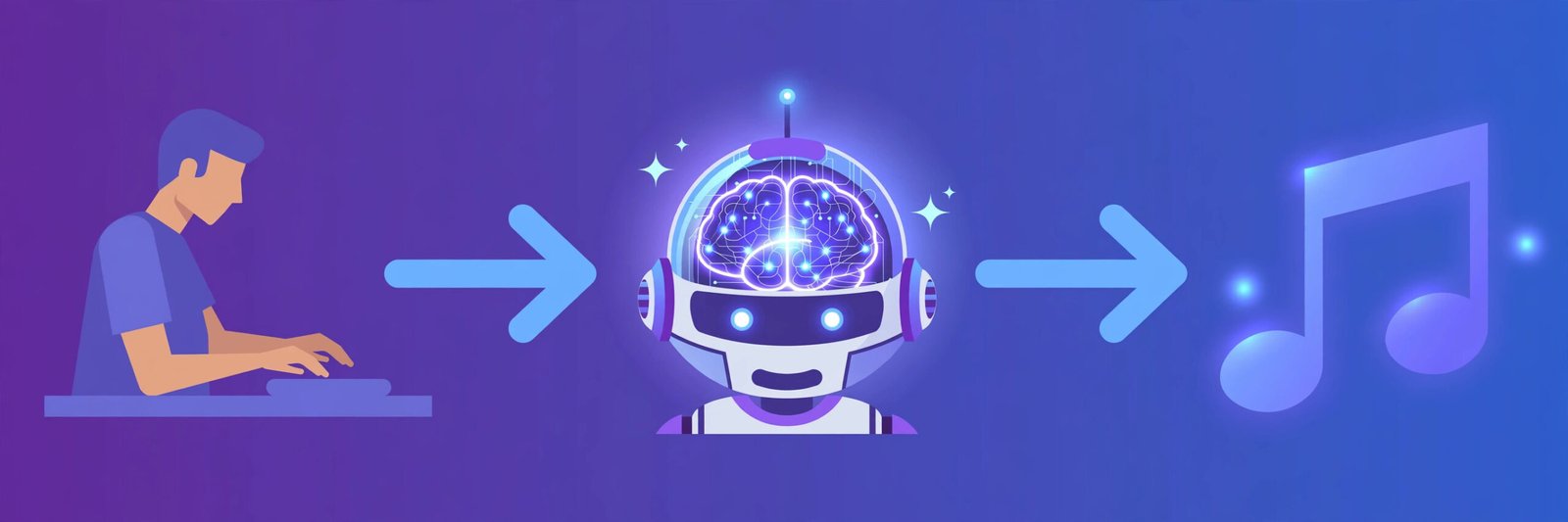
Imagine typing a single sentence — “a cheerful pop song about summer road trips” — and getting a complete, studio-quality track back a minute later: vocals, instruments, verses, chorus, the works. No music lessons. No expensive software. No band required. That is exactly what Suno AI does, and it is free to start.
Suno AI is an artificial intelligence music generator that turns text prompts, lyrics, or even audio clips into full songs. Suno AI has become one of the most talked-about creative AI tools of 2026, with millions of people using it to make birthday songs, podcast intros, YouTube background music, and even full albums. In this beginner-friendly guide, you will learn how to use Suno AI step by step — from creating your free account to generating, polishing, and sharing your first track.
Step 1: Create Your Free Suno Account
Getting started takes less than two minutes. Go to the official Suno AI website and sign up with your email address, Google account, or other supported login. There is no credit card required for the free tier.
The free plan gives you 50 credits per day, which is roughly enough to generate about 10 songs every day. Your credits reset daily, so you can experiment continuously without paying anything. One important detail: songs made on the free plan are for personal, non-commercial use only — you cannot monetise them or use them in videos you earn money from. We will cover the commercial rules in more detail in Step 10.
After signing in, you will land on the main workspace. Take a moment to look around: the creation panel is usually on the left, your song library sits in the middle, and community or trending tracks are available to explore for inspiration.
Step 2: Choose Between Simple Mode and Custom Mode
Suno AI offers two ways to create music, and picking the right one saves you a lot of trial and error.
- Simple Mode is exactly what it sounds like. You type a plain-English description of the song you want — for example, “a relaxing lo-fi track for studying, soft piano, no vocals” — and Suno handles everything else: lyrics, structure, and style. This is the best choice for absolute beginners.
- Custom Mode gives you separate fields for lyrics, style of music, and title. It is ideal once you know what you want: you can paste your own lyrics, pick a precise genre, and even tell Suno what to exclude. If you are a songwriter or content creator with a specific vision, Custom Mode is your friend.
Start with Simple Mode for your first two or three songs. Switch to Custom Mode once you want more control over the words and the sound.
Step 3: Describe Your Song in Suno AI With a Great Prompt
In Suno AI, the prompt is the heart of your song. A vague prompt gives you a vague song, so be specific. A strong Suno prompt answers four questions:
- Genre: What style of music? (pop, hip-hop, rock, lo-fi, EDM, country, jazz)
- Mood: What feeling should it have? (happy, sad, energetic, calm, romantic, dramatic)
- Instruments: Which sounds matter? (acoustic guitar, piano, synth, drums, violin)
- Vocals: Male or female singer? Any vocals at all, or instrumental only?
Compare these two prompts:
- Weak: “make a nice song”
- Strong: “an upbeat pop-rock song with electric guitar and driving drums, male vocals, about chasing your dreams on a road trip”
The second prompt gives the AI a clear direction, and the result will sound far more professional. Suno also understands more creative instructions like “a cinematic orchestral piece that builds to an epic finale” or “a cozy acoustic folk song for a rainy evening.”
Step 4: Add Lyrics — Write Your Own or Let AI Write Them
Lyrics are optional but powerful. You have three choices:
- Let Suno write them. In Simple Mode, Suno generates lyrics automatically based on your prompt. The quality is surprisingly good for common themes like love, friendship, motivation, and celebration.
- Write your own. In Custom Mode, paste your lyrics into the lyrics field. This is perfect for birthday songs, wedding songs, or branded content where the words matter. Your own lyrics also strengthen your ownership claim over the song.
- Use a hybrid approach. Ask a chatbot like ChatGPT or Claude to draft lyrics, polish them yourself, then paste them into Suno. This gives you professional-sounding words with your personal touch.
Format your lyrics with section labels in square brackets so Suno understands the song structure: [Verse], [Chorus], [Bridge], [Intro], and [Outro]. This small formatting trick dramatically improves how musical the result sounds, because Suno arranges the energy of each section accordingly.
Step 5: Pick a Style and Exclude What You Don’t Want
The “Style of Music” field is where you fine-tune the sound. You can combine genres and descriptors freely: “lo-fi hip-hop, jazzy piano, vinyl crackle, mellow” or “epic cinematic trailer, orchestra, choir, intense drums.” Do not be afraid to stack three or four descriptors — Suno handles mashups well.
Equally important is the “Exclude Styles” field. This tells Suno what to avoid. If your birthday song keeps coming back with heavy metal guitars, add “heavy metal, screaming vocals” to the exclude field. Think of it as negative prompting: removing unwanted elements is often faster than describing the perfect sound.
Pro tip: keep your style description under about 500 characters. Longer is not better — a focused list of 3–6 strong descriptors beats a paragraph of vague adjectives.
Step 6: Generate Two Suno AI Versions and Choose a Winner
Every time you hit create, Suno AI generates two versions of your song. This is not a bug or a duplicate — it is a feature. The AI takes a slightly different creative path with each one, so you get two interpretations of the same idea to compare.
Listen to both versions all the way through. One might have better vocals while the other has a catchier instrumental. There is no “edit” button at this stage; instead, you generate again with a tweaked prompt if neither version is right.
Do not delete the version you did not choose. Your “loser” tracks are a goldmine of ideas — a great chorus from a rejected version can be regenerated, extended, or remixed into something new. Beginners often make the mistake of deleting everything that is not perfect; experienced users build a library of raw material.
Step 7: Extend, Remix, or Replace Sections
Your first generation is a sketch, not a finished painting. Suno’s editing tools turn a good 1-minute idea into a complete song:
- Extend: If you love a track but it ends too soon, the Extend feature continues the song from where it stopped. You can extend a 1-minute song into a full 3–4 minute track with proper verses and an outro.
- Remix / Cover: Change the style of an existing song while keeping its melody and lyrics. Turn your acoustic ballad into an EDM anthem with one click.
- Replace Section: Do not like the second verse? Regenerate just that section without touching the rest of the song.
These tools are where beginners become creators. A typical workflow looks like this: generate two versions → pick the best → extend it to full length → replace any weak section → remix for a second style. Each operation costs credits, so plan your edits instead of clicking randomly.
Step 8: Polish With Titles, Covers, and Personas
A song is more than audio. Before you share it, give it a professional finish:
- Title: Give your track a real title instead of the auto-generated one. A good title makes your library searchable and shareable.
- Cover art: Suno can generate cover artwork for your track. A striking cover makes your song look legitimate when you share it on social media or messaging apps.
- Personas: Suno’s persona feature lets you save a vocal style you love and reuse it across songs. If version two of your first song had the perfect singer, save that voice as a persona so your next tracks sound like the same artist.
This step takes five minutes and is the difference between “a fun AI experiment” and “a track I am proud to share.”
Step 9: Download, Share, and Publish Your Track
Once you are happy with your song, it is time to share it. Suno AI lets you play tracks directly from your library, share them with a link, or publish them to the community feed where other users can listen.
Downloads deserve special attention because the rules changed in September 2026. On the free plan, you now get up to 7 trial downloads in total (lifetime, not per month). Paid plans get monthly download allowances — 20 per month on Pro and 60 on Premier. So do not waste your free downloads on half-finished experiments; download only the tracks you truly love.
Popular ways beginners use their Suno songs:
- Birthday and anniversary songs for friends and family
- Intros and outros for podcasts and YouTube videos (paid plan required for monetised content)
- Background music for presentations and school projects
- Jingles for small businesses and social media pages
- Just for fun — many users simply enjoy building a personal playlist
Step 10: Stay Legal — Free vs Paid Rights
This is the step most beginners skip, and it matters. Here is the simple version of Suno’s rules:
- Free plan: You can listen, share links, and use songs for personal, non-commercial projects. Suno retains ownership of free-tier songs. You cannot earn money from them, and songs made on the free plan normally stay non-commercial even if you upgrade later.
- Paid plans (Pro and Premier): You get commercial rights for songs created while your subscription is active. That means you can use them in monetised YouTube videos, ads, client work, and streaming releases. Keep a record of your plan and creation dates as proof.
One more honest note: AI music copyright law is still evolving, and rules vary by country. A prompt alone may not count as human authorship in some jurisdictions — your own lyrics and creative edits strengthen your position. If a track becomes commercially important to you, consider consulting a professional about licensing in your region.
Suno AI Pricing at a Glance
| Plan | Price | Daily/Monthly Credits | Downloads | Commercial Use |
|---|---|---|---|---|
| Free | $0 | 50 credits/day (~10 songs) | 7 lifetime trial downloads | No |
| Pro | ~$8–10/month | 2,500 credits/month (~500 songs) | 20/month | Yes |
| Premier | ~$24–30/month | 10,000 credits/month (~2,000 songs) | 60/month | Yes |
Prices vary slightly between monthly and annual billing, and limits can change — always check the official pricing page before you commit. The free plan is genuinely enough for learning and fun; upgrade only when you need commercial rights or make music constantly.
Frequently Asked Questions
Is Suno AI really free?
Yes. The free plan costs nothing and gives you 50 credits per day — enough for roughly 10 songs daily, with credits resetting every 24 hours. No credit card is required. The main limits are non-commercial use and a lifetime cap of 7 downloads.
Do I need any musical skills to use Suno?
None at all. You describe the song in plain English and Suno composes the melody, harmony, instruments, and vocals. Knowing a little about genres and moods helps you write better prompts, but the tool is designed for complete beginners.
Can I use Suno songs in my YouTube videos?
Only if you have a paid plan (Pro or Premier), which grants commercial rights for songs created during your subscription. Songs made on the free plan cannot be used in monetised videos or any commercial project.
How long does it take Suno to generate a song?
Usually about one minute per generation, and you get two versions each time. Extending or remixing a track takes a similar amount of time per operation.
What is the difference between Suno and Udio?
Both are AI music generators, but they suit different users. Suno AI is faster and simpler — ideal for beginners who want a complete song in one click. Udio produces more realistic, human-sounding vocals and suits emotionally complex genres, but its workflow is slower and more hands-on. For a first-time user, Suno AI is the easier starting point.
Can I write my own lyrics in Suno?
Absolutely. In Custom Mode, paste your lyrics into the lyrics field and use section labels like [Verse] and [Chorus] so Suno structures the song correctly. Lyrics you wrote yourself remain yours, and they strengthen your ownership of the final track.
Final Thoughts
Suno AI has done for music what image generators did for art: it removed the technical barrier and left only the creative one. You no longer need an instrument, a studio, or years of training to turn an idea in your head into a song you can actually hear. The free plan is generous enough to learn on, the interface takes minutes to master, and the results are genuinely impressive for a tool that asks so little of you.
Start simple: sign up, write one clear prompt, and generate your first two versions today. Then come back tomorrow with your fresh credits and try Custom Mode with your own lyrics. Within a week, you will have a small library of original tracks — and a brand-new creative skill that cost you nothing to learn.
Explore More Free AI Tools
Enjoyed this guide? AIToolSteps is packed with beginner-friendly tutorials on the best free AI tools. Try our AI Title Generator and Meta Description Generator to write better headlines, use the AI Rewriter to polish your lyrics and content, and check your work with the Keyword Density Checker — all free at aitoolsteps.com. New guides publish every day, so bookmark us and keep learning.