

Presentations.AI for beginners is the fastest way to stop building slide decks from a blank page. On 31 October 2026, Presentations.AI announced a big expansion: you can now turn Google Docs, Word documents, PDFs, plain text, Notion pages, spreadsheets and even whole websites into branded, editable presentations — and a brand-new free Chrome extension can turn the webpage you are reading into a finished slide deck in one click.
If you have ever spent a whole evening copying paragraphs into slides, fixing fonts and hunting for icons, this guide is for you. Presentations.AI reads your source material, builds a slide outline from its structure, designs every slide and hands you a deck you can edit, brand, share and export. In this step-by-step guide, you will learn exactly how to use Presentations.AI for free: how to sign up, how to convert documents, how to use the Chrome extension, how to apply your branding, and how to export your deck to PowerPoint or Google Slides.
Step 1: Understand What Presentations.AI Does
Presentations.AI is an AI-native presentation platform. Instead of starting with a blank slide, you start with content you already have — a report, a lesson plan, a sales document, a blog post — and the AI converts it into a structured, designed deck.
Here is what makes it different from a normal slide template:
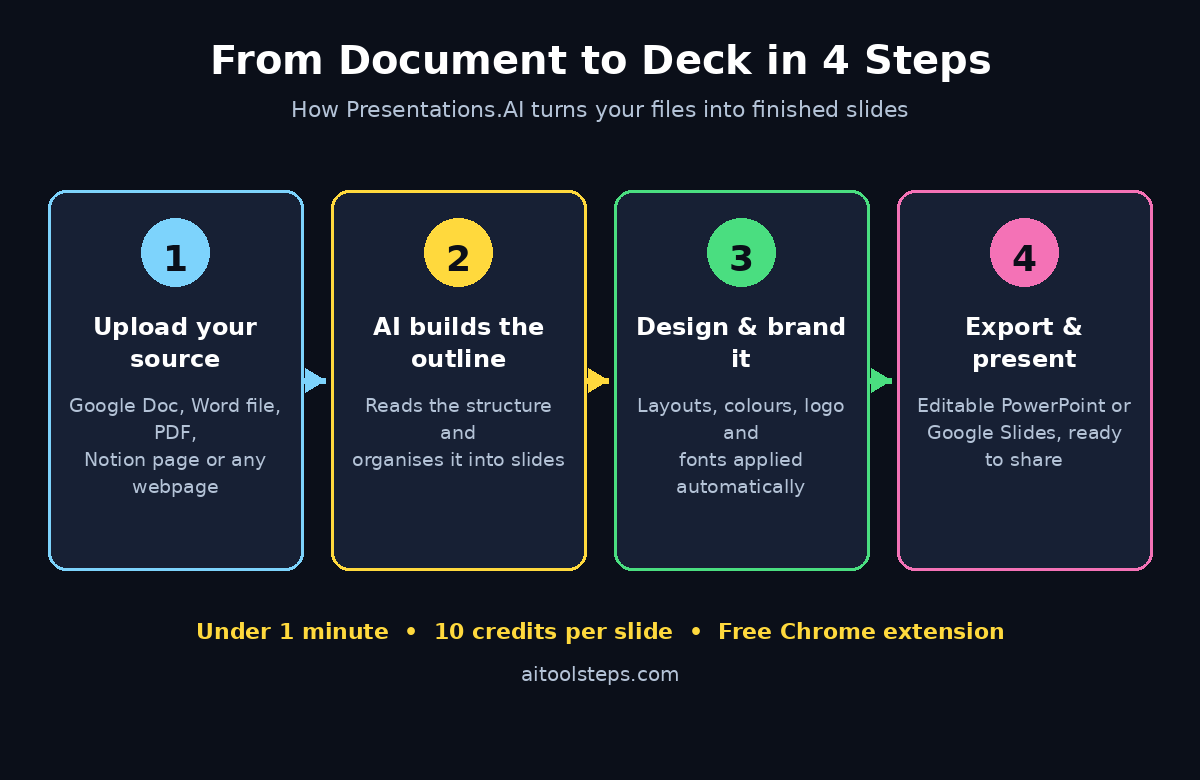
- It reads your source directly. Upload a Word document or a PDF and the platform identifies the relevant content, organises it into slides and applies presentation layouts.
- It builds the outline for you. The AI turns the structure of your document — headings, sections and key points — into a logical slide flow.
- It designs every slide. Layouts, colours, fonts and visuals are applied automatically, so the deck looks finished rather than pasted together.
- It stays editable. Every slide is a native, editable presentation. You can change text, swap images, move sections and rebrand the whole deck.
- It exports where you work. You get native editable PowerPoint export and Google Slides workflows, so the deck fits into the tools your team already uses.
The platform is backed by Accel and Together Fund, does not use customer content to train its models, and is GDPR compliant — useful reassurance if you plan to convert work documents or client material.
Step 2: Create Your Free Presentations.AI Account
Before you can generate a deck, you need an account. The good news is that getting started costs nothing, and the Chrome extension is free to install from the Chrome Web Store. For Presentations.AI for beginners, setup takes only a few minutes.
- Go to the official website. Open presentations.ai in your browser and look for the sign-up or “Get started” button.
- Sign up with Google or email. Google sign-in is the fastest option if you already use Google Docs, because it keeps your document workflow in one place.
- Confirm your account. Check your inbox for a verification email if one is sent, and click the link to activate your workspace.
- Open your dashboard. This is your home base: recent decks, templates, brand settings and your credit balance all live here.
Presentation generation consumes credits — 10 credits per slide, according to the announcement — and additional operations such as Presentation Refresh consume credits too. Your free allowance is what decides how many decks you can build without paying, so check your credit balance on the dashboard before you start a big deck. If you run a small business and want help turning AI tools like this into a proper content workflow, a digital agency can set up the process for you, but for a first deck you will not need one.
Step 3: Turn a Google Doc Into Slides – Presentations.AI for Beginners
This is the flagship use case, and it is the one most beginners should try first. A well-structured Google Doc becomes a well-structured deck almost automatically.
- Prepare your document. Use real headings (Heading 1 for sections, Heading 2 for sub-sections) and keep paragraphs short. The AI reads your document’s structure, so clean headings mean clean slides.
- Start a new presentation. From the dashboard, choose the document-to-presentation option and pick Google Docs as your source.
- Connect and select your document. Authorise access to Google Docs, then choose the document you want to convert.
- Review the generated outline. Presentations.AI builds a slide outline from your document’s structure. Read it before the design step — delete any slide you do not need and reorder anything that feels out of sequence.
- Generate the deck. Confirm the outline and let the AI design each slide. A typical 10-slide deck takes under a minute.
- Edit the result. Fix any text the AI shortened too aggressively, swap any image that does not match, and check that numbers and names survived the conversion exactly.
Pro tip: documents with a clear introduction, three to five main sections and a conclusion convert best. A 2,000-word report usually becomes a tight 10–12 slide deck, which is about right for a 15-minute talk.
Step 4: Convert Word Documents and PDFs Into Presentations
Not everything lives in Google Docs. Presentations.AI also converts Word documents and PDFs, which covers most reports, proposals, lesson notes and research papers. For Presentations.AI for beginners, this reuse saves hours.
- Upload your file. From the same document-to-presentation flow, choose Word or PDF and upload the file from your computer.
- Wait for the content scan. The platform identifies the relevant content in the file and organises it into slides. Long PDFs with tables and charts take a little longer than short Word files.
- Check the outline carefully. PDFs in particular can contain headers, footers and page numbers that the AI may mistake for content. Remove any junk slides before generating.
- Apply your layout. Pick a theme that matches the document’s purpose — a clean corporate theme for a business report, a brighter one for a classroom lesson.
- Verify facts and figures. AI summarisation can round numbers or merge two similar points. Always re-check statistics, dates and quoted figures against the original file.
This is also a great way to rescue old material. That 40-page PDF gathering dust in your downloads folder can become a fresh, shareable deck in minutes instead of a weekend of copy-paste.
Step 5: Use the Free Chrome Extension on Any Webpage – Presentations.AI for Beginners
The newest feature, launched with the 31 October 2026 announcement, is the free Chrome extension — and for many beginners it will be the most useful one. It adds a presentation-generation action to your browser toolbar.
- Install the extension. Visit the Chrome Web Store listing for the Presentations.AI extension (linked from presentations.ai/plugins/chrome-extension) and click “Add to Chrome”. It is free to install, with generation subject to your account’s credit allowance.
- Open any webpage. It can be an article, a report, a product page or a research page — anything with real written content.
- Click the extension icon. One click captures the page content, builds the outline and returns a finished, branded deck.
- Review and edit. The deck opens in your Presentations.AI workspace, where you can edit it like any other deck.
This is ideal for market research, competitive intelligence, product marketing, sales enablement and business analysis. Reading a competitor’s announcement? One click and you have a deck summarising it for your team meeting. Found a great tutorial? Turn it into study slides in seconds. Just remember that the extension captures the page you are reading, so it works best on content-rich pages rather than homepages or image galleries.
Step 6: Brand and Edit Your Deck Like a Pro – Presentations.AI for Beginners
A generated deck is a starting point, not a finished product. Ten minutes of editing is what separates an AI deck from a professional one.
- Apply your company branding. Presentations.AI supports automatic company branding — upload your logo, set your brand colours and fonts once, and the platform applies them across the deck.
- Fix the title slide. Make the title short and specific, add a subtitle that states the outcome, and put your name and date on it.
- One idea per slide. If a slide has five bullet points covering three topics, split it. Audiences remember one clear idea per slide.
- Replace weak visuals. Swap any generic image for a screenshot, chart or photo that proves your point.
- Use Presentation Refresh carefully. Refreshing a deck re-applies layouts and design, but it consumes credits, so refresh only when the design genuinely needs it.
- Read every slide out loud. If a sentence sounds awkward when spoken, rewrite it. Your audience will hear it, not read it silently.
If you want to go further and build AI-powered workflows around tools like this — for example, turning every new blog post into a deck automatically — the team at Agentic Affairs covers AI agents and automation tools that can take over that kind of repetitive work.
Step 7: Export to PowerPoint and Google Slides – Presentations.AI for Beginners
A deck that only lives inside one platform is a dead end. Presentations.AI exports to the formats your audience actually uses.
- Export to PowerPoint. Use the native editable PowerPoint export to download a .pptx file you can open, edit and present in Microsoft PowerPoint. Text stays as real text, not flattened images.
- Send to Google Slides. Use the Google Slides workflow to open the deck directly in Slides, where you can collaborate and present from the browser.
- Check fonts after export. If you used a brand font that PowerPoint or Slides does not have, it may substitute a similar font. Pick widely available fonts for decks you plan to export.
- Test the file before the meeting. Open the exported file on the actual laptop or device you will present from, and click through every slide once.
Keep the original in Presentations.AI as your master copy. If you need to update the deck later, edit the master and export again rather than maintaining two separate versions.
Step 8: Use the ChatGPT Integration – Presentations.AI for Beginners
Presentations.AI also offers a ChatGPT integration, so you can move from content developed in a ChatGPT conversation directly into a presentation workflow. For Presentations.AI for beginners, this is a handy shortcut.
- Draft in ChatGPT first. Use ChatGPT to outline your talk, brainstorm slide titles or turn rough notes into structured text.
- Send the content to Presentations.AI. Use the integration to move the finished text into the presentation workflow instead of copying and pasting it by hand.
- Let the AI design it. The same outline-to-deck process applies: the content becomes slides, and you edit the result.
- Keep the human in the loop. ChatGPT can invent facts and Presentations.AI can misread emphasis. Verify every claim before you present it to a real audience.
This combination is powerful for teachers, marketers and founders: brainstorm and draft with a chatbot, then let Presentations.AI handle the design work you used to dread.
Step 9: Share, Collaborate and Keep Decks Updated – Presentations.AI for Beginners
A presentation is rarely finished the moment it is generated. Sharing and updating are part of the workflow.
- Share a link. Share the deck with teammates or clients so they can view it without downloading files.
- Collect feedback in one place. Ask reviewers to comment on specific slides rather than sending vague notes over email or chat.
- Update from the source. If the underlying document changes, re-convert it or refresh the deck instead of patching slides one by one.
- Reuse what works. A good title slide, a clean comparison layout or a strong closing slide can be reused across decks — save them as your own templates.
Step 10: Free Plan Limits and Smart Tips for Beginners
Presentations.AI for beginners works best when you understand the limits before you hit them.
- Watch your credits. Generation costs 10 credits per slide, so a 12-slide deck costs 120 credits. Plan your deck length before you generate, and delete unwanted slides from the outline first.
- Start short. Your first deck should be 6–8 slides. Learn the editing tools on a small deck before you convert a 50-page report.
- Structure the source, not the slides. Time spent fixing headings in your document saves far more time than fixing slides afterwards.
- Do not publish AI errors. Check names, numbers, dates and quotes. AI tools summarise confidently, and a wrong number on a client slide is your mistake, not the tool’s.
- Respect copyright. Converting a webpage you do not own into a deck for your own study is one thing; presenting someone else’s content as your own work is another. Always credit sources.
- Know when to upgrade. Enterprise pricing, API access and white-label tiers are available on request. If you are generating decks daily for clients, a paid plan will pay for itself quickly.
Presentations.AI vs Other Ways to Make Slides
| Method | Speed | Design quality | Best for | Cost to start |
|---|---|---|---|---|
| Presentations.AI | Under 1 minute | Automatic, branded | Turning documents & webpages into decks | Free to start |
| Manual PowerPoint | Hours | Depends on your skill | Full creative control | Free with Office |
| Google Slides templates | 30–60 minutes | Good, if you pick well | Simple team decks | Free |
| Generic AI slide tools | A few minutes | Varies widely | Slides from a short prompt | Usually freemium |
| Hiring a designer | Days | Excellent | High-stakes keynotes | Expensive |
The honest answer is that Presentations.AI wins when you already have the content and need a deck fast. It loses when you need a completely original, artistic keynote — that is still a designer’s job.
FAQ: Presentations.AI for Beginners
Is Presentations.AI really free?
The Chrome extension is free to install, and you can start generating presentations with a free account. Generation is subject to your account’s credit allowance — 10 credits per slide — so how much you can build for free depends on your credits. Additional credits and paid tiers are available if you need more.
What files can I convert into a presentation?
Google Docs, Word documents, PDFs, plain text, Notion pages, spreadsheets and websites. The free Chrome extension also converts any webpage you are reading into a deck with one click.
Can I export my deck to PowerPoint?
Yes. Presentations.AI offers native editable PowerPoint export, so you get a real .pptx file with editable text, plus Google Slides workflows for browser-based presenting and collaboration.
Does Presentations.AI use my content to train its models?
No. According to the company, Presentations.AI does not use customer content to train its models, and the platform is GDPR compliant.
Can I use it with ChatGPT?
Yes. A ChatGPT integration lets you move content developed in a ChatGPT conversation directly into the presentation workflow, so you can draft with ChatGPT and design with Presentations.AI.
What is the best first deck to try?
Convert a short, well-structured Google Doc — for example, a one-page meeting summary or a short blog post. You will see the full workflow in under five minutes and learn the editing tools on a deck small enough to fix easily.
Final Thoughts – Presentations.AI for Beginners
Presentations.AI for beginners is a small tool with a clear promise: the document you already wrote is the presentation you need, and the distance between the two should be minutes, not hours. The 31 October 2026 expansion — Google Docs, Word, PDF, Notion, spreadsheets and websites, plus a free Chrome extension that converts any webpage in one click — makes it genuinely useful for students, teachers, marketers, founders and anyone who presents regularly.
Start with one short document, check the outline before you generate, spend ten minutes branding and editing the result, and always verify your facts before you present. Do that, and your next deck will be ready before your coffee gets cold.
Explore More Free AI Tools
Want to keep building your AI toolkit? Try these free tools from AIToolSteps: the AI Title Generator for catchy headlines, the Meta Description Generator for search-ready summaries, the AI Rewriter to polish any text, and the Keyword Density Checker to keep your content SEO-friendly. Each one is free, works in your browser, and pairs perfectly with the presentation workflow you just learned.