

On November 11, 2026, the team behind Grok introduced something different from another chatbot window. Grok Bot 1.0 turns Grok into a shareable AI teammate that lives inside the tools your team already uses — Slack, Microsoft Teams, and meetings — instead of sitting in a separate app you have to remember to open. One person sets it up, and the whole team can talk to the same bot, in the same channels, with the same shared memory of what the team is working on.
If you have ever copied an answer out of a chatbot and pasted it into Slack, or watched a great AI-generated summary die in a private chat nobody else could see, Grok Bot is built for you. In this beginner-friendly guide, you will learn exactly what Grok Bot is, how to add it to Slack and Microsoft Teams, how to invite it into a channel, how to give it real jobs like meeting prep and follow-ups, and how to set the ground rules that keep it safe. You will also learn the honest limits of version 1.0, so nothing surprises you.
One important note before we start: Grok Bot is brand new — version 1.0 launched on November 11, 2026, announced by the @bot account affiliated with SpaceX Super Intelligence — so the exact menus and availability can shift as the rollout reaches more workspaces. The ideas in this guide stay the same even if a button moves: add the bot once, share it with the team, give it clear jobs, and check its work. If a step below looks slightly different on your screen, check the app directory listing for Grok Bot in Slack or Teams, which always shows the current setup flow and plan details.
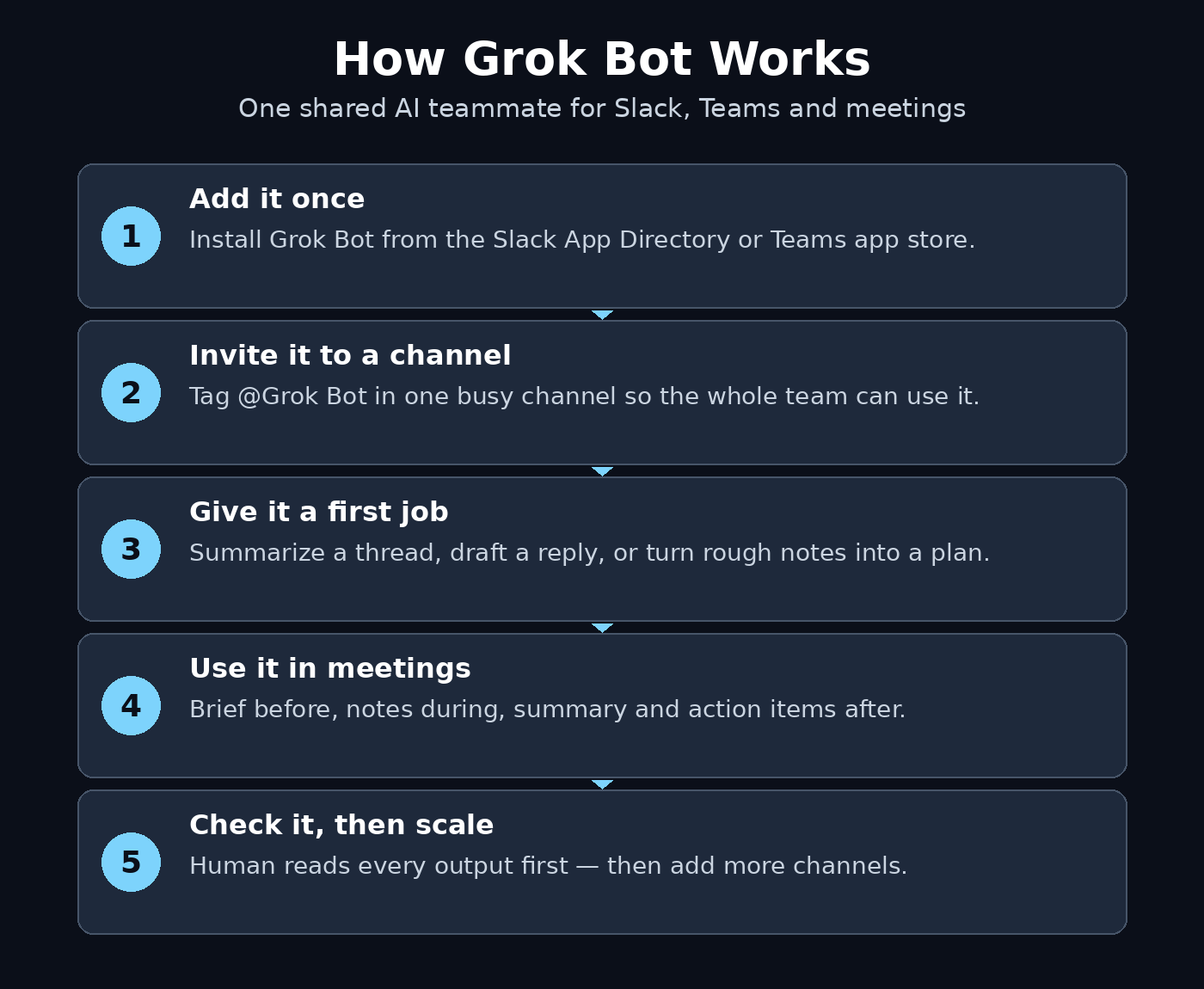
Step 1: Understand What Grok Bot Actually Is
Before you install anything, it helps to know what you are getting. Grok Bot is not a new Grok model — it is Grok, packaged as a teammate. The difference is where it lives and who can use it. A normal Grok chat belongs to one person. A Grok Bot belongs to a team: anyone in the channel can mention it, ask it a question, and see the answer in the open, so the whole team learns from one conversation instead of ten private ones.
Think of it like the difference between a personal notebook and a shared whiteboard. Your private Grok chats are the notebook — great for thinking. Grok Bot is the whiteboard — everyone sees it, everyone can add to it, and the work stays where the team already is.
- It lives in Slack and Microsoft Teams. You talk to it with an @mention, the same way you would tag a colleague.
- It joins meetings. It can take notes, capture decisions, and draft follow-ups from the conversation.
- It is shareable. One setup serves the whole workspace — you do not need every teammate to configure their own bot.
- It remembers team context. Because it works in shared channels, it can build on what the team has already discussed, instead of starting from zero every time.
What it is not: it is not a replacement for your team. It drafts, summarizes, searches, and organizes — humans still decide, approve, and own the outcome. The best way to think about it is as the teammate who never sleeps, never forgets a thread, and is happy to do the first draft of anything.
Step 2: Add Grok Bot to Slack
Slack is the fastest place to start, because most teams already live there. You need to be a Slack workspace admin, or have permission to add apps — if you are not sure, ask your workspace admin before you begin.
- Open Slack and go to the Apps section in the sidebar, then click Add apps to open the Slack App Directory.
- Search for Grok Bot and open its listing. Check that the publisher matches the official Grok Bot listing before you install anything.
- Click Add to Slack and approve the permissions it asks for. It will typically ask to read messages in channels it is invited to and to post messages on your behalf in those channels.
- Once installed, open any channel and type
@Grok Botto see if it responds. A short hello message is enough — the bot should introduce itself and offer a few example commands. - If the bot does not respond, check that it was added to that channel. In Slack, apps only see the channels they have been invited to — the bot cannot read a channel until someone invites it in.
A good first test is to ask it something only your workspace would know the answer to, like summarizing a pinned message or finding a decision from last week’s thread. If it answers well, the setup worked. If it says it cannot see the channel, invite it first and try again.
Step 3: Add Grok Bot to Microsoft Teams
If your team runs on Microsoft Teams instead of Slack, the setup is just as quick. You need permission to add apps in Teams — usually a Teams admin or a team owner can do it.
- In Teams, open the Apps section and search for Grok Bot.
- Open the listing, check the publisher, and click Add to install it for yourself or for a team.
- Choose whether to add it to a specific team, a chat, or just for your own use. For a shared teammate, add it to a team so everyone in that team can use it.
- Open a channel in that team and mention the bot with
@Grok Bot. It should reply and confirm it is ready. - Pin a short message in the channel explaining what the bot is for, so teammates do not treat it like a stranger. Something simple works: “Meet Grok Bot — tag it for summaries, drafts, and quick research.”
One practical tip: add the bot to one team first and let a small group try it for a week before you roll it out everywhere. A small pilot finds the rough edges — confusing answers, missing permissions, channels it should not be in — while the blast radius is still tiny.
Step 4: Invite Grok Bot to Your First Channel
A bot that is installed but not invited is invisible. In both Slack and Teams, Grok Bot only works in the channels it has been added to, which is also a privacy feature: it cannot read channels it was never invited into.
- In Slack: open the channel, click the channel name, choose Integrations, and add Grok Bot. Or simply type
@Grok Botin the channel and accept the prompt to add it. - In Teams: open the channel, go to the team settings, and add the bot as a member of the team. Then mention it in the channel to wake it up.
Start with one busy channel where the team already asks each other questions — a support channel, a project channel, or the general channel for a small team. A quiet channel teaches you nothing; a busy one shows you within a day whether the bot is actually useful.
Tell the channel what the bot is there for. A one-line announcement prevents two common problems: people ignoring it because they do not know it exists, and people feeding it work it was never meant to do. Say what it does, and say what it does not do — for example, “Grok Bot drafts and summarizes. It does not approve budgets or send messages to customers.”
Step 5: Give Your Teammate Its First Jobs
A bot with no job description will sit idle. The best first jobs are small, repeatable, and easy to check — the kind of work a teammate would do in five minutes and you would spend twenty minutes on.
Try these first:
- Summarize a long thread. Tag the bot and ask: “Summarize this thread in five bullets: what was decided, who owns what, and what is still open.” Then check the summary against the thread. If it is right, you just saved everyone a re-read.
- Draft a reply. Paste a customer question or a tricky message and ask for a draft reply in your team’s tone. Edit before sending — the draft is the starting point, not the finished message.
- Turn a ramble into a plan. Paste rough notes from a call and ask for a plan with owners and dates. The bot is good at turning messy input into structure.
- Find an old decision. Ask: “What did we decide about the launch date last week?” If the bot can search the channel history, it saves a scroll through hundreds of messages.
Use plain language. You do not need special commands or formatting — just describe what you want the way you would ask a colleague. And always check the first few outputs carefully. A bot earns trust one correct answer at a time, and the fastest way to lose trust is to forward an unchecked answer that turns out to be wrong.
Step 6: Use Grok Bot in Meetings
Meetings are where Grok Bot earns its keep. Instead of one person scribbling notes while everyone else talks, the bot can listen, capture, and organize — so the humans can actually pay attention to each other.
Here is a simple meeting workflow that works for beginners:
- Before the meeting: tag the bot in the meeting channel and ask for a short brief — the agenda, the open items from last time, and any background from the channel. Share it with the room so everyone starts on the same page.
- During the meeting: let the bot take notes. If your setup supports it, add Grok Bot to the meeting itself so it can capture what is said. If not, paste key points into the channel as you go and let the bot organize them.
- After the meeting: ask the bot for a summary — decisions made, action items with owners and dates, and anything left open. Post it in the channel within an hour, while the meeting is still fresh in everyone’s mind.
- Follow up: the next day, ask the bot to check which action items are still open. A bot that remembers what everyone promised is a gentle accountability machine.
Two honest cautions: first, tell everyone in the meeting that a bot is taking notes — never record or transcribe people without their knowledge. Second, the summary is a draft until a human reads it. The bot can mishear a name or miss a decision, and a wrong action item sent to the whole team is worse than no action item at all.
Step 7: Share One Bot Across the Whole Team
The “shareable” part is what makes Grok Bot different from a personal AI chat. Once it is set up in a workspace, everyone can use the same bot, and the bot builds shared context from the channels it is in.
This creates three habits worth building from day one:
- Ask in public, not in private. When someone asks the bot a good question in a direct message, the answer helps one person. The same question in a channel helps everyone who reads it later. Encourage the team to ask in channels.
- Keep one source of truth. If the bot drafts a plan in a channel, keep the plan in that channel. Do not copy it into five different docs and let the copies drift apart.
- Let the bot learn the team’s language. The more the team talks to it in shared channels, the better it gets at the team’s vocabulary, projects, and shorthand. A bot that only ever sees private chats never learns how the team actually works.
If you run a small business and want help turning AI experiments like this into real workflows, a digital agency can set up the processes around the tool — but for most small teams, one shared bot and a short team call are enough to feel the difference.
Step 8: Set Ground Rules for Permissions and Privacy
A teammate with access to your channels needs ground rules. Set these before the bot has been running for a month, not after a problem shows up.
- Limit the channels. Only invite the bot into channels where its help is wanted. Keep it out of HR discussions, private leadership channels, and anything with sensitive personal data.
- Check what it can read. Review the permissions you approved at install time. If it can read more than it needs, tighten them.
- Never paste secrets. Do not share passwords, API keys, customer payment details, or private personal information with any bot — Grok Bot included. If it is not safe to paste into a shared channel, it is not safe to paste to the bot.
- Decide who can add it. If anyone can invite the bot into any channel, someone eventually will invite it somewhere it should not be. Make one person or a small group responsible for where the bot lives.
- Agree on the human check. Decide as a team: the bot drafts, a human approves. No bot-written message goes to a customer, no bot-written summary goes to a client, without a human reading it first.
For teams already exploring AI automation services and agentic workflows, these ground rules are the foundation — a shared bot with clear boundaries is a small taste of how AI agents can carry work across a team without a human retyping anything.
Step 9: Build Simple Routines and Automations
Once the basics work, the fun starts: giving the bot regular jobs so the team does not have to ask every time. You do not need to be a developer to do this — most of it is just a clear instruction, written once, in plain words.
- A Monday brief. Ask the bot every Monday morning for the week’s priorities: open action items, meetings on the calendar, and anything overdue. One message, and the whole team starts the week aligned.
- A Friday wrap-up. Every Friday, ask for a summary of what shipped, what moved, and what is still blocked. It takes the bot a minute and saves the team a status meeting.
- A new-member welcome. When someone joins a channel, the bot can post a short summary of what the channel is about, the current priorities, and where to find the important files.
- A daily digest. In a busy channel, ask the bot to post one short digest at the end of the day instead of ten separate summaries. Less noise, same information.
Start with one routine. Run it for two weeks. If the team reads it and acts on it, keep it. If nobody reads it, kill it — a routine nobody uses is just noise with a schedule.
Step 10: Measure What It Saves and Keep Improving
After a month, ask a simple question: is the bot actually saving time, or is it just another thing to manage? The answer should be visible, not a feeling.
- Count the summaries. How many meeting notes and thread summaries did the team use this month? If the number is near zero, the bot is not in the right channels.
- Ask the team. A five-minute survey beats a guess: “What did Grok Bot do for you this week? What did it get wrong?” The answers tell you what to fix.
- Check the mistakes. Keep a short list of the bot’s errors — wrong names, missed decisions, bad drafts. If the same mistake keeps happening, change the instruction you give it or stop asking it to do that job.
- Prune the channels. If a channel never uses the bot, remove it. A bot in twenty quiet channels is worse than a bot in three busy ones.
Grok Bot 1.0 is the first version, and it will change. New features will arrive, menus will move, and the team behind it will fix the rough edges that early users report. The teams that get the most from it are not the ones with the fanciest setup — they are the ones that give it clear jobs, check its work, and keep the human in charge of every decision that matters.
Grok Bot vs Other Ways to Use AI at Work
| Feature | Grok Bot (shared teammate) | Grok chat (personal) | Human teammate |
|---|---|---|---|
| Who can use it | Whole team in a channel | One person | One person |
| Where it works | Slack, Teams, meetings | Grok app or website | Anywhere |
| Shared memory | Yes — learns from channel history | Only your own chats | Yes — lived experience |
| Meeting notes | Yes, as a participant | Only if you paste a transcript | Yes, with attention limits |
| Drafts and summaries | Fast, unlimited | Fast, private | Slower, but nuanced |
| Judgment calls | No — needs a human check | No | Yes |
| Cost of a mistake | A wrong draft, caught in review | Private, low stakes | Varies |
| Best for | Team-wide drafts, summaries, follow-ups | Personal thinking and writing | Decisions, relationships, trust |
Frequently Asked Questions
Is Grok Bot free to use?
Grok Bot 1.0 launched on November 11, 2026, and the announcement positions it as a shareable teammate for Slack, Teams, and meetings. Pricing and plan details can vary by workspace and by platform, so check the official listing in the Slack App Directory or the Teams app store for the current terms before you install it. Start with one team and confirm the cost — if any — before you roll it out everywhere.
Do I need a Grok subscription to use Grok Bot?
The launch announcement describes Grok Bot as a shareable AI teammate, and the exact account requirements depend on how your workspace is set up. In most cases, the workspace admin installs it once and the team uses it from Slack or Teams without each person needing a separate setup. Check the app listing in your platform for the current requirements.
Which is better — Grok Bot in Slack or in Microsoft Teams?
Neither is better — the right one is the one your team already uses. Grok Bot works in both, and the experience is the same idea in both places: mention the bot, give it a job, check the result. If your team lives in Slack, start there. If it lives in Teams, start there. Do not move your team to a new chat app just for one bot.
Can Grok Bot read all my private messages?
No. Grok Bot only works in the channels and chats it has been added to. It cannot read channels it was never invited into, and it cannot read your private direct messages unless you talk to it there. That is exactly why the invite step matters — you control where it can see, by choosing which channels to add it to.
What should I do if Grok Bot gives a wrong answer in a shared channel?
Correct it in the same channel, briefly and kindly, so everyone sees the fix. A short reply like “Small correction — the launch date is the 20th, not the 18th” protects the team and teaches the bot’s future answers in that channel. If wrong answers keep happening on the same topic, give the bot clearer source material — paste the right document or link — instead of asking it to guess.
Can Grok Bot replace a project manager or a meeting assistant?
No. It can draft plans, summarize meetings, track action items, and remind people of what they promised — and it does those jobs tirelessly. But it cannot make judgment calls, resolve a disagreement, or understand the office politics behind a decision. Think of it as the world’s most organized assistant, not a manager. The human still owns the decision.
Final Thoughts
Grok Bot is a small idea with a big shift behind it: AI is moving out of private chat windows and into the shared rooms where teams actually work. One bot, set up once, that anyone can tag in Slack or Teams — for a summary, a draft, a plan, or a meeting note — is a different kind of tool from a chatbot you visit alone. The work stays visible, the answers help everyone, and the team builds shared memory instead of ten separate ones.
It is version 1.0, so expect rough edges: menus will move, some answers will miss, and the feature set will grow. That is normal for a first release, and it is not a reason to wait. Start small — one channel, one job, one week — and let the team decide from real experience whether it earns a permanent seat. If it does, give it more jobs and more channels. If it does not, you will have learned that in a week, not a quarter.
The rule that matters most has not changed since the first AI assistant: the bot drafts, the human decides. Keep that rule, and Grok Bot becomes the teammate who does the first draft of everything — so your team can spend its time on the work only humans can do.
Explore More Free AI Tools
Want to keep building your AI toolkit? Try our free tools at AIToolSteps: the AI Title Generator for headlines that get clicks, the Meta Description Generator for search snippets, the AI Rewriter for polishing rough drafts, and the Keyword Density Checker to keep your SEO on track — all free, right on the homepage.