

If your inbox feels like a second job, learning how to use Glassmail AI could be the best 30 minutes you spend this week. Glassmail is a fast, native Mac email app built in Swift, and it comes with AI that runs entirely on your own computer. It reads your mail, summarizes long threads, and drafts replies in your voice — without sending a single word of your email to a cloud server.
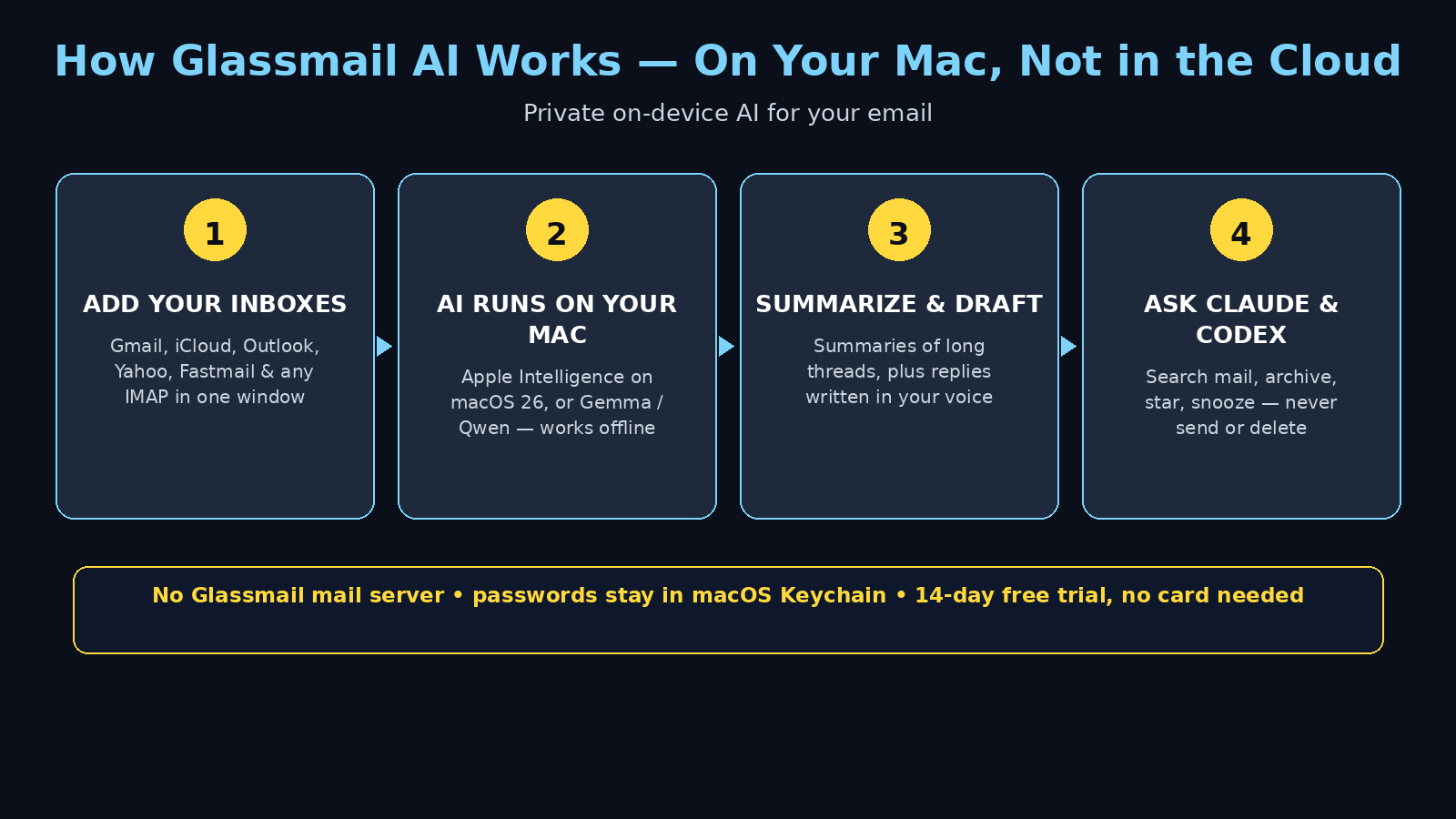
Glassmail launched on Product Hunt on November 21, 2026, from glassmail.app, and it arrives at a moment when many Mac users are asking a fair question: do I really need to hand my private email to a remote AI just to get a summary? Glassmail answers that question with a firm no. Its AI runs on your Mac using Apple Intelligence on macOS 26, or small downloaded models such as Gemma and Qwen on any Mac, including Intel machines. There is no account to create, no API key to paste in, and no AI fee to pay. It even works offline, on a plane, with no Wi-Fi at all.
This beginner-friendly guide walks you through everything step by step: downloading Glassmail and starting the free trial, adding all of your email accounts into one window, keeping Work and Personal apart with Workspaces, getting AI summaries, writing replies that sound like you, searching your mail with AI, connecting Claude, Claude Code, Codex and Cursor so they can search your mail too, and deciding whether the one-time price is worth it. You do not need any technical skills, and you do not need a credit card to try it.
Step 1: What Glassmail AI Is (and Why It Is Different)
If you are learning how to use Glassmail AI, start with the idea that makes it different from every other AI email app. Most AI email tools work the same way: your email is uploaded to a company’s server, their AI reads it there, and the answer comes back to you. Glassmail flips that around. The AI lives on your Mac, and your mail never leaves your Mac to reach it.
That is possible because Glassmail is a native Mac app, built in Swift, and it is fast in the way only native apps are — instant search, smooth scrolling, and no browser-style lag. On macOS 26 it uses Apple Intelligence, the AI built into the system. On any other supported Mac, it downloads small models such as Gemma or Qwen that run locally on your machine. Either way, the reading, summarizing and writing happen on your computer, not in someone else’s data centre.
Here is the short version of what Glassmail AI does for you:
- Summarizes long emails and threads. Open a long message and get the point in a few lines, without reading the whole thing.
- Drafts replies in your voice. It learns your greeting, your length, and your sign-off from mail you have already sent, so drafts sound like you wrote them.
- Lets you describe a reply in plain words. Type “yes, but next week” and Glassmail writes a polite, complete reply for you.
- Searches your mail with AI. Ask a question in normal language and find the message you are looking for.
- Works with Claude, Claude Code, Codex and Cursor. These tools can search and read your mail on your Mac through MCP, with your permission each time.
One privacy detail matters more than the rest: Glassmail has no mail server of its own. Your Mac talks straight to your email provider, and your passwords stay in macOS Keychain, where they belong. There is no Glassmail account, and there is nothing to sign up for before you start.
If you are new to this whole category of software, the shift toward tools that do work on your behalf instead of waiting for instructions is worth understanding. Agentic Affairs explains how agentic systems are changing everyday work, and Glassmail is a practical example of that idea sitting inside your inbox. The same trend is reshaping how small businesses operate, and Digital 365 shows how agencies are putting these tools to work for real clients every day.
Step 2: Download Glassmail and Start the 14-Day Free Trial
Getting started takes about five minutes, and you do not need a credit card.
- Visit the official website. Go to glassmail.app in your browser and download the app for Mac. It is made by Junaid, and the site is the only place you should download it from.
- Check your Mac can run it. Glassmail needs macOS 14 or later, and it works on both Apple silicon and Intel Macs. If your Mac runs macOS 14 or newer, you are good to go.
- Install it like any Mac app. Open the downloaded file and drag Glassmail into your Applications folder, then open it from Launchpad or Spotlight.
- Start the free trial. Your 14-day free trial begins when you first open the app. No card is needed, and nothing is charged when the trial ends — you simply decide whether to buy it.
One honest note for beginners: Glassmail is brand new — it launched on Product Hunt on November 21, 2026. Early apps change fast, so treat the official site as the source of truth for pricing and features, and expect small rough edges in the first weeks. That is also the best time to learn it, because the free trial lets you try everything on your real inbox without paying anything.
Step 3: Add All Your Email Accounts Into One Window
Glassmail puts every inbox in one window, which is the first thing you will notice. You can add Gmail, iCloud, Outlook, Yahoo, Fastmail, and any other IMAP account, so your personal mail and your work mail finally live in the same place.
- Open the account settings. When you first launch Glassmail, it will ask you to add an account. Pick your provider from the list, or choose the IMAP option for anything else.
- Sign in normally. Glassmail connects to your provider the same way Apple Mail does. Your password goes into macOS Keychain, not into a Glassmail server, because there is no Glassmail server holding your mail.
- Add your other accounts the same way. Repeat the process for each address you use. There is no limit mentioned for the number of accounts, so add them all — work, personal, and that old address you only check twice a year.
- Wait for the first sync. Glassmail downloads your messages so search and AI can work instantly and offline. Give it a few minutes on a big mailbox, then everything feels instant.
Once your accounts are in, try the unified inbox view. You will see all of your mail in one list, and you can switch to a single account whenever you want a narrower view. For most people, the unified view is the one that sticks.
Step 4: Set Up Workspaces to Keep Work and Personal Apart
One inbox is convenient until your boss’s email sits next to your holiday booking. That is what Workspaces are for. A Workspace is a separate view that keeps one part of your life apart from the rest.
- Create a Work Workspace. Put your work accounts and folders in it, so your workday starts with work and nothing else.
- Create a Personal Workspace. Your personal accounts, newsletters, and receipts live here, far away from your deadlines.
- Switch with one click. Moving between Work and Personal is instant, and each Workspace remembers its own layout and folders.
- Use folders and drag and drop. Drag messages into folders to file them, or drag them straight out to Finder to save a copy. You can also save any message as a PDF, which is handy for receipts and invoices.
Workspaces are simple, but they change how email feels. Instead of one giant pile of everything, you get two or three calm spaces, each with its own job. Set them up on day one and you will never go back to the single-inbox view.
Step 5: Let the AI Summarize Your Email
This is where learning how to use Glassmail AI starts paying off. Long emails are the enemy of a clear inbox, and Glassmail’s on-device AI is very good at cutting them down to size.
- Open any long email. Look for the summary option in the message view. Glassmail reads the email on your Mac and shows you a short summary — the key points, any dates or deadlines, and what, if anything, you need to do.
- Summarize a whole thread. Long back-and-forth threads are where summaries shine. Instead of scrolling through twenty replies to find the one decision that matters, read the summary first and open the full thread only if you need the detail.
- Trust the privacy model. Because the summary is generated on your Mac, the email never travels to a server to be read. That matters for work mail, for anything sensitive, and honestly for everything — your inbox is private by default here.
- Use summaries as a triage tool. Each morning, skim the summaries of anything that arrived overnight. Reply to what matters, archive the rest, and you will clear your inbox in a fraction of the usual time.
A good habit is to summarize before you reply. When you know exactly what someone asked, your answer is shorter, clearer, and less likely to miss the point. If you write a lot of emails for work, you may also like our guide to the AI Rewriter and other free writing tools on this site — they pair nicely with a fast inbox routine.
Step 6: Draft Replies in Your Voice With AI
Summaries save you reading time. Drafts save you writing time, and this is the feature most people fall in love with first.
- Let Glassmail learn how you write. The AI studies mail you have already sent — your greeting, how long your messages usually run, and how you sign off — so its drafts sound like you, not like a robot pretending to be you.
- Describe the reply in plain words. You do not need to write the email yourself. Just describe what you want to say, for example “yes, but next week” or “thanks, send the invoice and I will pay on Friday”, and Glassmail writes a complete, polite reply in your voice.
- Edit before you send. AI drafts are a starting point, not a finished product. Read the draft, fix anything that sounds off, add a detail only you know, and then send it. The best results come from a thirty-second human edit on top of a five-second AI draft.
- Write in your own window. When a reply needs real thought, Glassmail gives you a dedicated writing window, separate from the inbox, so you can focus on the words instead of the unread count staring at you from the sidebar.
- Use Markdown and a signature per address. If you like formatting, Markdown is built in. And because you may write very differently from your work address than from your personal one, you can set a different signature for each address.
The trick with AI drafts is to be specific in your short instruction. “Yes” produces a generic yes. “Yes, but next week because I am travelling until Monday” produces a reply that actually answers the question. Give the AI the facts, and it will handle the phrasing.
Step 7: Search Your Mail With AI — and Connect Claude, Codex and Cursor
Normal email search finds words. Glassmail’s AI search finds meaning, and its MCP connection takes that idea further than any other Mac email app.
- Ask in normal language. Instead of remembering an exact subject line, ask something like “the email about the March invoice from Sarah” and let the AI find it. The search runs on your Mac, over mail you already have.
- Connect Claude, Claude Code, Codex or Cursor. Glassmail exposes your mail to these tools through MCP, the open protocol that lets AI tools talk to apps on your computer. Once connected, Claude or Cursor can search and read your mail on your Mac.
- You allow or deny every time. This is the part that matters. When one of these tools wants to act on your mail — to archive a message, star it, snooze it, or save a draft — it has to ask you first, and you allow or deny each request. Nothing happens silently.
- They can never send or delete. This is a hard limit, built into Glassmail on purpose. No matter what you ask Claude or Codex to do, they cannot send an email from your account and they cannot delete one. That single rule makes the whole connection safe to use every day.
- Use it for real chores. Ask Claude to find every unread invoice email and snooze the ones that are not urgent. Ask Cursor to pull up the thread where your client approved the new design. The AI does the hunting; you make the decisions.
If you have ever wished your coding assistant or your chat assistant could look at your email without you copying and pasting messages into it, this is that feature — with guardrails that keep your inbox under your control.
Step 8: Use Glassmail Offline — On a Plane, Anywhere
Most AI email apps stop working the moment the Wi-Fi drops, because their AI lives in the cloud. Glassmail’s AI lives on your Mac, so it keeps working with no connection at all.
- Download the small models once. On Macs without Apple Intelligence, Glassmail downloads a small model such as Gemma or Qwen. That download happens once, and after that the AI runs entirely offline.
- Summarize and draft on a plane. With no Wi-Fi, you can still read summaries, write replies in your voice, and search your mail. Drafts wait in your outbox and send when you are back online.
- Keep your scheduled mail ready. Glassmail has a Scheduled list, so you can write an email now and have it go out at the right time — useful for messages you want to land during work hours, not at midnight.
- Know what still needs the internet. Sending, receiving, and syncing new mail need a connection, obviously. But everything the AI does — reading, summarizing, drafting, searching — works with no connection at all.
For frequent travellers, this is quietly the best feature in the app. Airport Wi-Fi is slow, plane Wi-Fi is expensive, and your inbox does not care. Glassmail lets you clear a hundred emails at 35,000 feet and arrive with an empty inbox.
Step 9: Understand the Pricing and the Free Trial
Glassmail is honest about what it costs, and the pricing is simple: you pay once, and there is no subscription.
- Start with the 14-day free trial. No card is needed, and you get the full app for two weeks. That is enough time to add your accounts, try the AI on your real mail, and decide whether it earns a place in your dock.
- Then pay once: $29 while the first 100 last, then $49. The early $14 founding price has already sold out, so $29 is the current price for the first hundred buyers, rising to $49 after that. There is no monthly fee and no yearly renewal.
- Every 1.x update is included. Your one-time payment covers all updates in the 1.x line, so the app keeps improving without another charge.
- Use it on up to 3 Macs. One purchase covers three Macs, which is generous for anyone with a work machine and a personal one.
- There is no AI fee. This is the detail to remember. Other AI email apps often charge a monthly AI subscription on top of the app price. Glassmail charges nothing for AI, because the AI runs on your hardware — there is no server bill for the developer to pass on to you.
Is it worth $29? If you spend an hour a day in email, saving even ten minutes a day pays for the app in the first week. And unlike a subscription, the price you pay today is the last time you pay for version 1.x. Try the trial first and let your own inbox decide.
Step 10: Pro Tips, Limits and Honest Advice
You now know how to use Glassmail AI. These final tips will help you get the most out of it, and the limits are worth knowing before you commit.
- Train the voice first. In your first week, edit every AI draft a little before sending. The AI learns from your sent mail, so the more normal mail you send, the better its drafts become.
- Use the Scheduled list for time zones. If you work with people in other countries, schedule replies to land in their morning instead of their midnight.
- Keep signatures tidy. Set one signature per address and keep it short. A signature is the first thing the AI copies when it learns your style.
- Archive aggressively. Summarize, decide, archive. A small inbox makes search faster and summaries more useful.
- Know the limits. Glassmail is Mac-only and needs macOS 14 or later. There is no Windows version and no iPhone app mentioned, so if you need your AI email on your phone, this is not the app for that yet. And because the AI is small and local, it will not write a novel for you — it is built for email, and that is where it is excellent.
- Back up before big clean-ups. Before you archive hundreds of messages in one sitting, make sure your mail is safe with your provider. Glassmail talks directly to your provider, so your mail lives there, but a backup never hurts.
One more practical tip: if you write headlines, descriptions or posts to go with your emails, the free tools on this site help. The AI Title Generator and Meta Description Generator are useful when a message needs a subject line that actually gets opened, and the Keyword Density Checker keeps longer writing on topic.
Glassmail vs Apple Mail vs Spark
| Feature | Glassmail | Apple Mail | Spark |
|---|---|---|---|
| Price model | One-time $29 / $49, no subscription | Free with macOS | Free tier, paid plans |
| AI location | On your Mac (Apple Intelligence or Gemma/Qwen) | Apple Intelligence on device (macOS 26) | Cloud-based AI |
| Offline AI | Yes — summaries, drafts and search work offline | Limited to on-device features | No — needs internet |
| Accounts | Gmail, iCloud, Outlook, Yahoo, Fastmail, any IMAP | Gmail, iCloud, Outlook, Yahoo, any IMAP | Gmail, Outlook, Yahoo, iCloud, IMAP |
| MCP access | Claude, Claude Code, Codex, Cursor (search/read, never send or delete) | None | None |
| Workspaces | Yes — keep Work and Personal apart | No | No |
| Trial | 14 days free, no card needed | Free forever | Free tier available |
The table makes the trade-off clear. Apple Mail costs nothing and Spark is a polished, mature app, but neither gives you on-device AI plus MCP access to your coding tools, and neither is built around the idea that your mail should never leave your Mac. Glassmail is the choice for Mac users who want AI email without the cloud.
Frequently Asked Questions
Is Glassmail AI really free?
Glassmail offers a 14-day free trial with no card needed, and there is no AI fee — the AI runs on your Mac, so there is no monthly charge for it. After the trial, the app is a one-time payment of $29 while the first 100 last, then $49, which includes every 1.x update and use on up to 3 Macs. It is not free forever, but it is not a subscription either.
Does Glassmail AI work offline?
Yes. The AI runs on your Mac using Apple Intelligence on macOS 26 or small downloaded models such as Gemma and Qwen on any Mac, including Intel. Summaries, drafts and AI search all work with no internet connection, for example on a plane. You still need a connection to send and receive new mail.
Which email accounts can I add to Glassmail?
You can add Gmail, iCloud, Outlook, Yahoo, Fastmail, and any other IMAP account, all in one window. Workspaces let you keep Work and Personal accounts apart.
Can Claude or Codex send email from Glassmail?
No, never. Claude, Claude Code, Codex and Cursor can search and read your mail on your Mac through MCP, and they can ask to archive, star, snooze or save a draft — but you allow or deny each request, and they can never send or delete an email.
Does Glassmail read my email on its servers?
No. Glassmail has no mail server of its own. Your Mac talks straight to your email provider, your passwords stay in macOS Keychain, and the AI runs on your Mac. Your email never leaves your computer to reach the AI.
What Mac do I need for Glassmail?
You need macOS 14 or later, and Glassmail works on both Apple silicon and Intel Macs. Apple Intelligence features need macOS 26, but on older Macs the small downloaded models such as Gemma and Qwen provide the same on-device AI.
Final Thoughts
Learning how to use Glassmail AI is really about learning a different idea of what email software should be: fast, native, private, and paid for once instead of rented forever. Add your accounts, set up your Workspaces, let the AI summarize a few long threads, and describe your next reply in plain words instead of typing it out. Within a day you will know whether the workflow fits you, and the 14-day trial gives you two full weeks to decide with your real inbox, not a demo.
The strongest reason to try it is the privacy model. Every other AI email app asks you to trust a server with your mail; Glassmail simply never asks, because the AI is on your Mac. That, plus a one-time price and a genuine offline mode, makes it one of the most interesting Mac apps of the year. Download it from glassmail.app, start the free trial, and see how much of your inbox the AI can clear before your coffee gets cold.
Explore More Free AI Tools
Want to sharpen the writing that goes with your faster inbox? Try these free tools on AIToolSteps:
- AI Title Generator — write subject lines and headlines that get opened: AI Title Generator
- Meta Description Generator — craft search snippets that earn the click: Meta Description Generator
- AI Rewriter — polish a rough draft into clear, natural writing: AI Rewriter
- Keyword Density Checker — check your content stays on topic: Keyword Density Checker
All four are free at aitoolsteps.com, and they work well alongside a Glassmail routine — better subjects, cleaner drafts, and an inbox that finally feels under control.