

Framer just changed how websites get built. On October 31, 2026, Framer shipped Framer AI Agents — real AI agents that live right on your design canvas and can design, write, analyze, and organize your website for you. You describe what you want, and the agents do the work while you watch, approve, and steer.
If you have ever stared at a blank website builder and thought “I know what I want, I just cannot design it,” this is the tool for you. Framer AI Agents turn plain-language requests into a professional, publish-ready website — no coding, no design degree, and no expensive freelancer required.
In this beginner guide, you will learn what Framer AI Agents are, how to set up your free account, how to brief an agent on the canvas, how to connect your own AI tools like Claude Code or Codex, and how to publish your finished site. By the end, you will have a real website you can share with the world.
Step 1: Understand What Framer AI Agents Actually Do
Before you click anything, it helps to know what you are working with. Framer has always been a no-code website builder known for beautiful, modern designs. Framer AI Agents add a team of AI helpers directly onto the canvas — the same screen where your website lives.
Here is what the agents can do for you:
- Design: Generate full page layouts, sections, and components from a text description.
- Write: Draft headlines, paragraphs, button text, and entire landing page copy in your tone.
- Analyze: Review your site and suggest improvements for layout, readability, and conversions.
- Organize: Restructure pages, clean up messy layers, and keep your project tidy as it grows.
- Connect: Work alongside your own AI tools — you can connect Claude Code or Codex to Framer and let them help too.
The key difference from a simple AI text generator is that these agents work on the canvas. They do not hand you a wall of code or a static image. They build real, editable Framer pages that you can click, move, and refine afterward. You stay in control at every step.
Think of it like hiring a junior designer who works at superhuman speed — you give direction, they do the drafting, and you make the final calls.
Step 2: Create Your Free Framer Account
Everything starts with a free Framer account. Head to framer.com and sign up with your email or Google account. No credit card is required to start, and the free plan is enough to build your first site, experiment with AI Agents, and publish it on a Framer subdomain.
Once you are inside, you will see the Framer dashboard with your projects. Click New Project or New Site to start a blank canvas. Give your project a name — for example, “My Portfolio” or “Bakery Website” — and Framer opens the editor.
Take a minute to look around the editor before you do anything else:
- The canvas in the center is your website, live and editable.
- The left panel holds your pages, layers, and assets.
- The right panel holds styling controls like colors, fonts, and spacing.
- The top bar has the AI Agents entry point, preview, and publish buttons.
You do not need to memorize any of this. The agents will do most of the heavy lifting, and you will learn the panels naturally as you refine their work.
Step 3: Open an AI Agent on the Canvas
This is where the magic starts. Look for the AI Agents option in the top bar or the toolbar — Framer places it front and center in the new release. Click it, and an agent panel opens beside your canvas.
You will usually see a chat-style input where you type what you want. Some agents are generalists, while others specialize in a job — one might focus on layout, another on copywriting, another on analysis. Start with the general design agent for your first build.
Your first prompt matters more than anything else. A vague prompt gives you a vague website. A specific prompt gives you a website that already looks like yours. Compare these two:
- Weak: “Make me a website.”
- Strong: “Build a one-page portfolio website for a freelance photographer named Sara. Dark theme, big hero photo, gallery grid with six photos, a short about section, and a contact form. Modern and minimal.”
The strong prompt tells the agent the type of site, the owner, the style, the sections, and the mood. Write yours the same way: who the site is for, what it should do, and how it should feel.
Step 4: Brief the Agent Like a Real Client Brief
Treat your first prompt as a mini creative brief. The more useful detail you include, the less fixing you will do later. A good brief answers five questions:
- What is the site for? A portfolio, a shop, a landing page, a blog, a booking page?
- Who is it for? Your visitors — customers, employers, readers, event guests?
- What sections do you need? Hero, services, gallery, pricing, testimonials, contact?
- What style do you want? Minimal, bold, playful, luxury, dark, colorful?
- What action should visitors take? Book a call, buy a product, join a waitlist, send a message?
Here is a ready-to-copy example brief you can adapt:
“Design a landing page for a small digital agency that helps local shops get online. Clean and modern style, blue and white colors. Sections: hero with headline ‘We Build Websites That Bring Customers’, services grid (Web Design, SEO, Social Media), three client testimonials, pricing with three plans, and a contact form. The main button should say ‘Get a Free Quote’.”
Paste your version into the agent chat and hit send. Within moments, the agent starts building on your canvas — you can watch sections appear, text fill in, and layouts take shape in real time.
Step 5: Review, Edit, and Steer the Agent’s Work
The agent’s first draft is a starting point, not a finished product. Your job now is creative director: review what it made, keep what works, and tell it what to change.
Click any element on the canvas to select it. You can drag it, resize it, change its text by double-clicking, or restyle it from the right panel. Everything the agent built is a normal Framer element — nothing is locked away.
When something needs a bigger change, just ask the agent again in plain language:
- “Make the hero headline bigger and bolder.”
- “Change the color scheme to warm oranges and cream.”
- “Add a testimonials section with three quotes.”
- “Rewrite the about text to sound friendlier.”
- “Make the pricing section highlight the middle plan.”
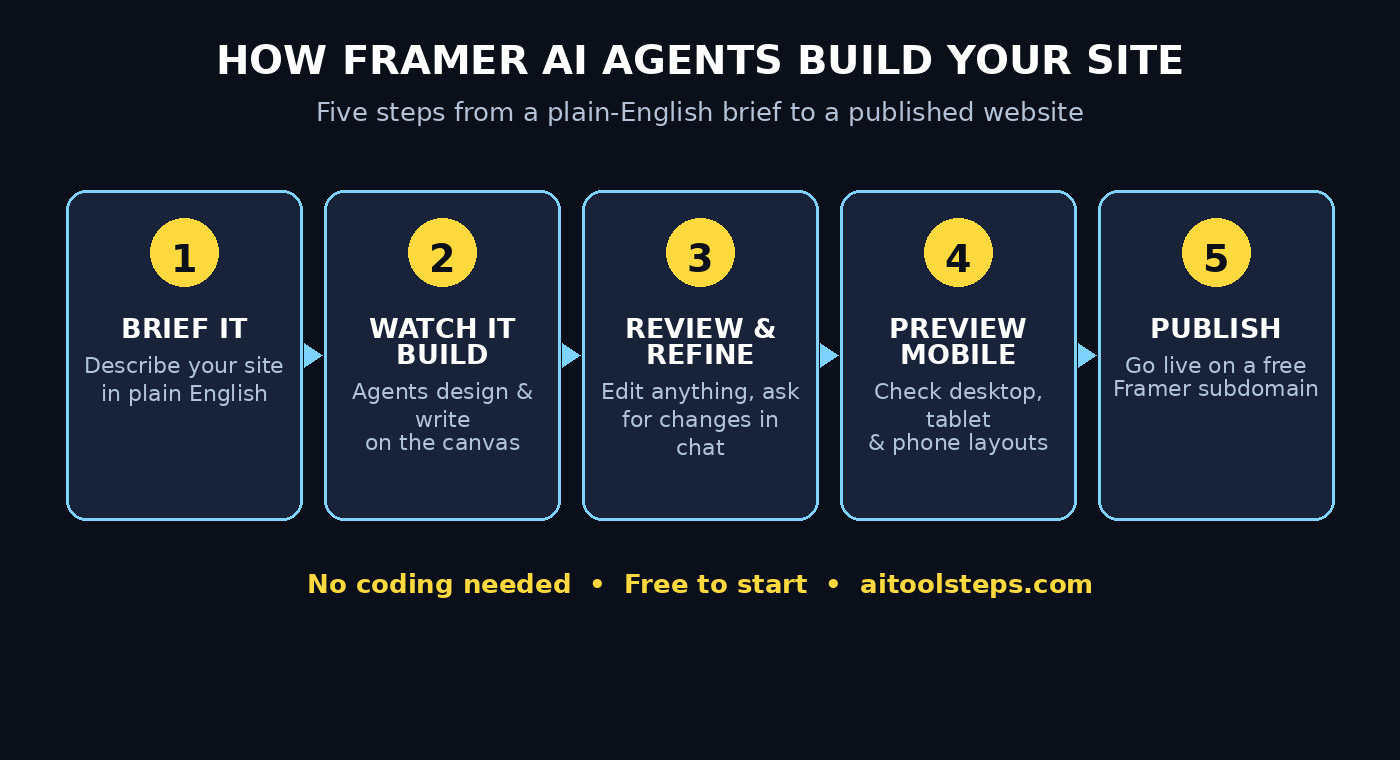
Each request is a new instruction, and the agent edits the canvas directly. This back-and-forth is the real workflow: you prompt, the agent builds, you refine. Three or four rounds is usually enough to go from rough draft to something you are proud to publish.
Beginner tip: Save versions as you go. Framer’s new Branching feature lets you try a bold redesign on a separate branch without risking your good version. If the experiment fails, switch back. If it works, merge it in. Use branches whenever you want to test a big change.
Step 6: Use the Analyze Agent to Improve Your Site
Once your page looks good, bring in the analyze agent. Ask it to review your site like a professional consultant would:
- “Analyze this page and tell me what would stop a visitor from contacting me.”
- “Check my headings — are they clear enough for a first-time visitor?”
- “Is my page too long? What should I cut or move?”
The agent will point out real issues: a weak headline, a buried call-to-action, inconsistent spacing, or text that is hard to scan. Fix the top two or three suggestions and your site will already be better than most small-business websites online.
This step is especially useful if you are building a site for a client or your own business. A quick AI review catches the problems that cost you customers — and it costs nothing. If you run a small agency, the same workflow scales: many teams use Framer AI Agents to draft client sites fast, then polish by hand. For broader help with client work and automation, a good digital agency can show you how AI-built sites fit into a full marketing setup.
Step 7: Connect Claude Code or Codex to Framer
One of the most powerful parts of this launch is that Framer AI Agents are not a closed system. Framer lets you connect your own AI tools — including Claude Code and Codex — to work on your site.
Why would you want that? Because different AI tools have different strengths. Claude Code is excellent at structured, careful edits and working with your existing files. Codex is strong at generating and refactoring code-heavy components. Connecting them means you can use the AI you already trust, inside the Framer canvas, instead of copying work back and forth between tools.
To connect one, open the agent settings or integrations area in Framer and follow the connection flow for the tool you use. You will authorize the connection once, and then that AI can help design, write, and organize alongside Framer’s built-in agents.
You do not need this step for your first website — the built-in agents are plenty. But once you are comfortable, connecting your favorite coding AI turns Framer into a genuine team workspace where every agent has a job.
Step 8: Add Real Content — Photos, Text, and Links
AI-generated placeholder text and stock-style images will only take you so far. Before you publish, replace the filler with the real thing:
- Photos: Upload your own product photos, portraits, or work samples. Real photos build far more trust than generic ones.
- Text: Rewrite the agent’s draft copy in your own voice. Keep sentences short, and say exactly what you offer.
- Links: Check every button and link. Each one should go somewhere real — your contact form, your booking page, your social profiles.
- Contact details: Make sure your email, phone, and address are correct and easy to find.
While you are polishing, think about what happens after someone visits. A beautiful site is only half the job — you also need people to find it. That is where search optimization and content come in, and tools that track how AI search engines see your brand can help you plan the next step. If you want a deeper look at how AI-powered visibility works, the team at AI automation services covers exactly that kind of workflow.
Step 9: Preview on Mobile and Desktop Before Publishing
Never publish a site you have only checked on a desktop screen. Most of your visitors will arrive on a phone, and a layout that looks perfect on a wide monitor can break badly on a small one.
Click the Preview button in Framer and switch between desktop, tablet, and mobile views. Check these things on every size:
- Headlines do not overflow or get cut off.
- Buttons are big enough to tap with a thumb.
- Images load and sit in the right place.
- Text is readable without zooming or sideways scrolling.
- Forms are easy to complete on a phone keyboard.
If something looks wrong on mobile, select that element and adjust its mobile layout in the right panel — Framer lets you set different sizes and spacing per screen size. Ask the agent for help too: “Fix the mobile layout of the hero section” is a perfectly good instruction.
Step 10: Publish Your Website and Share It
When the preview looks good on every screen size, it is time to publish. Click Publish in the top bar. On the free plan, Framer publishes your site to a free subdomain like yoursite.framer.website. You can connect a custom domain later on a paid plan.
After publishing, Framer gives you your live link. Open it in a fresh browser tab and click through everything one more time as a visitor would. Then share it:
- Post the link on your social profiles.
- Add it to your email signature.
- Send it to three friends and ask for honest feedback.
- Submit it to Google Search Console so it can be indexed.
Your first published site does not need to be perfect. It needs to exist. You can keep improving it with the agents any time — publish early, then iterate.
Framer AI Agents vs Other AI Website Builders
How does Framer AI Agents compare with the other AI website tools beginners often try? Here is a quick comparison:
| Feature | Framer AI Agents | Lovable | Typeform AI Landing Pages |
|---|---|---|---|
| Main strength | Design-quality sites with agents on the canvas | Full web apps from prompts | Landing pages with native forms |
| Coding needed | No | No | No |
| Agent works on canvas | Yes | App-focused | Page-focused |
| Connect Claude Code / Codex | Yes | Limited | No |
| Branching for experiments | Yes | No | No |
| Free plan to start | Yes | Yes | Yes |
| Best for | Portfolios, business sites, landing pages | Web apps and tools | Signup and lead pages |
If your goal is a beautiful, professional website, Framer AI Agents is the strongest pick of the three. If you want to build a working web app, check our guide on building websites without coding using Lovable AI. And if you only need a fast signup or lead-capture page, our Typeform AI Landing Pages guide walks you through that in minutes.
FAQ: Framer AI Agents for Beginners
Is Framer AI Agents really free?
Yes, you can start for free. Framer’s free plan lets you build a site and use the AI Agents to design and edit it, then publish on a free Framer subdomain. Paid plans add custom domains, more pages, and higher limits. You do not need a credit card to try the free plan.
Do I need to know how to code to use Framer AI Agents?
No. That is the whole point. You describe what you want in plain English, and the agents build real, editable pages on the canvas. You can learn design basics as you go, but coding is never required.
Can Framer AI Agents build a whole website or just one page?
They can build both. Start with a single landing page to learn the workflow, then ask the agents to add more pages — an about page, a services page, a contact page — and link them together with navigation. Multi-page sites work the same way as single pages.
What is Framer Branching and should I use it?
Branching is Framer’s new way to safely experiment. A branch is a copy of your site where you can try a redesign or a big change without touching the live version. If the experiment works, you merge it. If it does not, you discard it. Beginners should use branches whenever they want to try something bold.
Can I connect my own AI tools to Framer?
Yes. Framer AI Agents support connecting your own AI tools, including Claude Code and Codex, so they can design, write, and organize on your canvas alongside Framer’s built-in agents. You authorize the connection once in the agent settings.
Will my Framer site rank on Google?
A Framer site can rank on Google like any other website, but ranking depends on your content, your keywords, and your links — not just the builder. Use clear headings, write helpful text, add your target keywords naturally, and publish genuinely useful pages. Framer handles the technical side, including fast loading and mobile-friendly layouts.
Final Thoughts
Framer AI Agents turn website building from a technical chore into a conversation. You describe the site you want, the agents build it on the canvas, and you steer the result until it feels like yours. For beginners, that is a huge shift: the barrier is no longer design skill or code, it is simply knowing what you want to say.
Start small. Pick one page, write one good brief, and publish it today. Then come back tomorrow, ask the analyze agent what to improve, and make it a little better. That loop — prompt, review, refine, publish — is how good websites get made now.
And remember, the agents are helpers, not replacements for your judgment. Your taste, your photos, and your words are what make the site yours. Use the AI for speed, and use yourself for the final call.
Explore More Free AI Tools
Want to keep building? Try these free tools from AI Tool Steps:
- AI Title Generator — Write catchy headlines for your pages and blog posts in seconds: https://aitoolsteps.com/
- Meta Description Generator — Create search-friendly descriptions that get more clicks: https://aitoolsteps.com/
- AI Rewriter — Rewrite any paragraph in a clearer, friendlier tone: https://aitoolsteps.com/
- Keyword Density Checker — Check your page copy for the right keyword balance: https://aitoolsteps.com/
Pair your new Framer site with these free tools, and every page you publish will look better — and rank better — than the last.