

Your marketing team has a simple request: change the price on the pricing page, add a signup form, or publish a new landing page before Friday. Your developers are busy shipping the product, so the request sits in a queue for two weeks. Meanwhile your competitor ships the same page in an afternoon. That gap between "we need a website change" and "the change is live" is exactly what Daytwo AI was built to close. Launched on Product Hunt on November 9, 2026, Daytwo AI lets your whole team change a custom website without touching code — you ask for the change in plain English, it builds a private draft from your site's own brand and components, and nothing goes live until someone on your team approves it.
In this beginner-friendly guide, you will learn how to use Daytwo AI from zero: what it is, who it is for, what you need before you start, how to connect your repository, how to ask for your first change, and how to approve, publish, and undo changes safely. No coding knowledge is needed — if you can write a Slack message, you can use Daytwo AI.
Step 1: Understand What Daytwo AI Actually Does
Daytwo AI is not a website builder and it is not a replacement for your developers. It is a layer that sits on top of the custom website you already have and gives the non-developers on your team a safe way to change it.
Here is the problem it solves. Most modern startup websites are built with code — usually Next.js or Astro — and live in a GitHub repository. Only developers can change them. Every small request, from a new headline to a whole landing page, becomes a ticket, a pull request, and a wait. The people closest to the customer — marketing, sales, founders — cannot move at the speed of the market.
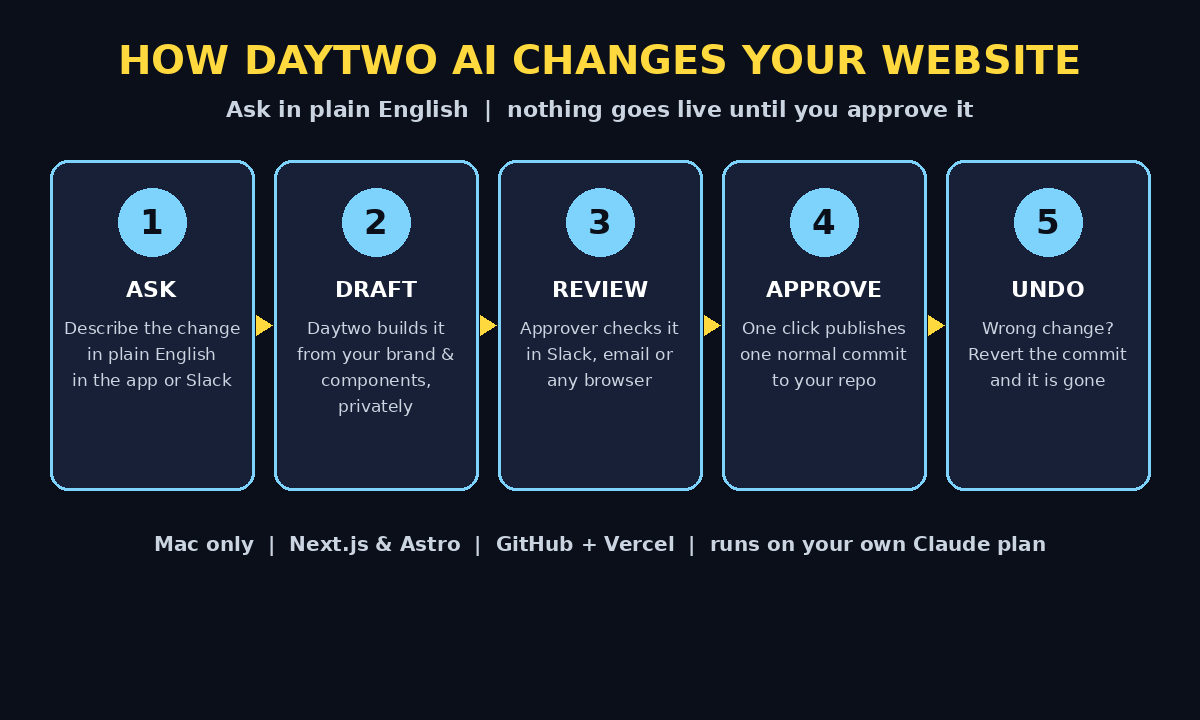
Daytwo AI flips that around. Your team asks for a change in plain words, either in the Daytwo Mac app or by tagging Daytwo in Slack. Daytwo builds the change from your site's own brand and components, in a private draft. Nothing goes live until someone on your team approves it. Approvers do not even need the Daytwo app: they can review in Slack, by email, or in any browser.
Three ideas make Daytwo AI different from a normal AI website tool:
- Your site stays your site. Daytwo works with your existing codebase, your design system, and your components. It does not rebuild your website on a different platform, and if you stop using Daytwo, your site keeps running exactly as it is.
- A draft is a branch. Every change Daytwo makes lives in a private draft first. Publishing is one normal commit to your GitHub repository, and undoing a change is a simple revert. Your developers keep working exactly as usual.
- It runs on your own Claude plan. Daytwo uses Claude Code under the hood, and the app sets Claude Code up for your team. You pay for the AI through the Claude plan you already have, so there is no surprise AI bill from a middleman.
The team behind Daytwo is Simon and Robin Waroquier, who run a product marketing and brand studio called ++addmore. They build websites for the startups they work with, and they built Daytwo because their own clients kept asking for the same thing: give the team their site back.
Step 2: Check If Daytwo AI Fits Your Team
Daytwo AI is a great fit for a specific kind of team, and a poor fit for others. A quick check now saves you a wasted setup later.
Daytwo AI is made for you if:
- Your website is a custom site built with Next.js or Astro, hosted on GitHub and deployed on Vercel (Astro sites on Cloudflare work too).
- Your marketing, sales, or content team regularly waits on developers for website changes.
- You want non-developers to ship pages, pricing updates, and signup forms without breaking the design.
- You already pay for a Claude plan, or you are happy to use one, because Daytwo runs on it.
Daytwo AI is probably not for you if:
- Your website runs on WordPress, Webflow, Squarespace, or another no-code platform — Daytwo only works with Next.js and Astro codebases.
- You are a solo founder who already edits the code yourself — you do not need the approval workflow.
- You do not have a developer who can connect the repository once at the start. That one-time setup is the only technical step, and it needs someone with access to your GitHub repository.
- You need a Windows or Linux app — Daytwo is Mac only at launch.
If you are a small startup or a digital agency that manages websites for several clients, Daytwo AI is especially interesting. Agencies constantly field small website requests from clients — a new service page, a changed price, a seasonal banner — and every one of them eats developer time. With Daytwo, the account team can draft those changes, the client can approve them in an email, and the developer only steps in for the one-time setup.
Step 3: Get Everything Ready Before You Start
Before you open Daytwo AI, gather four things. The setup is quick once these are in place, and slow if you have to hunt for them halfway through.
- A Mac. Daytwo is a Mac app. Everyone who asks for changes needs the app or access to your team's Slack workspace, but the setup itself happens on a Mac.
- A GitHub repository with your website. Your site must live in GitHub, built with Next.js or Astro. A developer on your team needs access to connect it once.
- A Vercel deployment (or Cloudflare for Astro). Daytwo works with sites deployed on Vercel. Astro sites can also run on Cloudflare.
- A Claude plan. Daytwo runs on your team's own Claude plan, and the app sets up Claude Code for you during onboarding. Make sure the person doing the setup can sign in to that Claude account.
One more thing worth doing before setup: agree inside your team who approves changes. Daytwo's approval step is its safety net, and it works best when everyone knows who the approver is — usually the founder, the marketing lead, or the person who owns the website. Approvers do not need the app at all, which makes this easy: they approve from Slack, email, or any browser.
Step 4: Connect Your Repository to Daytwo AI
This is the one step that needs a developer, and it only happens once. After this, the rest of the team works without code.
First, download the Daytwo Mac app and sign in. The app will ask you to connect your GitHub repository — pick the repository that holds your website. Daytwo reads the repository so it can learn your brand, your components, and your design system. It does not change anything yet.
Next, the app sets up Claude Code for your team, running on your own Claude plan. This is the engine that builds the changes you ask for. You do not need to configure Claude Code by hand; Daytwo handles the setup.
Then Daytwo deploys itself alongside your existing workflow. For your engineers, nothing changes: they keep committing, reviewing, and deploying exactly as before. Daytwo's drafts are ordinary branches in the same repository, so the team's existing Git habits still apply.
Finally, invite your team. Marketers, salespeople, and founders can join and start asking for changes from the Mac app or from Slack. Approvers can be added too, even if they never install the app — they will review changes wherever they already work.
The whole connection takes a developer well under an hour in most cases, and once it is done, the team is independent. That is the entire point: one technical setup, then months of non-technical website work.
Step 5: Ask Daytwo AI for Your First Change in Plain English
This is where learning how to use Daytwo AI gets fun. You do not write code, you do not fill in a form, and you do not learn a new tool. You describe what you want, the way you would describe it to a colleague.
Open the Daytwo Mac app, or tag Daytwo in Slack, and write a request like one of these:
- "Add a new landing page for our Black Friday sale with a signup form."
- "Change the price of the Pro plan from $29 to $39 on the pricing page."
- "Add a customer testimonial section to the homepage, using our three latest reviews."
- "Create a signup form on the pricing page that sends people to our waitlist."
Be specific about the outcome, not the method. Tell Daytwo what the page should say and what it should do, and let it figure out the components. Mention the exact prices, the exact words, and the exact place on the site. The more concrete your request, the closer the first draft will be.
Daytwo then builds the change from your site's own brand and components. That detail matters: it does not invent a new look. It reuses the buttons, colours, fonts, and sections your site already uses, so the new page looks like it belongs to your website — because it was built from your website.
Start small for your first change. A price update or a headline change is the perfect first request: it is easy to review, easy to approve, and it proves the workflow works before you ask for a whole landing page.
Step 6: Review the Draft in Slack, Email, or Your Browser
Every change Daytwo AI makes starts as a private draft. Nobody outside your team sees it, and your live website does not change at all until you approve.
When the draft is ready, Daytwo sends it to the approver. This is deliberately flexible: the approver can review in Slack, by email, or in any browser. They do not need the Daytwo app, they do not need a GitHub account, and they do not need to understand code.
Reviewing a draft is simple:
- Read the page as a visitor would. Does the headline say what you meant? Are the prices right? Does the signup form ask for the right information?
- Check the look. Because Daytwo builds from your own components, the draft should match your site's design. If a section looks wrong, say so in plain words and Daytwo will revise it.
- Click through the draft. Follow the links, submit the form, and check the page on a phone-sized screen if you can. Catching a mistake in the draft costs nothing; catching it after publishing costs trust.
If the draft is not right, do not approve it. Send it back with a plain-English note — "make the headline shorter" or "use the blue button style from the homepage" — and Daytwo will build a new version. Revisions are cheap and private, which is exactly why the draft step exists.
Step 7: Approve and Publish Your Change with Daytwo AI
When the draft looks right, one approval sends it live. That is the whole publishing step, and it is designed to feel boring — because boring is safe.
Approving a change in Daytwo means publishing one normal commit to your GitHub repository. Your site deploys through the same pipeline your developers already use, whether that is Vercel or Cloudflare. There is no separate Daytwo hosting layer to go wrong, and no second copy of your website to keep in sync.
A few habits make this step work well for a team:
- One approver per change. Even if several people can approve, name one person for each change so nothing waits on a group decision.
- Approve from anywhere. Because approvers can work from Slack, email, or a browser, a founder can approve a landing page from their phone between meetings.
- Publish in working hours. Even though Daytwo makes publishing easy, keep the habit of shipping website changes when someone is around to notice a problem.
For a business that runs AI automation services for clients, this approval flow is the feature that makes Daytwo usable in real work: the AI does the building, a human does the deciding, and the client always sees the final version before it goes live.
Step 8: Undo Any Change in One Click with Daytwo AI
Mistakes happen, and Daytwo AI treats undoing as a first-class feature rather than an emergency. Because a draft is a branch and publishing is one commit, undoing a change is a simple revert — the same way a developer would undo a commit.
If a published change turns out to be wrong — a wrong price, a typo in a headline, a form pointing at the wrong list — revert it and the site goes back to exactly how it was before. No rebuilding, no digging through backups, no panicked call to a developer at midnight.
This is also why teams get braver with Daytwo over time. The first week, people ask for tiny changes and review them carefully. By the third week, they trust the workflow because they have seen that a bad change costs one click to undo. That confidence is the real product: a team that can move fast on its website without fear of breaking it.
One practical tip: keep a short note of what each change was for. Daytwo's drafts are branches, so the history is already there in GitHub, but a one-line note in Slack — "pricing update for the November campaign" — makes it easy to find the right change to revert weeks later.
Step 9: Everyday Website Jobs Daytwo AI Handles Best
Once you know how to use Daytwo AI for the basics, teams use it for the same handful of jobs again and again. These are the ones where it saves the most time:
- Pricing updates. Change a number, add a plan, or remove an old tier. Pricing changes are frequent, small, and urgent — exactly the work that should never wait in a developer queue.
- New landing pages. Launch a page for a campaign, a sale, a webinar, or a new feature, built from your existing sections so it matches the rest of the site.
- Signup and lead forms. Add a form to a page, connect it to your waitlist or CRM, and start collecting signups the same day.
- Testimonials and social proof. Add a customer quote, a logo strip, or a case-study section to the homepage without a design ticket.
- Seasonal and campaign banners. Put up a sale banner, announce an event, or highlight a new release, then take it down when the campaign ends.
- Copy fixes. Correct a typo, rewrite a confusing paragraph, or update an old feature description. Small text changes are the most common website request in any company, and Daytwo handles them in minutes.
What Daytwo AI is not for: redesigning your whole website, changing your design system, or building a feature that needs real product code. Those jobs still belong to your developers, and Daytwo is honest about that boundary — it works inside your existing site, not instead of it.
Step 10: Daytwo AI vs the Old Way of Editing a Website
The easiest way to see the value of Daytwo AI is to compare it with the way most teams change a custom website today.
| Task | The old way | With Daytwo AI |
|---|---|---|
| Change a price | File a ticket, wait for a developer, review a pull request, deploy | Ask in plain English, approve the draft, publish |
| Add a landing page | Design brief, developer sprint, review cycle, days or weeks | Ask in Slack, review the draft, approve the same day |
| Add a signup form | Developer builds the form, wires it up, tests it | Ask for the form, approve the draft, it goes live |
| Who can make the change | Developers only | Anyone on the team can ask |
| Who approves it | Code review by a developer | A named approver in Slack, email, or browser |
| What goes live by accident | Possible if a pull request merges early | Nothing — drafts stay private until approved |
| Undo a bad change | Revert a commit, redeploy, hope nothing else broke | Revert the one commit, site back to normal |
| Cost of the AI | Developer time for every change | Runs on your own Claude plan, free 14-day trial to start |
The table makes the trade-off clear. Daytwo AI does not replace developers — it removes them from the loop for the routine changes that never needed a developer in the first place.
Step 11: Tips to Get the Best Results from Daytwo AI
A few habits separate teams that love Daytwo AI from teams that fight it.
- Write requests like a brief, not a command. Say what the page is for and who it is for, not just what it should contain. "A landing page for busy parents who want a 10-minute dinner plan" beats "make a landing page."
- Give exact words and numbers. Prices, dates, names, and headlines should be exact in your request. Daytwo will not guess your price correctly, and it should not have to.
- Name the page and the place. "On the pricing page, under the Pro plan" is better than "somewhere on the site." Precision in the request means fewer revisions.
- Review on a phone too. Most of your visitors arrive on a phone. Open the draft link on your phone before approving, and check that the headline, the form, and the buttons all look right.
- Keep one approver per change. Approval works when one person owns the decision. If everyone approves, nobody does.
- Start with the free 14-day trial. Daytwo offers a free 14-day trial, so run a real project through it — a pricing update and a landing page — before you decide whether it fits your team. A trial with real work tells you more than any demo.
Frequently Asked Questions About Daytwo AI
Is Daytwo AI really free?
Daytwo AI offers a free 14-day trial, so you can test the full workflow with your real website before paying. After the trial, you pay for Daytwo itself, and the AI work runs on your own Claude plan, so your Claude subscription is a separate cost to keep in mind.
Do I need to know how to code to use Daytwo AI?
No. That is the whole point of learning how to use Daytwo AI. You describe the change in plain English in the Mac app or in Slack, review the draft, and approve it. The only coding step in the entire setup is the one-time repository connection, which a developer on your team does once.
Does Daytwo AI work with WordPress or Webflow?
No. Daytwo AI works with custom websites built with Next.js or Astro, stored in GitHub and deployed on Vercel (Astro on Cloudflare also works). If your site runs on WordPress, Webflow, or Squarespace, Daytwo is not the right tool for you.
Who approves a change before it goes live?
A person on your team, chosen by you. Approvers do not need the Daytwo app — they review and approve in Slack, by email, or in any browser. Nothing goes live until that person approves it.
What happens if I stop using Daytwo AI?
Nothing bad. Your website keeps running exactly as it is, because Daytwo never moves your site to its own platform. Your code stays in your GitHub repository, your deployment stays on Vercel or Cloudflare, and your developers keep working as usual.
Can Daytwo AI break my website?
Daytwo AI is built to make that hard. Changes start as private drafts, nothing publishes without a human approval, and a published change can be reverted with one commit. The risk is much lower than giving several people direct access to your code — but you should still review every draft before approving it.
Final Thoughts
Daytwo AI solves a small, expensive problem that almost every startup has: the people who know what the website should say cannot change it, and the people who can change it are busy building the product. By letting anyone ask for a change in plain English, keeping every change in a private draft, and putting a human approval between the draft and the live site, Daytwo gives a team its website back without taking anything away from the developers.
If your site is Next.js or Astro on GitHub, your team has a Mac, and you already use Claude, learning how to use Daytwo AI with the free 14-day trial is an easy test: pick one real change — a price, a landing page, a signup form — and run it through Daytwo AI this week. If the draft looks like your site and the approval takes a minute, you have found a faster way to run your website. And if it does not fit, your site is untouched, because Daytwo never owned it in the first place.
Explore More Free AI Tools
Want to keep exploring? Try our free tools at AI Tool Steps — the AI Title Generator, Meta Description Generator, AI Rewriter, and Keyword Density Checker can help you polish every page Daytwo AI builds for you.