
OpenAI has just given ChatGPT a new trick: it can now turn a photo or a sentence into a looping animated GIF, and it can remember your characters so they look the same in every picture. ChatGPT Images 2.6, announced on November 4, 2026, is a small version number with two genuinely useful upgrades — GIF animation and saved reference images — plus images that OpenAI says generate 50% faster than before. Best of all, it is live on every ChatGPT plan, including Free. In this beginner guide, you will learn how to use ChatGPT Images 2.6 from your first image to your first shareable GIF, with no design skills and no extra apps.
Step 1: What Is ChatGPT Images 2.6 and What’s New
ChatGPT Images 2.6 is OpenAI’s November 2026 image update, the successor to Images 2.5, which arrived in September. It is the image model built into ChatGPT and Codex on the web, desktop and mobile, and it is also available to developers through the API as two separate models, GPT-Image-2.6 Flare and GPT-Image-2.6 Sunburst.
Three things are new, and two of them change how everyday users work:
- Animated GIFs: describe a motion in plain language, or upload a photo or sketch, and ChatGPT returns a short looping animation instead of a still image. You can adjust the playback speed and edit individual frames.
- Saved reference images: save a photo of yourself, your pet or a character under a name, then reuse it in future chats without uploading it again. Your character finally keeps the same face from one image to the next.
- 50% faster generation: OpenAI says images now generate 50% faster than Images 2.5. The fast API model, Flare, can return an image in as little as six seconds on its low-quality setting.
For developers, the API also gains image markup — point at the exact part of an image to change instead of describing its location in words — plus SVG export in Sunburst and a new complexity setting. If you only use ChatGPT itself, you do not choose between Flare and Sunburst; you simply get Images 2.6, with GIFs and saved references built in.
If you already use ChatGPT to make images, nothing about your workflow breaks. The same chat box now does more: still images, edits, GIFs and character consistency, all in one conversation. That is the whole point of this update — turning what used to be a multi-tool job into a single chat.
Step 2: Check That Images 2.6 Is Live on Your Account
Before you start, confirm the update has reached your account. OpenAI says Images 2.6 is available worldwide across all ChatGPT and Codex tiers, including Free, on web, desktop and mobile. GIF creation, however, is rolling out gradually, so some accounts will not see it immediately.
Here is how to check in under a minute:
- Open ChatGPT on the web or in the app and sign in with your OpenAI account. You need an account — there is no anonymous image generation.
- Start a new chat and type a simple image request, such as “Make a picture of a red bicycle leaning against a cafe wall at sunset.”
- If an image appears, Images 2.6 is live for you. Then try a GIF request: “Turn that into a GIF of the bicycle wheels slowly spinning.” If ChatGPT returns a looping animation, you have the full update.
- If the GIF request returns only a still image, GIFs have not rolled out to your account yet. Keep using still images and saved references, and try the GIF request again in a few days — the rollout is account-by-account, not something you can force with a setting.
One practical tip: the free plan caps how many images you can create, and OpenAI has not published a separate GIF limit per plan. Treat your free allowance as a way to learn the tool, not as unlimited production. We cover the exact limits in Step 10.
Step 3: Create Your First AI Image with a Clear Prompt
Every GIF and every edit in Images 2.6 starts with a good still image, so learn to prompt well first. A clear prompt has four parts: the subject, the action or setting, the style, and the format.
Compare these two prompts:
- Vague: “Make a coffee picture.”
- Clear: “A cozy flat-lay photo of a ceramic coffee cup on a wooden table, morning light, steam rising, top-down view, warm tones, square format for Instagram.”
The second prompt tells the model what to draw, how it should look and where you will use it. That is the difference between an image you have to regenerate five times and one you can use immediately.
Try this first exercise right now:
- Ask ChatGPT: “Create a 3D Pixar-style illustration of a young man in a black hoodie working on a laptop in a bright modern office, plants on the desk, soft daylight, wide shot.”
- Look at the result and name one thing to improve — the lighting, the angle, the background — then reply with a short edit instruction, such as “Make the office warmer and add a window with a city view behind him.”
- Notice how fast it renders. OpenAI claims 50% faster generation than Images 2.5, and on short prompts the difference is easy to feel — less waiting between the idea and the image.
Keep your prompts in plain English and be specific about the format you need. “Square for Instagram”, “wide 16:9 for a blog header” and “vertical 9:16 for a story” all give the model useful information that a bare subject never does.
Step 4: Turn a Photo or Prompt into an Animated GIF
This is the headline feature of ChatGPT Images 2.6, and it is the easiest one to try. A GIF is a short looping animation — the kind you see in group chats, social posts and product pages. Until now, making one meant generating a still image, then opening a second tool to animate it. Images 2.6 does both steps in one chat.
There are two ways to make a GIF:
- From a text prompt: describe what you want to see and how it should move. For example: “Make a GIF of a cat stretching and yawning on a sunny windowsill, gentle loop.” ChatGPT creates the scene and animates it.
- From an image: upload a photo, a sketch or an image you already generated, then tell ChatGPT how it should move. For example, upload a product photo and say: “Animate this into a GIF — the bottle rotates slowly and a soft sparkle passes across the label.”
Good first GIFs to try:
- A mascot or logo character waving, blinking or nodding — perfect for social posts and email signatures.
- A product photo with one moving element, like steam rising from coffee or a box opening — great for small shops and product pages.
- A simple reaction GIF from a doodle or sketch — the kind of thing that used to take an hour in a video editor.
Describe the motion the way you would describe it to a friend: what moves, how fast, and in which direction. “Slowly”, “gently” and “loops smoothly” are useful words. Avoid asking for complex multi-scene stories in one GIF — short, single-action loops look far better than a crowded animation trying to do five things at once.
Step 5: Edit Your GIF — Speed and Individual Frames
A GIF that plays too fast looks frantic, and one that plays too slow feels broken. Images 2.6 lets you fix both without leaving ChatGPT. After your GIF appears, you can adjust its playback speed and edit individual frames.
Here is how to polish a GIF in three quick passes:
- Fix the speed first: ask ChatGPT to make the GIF slower or faster — “Make the loop slower, about half the current speed” — and watch it again. A calm product GIF usually looks better slow; a funny reaction GIF can be quicker.
- Fix a single frame: if one moment in the loop looks wrong — a hand in a strange position, a face that warps mid-motion — tell ChatGPT which frame to fix. Describe the moment, not the frame number: “In the frame where the cat opens its eyes, keep the eyes the same shape as the first frame.”
- Check the loop point: the last frame should flow back into the first frame without a jump. If the animation snaps or flickers at the loop point, ask ChatGPT to “make the loop seamless so the last frame blends into the first.”
Do not try to perfect every frame on your first GIF. Get the motion and the speed right, fix the one worst frame, and ship it. The goal is a clean loop that communicates one idea — not a film. If you run a small business, this three-pass routine is exactly how a digital agency would turn a static product shot into a social-ready animation in minutes instead of booking a designer for a day.
Step 6: Save a Reference Image So Characters Stay Consistent
Before Images 2.6, keeping the same character across images was the fiddliest part of AI image tools. Every new picture meant re-uploading the same photo and hoping the face came out the same. Saved reference images fix that.
A reference image is a photo you save once under a name, so ChatGPT can reuse it in future chats without another upload. OpenAI says you can save references of yourself, your pets and characters. Here is how it works:
- Upload a clear photo — a front-facing shot of your pet, a product photo, or a character design you like.
- Ask ChatGPT to save it as a reference, with a name: “Can you save this photo as Chester so I can reference it again?” ChatGPT confirms the name and remembers the original appearance.
- From then on, you can summon it by name in any new chat, without uploading the photo again.
Choose your reference photo carefully, because every future image inherits it. Pick a sharp, well-lit, front-facing photo with a clean background. Avoid blurry photos, sunglasses, or shots where the subject is half out of frame — the model can only stay faithful to what it can clearly see.
This feature matters most for anyone building a recognizable visual identity: a shop owner whose product must look identical in every ad, a creator with a mascot, or a parent making a storybook starring the family dog. An AI automation services team, for example, can save one mascot reference and generate a whole month of consistent social images from it, instead of redesigning the character every single time.
Step 7: Reuse Saved References with @Mentions
Once a reference is saved, using it is as simple as mentioning its name with an @. In a new chat, type something like “Create a picture of @Chester dressed as a pirate” or “Make a GIF of @Chester on the moon”, and ChatGPT uses the saved original appearance without you uploading anything.
Try these three reuse patterns:
- Same character, new scene: “@Chester in a snowy forest wearing a red scarf, storybook illustration style.” The character stays the same; only the scene changes.
- Same character, new format: “Turn @Chester into a GIF waving hello, for a welcome email.” One reference, two formats.
- Same character, new style: “@Chester as a watercolor painting, sitting by a lake at sunset.” The style changes, but the pet’s markings and shape stay recognizable.
If the result drifts — the ears are wrong, the colors shift, the face looks like a different animal — say so plainly: “Keep Chester’s exact brown ears and white chest from the reference photo; the last image changed them.” Reference images work best when you correct drift early, in the first two or three generations, rather than accepting a wrong version and building on it.
Keep a short list of your saved reference names in a notes app. After a month, you will forget whether you called the dog “Chester” or “Chester-dog”, and the name is the key that unlocks the reference. Five seconds of note-taking now saves five minutes of guessing later.
Step 8: Edit Any Image with Plain-Language Instructions
Images 2.6 is not only for new pictures. You can also edit any image you already have by describing the change in plain language. Upload the image, then say what to change — no masking tools, no layers, no design software.
Useful edits beginners ask for every day:
- Change the background: “Replace the plain wall behind the product with a bright modern kitchen, keep the product exactly the same.”
- Change the style: “Turn this photo into a flat illustration with soft colors” or “Make this look like a vintage poster.”
- Fix a detail: “Remove the coffee cup from the left side of the table” or “Make the sky bluer and the lighting warmer.”
- Change the format: “Crop this into a vertical 9:16 version for a story, keeping the subject centered.”
The golden rule of editing: name what must stay the same, not just what must change. “Keep the product exactly the same” and “keep the person’s face unchanged” are the most powerful phrases in an edit prompt, because they tell the model what not to touch. Vague edits invite the model to redraw everything; specific edits with a protected subject give you a clean result on the first or second try.
If an edit goes wrong, do not start over from scratch. Reply in the same chat with a correction — “The background is good, but the product label changed; restore the original label” — because the conversation keeps the context of the previous image. Starting a new chat throws that context away.
Step 9: Download, Share and Post Your GIFs
Once your GIF looks right, getting it out of ChatGPT is simple. After a GIF is created, ChatGPT gives you a shareable link, so you do not need to host it anywhere to link people to it. You can also download it or share it straight to X, LinkedIn and Reddit.
Here is a quick posting routine for each GIF you make:
- Download the file and save it with a clear name, such as “chester-moon-gif.gif”, so you can find it later. Keep the original chat open until you have the file — it is your backup if the download fails.
- Check the file size before posting. Some platforms cap GIF size, and a short loop is usually small enough. If a platform rejects it, ask ChatGPT for a shorter or simpler loop.
- Write one line of context with the post. A GIF without a caption is a mystery; the same GIF with “Our mascot Chester, now on the moon” is a story. Keep captions short and let the animation do the work.
- Post where loops shine: social feeds, product pages, emails and chat replies. GIFs work best where people scroll quickly and a still image would be ignored.
For more ideas on turning AI images into finished content, browse the beginner guides in the AI How-To Guides section of this site. A single GIF can become a social post, a product-page accent and an email visual — three uses from one minute of prompting.
Step 10: Know the Free-Plan Limits and When to Upgrade
ChatGPT Images 2.6 is available on every plan, including Free, but “available” and “unlimited” are not the same thing. The free plan gives you limited image creation, and OpenAI has not published how many GIFs each plan allows per day. Plan your use around that.
Here is what the plans look like, based on OpenAI’s pricing page:
- Free: limited image creation, including Images 2.6 and GIFs. Enough to learn the tool and make a few images a day. Perfect for beginners.
- Go (US$8 per month): more image creation than Free, for regular users who make images most days.
- Plus (US$20 per month): adds image generation with Thinking, plus higher limits across ChatGPT.
- Pro (US$100 per month): unlimited and faster image creation, for professionals who generate images all day.
Developers using the API should note one cost detail: the per-token prices are unchanged from Images 2.5 — US$5 per million text input tokens, US$8 per million image input tokens and US$30 per million image output tokens. But third-party readings of OpenAI’s calculator found that a low-quality square image now uses about 4.2 times the output tokens of version 2.5, working out to roughly US$0.025 per image instead of about US$0.006. Same price list, more tokens per picture — so check your API bill after your first week on 2.6 rather than assuming it will match 2.5.
Most beginners should stay on Free until they hit the limit more than twice in a week. If you are making images daily for a business, Go is the sensible first upgrade. Upgrade for volume, not for features — the GIF and reference features are the same on every plan.
| Feature | Images 2.5 (September 2026) | Images 2.6 (November 2026) |
|---|---|---|
| Animated GIFs | No | Yes — from prompts or images, with speed and frame editing |
| Saved reference images | No | Yes — named, reusable with @mentions |
| Generation speed | Baseline | 50% faster, according to OpenAI |
| API models | GPT-Image-2.5 (two models) | GPT-Image-2.6 Flare (fast) and Sunburst (detail) |
| Image markup in API | No | Yes — point at the part to change |
| SVG export | No | Yes, in Sunburst |
| API token prices | $5 / $8 / $30 per 1M tokens | Same rates, but more output tokens per low-quality image |
| Available plans | All plans, including Free | All plans, including Free |
| Where it runs | ChatGPT and Codex | ChatGPT and Codex, web, desktop and mobile |
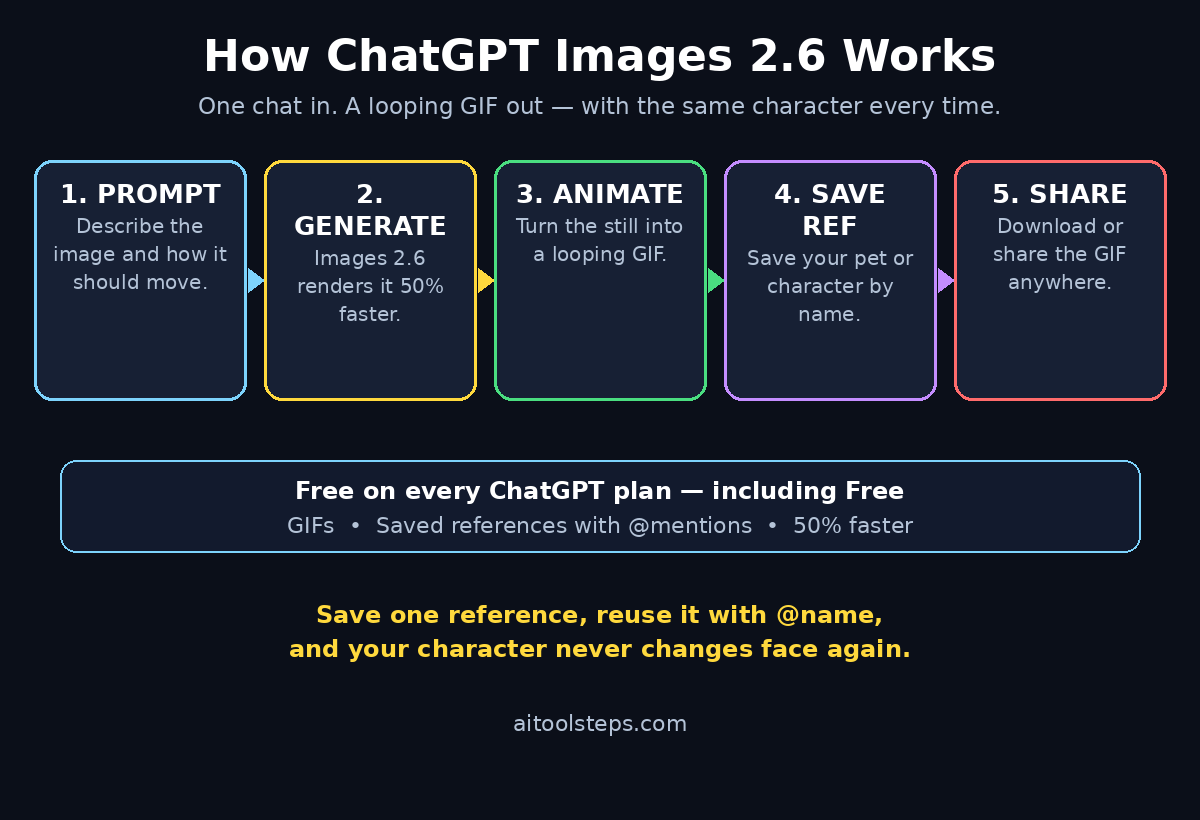
Frequently Asked Questions
Is ChatGPT Images 2.6 free to use?
Yes. OpenAI says Images 2.6 is available across all ChatGPT subscription tiers, including Free, on web, desktop and mobile. The free plan caps how many images you can create, and OpenAI has not published a separate daily GIF limit per plan, so free users should expect a modest allowance.
Why can’t I make GIFs yet in ChatGPT?
GIF creation is rolling out gradually, so some accounts do not see it immediately even though Images 2.6 is live. If a GIF request returns only a still image, keep using still images and saved references, and try the GIF request again in a few days. There is no setting that forces the rollout early.
What is the difference between Flare and Sunburst?
Flare and Sunburst are the two API models behind Images 2.6. Flare is built for speed — it can produce an image in as little as six seconds on low quality — and OpenAI says it improves layout quality for professional visuals. Sunburst focuses on detail, producing sharper images that stay consistent across edits on medium or high quality, and it adds SVG export. If you only use ChatGPT itself, you do not choose between them.
Can I use Images 2.6 on my phone?
Yes. Images 2.6 is live in ChatGPT and Codex on web, desktop and mobile, on every plan including Free. The same prompts, GIF creation and saved references work in the mobile app, so you can make and share a GIF from your phone in under a minute.
Do saved reference images work in new chats?
Yes, that is the point. Once you save a photo under a name, you can summon it in any new chat with an @mention — for example, “Create a picture of @Chester dressed as a pirate” — without uploading the photo again. The saved reference keeps the original appearance, so characters stay consistent across chats.
Can developers use GIFs through the API?
Yes, with limits. GIF output works on the API’s generations endpoint, not the edits endpoint, and it does not support streaming, partial images or custom compression. API pricing is unchanged from Images 2.5 per token, but a low-quality square image now uses about 4.2 times the output tokens, so check your bill after the first week.
Final Thoughts
ChatGPT Images 2.6 is a small version number with a big practical payoff. GIFs turn a still image into a moving story in one chat, saved reference images end the daily re-upload of the same photo, and faster generation means less waiting between the idea and the result. None of it needs design software, and all of it works on the free plan. Open ChatGPT today, save one reference image, and make one GIF from a photo you already have. That single loop — prompt, image, animate, share — is the whole workflow, and once you have done it once, you will use it every week.
And when your images are ready, polish the words around them with the free tools on this site. Use the AI Title Generator, Meta Description Generator, AI Rewriter and Keyword Density Checker to turn a good image into a finished post that people actually click.
Explore More Free AI Tools
Keep building your AI toolkit with these free tools from AI Tool Steps: AI Title Generator, Meta Description Generator, AI Rewriter, and Keyword Density Checker. Each one is free to use and built to make your everyday AI work faster.