

You tell Claude your client’s brand rules on Monday. On Tuesday you open ChatGPT to draft the same client’s emails — and it knows nothing. On Wednesday your teammate’s Cursor writes code for the same project and invents its own version of the requirements. By Friday you have three AI tools, three different memories, and you are the only one carrying the real context between them. Learning how to use AI Context Flow ends that daily repetition.
That is the exact problem AI Context Flow was built to solve. It is a shared memory layer for your AI tools. Save a fact once, and every connected AI reads from the same version — Claude, ChatGPT, Cursor, Gemini and more. Its new version 2.0 launched on Product Hunt on 21 November 2026. It finished as the #2 Product of the Day — because almost every heavy AI user recognises this frustration.
This guide shows you how to use AI Context Flow from zero. You will create a free account, set up your first bucket, and connect your AI tools through its MCP server. Then you will save your first memory and prove in two minutes that a second tool can recall it. No coding is needed.
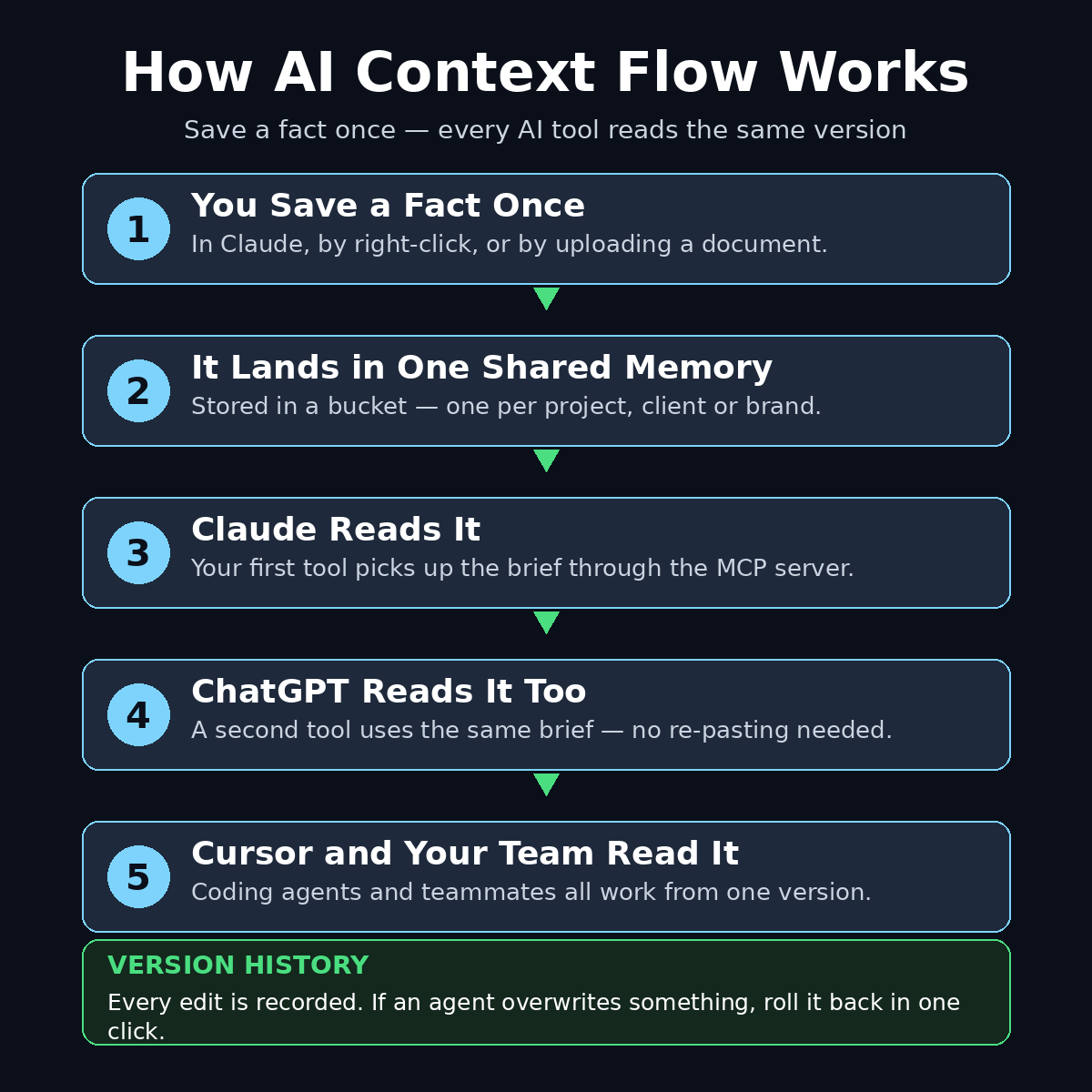
Step 1: Understand What AI Context Flow Actually Is
Before you click anything, it helps to know what you are setting up — because AI Context Flow is not another chatbot and not another AI model.
It is a memory layer that sits underneath the AI tools you already use. It connects to them through MCP, the Model Context Protocol. Think of MCP as a standard plug. It lets an AI tool read from and write to the same outside memory instead of keeping its own private notes. Once AI Context Flow is plugged in, a memory you save in Claude is available to ChatGPT the next day. Your teammate’s Cursor sees the same version too.
The product comes from a maker called Plurality. It started about a year ago as a browser extension for saving prompt context. That first launch reached #1 Product of the Day on Product Hunt. Version 2.0 launched on 21 November 2026. It rebuilt the tool as what the makers call “an open context layer for people, teams and AI agents”. Open means you own your context. You can carry it to any tool or model instead of it being locked inside one company’s app.
What Changed in AI Context Flow 2.0
What is new in version 2.0 is control, not just storage. You get buckets that keep memory separate per project, client or brand. Each bucket has its own access controls. Every edit is kept in full version history. If an agent overwrites something it should not have, you can roll it back. And Memory Studio gives you one screen to view and edit all of it. The practical test is simple: save a client brief in Claude, then ask a different agent to use it. If the second agent picks it up without you re-pasting anything, the layer is doing its job.
Who Should Skip AI Context Flow
One honest note before you start. Shared memory only pays off once two or more AI tools need the same facts. If you only ever use one chatbot, you will not feel the difference. This tool is for people who juggle several.
Step 2: Create Your Free Account
Every signup gets a 7-day free trial. There is also a free tier with 50 MB of memory. That holds hundreds of short briefs, preferences and project facts. If you decide to go annual, the launch offer code AICFHUNT20 gives 20% off an annual plan, redeemable until 30 November 2026.
Here is the setup:
- Open the AI Context Flow website and click Sign Up. You can register with an email address or with Google — Google sign-in is the fastest path and avoids another password to remember.
- Confirm your email if the service asks you to. You will land in Memory Studio, the dashboard where all your context lives.
- Take thirty seconds to look around before you save anything. You will see your buckets on one side, your saved memories in the middle, and the connect options for your AI tools. Knowing where these three things live now will save you hunting for them later.
Do not pay for anything yet. The free trial and the free tier are enough to run the full test in this guide. That is all it takes to start learning how to use AI Context Flow. Upgrade only after you have seen a second tool recall a memory you saved in the first. That is the moment the value becomes real instead of theoretical.
Step 3: Create Your First AI Context Flow Bucket
A bucket is a folder for one slice of your life or work. Memories live inside buckets. Each bucket has its own access list. Your client work never leaks into your personal notes, and a teammate only sees the bucket you shared with them.
Create your first bucket around a real project, not a test label:
- Click New Bucket in Memory Studio and name it after something you actually work on — for example “Acme Website Redesign”, “YouTube Channel”, or “Lahore Property Listings”.
- Add a one-line description: what belongs in this bucket and what does not. A bucket with a clear purpose stays clean; a bucket called “Stuff” becomes a junk drawer within a week.
- Leave the access on private for now. Sharing comes later, in Step 8, once you trust what is inside.
A good rule for the long term is one bucket per client or per project, never one bucket for everything. When every memory sits in a single pile, your AI tools have to guess. They must work out which facts apply to the question in front of them. Guessing is where wrong answers come from. If you run a small business, look at how agencies organise client work around shared systems. A look at how a digital agency structures its client projects can give you ideas for your own bucket layout.
Step 4: Connect Your First AI Tool to AI Context Flow
This is the step that makes the magic happen, and it is simpler than it sounds. AI Context Flow runs a hosted MCP server. The maker says it is included on every plan, free included. You add that server once to each AI tool you use. Sign in once per tool. From then on, the tool reads and writes to your shared memory automatically.
Follow the connect wizard inside the app — it gives you the server address and walks you through each tool:
- In Memory Studio, open the Connect or MCP section. This is where you will find the server address to add to your tools.
- Start with Claude, since it is the most common first connection. In Claude’s settings, find the MCP or connectors section, add a new server, paste the address the wizard gives you, and sign in when asked.
- Repeat for ChatGPT and Cursor if you use them. The same server address works for each; you only sign in once per tool, and each tool then shares the same memory.
- The wizard also supports Gemini, Windsurf, Claude Code, Lovable, Bolt, GitHub Copilot, LM Studio, OpenClaw and Grok Bot. Add whichever tools you actually use and skip the rest.
Check Your AI Context Flow Connection
When you have connected your first tool, check the connection before moving on. Ask the AI something like “What can you remember for me?” or look for the AI Context Flow entry in the tool’s list of connected servers. If the tool can see the server, you are ready. If it cannot, check three usual causes. A pasted address with a typo, a sign-in that did not finish, or a tool that needs restarting before it picks up a new server. Fix the connection now — every later step depends on it.
If you already use AI agents on your computer and phone, the same MCP idea powers tools like Pinky AI. It lets Claude or any MCP agent safely use your real phone. Our guide to Pinky AI shows how that side of the ecosystem works.
Step 5: Save Your First Memory
A memory is one fact, written the way you would explain it to a colleague. Not a chat log, not a 5,000-word document — one fact. The best first memory is a short client or project brief, because it is the thing you currently re-explain most often.
There are three ways to save it:
- Ask the AI to remember it. Inside a connected tool, just say: “Remember this: my client Acme Fitness wants a friendly tone, short sentences, and no jargon. Their audience is gym owners in Pakistan, and their brand colour is dark green.” The tool writes it to your shared memory through the MCP server.
- Right-click to save from anywhere. AI Context Flow started as a browser extension, and that power is still there. Select any text on a webpage or inside an AI chat, right-click, and save it straight into the bucket you choose. Useful for facts you find while researching.
- Upload a document. You can upload PDFs and Word documents, and their contents become part of your memory. This is the fastest way to load a full client brief, a brand guide, or a set of meeting notes.
Whatever method you pick, keep each memory short and specific. “Acme Fitness: friendly tone, short sentences, no jargon, audience is gym owners” is a memory your AI can actually use. “Acme stuff” is not. Aim for ten good memories in your first bucket rather than a hundred vague ones.
Step 6: Test It in a Second Tool — The Two-Minute Proof
Do not skip this step. It is the whole point of the tool, and it takes two minutes.
- Save a short brief in Claude — for example, your client’s tone, audience and one hard rule, like “never use the word revolutionary”.
- Close Claude completely. Open a different tool you connected, such as ChatGPT.
- Without pasting anything, ask: “Write a short intro for my client Acme Fitness using the brief we saved.”
- If ChatGPT writes in the right tone for the right audience, that is a good sign. If it also avoids the banned word, the shared memory is working. Your two tools are now reading from the same version.
If the second tool acts like it knows nothing, check three things in order. First, did both tools connect to the same bucket? A memory saved in the “Personal” bucket will not appear to a tool pointed at “Acme Website Redesign”. Second, is the second tool actually signed in to the MCP server, or did its session expire? Reconnect it and try again. Third, was the memory actually saved — open Memory Studio and look for it. If it is not there, the first save did not go through, and you should save it again from inside the tool.
Once the test passes, you have something most AI users do not: a memory that survives switching tools. That is the habit the rest of this guide builds on.
Step 7: Organise Everything in AI Context Flow’s Memory Studio
Memory Studio is the one place where you can see, edit and clean up everything your AI tools have saved. Opening it once a week is the difference between a memory layer that stays useful and one that slowly fills with stale facts. Anyone learning how to use AI Context Flow well treats this weekly check as non-negotiable.
Here is what you can do there:
- View and edit. Every memory is listed with a summary, so you can scan a bucket at a glance. Click any memory to edit it in the built-in editor — fix a changed price, update a deadline, correct a tone rule. Your AI tools will read the corrected version from the next question on.
- Sort and filter. Find memories by bucket, by date, or by keyword. When a bucket grows past fifty memories, filtering is how you find the one fact you need without scrolling.
- Chat with your memories. Memory Studio has a built-in chatbot that can answer questions over your stored context. Ask it “What did we decide about Acme’s pricing?” and it will surface the relevant memory instead of you digging through files.
- Delete what is stale. A memory that was true in October and wrong in November is worse than no memory at all, because your AI will state it confidently. Delete or update anything that has expired.
The weekly habit is simple: every Friday, open Memory Studio, delete three memories you no longer need, and update one that changed. Five minutes a week keeps the layer trustworthy.
Step 8: Share an AI Context Flow Bucket With Your Team
So far the memory has been yours. The team feature is where it becomes a shared brain for a business.
- Open the bucket you want to share and choose Share. You can invite a colleague or a client and give them either viewer access (they can read the memory) or editor access (they can add and change it).
- Pick the narrowest access that still works. A client usually needs viewer access to their own project bucket. A teammate doing the same work as you needs editor access.
- Tell the people you invite how it works in one sentence: “Everything we save in this bucket is what all our AI tools will use — so save decisions here, not in chat.”
The payoff is real for small teams. If you run a small digital agency, for instance, a shared bucket changes everything. The freelancer who writes the copy, the designer who builds the page, and the AI tools they each use all work from the same client brief. No more three different versions of the same requirements. It also helps when you work with AI agents across tools: when every agent reads the same memory, they stop contradicting each other. If you want to understand that agent ecosystem better, the guides over at Agentic Affairs explain how AI agents are being put to work across businesses.
One warning: only share a bucket you have actually read through. Anything embarrassing, half-finished or wrong inside it becomes visible to everyone with access — and to their AI tools.
Step 9: Fix AI Context Flow Mistakes With Version History
AI tools sometimes overwrite things they should not. A coding agent might rewrite a requirement, or a teammate might edit a brief and lose the original wording. Knowing how to use AI Context Flow’s version history is what saves you here.
Every edit to a memory is recorded, with the full history kept. When something goes wrong:
- Open the memory in Memory Studio and look at its version history. You will see every version, in order.
- Find the last version that was correct. You can see what changed and, if the history shows it, who or what changed it.
- Roll back to that version in one click. The corrected memory is immediately what every connected tool reads from then on.
This is also your safety net when you experiment. Try a new tone rule or a new project fact without fear — if it makes your AI’s answers worse, roll it back in seconds. Teams that use shared memory well treat version history like an undo button they can trust, and they check it before blaming the AI for a bad answer. Often the memory was wrong, not the model.
Step 10: Daily Habits That Keep AI Context Flow Useful
A memory layer is only as good as what you put in it, so the last part of learning how to use AI Context Flow is building good habits. These five habits keep it sharp:
- Save decisions, not conversations. “We chose Stripe over PayPal because of lower fees in Pakistan” is a memory. A twenty-message chat thread is noise.
- One fact per memory. If a memory contains three facts, your AI will recall one and drop the other two. Split them.
- Name memories clearly. A title like “Acme — brand tone” beats “Note 12” every time you search.
- Never save secrets. Do not store passwords, API keys, bank details or private keys in any memory layer. This is not because AI Context Flow is unsafe. The maker states user data is not mined or shared. It is because a shared memory is the wrong place for credentials by design. Secrets belong in a password manager.
- Review weekly. Five minutes in Memory Studio each week, as in Step 7, keeps stale facts from becoming confident wrong answers.
Follow these and the memory layer compounds. Every month it knows more about your work, your clients and your preferences. Every AI tool you use gets smarter about you without you re-explaining anything.
AI Context Flow vs the Alternatives
| Option | Memory lives where | Works across tools? | Rollback if wrong? | Best for |
|---|---|---|---|---|
| AI Context Flow | One shared MCP layer you control | Yes — Claude, ChatGPT, Cursor and more | Yes, full version history | People using 2+ AI tools |
| ChatGPT built-in memory | Inside ChatGPT only | No | Limited | ChatGPT-only users |
| Claude Projects | Inside Claude only | No | No | Claude-only users |
| Copy-paste between chats | Nowhere — in your head | Manual, every time | No | One-off questions |
| No memory at all | Nowhere | No | No | Casual, single chats |
The table makes the trade-off clear. Built-in memory is free and easy, but it is trapped inside one product. Copy-paste works but costs you time on every single task. AI Context Flow is the only option here that gives you one memory, shared everywhere, with a way to undo mistakes. You pay for that with setup time and, after the trial, a subscription — so the honest test is the two-minute proof in Step 6. If your tools recall the brief, the price is buying you real hours back.
Frequently Asked Questions
Is AI Context Flow free?
There is a free tier that includes 50 MB of memory, and every signup gets a 7-day free trial of the paid features. The hosted MCP server is included on every plan, including free. The launch offer code AICFHUNT20 gives 20% off an annual plan until 30 November 2026. Check the current pricing on the AI Context Flow website before you commit, since prices and limits can change after launch.
Which AI tools does AI Context Flow work with?
It connects through MCP to Claude, ChatGPT, Gemini, Cursor, Windsurf, Claude Code, Lovable, Bolt, GitHub Copilot, LM Studio, OpenClaw and Grok Bot, with more MCP clients supported as the standard spreads. You add the same hosted MCP server to each tool once and sign in once per tool.
Is my data private?
Your memories are stored in your own account and organised into buckets with access controls you set. The maker states that user data is not mined or shared. As with any cloud service, read the privacy policy yourself before storing sensitive business information, and never store passwords or API keys in it.
What is MCP in simple words?
MCP, the Model Context Protocol, is a standard plug that lets an AI tool connect to outside information — in this case, your shared memory. Without MCP, every AI tool keeps its own notes. With MCP, they can all read from and write to the same notebook.
Do I need AI Context Flow if I only use one AI tool?
Probably not. If you only use ChatGPT, its built-in memory already remembers your preferences, and shared memory adds nothing. AI Context Flow earns its place when you use two or more AI tools — or when a team shares one set of facts — because that is when memories start drifting apart.
What happens to my memories if I cancel?
Your memories live in your account, and the service’s stated vision is an open context layer — you own your context and can move it to any tool. Before cancelling any subscription, export or copy the memories that matter, and check the current export options in Memory Studio so nothing important is left behind.
Final Thoughts
Most people treat AI amnesia as a fact of life. You paste the same brief into every new chat. You correct the same mistake in every tool. And you accept it as the cost of using AI. AI Context Flow exists because that cost is now avoidable. Save a fact once, and Claude, ChatGPT and Cursor all work from the same version. Buckets keep projects apart. Version history undoes mistakes. Memory Studio keeps it all honest.
The whole setup takes less than an hour. Once you know how to use AI Context Flow, the test that proves it works takes two minutes. Start with one real project bucket, connect one tool, save one real brief, and check whether a second tool can use it. If it can, keep going: add your other tools, invite one teammate, and build the weekly review habit. In a month, your AI tools will know your work the way a good assistant does. For once, they will all be reading from the same notes.
Explore More Free AI Tools
Want more free tools like this one? Try our AI Title Generator, Meta Description Generator, AI Rewriter and Keyword Density Checker — all free on AIToolSteps, and built to make the writing and SEO work around guides like this one faster.