
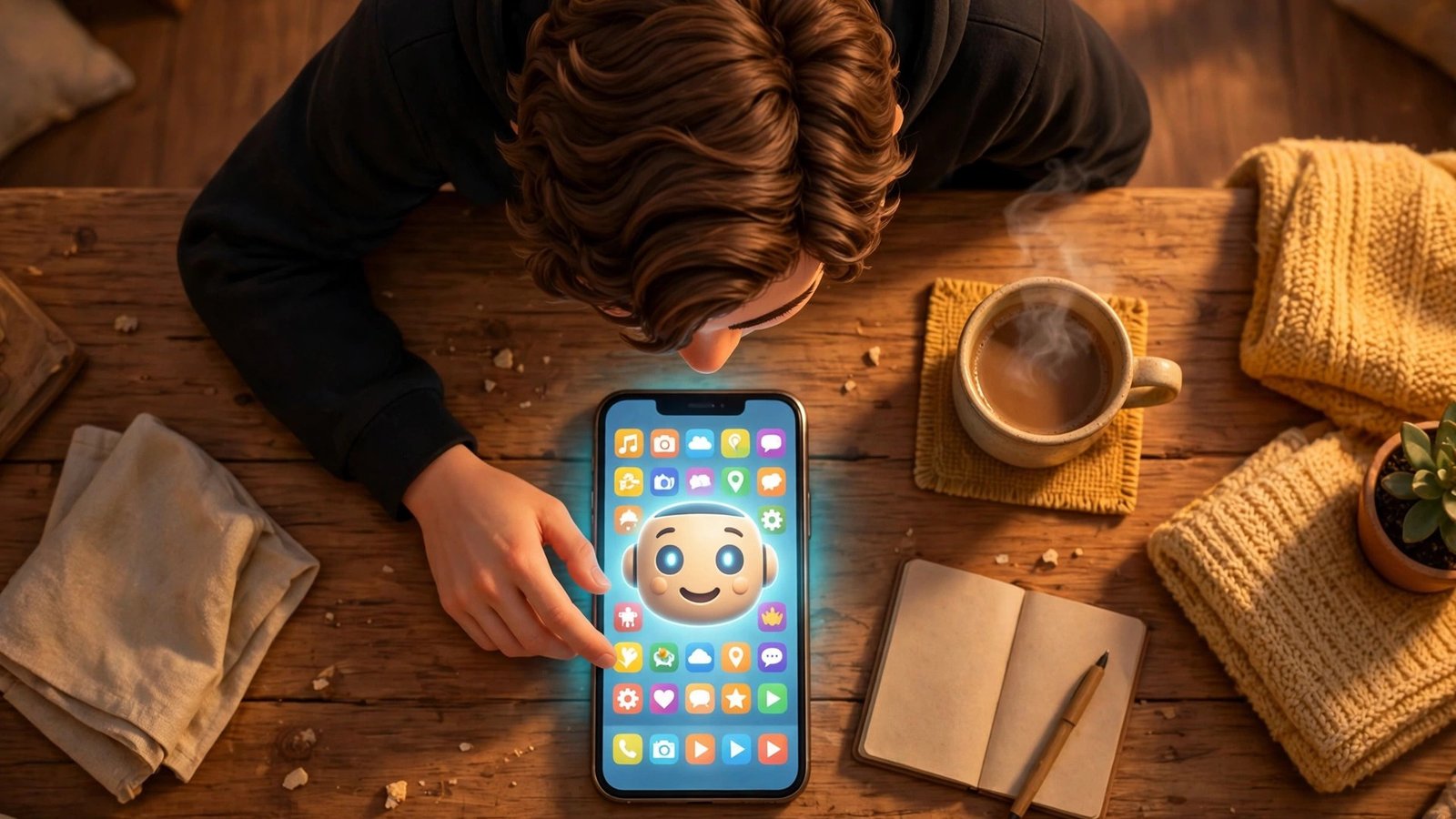
Your phone holds your messages, your calendar, your photos and your banking apps — and until now, your AI assistant could not touch any of it. You could ask a chatbot to draft a reply, but you still had to open the app, paste the text and press Send yourself. Pinky AI closes that gap: it lets an AI agent use your real iPhone or Android phone, while you watch every step and approve anything risky before it happens.
Pinky AI is a free, open-source tool created by developer DIYgod and released on 6 November 2026. It connects AI agents such as Claude Code, Claude Desktop, Codex and Cursor to your phone through MCP, the open standard that lets AI apps talk to other tools. The agent sees your phone’s screen on your computer, taps and types for you, and — this is the part that matters — it cannot pay, send, delete or buy anything without your click. Those rules are enforced by Pinky itself, not by asking the agent nicely. This guide shows you how to use Pinky AI from zero: installing it, connecting your phone, linking your agent, and running your first real task safely.
Step 1: Understand What Pinky AI Actually Does
Pinky AI is not a chatbot app and it is not a screen-mirroring tool. It is a gateway between an AI agent on your computer and a real phone in your hand. Think of it this way: the agent is the hands, your phone is the workbench, and Pinky is the supervisor standing between them with a stop button.
Here is what that means in practice:
- Any MCP agent can drive your phone. Claude Code, Claude Desktop, Codex, Cursor or a script you wrote yourself — if it speaks MCP, it can operate your iPhone or Android phone through Pinky.
- Pinky can also work alone. Pinky’s own app on the phone can do tasks by itself with an AI model you choose: DeepSeek, Qwen, Kimi, GLM, Claude, GPT, Gemini, or a local model running in Ollama or LM Studio. No computer needed.
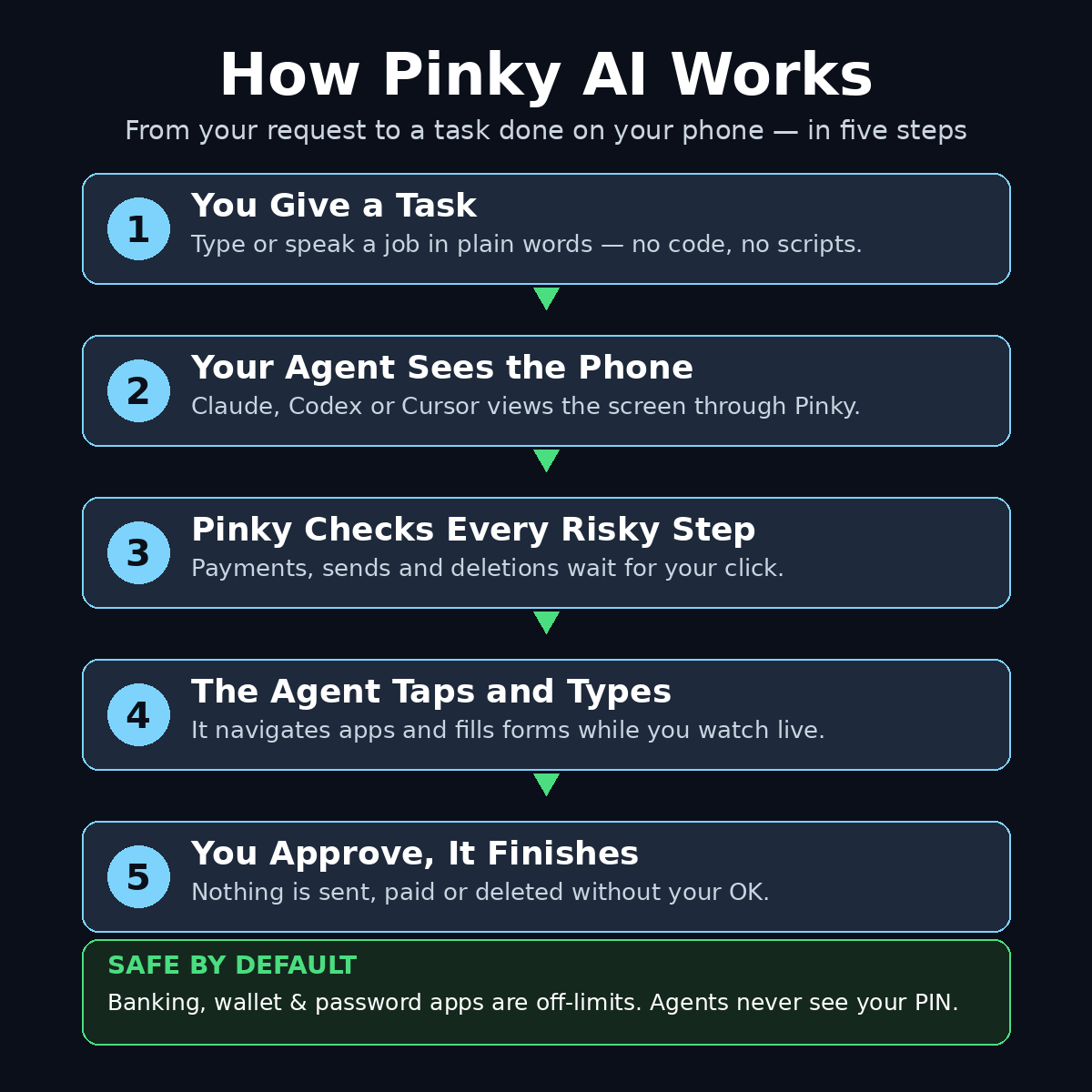
- You approve the risky steps. Payments, trades and transfers wait for your click by default. In Settings, you can also make sends, orders, deletions, calls, app installs, links that leave the app and settings changes wait for approval — or make every single step wait.
- Banking apps stay off-limits. Banking, wallet and password-manager apps are invisible to agents by default, and agents cannot type into password or one-time-code fields. If a task genuinely needs a banking app, the agent asks, and you can allow that app for that one task only.
- Your phone stays yours. On Android 13 and later, the agent works on a hidden second screen, so your own screen stays free — or off and locked. You can take over at any time by clicking the mirror, and on Android, simply touching the phone pauses the agent.
- Every run is on the record. Each task is saved as plain-words steps with screenshots and a screen recording, exportable as an HTML report. It all stays on your computer.
- It is free and open source. Pinky is released under the Apache-2.0 licence with no account to create and nothing to subscribe to. The download is tiny — 16 to 22 MB — and it idles at about 70 MB of memory.
The honest caveat is that Pinky is still pre-alpha. It works end to end — Claude Code has driven real Android phones over USB and real iPhones through it — but some features are still being tested by real users, so expect the occasional rough edge. For a free tool that hands an AI the keys to your phone, that honesty about its status is a good sign, not a warning to stay away.
Step 2: Check What You Need Before You Start
Before you download anything, check the short list below. Most of it you already have.
- A computer: macOS 13 or later (Apple silicon or Intel), Windows 10 or 11 (64-bit), or a 64-bit Linux PC (Ubuntu 20.04, Debian 11 or newer, with GTK 3).
- A phone: an Android phone running Android 10 to 17, or an iPhone or iPad running iOS 16 or later. A USB cable helps for the first setup.
- An AI agent: any agent that can use MCP servers — Claude Code, Claude Desktop, Codex or Cursor are the one-click options. If you want Pinky to work on the phone without a computer, you will also need an AI model account or API key (or a local model).
- A little patience for iPhone setup: iPhones need one extra step the first time. On iOS 27 and later, nothing needs installing on the phone at all. On iOS 17.4 to 26, Pinky’s companion app is installed once from a Mac with Xcode. On iOS 16 to 17.3, setup uses WebDriverAgent over USB.
One thing Pinky does not supply is the AI brain itself. Like other free agent tools, it uses a bring-your-own-model design: you connect the AI you already pay for or run locally. That is also why there is no Pinky account and no Pinky cloud holding your data — your tasks, screenshots and recordings stay on your own computer.
Step 3: Download and Install Pinky on Your Computer
Installation takes about two minutes, and there is a route for every major system.
- Mac: download the latest release —
pinky-for Apple silicon (M1 or later) or-arm64.dmg pinky-for an Intel Mac — open it and drag Pinky to Applications. With Homebrew, one command does the same:-amd64.dmg brew install --cask diygod/tap/pinky. - Windows: download
pinky-setup-and run it. It installs for your account without administrator rights. The installer is not signed yet, so Windows SmartScreen may warn you — choose More info, then Run anyway. If you would rather not install anything, unzip-amd64.exe pinky-and open-windows-amd64.zip Pinky.exedirectly. - Linux: on Debian and Ubuntu, download
pinky_and install it with_amd64.deb sudo apt install ./pinky_. On other systems, unpack_amd64.deb pinky-into a folder of its own and run-linux-amd64.tar.gz pinkyinside it.
Pinky checks for new versions by itself and installs updates automatically on Mac, Windows and Linux, so you will not fall behind on fixes. Open Pinky once it is installed and you will see a clean window with an Add phone button — that is where the real setup begins.
Step 4: Connect Your Android Phone
Android is the smoother first setup, so if you have an Android phone, start here.
1. Turn on USB debugging. On the phone, go to Settings, then About phone, and tap Build number seven times until Developer options unlocks. Then open Settings, then System, then Developer options, and switch on USB debugging. Some brands name these menus a little differently, and Pinky’s Add phone flow shows the exact menu names for Xiaomi, OPPO, vivo, HONOR, HUAWEI, Samsung and Pixel phones. 2. Plug the phone into your computer. When the phone asks whether to allow USB debugging, tap Allow. Pinky brings its own copy of adb, the tool that talks to Android phones, so you do not need to install Android Studio or platform tools first. 3. Let Pinky install its companion app. Pinky offers to install Pinky on the phone, its companion app, which makes reading the screen much faster and lets Pinky type in any language. Your phone may ask you to allow the install once. 4. Run the Checkup. Each phone has a Checkup in the menu under its mirror. It lists what works and how to fix what does not — for example, a Xiaomi phone’s extra USB debugging security switch.
Once the cable works, you can move to Wi-Fi. On Android 11 and later, you can pair over Wi-Fi from Add phone instead of plugging in each time. Pinky verifies that the phone answering over Wi-Fi is really yours: it leaves a mark on each phone it sets up that only the phone’s debugging connection can read, and checks it whenever adb connects, so another device on your network cannot pretend to be your phone. On Windows, some phones need a USB driver first — the Google USB Driver for Pixels, Samsung’s driver for Galaxy phones, or your phone maker’s driver. On Linux, you may need the Android udev rules installed before Pinky can open the phone’s USB device.
Step 5: Connect Your iPhone
iPhone setup needs one extra piece the first time, because Apple does not let outside tools drive an iPhone without a helper. Pinky handles the awkward part for you — here is what to expect.
1. Open Pinky and choose Add phone, then iPhone. Plug the iPhone into your Mac with a USB cable. Pinky mounts Apple’s developer disk image, which comes with Xcode or can be downloaded from a third-party mirror when you ask. 2. Install the companion app once. On iOS 17.4 to 26, Pinky installs its companion app, Pinky on the iPhone, from your Mac with Xcode — once, and then it is done. On iOS 27 and later, nothing needs installing on the phone at all. On iOS 16 to 17.3, setup uses WebDriverAgent over USB with Xcode instead. 3. Switch to Wi-Fi. From iOS 17.4, Wi-Fi works after the first setup, so you can unplug the cable and keep using the phone wirelessly. iPhones use the main screen rather than a hidden second screen, so you will see the agent working — which is actually reassuring the first few times.
If anything stalls, the phone’s page in Pinky says what is missing, and the Checkup lists exactly which step failed. Do not skip the Checkup on iPhone: it is the fastest way to tell whether the problem is the cable, the developer disk image, or the companion app.
Step 6: Add Pinky to Your AI Agent
This is the one-click step that turns Pinky from a phone viewer into an AI operator.
1. Open Settings, then Agents, in Pinky. You will see one-click connect buttons for Claude Code, Claude Desktop, Codex, Cursor and more. Pick the agent you already use. 2. Let Pinky write the configuration. Pinky adds itself as an MCP server to your agent’s settings. Any agent that can use MCP servers works, on the same computer or over HTTP — you are not locked to one brand of AI. 3. Approve the new agent. Every new agent needs your approval before it can touch a phone, and it gets only the scope you give it. If you connect a second agent later, it starts with no access until you say yes.
If you already run other free agents on your computer, this step will feel familiar — it is the same MCP pattern those tools use to reach your files and apps. If you want to compare approaches first, our beginner’s guide to OpenClaw AI covers another free agent that talks to your apps through MCP, and our guide to Hermes Agent AI shows a full agent platform that also plugs into Claude and ChatGPT. Pinky is the piece that extends that same idea from your computer to your phone.
Step 7: Run Your First Task on the Phone
Start small. Pick a task that is useful but harmless, watch it happen, and build trust before you hand over anything important.
1. Ask your agent in plain words. In Claude Code, for example, type something like: “Open Messages on my phone and draft a reply to Sara saying I will be ten minutes late — do not send it yet.” The agent sees the phone screen in Pinky’s window and starts tapping. 2. Watch the mirror. Pinky shows you the phone’s screen live on your computer. On Android 13 and later the agent works on a hidden second screen, so your own screen stays free; on older Android phones and iPhones it uses the main screen. 3. Approve the Send. When the agent reaches the Send button, Pinky holds the tap and asks you. Click Allow and the message goes out; click Deny and it stops. This is the moment the whole design clicks: the agent did the finding, the typing and the navigating — you kept the one decision that matters. 4. Review the record. When the task finishes, Pinky saves every step in plain words with screenshots and a screen recording. Open it and check what the agent actually did, not just what it said it did.
Good first tasks once the draft-reply test works: ask the agent to check tomorrow’s first calendar event and tell you what time to leave, to find a restaurant near you and show its opening hours, to take a photo and describe what is in it, or to summarise your unread notifications. Save payments, purchases and anything involving money for later — after you have tuned the safety rules in the next step.
Step 8: Set Up Approvals and Safety Rules
This is the most important step in the whole guide. Pinky’s safety is not a promise in a privacy policy — it is a gateway that sits between the agent and your phone, and the agent cannot talk its way around it.
- Open Settings, then Safety. Payments, trades and transfers already wait for your click by default. Here you can add more: sends, orders, deletions, calls, app installs, links that leave the app, and settings changes — or make every step wait for approval.
- Turn on approval for sends and deletions first. These are the two actions beginners regret most. A wrong Send is embarrassing; a wrong Delete is permanent. With both set to ask, the agent can draft and find, but you press the final button.
- Leave banking apps off-limits. Banking, wallet and password-manager apps are invisible to agents by default. If a task genuinely needs one, the agent asks, and you can allow that app for that task only — it does not stay allowed afterwards.
- Know your stop button. Clicking the mirror takes over instantly and the agent pauses until you hand back. On Android, touching the phone yourself pauses it too. And Stop all — Option-Command-period on Mac, Ctrl-Alt-period on Windows and Linux — halts everything from anywhere.
- Unlock without sharing your PIN. You can save your phone’s PIN in Pinky once, then confirm each unlock with Touch ID, Windows Hello or your keyring’s password — or confirm once to let Pinky unlock the phone for agents’ tasks for up to 8 hours. The agents never see the PIN itself.
For a small business, this approval model is what makes phone agents usable at all. A one-person operation can let an agent draft customer replies, check orders or update a listing, while the owner keeps the final say on anything that spends money or talks to a customer. If you run a service business and want the same kind of leverage across your whole operation, a specialist team such as a digital agency can help you wire AI tools like Pinky into your daily workflow rather than using them one task at a time.
Step 9: Use Pinky on the Phone Without a Computer
Pinky does not always need your computer. Its app on the phone can do tasks by itself, with a model you choose.
- Type or speak a task. Open Pinky’s app on Android or iPhone, type or speak what you want — “text Ali that I am on my way” or “find a cheap flight to Lahore next Friday” — and pick the model: DeepSeek, Qwen, Kimi, GLM, Claude, GPT, Gemini, or a local model in Ollama or LM Studio.
- Share things to it. Share a link, a photo or a block of text to Pinky from any app and ask it to do something with it — summarise it, reply to it, or save it somewhere useful.
- Ask about what is on screen. On Android, a floating button — or the power button — lets you ask Pinky about whatever the screen shows right now, and it can keep working on a hidden background screen while you keep using the phone.
- Take your phone away from home. With Tailscale, Pinky can reach your phone even when you are away from your home network, so a task you start from your computer still works when the phone is in your pocket across town.
The no-computer mode is the one to try once you trust the approval flow, because it is where Pinky stops being a desktop experiment and starts being a daily helper. Start with one spoken task a day — a message, a reminder, a quick lookup — and let the habit form before you add scheduled jobs.
Step 10: Schedule Tasks and Let Pinky Remember
The final step turns Pinky from a tool you operate into an assistant that works while you are busy.
- Schedule a task. Pinky can run a task at set times — a morning briefing from your calendar and messages, a daily check of an order status, a reminder to call someone back — on the computer and on Android.
- Let it watch for conditions. You can also ask Pinky to tell you when a condition holds, such as when a reply arrives or a price changes, instead of checking yourself every hour.
- Let it remember — only with your yes. After a task, Pinky may suggest a note to remember, such as a preference you mentioned, and it keeps that note only if you say yes. Nothing is remembered silently.
- Keep the record. Every scheduled run is saved with the same plain-words steps, screenshots and recording as a manual one, so you can audit what happened while you were away.
Teams exploring this kind of always-on automation often pair it with broader AI automation services to connect agents like Pinky with the rest of their business systems — the phone agent handles the messages and lookups, while the wider automation handles the CRM, the inbox and the reporting. Even on your own, one scheduled morning briefing a week is enough to feel the difference: the phone stops being a list of things to check and starts being a list of things already done.
Pinky AI vs Other Ways to Automate Your Phone
Pinky is not the only way to make a phone do things by itself. Here is how it compares with the tools most beginners already know.
| Tool | What it does | AI agent | Cost to start | Best for |
|---|---|---|---|---|
| Pinky AI | Lets an MCP agent use your real iPhone or Android, with approvals | Yes — Claude, Codex, Cursor, any MCP agent | Free, open source | Letting AI do phone tasks safely |
| Apple Shortcuts | Automates tasks on iPhone with rules you build | No | Free, built in | Simple iPhone routines you design yourself |
| Tasker / MacroDroid | Automates Android tasks with triggers and actions | No | Free or paid | Power users who want rule-based Android automation |
| Claude Computer Use | Lets Claude operate your computer’s screen | Yes — Claude only | Paid Claude plan | Desktop automation, not phones |
| Qube AI | Personal AI agent that works on your computer and creates files | Yes — bring your own model | Free, open source | Computer tasks; see our Qube AI guide |
The pattern is clear: Shortcuts and Tasker are powerful but they only do what you program in advance, and they cannot understand a vague request. Claude Computer Use understands vague requests but only on a desktop. Pinky is the only free option that brings a real AI agent to the phone you actually carry — with a human approval step in front of every risky action.
Frequently Asked Questions
Is Pinky AI really free?
Yes. Pinky is free and open-source software under the Apache-2.0 licence, with no account to create and no subscription. The cost is the AI model behind it: you use your own Claude, ChatGPT or other subscription, an API key, or a free local model running in Ollama or LM Studio. Pinky itself charges nothing.
Is it safe to let an AI use my phone?
It is as safe as the rules you set — and Pinky’s design starts strict. Payments, trades and transfers always wait for your click, banking and password apps are hidden from agents by default, and agents cannot type into password or one-time-code fields. You can make sends, deletions and every other risky action wait for approval too. The one rule to never break: keep approvals on for anything involving money or messages until you have watched the agent work for a week.
Does Pinky AI work on iPhone?
Yes, on iOS 16 and later. On iOS 27 and later, nothing needs installing on the phone. On iOS 17.4 to 26, Pinky’s companion app is installed once from a Mac with Xcode. On iOS 16 to 17.3, setup uses WebDriverAgent over USB. After the first setup, iPhones can work over Wi-Fi. Note that iPhones use the main screen, not the hidden second screen Android 13 and later offers.
Can Pinky AI work without a computer?
Yes. Pinky’s app on Android and iPhone can do tasks by itself with a model you choose — type or speak a task, or share something to it. On Android you can also ask about what is on screen from a floating button, and let it work on a hidden background screen while you keep using the phone.
What if the agent does something wrong?
Take over instantly: click the mirror in Pinky and the agent pauses, or on Android just touch the phone. The global Stop all shortcut — Option-Command-period on Mac, Ctrl-Alt-period on Windows and Linux — halts everything. Every run is saved with plain-words steps, screenshots and a screen recording, so you can see exactly what happened and fix the instruction that caused it.
Final Thoughts
Pinky AI is the most honest kind of new tool: free, open source, still pre-alpha, and built around the one feature that matters most when an AI touches your phone — you stay in the loop. The setup takes about fifteen minutes — install the app, connect the phone, link your agent — and the habit that makes it stick is starting small: one drafted reply, one calendar check, one lookup, all with approvals on. The first time Pinky holds a Send tap and waits for your click, you will understand the design: the agent did the work, you kept the decision.
The phone era of AI agents is just beginning, and the tools that win will be the ones that treat your approval as a feature, not a friction. Pinky already does. Download it, connect your phone, and give it one small job today — that first approved task is the moment it clicks.
Explore More Free AI Tools
Want to keep building your free AI toolkit? Try the AI Title Generator, Meta Description Generator, AI Rewriter and Keyword Density Checker at aitoolsteps.com — free tools that pair perfectly with the messages and content Pinky AI helps you create.