

Imagine opening a website, pressing one button, and watching your words turn into text as you speak — with no account, no upload, and no internet connection needed after the first visit. That is exactly what learning how to use Starbright AI gives you. Starbright is a tiny 15 MB speech-to-text model that runs entirely inside your web browser, turning live speech and audio files into accurate transcripts while your audio never leaves your device.
Starbright appeared on Product Hunt and Hacker News in November 2026, where it stood out for a simple reason: it is the only free speech model under 20 MB that runs fully in the browser. In this beginner-friendly guide, you will learn how to use Starbright AI from your very first visit. You will open the app, record your first live transcript, transcribe audio and video files, fix mistakes with its correction mode, and export clean text or subtitles. You do not need to install anything, create an account, or pay a single rupee to start.
Step 1: What Starbright AI Is (and Why It Is Different)
If you are learning how to use Starbright AI, start with the core idea. Most transcription tools send your voice to a faraway server, process it there, and send the text back. Starbright does the opposite. The whole speech model — just 15 MB — downloads into your browser once, and a small Rust engine compiled to WebAssembly runs it right on your own computer. After that first visit, there is no cloud in between at all.
Starbright is built on Moonshine Streaming Tiny, a small English speech model from Useful Sensors. Despite its tiny size, it is remarkably accurate. On clean read speech, it gets about 4.5% of words wrong, and on the standard LibriSpeech test it scores 4.9% — level with the full 176 MB version of the same model family, which scores 4.93%. In plain words, the 15 MB model keeps up with a model more than ten times its size.
Why Starbright AI Stands Out for Beginners
Here is what makes Starbright different from a normal transcription app:
- Private by design: your audio and transcripts stay in your browser. Nothing is uploaded, ever.
- Tiny and fast: the 15 MB model loads in under a second on a good connection, uses about 39 MB of memory, and transcribes 20 to 50 times faster than real time.
- No account, no sign-up: open the page and start talking. There is nothing to sync and nothing to delete later except your own browser data.
- Works offline: after the first visit, the model sits in your browser cache and Starbright keeps working with no connection at all.
- Free for everyday use: free for personal, research, education, and non-profit use under the PolyForm Noncommercial license.
That privacy-first design matters more than ever. Voice notes, interviews, and meeting recordings often contain sensitive details, and many people are uncomfortable sending them to a server they cannot see. Starbright removes that worry completely, which is why privacy-conscious writers, students, and researchers are paying attention to it. If you work with a digital agency or handle client calls, keeping recordings on your own device instead of a third-party server is a genuine advantage, not just a nice extra.
Step 2: Open Starbright AI in Your Browser
Getting started takes less than a minute. There is no app to install and no account to create.
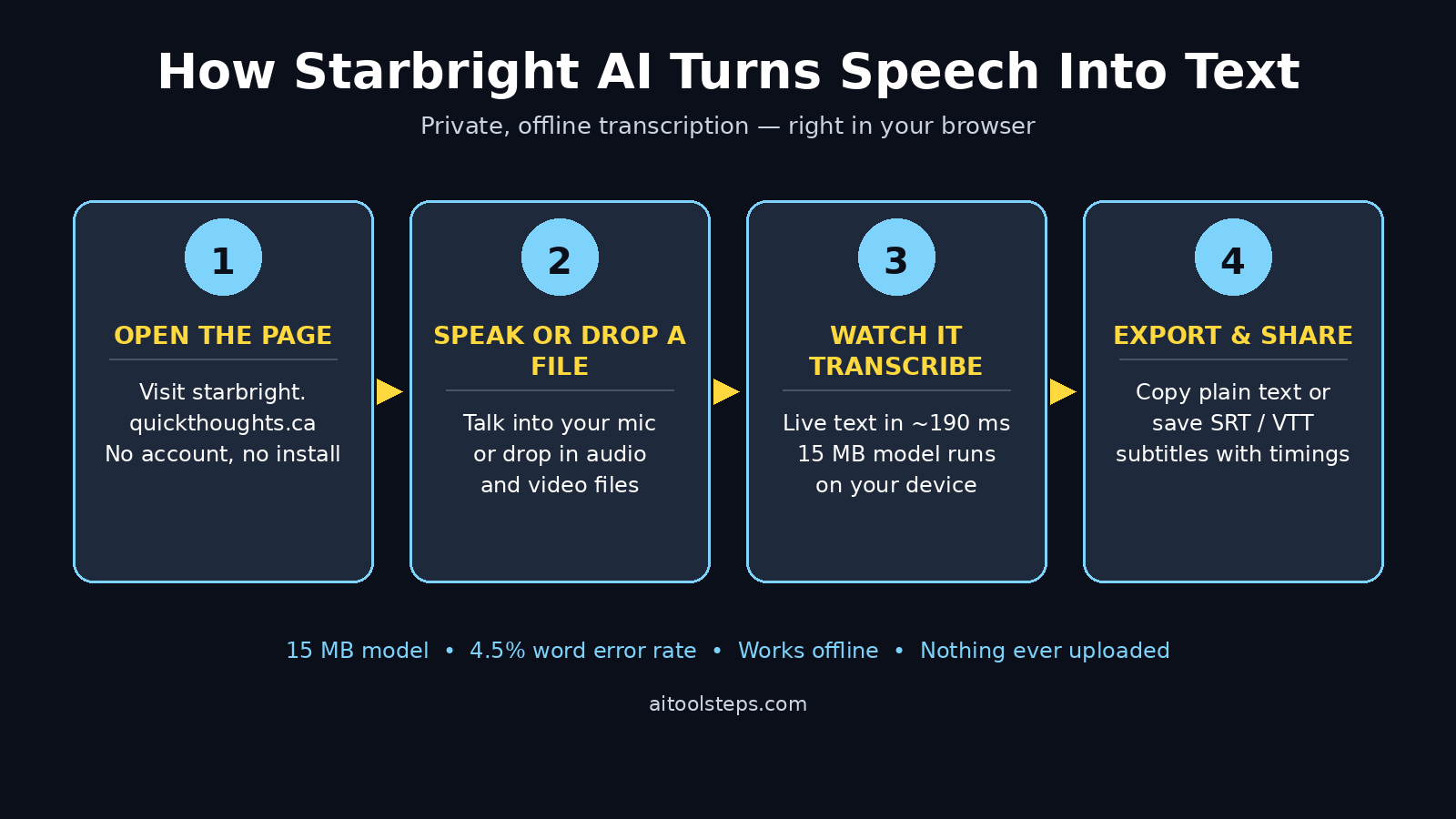
- Open your browser — Chrome, Firefox, Edge, or Safari all work — and go to starbright.quickthoughts.ca.
- On your first visit, the page downloads the 15 MB speech model. On a normal connection this takes a few seconds, and a small progress indicator shows it loading.
- Once the model has loaded, the page is ready. The model is now stored in your browser cache, so your next visit opens instantly and works even offline.
That is the whole setup, and it is the easiest part of learning how to use Starbright AI. Because the engine runs in a background worker, the page stays smooth and responsive while transcription runs. Starbright even works on modest phones and Chromebooks, since the model is so small. If you have ever avoided transcription tools because they felt heavy or complicated, this is the opposite experience: one page, one download, done.
Step 3: Allow Microphone Access and Record Your First Words
Live transcription is Starbright’s headline feature, and it is the fastest way to see what the tool can do. If you are learning how to use Starbright AI, start here — one button press and you are transcribing.
- On the Starbright page, look for the microphone or record button and click it.
- Your browser will ask for microphone permission. Click Allow. Starbright can only hear you while the tab is open, and you can revoke the permission any time from your browser settings.
- Start speaking at a normal pace. Do not shout and do not slow down unnaturally — the model is trained on natural speech.
- Watch the screen. A light draft of your words appears about every 0.2 seconds, and the first results show up in roughly 190 milliseconds after you start speaking.
- When you pause, the text settles into its final form about 1.4 seconds after you stop speaking.
For the best results, speak in a quiet room and keep the microphone 15 to 30 centimeters from your mouth. A laptop’s built-in microphone works fine for dictation, but a cheap headset microphone gives noticeably cleaner transcripts, especially if there is background noise. Remember that Starbright currently supports English only, so speak in English for accurate results.
Step 4: Read the Live Transcript as You Talk
Starbright shows you two layers of text while you speak, and understanding them helps you trust the result. The light draft text is the model’s live guess, updating several times a second as more of your sentence arrives. The darker, settled text is the final version, locked in once the model has heard the full phrase and its context.
This matters because speech is ambiguous in the moment. A word like “there” might first appear as “their” and then correct itself once the rest of the sentence arrives. Do not panic when the draft flickers — wait for the settled line before judging accuracy. In practice, the settled text is very close to what you actually said, with around 4.5% of words wrong on clear speech.
A practical tip: dictate in complete sentences and pause briefly at natural breaks. Short pauses give the model clean boundaries, which improves punctuation. Starbright adds punctuation automatically, so “hello comma how are you” is not needed — just speak naturally and let the model place the commas and full stops.
Step 5: Transcribe Audio and Video Files with Starbright AI
You do not have to speak live. When you learn how to use Starbright AI with files, you can transcribe anything you already have — interviews, lectures, podcasts, and voice notes recorded earlier.
- On the Starbright page, find the file drop area.
- Drag an audio or video file onto the page, or click to choose one from your device. Common formats such as MP3, WAV, M4A, and MP4 work.
- Starbright reads the file locally and transcribes it on your device. A one-hour recording is processed far faster than real time — roughly 20 milliseconds of compute per second of audio on a modern desktop, or about 50 times faster than real time.
- Watch the transcript build up with timestamps, then scroll through it when it finishes.
Because the file never leaves your computer, you can safely transcribe sensitive material: a client interview, a medical discussion, or a private voice memo. That is a real difference from cloud tools, where the same file would travel to a server and sit in someone else’s storage. If you record meetings for a living, that local-only workflow is worth building your whole process around.
Step 6: Edit and Correct Your Transcript
No speech model is perfect, and Starbright knows it. That is why, once you know how to use Starbright AI, the correction mode is the feature to master — most free tools skip it entirely.
- Click any word to fix it: if the model misheard a name, a technical term, or an unusual word, click the word in the transcript and type the correct one.
- Corrections teach the engine: when you correct a transcript, Starbright feeds that correction back into the engine, so the same mistake is less likely the next time you say that word.
- Fix names and jargon first: proper nouns and industry terms cause most errors. A quick pass over names, places, and product names fixes the majority of mistakes in any transcript.
- Use find and replace for repeats: if the model keeps writing “cache” as “cash”, one correction applied everywhere saves you from fixing it twenty times.
Spend two minutes editing after every long transcript and your final text will read like something you typed yourself. This is also the step that separates a rough transcript from a publishable one — a student turning a lecture into notes, or a creator turning a voice memo into a script, should never skip it.
Step 7: Export Plain Text, SRT, or VTT Subtitles with Starbright AI
Once your transcript looks right, Starbright lets you take it anywhere. This is the payoff for learning how to use Starbright AI: your words become files you own. You can export plain text for documents, notes, and articles, or export SRT and VTT subtitle files with the timings kept, ready to upload to YouTube, a video editor, or a learning platform.
For subtitles, the workflow is simple: transcribe your video file, tidy the text in the editor, export the SRT file, and attach it to the video wherever you publish it. Creators who add captions this way reach viewers who watch on mute, and they do it without paying a per-minute transcription fee or uploading their raw footage to a cloud service. Students can export a lecture transcript as plain text and paste it straight into their notes app.
Your transcripts are kept in the browser until you delete them. There is no cloud copy to worry about, and clearing them is as simple as deleting the local data — a small detail that matters when the recording was private.
Step 8: Go Fully Offline and Keep Working Anywhere
Here is the trick that surprises most new users learning how to use Starbright AI: after the first visit, Starbright works with no internet at all. The model lives in your browser cache, so you can open the page on a plane, in a basement studio, or on a patchy mobile connection and keep transcribing.
To test it yourself, load the page once, then turn off your internet connection and reload it. The app opens from the cache and transcription runs exactly as before. This makes Starbright genuinely useful for field interviews, travel, and anywhere the connection cannot be trusted. It also means the tool never stops working because a server went down or a subscription lapsed — there is no server and no subscription.
One honest note: the offline magic depends on your browser keeping the cached model. If you clear your browser cache or use a fresh private window, the page will download the 15 MB model again on the next visit. That is a five-second cost, not a problem, but it is worth knowing before you rely on offline mode for an important recording.
Step 9: Run Your Own Copy of Starbright
If you want Starbright as a tool you control completely, the maker offers a downloadable version. You can download the app itself — a small 0.5 MB package — and serve it yourself, and you can request the model file on Hugging Face. The instructions are on the project page at quickthoughts.ca/projects/starbright/.
This is a power-user step, and most beginners will never need it — but knowing how to use Starbright AI as a downloadable app is useful if you ever want full control. The browser version already does everything. But the downloadable copy is useful if you want to run transcription inside your own website, build it into a product demo, or keep a permanent local copy that never depends on another company’s hosting. Just remember the license: Starbright is free for personal, research, education, and non-profit use, while commercial use needs a separate license from the maker, so check before you ship it in a paid product.
Step 10: Starbright AI vs Other Free Speech-to-Text Tools
Starbright is not the only free transcription option, so here is an honest comparison before you choose your daily tool.
| Tool | Price | Runs offline | Account needed | Best for |
|---|---|---|---|---|
| Starbright | Free (noncommercial) | Yes, in the browser | No | Private, fast transcription with no uploads |
| Whisper (cloud APIs) | Free self-hosted, paid API | Only self-hosted | Yes for API | Developers building transcription into apps |
| Wispr Flow | Free tier | No | Yes | Voice dictation that types into any app |
| Google Docs voice typing | Free | No | Yes, Google account | Quick dictation inside Google Docs |
| TurboScribe | Free tier | No | Yes | Long audio and video files in the cloud |
Starbright wins on privacy and offline use, and its accuracy matches much larger models. Cloud tools win when you need many languages, speaker labels, or team sharing, because Starbright is English-only and keeps everything on one device. The smart move is to use Starbright for anything private or quick, and keep a cloud tool for the jobs that need collaboration. And if your work involves building with AI agents, the wider shift toward local, on-device AI is worth following — Agentic Affairs covers how agent systems are moving onto personal devices instead of living only in the cloud.
Step 11: Best Uses for Students, Creators, and Teams
Starbright is a general tool, but once you know how to use Starbright AI, a few uses stand out for beginners:
- Students: record a lecture, drop the file into Starbright, and get searchable notes you can actually revise from. Export the text and highlight the key points.
- Creators: dictate video scripts out loud, transcribe them, and edit the text into a script. Then export SRT subtitles for the finished video in the same session.
- Writers: talk through a first draft while walking, transcribe it, and edit on screen. Speaking is often faster than typing for a rough draft.
- Job seekers: practice interview answers out loud, read the transcript, and spot the filler words and rambling sentences you would never notice while speaking.
- Small teams: transcribe customer calls and feedback sessions locally, without sending client conversations to a third-party service.
Because there is no per-minute cost, you can transcribe as much as you like. That changes the habit: instead of rationing a free tier, you can record everything and search it later, which is how transcription stops being a chore and starts being a memory.
Step 12: Limits to Know Before You Rely on Starbright AI
Starbright is excellent at what it does, but go in with honest expectations:
- English only: the current model handles English speech. If you need Urdu, Spanish, or another language, use a cloud tool for now and check back — more languages are planned.
- Accents and noise cost accuracy: the error rate rises from about 4.9% on clean speech to roughly 13% on harder audio and 14% on strong accents. A quiet room and a decent microphone matter more than any setting.
- No speaker labels: Starbright does not tag who is speaking in a multi-person recording. For meeting notes with several voices, label the speakers yourself while editing.
- Noncommercial license: free for personal, research, education, and non-profit use. Commercial use needs a separate license, so ask first if it will touch a paid product.
- Model requests: the model file itself is requested through Hugging Face rather than downloaded directly, which is a small extra step if you run your own copy.
None of these limits should stop a beginner. They simply tell you where Starbright fits: fast, private, English transcription on your own device, with cloud tools filling the gaps it does not cover yet.
Frequently Asked Questions About Starbright AI
Is Starbright AI really free?
Yes, for personal, research, education, and non-profit use, Starbright is free under the PolyForm Noncommercial license. There is no account, no trial clock, and no per-minute limit. Commercial use needs a separate license from the maker, so check before using it in a paid product.
Does Starbright upload my audio anywhere?
No. The speech model and its engine run inside your browser page, on your own processor. Your audio and transcripts stay on your device, and Starbright works offline after the first visit. Nothing is sent to a server.
How accurate is Starbright AI?
On clean read speech, Starbright gets about 4.5% of words wrong, and on the standard LibriSpeech test it scores 4.9%, matching a model more than ten times its size. Accuracy drops on noisy audio and strong accents, so a quiet room and a good microphone help a lot.
Can I use Starbright AI offline?
Yes. The first visit downloads the 15 MB model once into your browser cache. After that, you can open the page and transcribe with no internet connection. If you clear your browser cache, the model downloads again on the next visit.
Does Starbright support languages other than English?
Not yet. The current model is English only, and more languages are planned. If you need another language today, use a cloud transcription tool for that job and keep Starbright for your English recordings.
Can I get subtitles for my videos with Starbright?
Yes. Transcribe your video file, tidy the text in the built-in editor, and export an SRT or VTT subtitle file with the timings kept. You can upload that file to YouTube, a video editor, or any platform that accepts subtitles.
Final Thoughts
Learning how to use Starbright AI takes about five minutes, and it changes how you think about transcription. A 15 MB model that lives in your browser, works offline, costs nothing for everyday use, and never uploads your voice is a rare combination — and its accuracy holds up against models ten times its size. For students turning lectures into notes, creators captioning videos, and anyone who has ever hesitated to send a private recording to a cloud server, Starbright is the simplest private option available right now.
Open starbright.quickthoughts.ca today, speak one sentence, and watch the words appear before you finish the next one. Then drop in a recording you already have and export your first transcript. Once you have felt a transcription tool that answers to nobody but you, going back to uploading your voice to a server feels like a step backwards.
Explore More Free AI Tools
Want to keep building your free AI toolkit? Try the AI Title Generator, Meta Description Generator, AI Rewriter, and Keyword Density Checker — all free on AIToolSteps, no sign-up needed.