

Meetings, podcasts, customer calls and voice notes all hide useful information inside audio — and until recently, turning that audio into accurate text meant expensive software or hours of manual typing. AssemblyAI STT-3.7 changes that. Launched on 18 November 2026 and ranked the number one product on Product Hunt the same day, it is AssemblyAI’s new flagship speech-to-text model, and it is free to try with $50 of credit and no credit card required.
In this beginner guide, you will learn exactly how to use AssemblyAI STT-3.7: how to create a free account, transcribe your first audio file without writing any code, add speaker labels, teach the model your names and technical words, transcribe live audio in real time, and even build a simple voice agent on top of it. By the end, you will be able to turn any recording into a clean, searchable transcript in minutes.
What Is AssemblyAI STT-3.7?
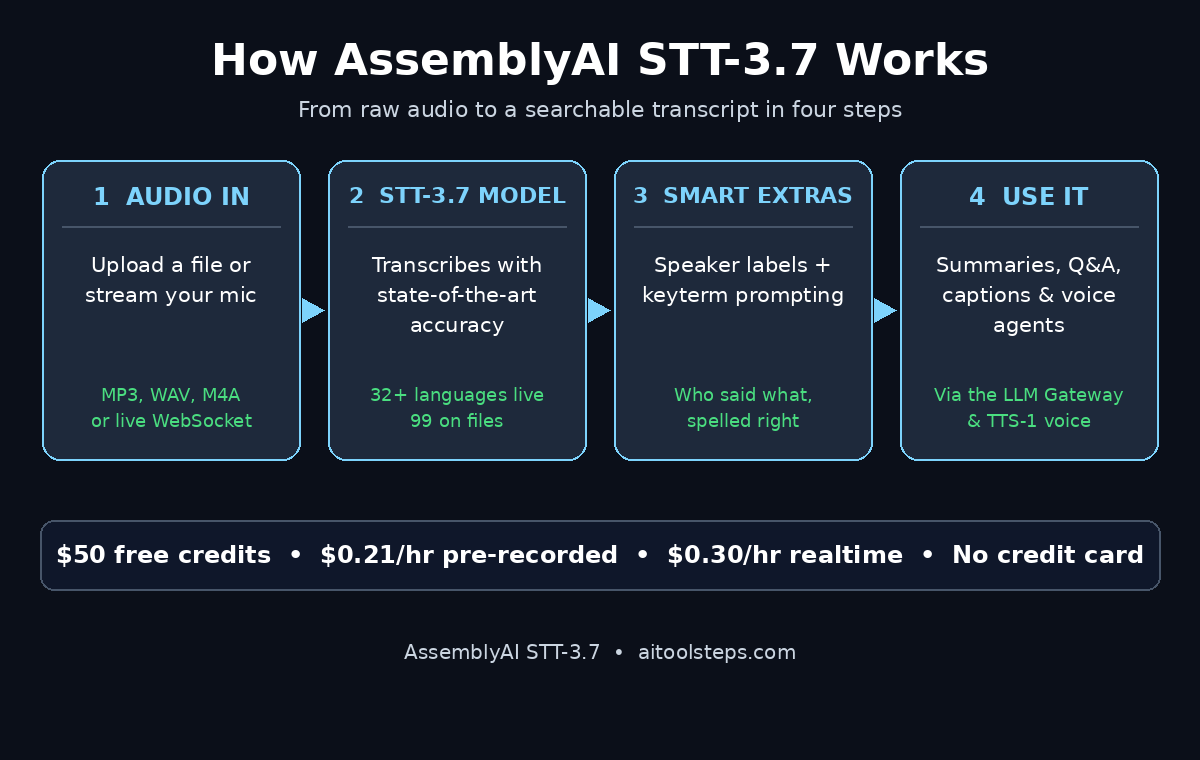
AssemblyAI STT-3.7 is a speech-to-text (STT) model from AssemblyAI, a company that builds voice AI infrastructure for developers and businesses. It is the flagship pre-recorded model in the STT-3.7 family, trained on more than 12.5 million hours of audio. That training shows up where older transcription tools struggle: noisy rooms, strong accents, fast speakers, rare names, email addresses, numbers and domain-specific vocabulary.
The STT-3.7 family comes in three flavours. The pre-recorded model, AssemblyAI-STT-3.7, transcribes uploaded audio files at $0.21 per hour. The streaming model, AssemblyAI-STT-3.7-Realtime, transcribes live audio at $0.30 per hour of session time and is built for notetakers and ambient transcription. The agent model, AssemblyAI-STT-3.7-Realtime-Agent, costs $0.45 per hour and is tuned for voice agents, with built-in keyterm prompting, context carryover and conversation memory. All three cover 32 languages in real time with native code-switching, and the pre-recorded model supports up to 99 languages.
For a beginner, the important part is simple: you get $50 in free credits when you sign up, you do not need a credit card, and those credits cover roughly 185 hours of pre-recorded transcription. That is enough to transcribe months of meetings, lectures or podcast episodes before you ever pay anything.
Step 1: Create Your Free AssemblyAI Account
Everything starts at assemblyai.com. Click “Start building free” and sign up with your email address or a Google account. There is no credit card step and no trial countdown — the $50 of free credit sits in your account until you use it, and it does not expire.
Once you are inside the dashboard, take two minutes to look around. You will see your credit balance, a playground for testing transcriptions without code, your API keys, and links to the documentation. If you run a digital agency or freelance for clients, this dashboard is also where you will later track how much transcription each project uses, so it is worth getting comfortable with it early.
- Go to assemblyai.com and click “Start building free”.
- Sign up with email or Google — no credit card is needed.
- Confirm your email address and open the dashboard.
- Check that your balance shows $50 in free credits before you continue.
Step 2: Get Your Free API Key
Your API key is the password your apps and scripts use to talk to AssemblyAI. In the dashboard, open the API Keys section and copy your default key. Treat it like a password: never paste it into a public post, a shared screenshot or a public code repository.
For this guide you only need the one key. Later, when you build something real, create a separate key for each project so you can revoke one without breaking the others. Free accounts can run five transcriptions in parallel and open five new streaming sessions per minute, which is plenty for learning and for small projects.
Step 3: Transcribe Your First Audio File in the Playground (No Code)
You do not need to write a single line of code to try STT-3.7. The AssemblyAI playground lets you upload an audio file and watch the transcript appear.
Pick a short recording to start with — a two-minute voice note, a meeting clip or a podcast segment. MP3, WAV, M4A and most common formats all work. Upload the file in the playground, make sure the model is set to AssemblyAI-STT-3.7, and submit it. A two-minute file usually finishes in under a minute.
When the transcript appears, read it carefully. Check the names, numbers and technical terms. This is your baseline: it shows you what the model gets right out of the box, before you switch on any of the extras in the steps below. If you work with AI agents and automation for clients, this same playground test is the fastest way to show a client what accurate transcription looks like on their own audio.
- Open the playground from your AssemblyAI dashboard.
- Upload a short MP3, WAV or M4A file (start with two minutes).
- Select the AssemblyAI-STT-3.7 model and submit the job.
- Read the transcript and note any names or terms it mishears — you will fix those in Step 6.
Step 4: Transcribe Audio with the API (Python Example)
Once the playground makes sense, the API is the next step. It lets you transcribe files from your own code, which is how you automate the whole process — for example, transcribing every new recording in a folder automatically.
Install the official Python SDK with pip install assemblyai, then paste your API key into the client. The code below uploads a local file and prints the transcript. Replace your-audio-file.mp3 with the path to your own recording:
import assemblyai as aaiaai.settings.api_key = "YOUR_API_KEY"transcriber = aai.Transcriber()transcript = transcriber.transcribe("your-audio-file.mp3")print(transcript.text)
By default the SDK uses the latest model, but you can pin the model explicitly with a transcription config so your results never change when AssemblyAI ships an update. The API also accepts a public audio URL instead of a local file, which is handy when your recordings already live in cloud storage.
- Install the SDK:
pip install assemblyai. - Create a transcriber with your API key and call
transcribe()on a file or URL. - Print
transcript.textto see the plain transcript, or save it to a file. - Pin the model in your config so production results stay stable.
Step 5: Turn On Speaker Labels (Diarization)
A flat transcript of a two-person meeting is hard to read. Speaker diarization fixes that by labelling every word with its speaker — Speaker A, Speaker B, and so on. STT-3.7 has diarization built in for both pre-recorded and streaming audio, and its speaker separation is far more reliable than older models.
In the API, switch diarization on in the transcription config. Each spoken turn (called an utterance) then comes back with a speaker label and start and end times. That is what turns a transcript into proper meeting notes: you can see who promised what, and you can search for everything one person said.
This one setting is the difference between a wall of text and a usable record. If you take notes for a team, turn it on for every meeting transcription. It adds a small fee — $0.02 per hour on pre-recorded audio — but the readability is worth far more than that.
Step 6: Use Keyterm Prompting for Names and Technical Words
Every industry has words that generic models mishear: product names, client names, drug names, model numbers, place names. Keyterm prompting lets you hand STT-3.7 a list of those words before it transcribes, so it recognises them correctly instead of guessing.
Suppose you record a podcast about AI tools and you keep saying “AssemblyAI”, “diarization” and “Qwen4-Max”. Add those three terms as keyterms and the model will spell them right almost every time. The same trick works for people’s names in interviews and for part numbers in support calls. You can pass up to a few dozen keyterms per job, and the feature is built into all three STT-3.7 models.
- List the 10–20 names, brands and technical terms your audio actually contains.
- Pass them as keyterms in the transcription config or the playground settings.
- Compare the transcript with and without keyterms — the improvement is usually obvious.
- Keep a shared keyterm list per show, client or project so you do not rebuild it each time.
Step 7: Transcribe Live Audio with STT-3.7 Realtime
Pre-recorded transcription handles files. Realtime handles the microphone. AssemblyAI-STT-3.7-Realtime streams audio over a WebSocket and returns partial and final transcripts at around 150 milliseconds median latency — fast enough that captions appear while the person is still speaking.
This is the model to use for live meeting captions, a note-taking app, or any tool that needs text while audio is still flowing. It carries the same 32 languages, speaker labels at the end of each turn, keyterm prompting and context carryover as the agent model, at the lower price of $0.30 per hour of session time. Note that streaming is billed on session duration — how long the connection stays open — not on how much audio you send.
To try it, use AssemblyAI’s streaming example in the docs: open a microphone stream, send the audio chunks over the WebSocket, and print each final transcript as it arrives. Once that works, you have the core of a live captioning tool.
Step 8: Build a Simple Voice Agent with the Realtime-Agent Model
A voice agent is an AI that listens, understands and replies by voice — the kind of assistant that answers calls, books appointments or guides a user through a form. AssemblyAI-STT-3.7-Realtime-Agent is the model built for that job, at $0.45 per hour, because it adds conversation memory and context carryover: it remembers what was said earlier in the call and keeps the transcript accurate as the conversation moves between topics.
A minimal voice agent has three parts: STT-3.7-Realtime-Agent to hear the user, a large language model to decide the reply, and a text-to-speech voice to speak it. AssemblyAI even ships its own text-to-speech model, AssemblyAI-TTS-1, with around 90 milliseconds to first audio and more than 4,000 voices, on the same API key as transcription. That means one account can cover the whole loop — hearing, thinking and speaking.
Start small. Build an agent that answers one question well, such as your opening hours or your pricing, before you let it handle open-ended conversations. Test it with real voices, noisy rooms and accented speech, because that is where STT-3.7 earns its price over cheaper models.
Step 9: Add Summaries and Q&A with the LLM Gateway
A transcript is raw material. The value usually comes from what you do with it: a summary, a list of action items, or answers to questions about the call. AssemblyAI’s LLM Gateway lets you route more than 25 leading language models through one OpenAI-compatible API, so you can ask questions about a transcript, extract decisions, or draft a follow-up email without wiring up a second provider.
A practical beginner workflow looks like this: transcribe the meeting with STT-3.7 and speaker labels on, send the transcript to your chosen model through the gateway with a prompt like “List every decision and who owns it”, and paste the result into your notes. The whole chain runs on your AssemblyAI account, and you can swap the language model later without changing your code.
One caution: the LLM Gateway bills from the first request, so it is not covered by the same free-credit pool in the same way as transcription. Check the gateway pricing before you run a large batch of summaries.
Step 10: Track Usage, Stay Inside the Free Credits and Go Live
Before you build anything serious, learn to read your usage. The AssemblyAI dashboard shows how many hours you have transcribed, which models you used, and how much credit remains. At $0.21 per hour, your $50 of free credit buys about 238 hours of pre-recorded transcription — enough to transcribe a daily one-hour podcast for almost eight months.
When the free credit runs out, pricing stays pay-as-you-go with no minimum spend and no contract. That makes STT-3.7 a safe choice for a side project or a small business: you pay only for what you use, and you can stop any time. If your volume grows, AssemblyAI offers volume discounts — ask their sales team once you are transcribing hundreds of hours a month.
Finally, keep your production setup tidy: one API key per project, keyterms saved per show or client, diarization on for meetings, and the model pinned in your config. Those four habits are the difference between a demo that works once and a tool you rely on every day.
AssemblyAI STT-3.7 vs Other Speech-to-Text Tools
STT-3.7 is not the only transcription option, so here is how it compares with the tools beginners usually consider. Prices are the published pay-as-you-go rates from November 2026 and can change, so check the vendor’s pricing page before you commit.
| Tool | Best for | Pre-recorded price | Realtime price | Free tier |
|---|---|---|---|---|
| AssemblyAI STT-3.7 | Accurate transcription, voice agents, meetings | $0.21/hour | From $0.30/hour | $50 free credits, no card |
| Google Speech-to-Text | Google Cloud projects | $0.96/hour | $0.96/hour | 60 minutes/month |
| Rev AI | Human-reviewed accuracy | Higher per-minute rates | Higher per-minute rates | 5 free hours (Reverb) |
| OpenAI Whisper API | Simple hobby projects | $0.36/hour | Via Realtime API | No free credits |
The pattern is clear: AssemblyAI wins on price and on the size of its free tier, Google wins if your whole stack already lives on Google Cloud, Rev wins when you need a human to check the transcript, and Whisper wins when you want the simplest possible API. For most beginners, the $50 free credit makes STT-3.7 the cheapest way to learn real-world transcription properly.
Frequently Asked Questions
Is AssemblyAI STT-3.7 really free to try?
Yes. New accounts get $50 in free credits with no credit card required, and the credits do not expire. That covers roughly 238 hours of pre-recorded transcription at $0.21 per hour, or about 166 hours of realtime transcription. The LLM Gateway is the one exception — it bills from the first request.
How accurate is AssemblyAI STT-3.7?
AssemblyAI describes STT-3.7 as its most accurate model, trained on more than 12.5 million hours of audio, with industry-leading results on noisy audio, accents and technical vocabulary. Independent benchmark reports put its streaming accuracy ahead of Google Speech-to-Text on real-world audio, including far better speaker diarization. Your own results will vary with audio quality, so always test it on your own recordings.
Which STT-3.7 model should I pick?
Use the pre-recorded model for files you already have — podcasts, meeting recordings, interviews. Use STT-3.7-Realtime for live captions and note-taking apps. Use STT-3.7-Realtime-Agent for voice agents that hold a conversation, because it adds conversation memory and context carryover that the other two do not have.
Can STT-3.7 transcribe Urdu, Hindi or mixed-language audio?
Yes. The pre-recorded model supports up to 99 languages, and the realtime models support 32 languages with automatic language detection and native code-switching — so a speaker who switches between Urdu and English mid-sentence, or Hindi and English, is handled in a single stream without you telling the model when the language changes.
Do I need to know how to code to use AssemblyAI STT-3.7?
No. The playground in the dashboard transcribes files with no code at all, and that is enough for meetings, lectures and podcasts. Coding only becomes useful when you want to automate transcription — for example, transcribing every new file in a folder — and the official Python SDK keeps that to a few lines.
What happened to Universal-3.5 Pro?
Universal-3.5 Pro was AssemblyAI’s previous flagship model. It is now deprecated and STT-3.7 replaces it, with better accuracy, more languages and keyterm prompting built in. If your old code still names universal-3-5-pro, switch the model to AssemblyAI-STT-3.7 before the retirement date is announced.
Final Thoughts
AssemblyAI STT-3.7 is one of those rare launches that is both the most powerful option and the cheapest way to start: the best accuracy AssemblyAI has shipped, 32 languages live and up to 99 on files, speaker labels and keyterm prompting included, and $50 of free credit with no card required. For a beginner, that removes every excuse not to try it.
Start in the playground today with a real recording of your own. Turn on speaker labels, add your keyterms, and compare the result with whatever you used before. If the transcript earns your trust on your own audio, wire up the API and let it handle the next meeting, the next podcast, the next call — and spend the time you save on the work that actually needs you.
Explore More Free AI Tools
Want more free AI tools like AssemblyAI STT-3.7? Try our AI Title Generator, Meta Description Generator, AI Rewriter and Keyword Density Checker — all free on AI Tool Steps.