

Every small IT team knows the same Monday morning feeling. The ticket queue is already full before the coffee is ready: three password resets, a laptop that is out of disk space, a printer that has stopped talking to the network, and a software update that half the office keeps postponing. None of these jobs is hard. All of them eat the day. Learning how to use OpenFrame AI is the fastest way to hand that repetitive work to an AI agent — while you keep the final say on every fix.
OpenFrame AI is an open-source, AI-driven platform for running IT operations, built by the Miami startup Flamingo. It puts AI agents to work on everyday IT jobs — password resets, disk alerts, threat detection and routine maintenance — and it was built around one rule that matters more than any feature list: you approve every fix. The tool launched on Product Hunt on November 16, 2026, where it quickly climbed the daily leaderboard, and it ships with a free self-hosted version. In this beginner-friendly guide, you will learn how to use OpenFrame AI step by step — from choosing the right setup and connecting your devices to setting approval rules, giving an agent its first job, and growing safely from there. No coding skills are needed to follow along.
Step 1: Understand What OpenFrame AI Actually Is
OpenFrame AI is not a chatbot that answers IT questions. It is a working platform where AI agents carry out real IT tasks on real computers, inside a system that records everything they do. Think of it as a junior IT technician who never sleeps, never forgets a checklist, and always asks before touching anything risky.
The platform is built around two AI agents with different jobs. Fae works on the client side: it handles the requests that come from the people using the computers, such as password resets and everyday access problems. Mingo works on the technician side: it looks after the deeper operations work, including monitoring devices, spotting threats and running maintenance. Behind both agents sits one unified system that brings together identity, device management, tickets, a knowledge base and remote tooling, so the agents always work with the full picture instead of guessing from one ticket at a time.
Here is the part beginners usually misunderstand. An AI agent is not magic, and it is not the model alone. It is a language model plus clear instructions plus the software around it — the tools that let it check disk space, read a ticket, or run a script, and the guardrails that decide what it may and may not do. OpenFrame gives you that whole package, open-source, so you can see how it works instead of trusting a black box. If you want to understand the thinking behind this design, the Flamingo team has written openly about how they build IT agents, and the same ideas show up in every step of this guide: clear instructions, the right tools, and approval gates on anything risky.
Step 2: Check Who OpenFrame AI Is For (and Who Should Skip It)
OpenFrame AI fits best when you look after more than a couple of computers and the same small problems keep coming back. That could be a managed service provider (MSP) looking after several small-business clients, an in-house IT person at a company with twenty or fifty machines, or a small business owner who has quietly become the office IT department. If your week is full of repeat tickets — locked accounts, full disks, updates, access requests — this tool is aimed directly at you.
It is also a good fit if you care about control. Some AI tools ask you to hand over the keys and hope for the best. OpenFrame is designed the other way round: every sensitive action waits for a human approval, and every action is logged. If your organisation needs an audit trail — who approved what, and when — that design is a real advantage, not a limitation.
Who should skip it for now? If you look after a single home laptop and your biggest IT problem is a forgotten Wi-Fi password, OpenFrame is more machinery than you need. A simple password manager and your operating system’s built-in tools will serve you better. Likewise, if your company already runs a large enterprise IT platform with strict procurement rules, OpenFrame is still worth knowing about, but it is a conversation for your IT leadership, not a Friday-afternoon experiment. The honest test is simple: if repeat IT tickets already cost you several hours a week, keep reading.
Step 3: Choose Your Setup — Free Self-Hosted or Managed
OpenFrame comes in two flavours, and the choice shapes everything that follows. The first is the free self-hosted version. Because the platform is open source, you can run it on your own servers, keep your data on your own infrastructure, and change anything you like. The trade-off is that you are responsible for running it: installation, updates and backups are yours. The second option is the managed service, where Flamingo runs the platform for you and charges per device. You give up some control, and you gain a setup that works out of the box.
For most beginners, the sensible path is to start small either way. If you are comfortable with servers and Docker-style deployments, the self-hosted route costs nothing but your time and teaches you how the system really works. If you would rather see the agents working before you commit to running infrastructure, the managed service lets you focus on the workflow — approvals, tickets and results — instead of the plumbing. Check the official OpenFrame page on the Flamingo website for the current pricing and the exact steps to get started, because a tool this new changes fast in its first weeks, and the official page is the reliable source.
One practical tip before you choose: count your devices first. Walk through your office — or your client list, if you are an MSP — and make a simple list of every computer, laptop and server you would want the agents to look after. That number decides your cost on the managed plan and your server size on the self-hosted plan, and it stops you from connecting everything at once on day one. Start with five or ten machines, learn the workflow, and expand from there.
Step 4: Create Your Account and Set Up Your Workspace
Once you have picked your setup, creating your workspace takes only a few minutes. On the managed service, you sign up with your work email, confirm it, and you are given a workspace — your private home for devices, tickets, agents and approvals. On the self-hosted version, you deploy the platform from the open-source distribution and then create the first administrator account during setup. Either way, the first account you create is the owner account, so use a work email you actually monitor, not a personal inbox you check once a week.
Next, set up the structure of your workspace before you invite anyone. Give it a clear name — your company name, or the client name if you are an MSP running one workspace per client. Then invite your team and give each person the right role. A technician needs to approve fixes and manage devices. A regular employee only needs to raise requests and see their own tickets. Getting roles right on day one prevents the most common beginner mistake: everybody having admin rights, which means the approval system has nobody left to approve against.
While you are in the settings, find the notification preferences and turn them on for approvals. The approval step only protects you if you actually see the request. Point approval alerts at the channel your team already watches — email at minimum, and your team chat if the platform supports it. An approval request that sits unread for six hours is no better than no approval at all.
Step 5: Connect Your Devices and Tools
An agent that cannot see your computers cannot fix them, so the next step is connecting your devices. OpenFrame uses a lightweight endpoint agent — a small program that runs on each computer, registers the device with your workspace, and lets the platform check its health, run approved commands, and keep its tools up to date. Install it on your pilot group of five or ten machines first, not on the whole company.
On each machine, the install follows the same pattern: download the agent from your workspace, run the installer, and confirm the device appears in your device list with a healthy status. Check three things for every device: that it shows as online, that its basic information is correct (name, operating system, user), and that it has reported at least one health check, such as disk space or update status. A device that appears in the list but never reports health data is not really connected, and an agent working from stale data will make bad decisions.
Then connect the tools your team already uses. At minimum, connect your ticketing flow, so requests from staff land in the same place the agents work. If your team lives in a chat tool, connect that too, so people can raise a request without learning a new system. OpenFrame is built to sit behind one gateway that routes work to the right service, which means integrations are part of the design rather than an afterthought. You do not need to connect everything on day one. Devices first, tickets second, and the rest once the first two are working.
Step 6: Set Approval Rules Before the Agents Do Anything
This is the most important step in the whole guide, so do not rush it. OpenFrame’s promise — you approve every fix — only works if you define, in advance, what the agents may do alone, what needs your approval, and what they must never do at all. Set these rules now, while nothing is on fire, not later when an agent is asking to restart a server at 4 p.m. on a Friday.
The rule that the Flamingo team itself recommends is simple: autonomy follows risk. Start with agents that suggest. Then let them prepare a fix and wait for your approval. Only let them act alone on low-risk jobs they have already proven themselves on, many times, on your own tickets. A password reset for a standard user account is low risk. Wiping a disk, changing firewall rules or touching a production server is not. Write your rules in those terms, in plain language, and put them in the platform’s approval settings.
Three safety habits belong in every setup. First, give the agent its own identity with least-privilege access — it should be able to do its assigned jobs and nothing else, exactly like a new junior employee. Second, set step limits, so an agent that gets stuck cannot loop forever trying the same fix. Third, know where the kill switch is before you need it: how to pause all agents in one click. Digital agencies that run AI automation for clients follow the same pattern — the team at a digital agency like D365A treats approval gates and least-privilege access as non-negotiable when agents touch client systems — and your setup should be no different.
Step 7: Give Your First Agent Its First Job
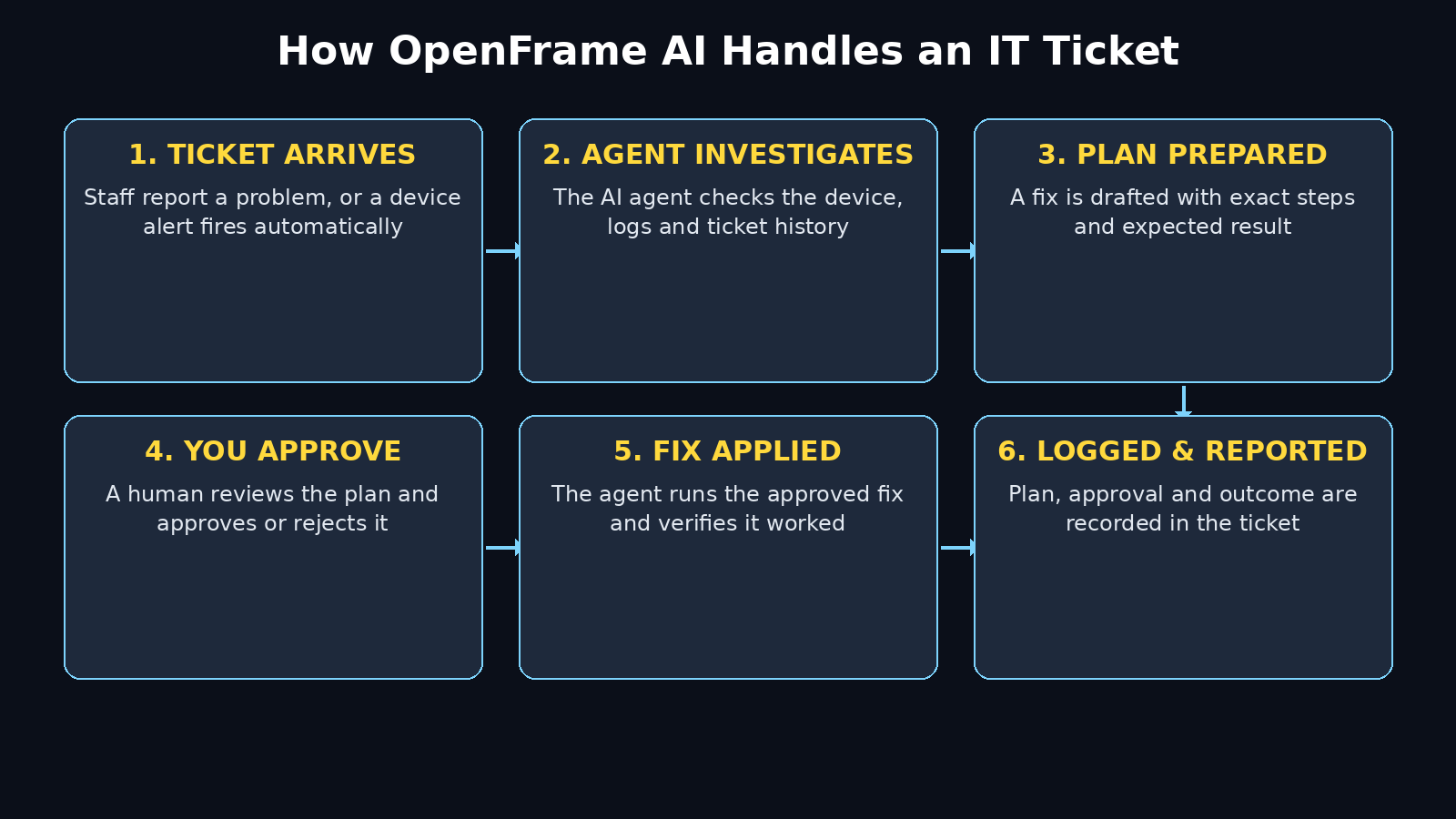
Pick one small, boring, repeatable job for the first run. A disk-space alert is ideal. The steps are always the same: a device reports low disk space, the agent investigates what is using the space, it prepares a cleanup plan, and it waits for your approval. Nothing is deleted until you say yes. That is exactly the job to start with, because the risk is low, the result is easy to check, and you get to watch the whole approval loop work end to end.
To start the job, open the ticket or alert in your workspace and assign it to the agent, or let the agent pick it up from the queue if you have set that up. Write the request the way you would brief a careful colleague: what the problem is, which device is affected, and what a good result looks like. “Free up disk space on ACME-LAPTOP-04, remove only temporary files and the recycle bin, and do not touch user documents” is a good brief. “Fix the laptop” is not — a vague instruction is where agents fill in the gaps with guesses, and guesses become actions.
Then watch. The agent will investigate first: it checks the disk, lists what is using space, and puts together a plan. Read the plan before you approve it. Does it list exactly what will be removed? Does it stay inside the brief? If anything looks wrong, reject it and rewrite the brief — that feedback is how the agent gets better at your environment. A good first run is slow on purpose. Speed comes later, after trust is earned.
Step 8: Review the Agent’s Work and Approve Fixes
The approval screen is where you earn your keep, and it deserves your full attention. When an agent finishes its investigation, it presents a plan: what it found, what it wants to do, and what it expects to happen. Your job is to check the plan against three questions. Is the diagnosis right? Is the proposed fix the smallest change that solves the problem? And is there any step that touches something the user did not ask about?
If the answer to all three is yes, approve it and watch the result. The agent applies the fix, verifies it worked — for example, by re-checking the disk space after cleanup — and records the whole run in the ticket, with the plan, your approval and the outcome. If anything looks off, reject the plan with a short note about what was wrong. A rejected plan is not a failure; it is the system working. Every rejection teaches the agent the boundaries of your environment, and over a few weeks you will see fewer rejections and faster approvals.
Make a habit of reviewing completed work, not just approving plans. Once a week, open five finished tickets and read what actually happened. Did the fix hold? Did the same problem come back the next day? A fix that lasts is worth ten quick fixes that do not. This weekly review is also where you spot patterns: if the same disk-space alert fires every Monday on the same machines, the real fix is a policy or a bigger disk, not another cleanup.
Step 9: Automate the Boring Repeat Tickets
Once the first jobs are running cleanly, the real payoff begins: turning repeat tickets into standing routines. Look at your ticket history and list the five requests that appear most often. In most small IT setups, the list is almost always the same: password resets, locked accounts, disk cleanups, software updates, and new-starter access. Each of those is a candidate for a routine the agent can handle with a standing approval rule.
Build one routine at a time, and keep the same discipline as before: start with the agent preparing the work and waiting for approval, and only move to automatic action for the lowest-risk steps after a run of clean approvals. A password reset is a good second routine, because the steps are identical every time and the result is easy to verify — the user either can log in again or they cannot. Software updates are a good third, but keep them on approval for longer, because an update that breaks a business application costs far more than the time it saves.
Feed the agent a knowledge base as you go. When you solve a problem that is not in the system yet, write down the steps in plain language and save them where the agent can find them. OpenFrame keeps a knowledge base as part of the platform, and the agents use it to solve new tickets the same way your team would. After a month of this, the agents stop asking you about problems you have already solved, which is exactly the point. The broader shift behind all of this — software that acts for you instead of waiting for clicks — is moving fast, and publications covering the agentic era, such as Agentic Affairs, are a useful place to keep up with how these agent workflows are evolving.
Step 10: Track Results and Grow Safely
After two or three weeks, measure what changed. The numbers that matter are simple: how many tickets the agents resolved, how much technician time that saved, how many plans you approved versus rejected, and how long the average ticket took from report to fix. If the approval rate is climbing and the repeat tickets are falling, the system is working. If the rejection rate is high, do not push for more automation — fix the briefs, the rules and the knowledge base first.
Grow the scope gradually and in this order: more devices, then more routine jobs, then — only then — more autonomy on the lowest-risk work. Keep the kill switch and the audit trail in place the whole time. If your organisation also wants to understand what AI agents are doing on the customer side of the business, not just inside IT, it is worth learning how to track that traffic too — our guide to AgentWatch AI shows how to see what AI shopping assistants bring your store, which is the same measurement habit applied to sales.
Finally, keep one boundary that no amount of success should move: a human approves anything that deletes data, changes access, or touches a production system. The goal was never to remove humans from IT. It was to remove the boring half of IT from humans, so the skilled half — judgment, design, and the problems that actually need a person — gets the time it deserves.
OpenFrame AI vs Traditional IT Tools: Quick Comparison
| Feature | OpenFrame AI | Traditional RMM Tools | Manual IT Support |
|---|---|---|---|
| Who does the work | AI agents, with human approval | Scripts + technicians | Technicians only |
| Approval control | Built in — you approve every fix | Limited or none | Every step is manual |
| Cost to start | Free self-hosted version | Usually paid per device | Staff time only, but slow |
| Repeat tickets | Automated as routines | Partly scripted | Handled one by one |
| Audit trail | Full log of plans + approvals | Basic logs | Depends on the person |
| Best for | Small IT teams and MSPs | Larger IT departments | One or two computers |
Frequently Asked Questions About OpenFrame AI
Is OpenFrame AI really free?
Yes, the self-hosted version is free because the platform is open source — you run it on your own servers and there is no licence fee. You still pay for the server it runs on and the time to maintain it. The managed service, where Flamingo runs it for you, charges per device. Check the official page for current managed pricing before you decide.
Will OpenFrame AI replace my IT staff?
No. It replaces the repetitive half of IT work — the same password reset, the same disk cleanup, the same update — so your IT people can spend their time on the work that needs judgment. Every sensitive fix still waits for a human approval, and someone has to write the rules, review the plans and handle the exceptions. Small teams usually find they can look after more devices with the same people, not fewer people.
Is it safe to let an AI agent touch my computers?
It is as safe as the rules you set. OpenFrame is built approval-first: the agent prepares a plan and waits for you before acting on anything sensitive, every action is logged, and you can pause all agents at once. The risk comes from skipping the setup in Step 6 — vague instructions, wide permissions and no approval rules. Set the guardrails first and the system is safer than a rushed technician working from memory.
What devices and systems does OpenFrame AI work with?
OpenFrame is designed for the computers and servers a small business or MSP looks after, managed through its lightweight endpoint agent. It also connects with the ticketing and chat tools teams already use. Because the platform is open source and under active development, the exact list of supported systems can change — the official documentation is the right place to confirm support for your specific setup before you roll it out widely.
Do I need coding skills to use OpenFrame AI?
No. The day-to-day work — approving plans, writing briefs, reviewing tickets — needs IT judgment, not code. You only need technical skills if you choose the self-hosted route, where you deploy and maintain the platform yourself. If that sounds like too much, start with the managed service and focus on learning the approval workflow instead.
What happens if the agent makes a mistake?
That is what the approval step and the audit log are for. A bad plan gets rejected before anything runs. If a fix goes wrong after approval, the log shows exactly what the agent did, in what order, and who approved it — so you can undo it and fix the rule that allowed it. Report the failure the same way you would report a human error: what happened, what should have happened, and what rule changes now.
Final Thoughts
OpenFrame AI is not the flashiest AI tool of November 2026, and that is precisely why it is worth your attention. It does not promise to replace your IT team or to run your business by itself. It promises something smaller and more useful: the boring, repeatable half of IT, handled by agents that show their work and wait for your approval. For a small IT team or an MSP drowning in repeat tickets, that is a real improvement to a real week — not a demo.
Start small, set the approval rules before the agents do anything, and give them one boring job to prove themselves on. Review the work weekly, automate the repeats one at a time, and keep a human in charge of anything that deletes data or touches production. Do that, and by the end of the month you will have fewer tickets, faster fixes, and an IT routine that finally leaves time for the work that matters. That is the whole point of learning how to use OpenFrame AI — not to hand IT over to a machine, but to take the repetitive half of it off your plate for good.
Explore More Free AI Tools
Want more free AI tools like this one? AI Tool Steps publishes a new beginner-friendly AI guide every day, including an AI Title Generator, a Meta Description Generator, an AI Rewriter, and a Keyword Density Checker. Each one is free, and each guide walks you through the tool step by step, the same way this one did.