

Your inbox is already where your work lives. Meeting requests arrive there, invoices arrive there, and the follow-up you forgot to send sits there, quietly getting older. Most AI assistants ask you to learn a new app, create another account, and remember to open yet another tab. readywhen AI does the opposite. It lives inside your email, so you use it the same way you would email a good human assistant: you write what you need, send it, and the work gets done.
readywhen launched on Product Hunt on 16 November 2026 and finished as the number 2 Product of the Day. The idea is simple enough that it feels obvious once you hear it. There is no account to set up and no app to install. You email assistant@readywhen.ai with a job, the same way you would email a good assistant, and it takes care of it. It can write follow-ups and send them from your email when you reply, so the loop closes without you opening a dashboard at all.
This beginner guide shows you how to use readywhen AI from zero. You will learn what it can and cannot do, how to write task emails that get good results, how to let it chase follow-ups for you, and how to build a small daily routine around it. You do not need any technical skill. If you can send an email, you can use readywhen AI.
Step 1: Understand What readywhen AI Actually Is
readywhen is a personal assistant that lives in email around the clock. It is not a chatbot you open in a browser tab, and it is not a plugin that sits on top of your inbox. It is an email address you write to. You send a task to assistant@readywhen.ai, and the assistant on the other side reads it, works on it, and replies to you by email with the result.
That design choice matters more than it sounds. Email is the one tool every professional already knows, already checks, and already trusts with important work. A new AI app has to earn a place in your day. readywhen skips that fight entirely and meets you where you already are. There is nothing to download, nothing to configure, and no new interface to learn. Your first task is one email away.
The assistant is built for the ordinary jobs that eat up a working day. It writes follow-up emails and sends them from your email when you approve them. It can research a question and send you the answer. It can draft messages, prepare summaries, and keep a task moving while you focus on something else. Think of it as the colleague who never sleeps, never forgets a follow-up, and never needs a meeting to understand a task.
It is important to set expectations honestly. readywhen is an email-first assistant, so it works best on jobs that can be described in writing and delivered in writing. It will not replace your calendar app, your project tracker, or your own judgement. What it does replace is the pile of small, fiddly email jobs that never feel worth doing and never go away either. That pile is bigger than most people admit, and clearing it is where readywhen earns its keep.
Step 2: Start in 30 Seconds — No Account, No App
Getting started with readywhen takes about thirty seconds, because there is genuinely nothing to set up. There is no sign-up form, no password to invent, and no free-trial countdown ticking in the background. You open your email, exactly as you would to write any other message, and you send your first task.
Open your email app or your webmail in the browser. Start a new message and put assistant@readywhen.ai in the To field. Write a short subject line that says what the job is, for example “Follow up with Sarah about the invoice” or “Research the best budget standing desks under 200 dollars”. Then write the task in the body of the email in plain language, exactly as you would explain it to a person.
You do not need a special format, a command, or a keyword. readywhen reads normal English. The clearer your email, the better the result, but you do not need to learn a syntax. If you can describe the job to a colleague in two or three sentences, you can describe it to readywhen.
Send the email. That is the whole setup. The assistant replies to you by email, so the answer lands in the same inbox you already check. Keep the thread: when readywhen asks a question or sends you a draft, reply in the same thread so the context stays together. This single habit — one thread per job — keeps everything organised without any extra tool.
Step 3: Write Your First Task Email the Right Way
The quality of what you get back depends almost entirely on the quality of the email you send. readywhen is good at following instructions, but it cannot read your mind. A vague email gets a vague result, and a clear email gets a clear result. The good news is that writing a clear task email is a simple skill, and you can learn it in one try.
Start with the outcome, not the background. The first line of your email should say what “done” looks like. “Draft a polite follow-up email to Sarah asking for payment of invoice 1042” is a good first line. “Can you help me with an invoice thing” is not. The assistant works from your first line, so make it count.
Then add the three details that matter: who, when, and how. Who is the email for, and what is their name and address if you have it. When does it need to happen, in plain words like “by Friday” or “before the meeting on Tuesday”. And how should it sound — formal or friendly, short or detailed. A single sentence for each is usually enough, and it turns a guess into a finished draft.
Here is a template you can copy for your first task:
Subject: Follow up with a client about an unpaid invoice
Hi readywhen,
Please draft a polite follow-up email to Sarah at sarah@example.com about invoice 1042 for 480 dollars, which was due on 10 November. Keep it friendly and short, remind her of the due date, and ask when she expects to pay. Do not sound angry. Send me the draft first so I can review it.
Thank you.
Send one small task first, not the hardest job on your list. A follow-up draft, a short research question, or a summary of a long email thread are all perfect first tasks. You will see how readywhen replies, how long it takes, and how much checking its work needs, all from one low-risk try. Then scale up to bigger jobs once you trust the pattern.
Step 4: Let readywhen Chase Follow-Ups for You
Follow-ups are the single best use of readywhen, and the reason the tool exists. Everyone has emails that need a nudge: an unpaid invoice, a client who went quiet, a colleague who owes you an answer, a supplier who never confirmed. These jobs are small, but they are also the jobs most likely to slip, because each one needs you to remember, open the thread, and write a fresh message.
readywhen takes the chasing off your plate. You tell it who needs a nudge and what the nudge is about, and it writes the follow-up for you. When you reply to approve it, it sends the message from your email, so the person on the other end sees a normal email from you, not a message from a robot. The thread stays in your inbox, so you always have the full history.
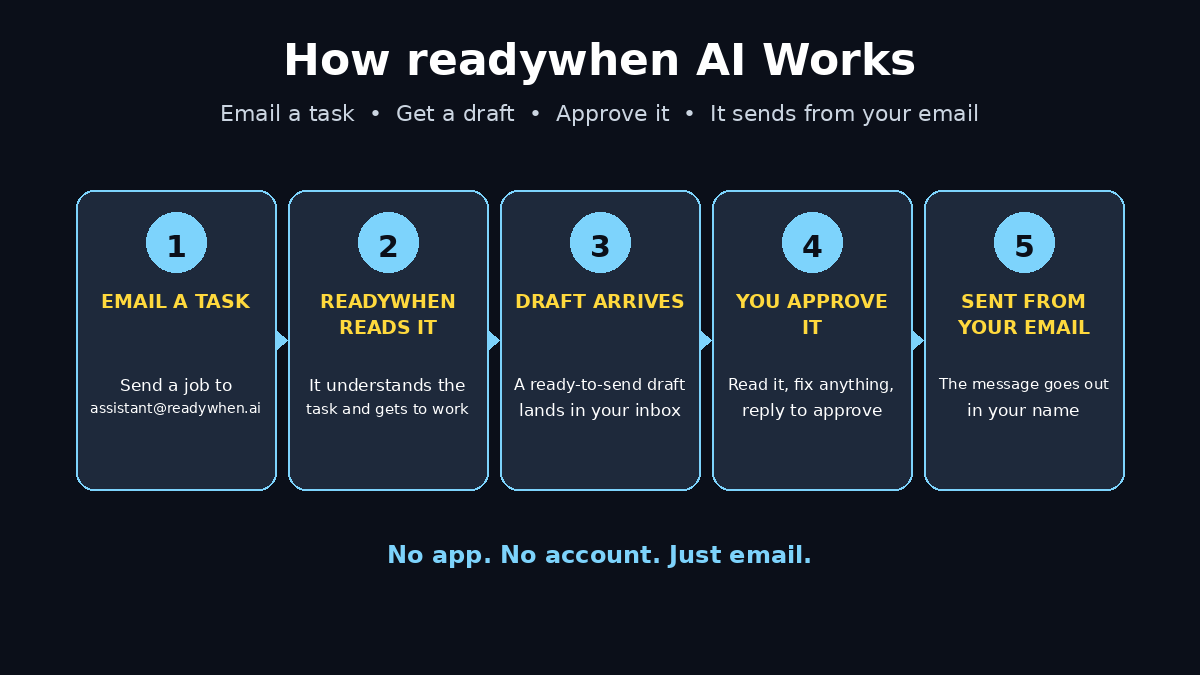
The workflow looks like this. You send one email to assistant@readywhen.ai describing the follow-up you need. readywhen replies with a draft, written in your tone. You read it, change anything you want, and reply with a simple approval. readywhen sends it. If there is still no answer after a few days, you can ask readywhen to send a second, gentler nudge, and it will remember the whole story from the first thread.
This matters because follow-ups are where money and opportunities quietly leak away. A client who does not pay on time costs you cash flow. A lead who goes quiet costs you a sale. A colleague who never answers costs you a week. Automating the chase does not make you pushy. It makes you consistent, and consistency is what gets replies. Set a simple rule for yourself: any follow-up older than three days goes to readywhen instead of sitting in your head.
Step 5: Hand It Research, Scheduling and Reminders
Follow-ups are the headline feature, but readywhen is useful for much more. Any job that starts with “can you find out” or “can you remind me” is a good fit. The assistant lives in email, so it is always within reach, and it answers in the same place you asked.
Research is a strong second use. Ask readywhen to compare two products, find the best option under a budget, or summarise a long article or document you received by email. Because the answer comes back as an email, you can forward it, file it, or search for it later like any other message. Try asking for a short summary first, then a more detailed version if you need it. Short answers are easier to check, and checking is a habit you should keep.
Scheduling help works the same way. You can ask readywhen to draft a message proposing meeting times, or to write to someone asking when they are free next week. It cannot see inside your calendar unless you tell it your availability, so always include the times you are free in your task email. “I am free Tuesday and Thursday between 10 and 12” is enough for it to write a clean, correct proposal.
Reminders are the quiet superpower. Email readywhen with something like “Remind me on Friday morning to call the bank about the business account” and it will come back to you. This sounds simple, and it is, but it replaces the sticky notes, the mental reminders, and the 2 a.m. realisations. One inbox, one assistant, and nothing forgotten is the whole point of the tool.
Step 6: Always Review Before Anything Goes Out
Here is the most important rule in this entire guide: always review readywhen’s work before it goes to another person. The assistant drafts and prepares, but you decide what leaves your inbox. This is not because readywhen is unreliable. It is because your name is on the email, and your reputation travels with every message.
Make review a fixed step, not an optional one. When readywhen sends you a draft, read it fully before you approve it. Check the names, the numbers, the dates, and the tone. A wrong invoice number or a misspelled name is a small error that creates a large impression. If something is off, reply in the thread with the correction. readywhen will fix it and send you a revised draft. Two minutes of checking saves an embarrassing correction later.
The approval step is also your control. readywhen sends messages from your email only when you say so, which means nothing goes out while you are not looking. Treat that approval as a real decision, not a rubber stamp. If a draft does not sound like you, say so in your reply and ask for a warmer or shorter version. The assistant learns from your corrections inside a thread, so each round of feedback makes the next draft better.
This review habit is what separates people who use AI well from people who get burned by it. The tool does the heavy lifting. You do the judgement. Keep that split, and readywhen becomes a reliable helper instead of a risk.
Step 7: Build a Simple Daily Routine Around It
A tool you use once is a novelty. A tool you use every day is a system. readywhen becomes genuinely useful when it has a fixed place in your day, so build a small routine around it instead of using it at random.
Start the morning with one email to readywhen. Before you open your inbox properly, send it the follow-ups and tasks that are on your mind. “Chase the three unpaid invoices from last week” or “Draft replies to the two supplier emails I flagged yesterday” are good morning jobs. By the time you have had your coffee, the drafts are waiting, and the day’s chasing is already half done.
Use the middle of the day for research and drafting. When a question comes up in your work — a tool to compare, a price to check, a message to word carefully — send it to readywhen instead of stopping what you are doing. The answer arrives by email, so you can pick it up when you are ready instead of breaking your focus.
End the day with a five-minute handover. Send readywhen a short email listing anything that still needs a nudge tomorrow, and anything you want reminded about in the morning. This turns your end-of-day worry into a written list that someone else is holding. You close your laptop knowing the follow-ups are queued, and you start the next day with answers instead of a blank page.
Step 8: Pair readywhen With Your Other Free AI Tools
readywhen is strongest when it sits inside a small toolkit instead of working alone. It handles the email jobs. Other free tools handle the rest of your work, and together they cover a full working day without a single subscription.
When a task needs a document, a spreadsheet, or a design, hand that part to a specialist tool and let readywhen handle the email around it. For example, use an AI writing tool to draft a proposal, then ask readywhen to send the follow-up email that delivers it. Use an AI research tool to compare options, then ask readywhen to summarise the result for your client. Each tool does what it is best at, and readywhen is the messenger that keeps the work moving between people.
If you run a small business, this combination is especially powerful. You can keep your client communication consistent without hiring anyone, and you can respond to leads the same day instead of the same week. Many small teams use this kind of setup to look bigger than they are, because the follow-ups never slip. A good digital agency will often build exactly this kind of lightweight system for clients who cannot justify a full-time hire yet.
For the bigger picture, remember that email assistants are one small part of a much larger shift. AI agents are starting to do real work inside businesses, not just answer questions. You can follow that wider change at Agentic Affairs, which tracks how agentic AI is reshaping the tools people use at work. readywhen shows you the shift in your own inbox. The context around it helps you decide where to use it next.
Step 9: Know What You Should Never Email It
An email assistant is convenient precisely because it is so easy to use, and that ease creates a risk: it is tempting to send it everything. Do not. Some information should never go into an email to any assistant, no matter how helpful it is.
Never send passwords, one-time codes, bank account numbers, card details, or login credentials. readywhen does not need them to do its job, and an email is the wrong place for them. If a task seems to need a password, it is the wrong task for an email assistant. Do the login part yourself and let readywhen handle the writing.
Never send sensitive personal data about other people either. Medical details, private addresses, or confidential business information about a client do not belong in a task email. If you would not want the information forwarded, do not put it in the email. Keep task emails focused on the job: who, what, when, and how it should sound.
Finally, never let readywhen send something you have not read. This repeats the rule from Step 6, but it is worth repeating because it is the rule that protects you. Your name is on every message it sends for you. Read the draft, check the facts, and only then approve it. Convenience is the point of the tool. Carelessness is not.
Step 10: Measure the Time It Gives You Back
The last step is the one most people skip, and it is the one that decides whether you keep using readywhen. Measure what it saves you. If you do not measure it, the benefit stays invisible, and invisible benefits get abandoned.
Keep a simple count for one week. Each time readywhen handles a follow-up, a draft, or a piece of research, note it down. At the end of the week, add up the jobs and estimate the minutes each one would have taken you. Most people find the total surprising. Five follow-ups, three drafts, and two research answers easily add up to two or three hours a week, and that is time you can spend on work only you can do.
Then ask a harder question: what did the follow-ups actually win back? An invoice paid two weeks earlier is real money. A lead answered the same day is a real opportunity. A supplier confirmed on time is a real delay avoided. These are the results that matter, and they are the reason email assistants are worth taking seriously. The tool is free to start and takes thirty seconds to try, so the cost of finding out is almost nothing.
If the week shows a real saving, make readywhen permanent. Give it a fixed place in your morning routine, keep one thread per job, and keep reviewing every draft before it goes out. That is the whole system. One email address, one habit, and an inbox that finally chases itself.
readywhen AI vs the Alternatives
| Option | Setup | Cost to start | Best for | Biggest weakness |
|---|---|---|---|---|
| readywhen AI | None — just send an email | Free to start | Follow-ups, drafts and research by email | Needs clear written instructions |
| Hiring a human virtual assistant | Job post, interviews, onboarding | Paid from day one | Complex judgement calls and phone work | Costly and slow to start |
| Using a chatbot app | Account, app install, learning curve | Usually free to start | Quick questions and brainstorming | You must remember to open it |
| Doing it all yourself | None | Your time | Full control over every word | Follow-ups slip and time disappears |
The table makes the trade-off clear. A human assistant is more capable but costs real money and takes days to hire. A chatbot is free but lives in an app you have to remember to open. Doing it yourself costs nothing except the hours you lose. readywhen sits in the middle: free to start, no setup at all, and it works in the inbox you already live in.
Frequently Asked Questions
Is readywhen AI really free?
readywhen is free to start, and there is no account setup standing between you and your first task. You simply email assistant@readywhen.ai with a job. As with any new tool, check the current terms on the readywhen website before you rely on it for business-critical work, because free tiers and limits can change after launch.
Do I need to install anything to use readywhen AI?
No. There is no app to install and no account to create. readywhen works entirely by email, so any email app or webmail you already use is enough. If you can send an email, you can use readywhen.
Will readywhen send emails without asking me?
No. readywhen drafts messages and sends them from your email only when you approve them. You review each draft first and reply to approve it. Nothing goes out while you are not looking, and you stay in control of every message that carries your name.
What kinds of jobs can I give readywhen AI?
The best jobs are follow-up emails, draft messages, short research questions, summaries, and reminders. Any job you can describe clearly in writing and receive as a written answer is a good fit. Jobs that need a password, a phone call, or access to a system only you can open are not a good fit.
How is readywhen different from a normal AI chatbot?
A chatbot waits in an app you must open. readywhen lives in your email, so you use it without opening anything new and without creating an account. You email it a job, it replies by email, and it can send approved messages from your email address, which a chatbot cannot do.
Can I use readywhen AI for my small business?
Yes, and small businesses are one of the best fits. Follow-ups with clients, chasing unpaid invoices, replying to new leads, and drafting supplier emails are exactly the jobs that pile up in a small business. Start with one follow-up, review the draft, and scale up once you trust the pattern.
Final Thoughts
readywhen AI is a small idea with a large payoff. It does not ask you to learn a new app, create another account, or change how you work. It takes the tool you already use every day — email — and puts an assistant inside it. You write a job, it does the job, and the follow-ups that used to slip through the cracks finally get sent.
The launch timing is on your side. readywhen arrived on Product Hunt on 16 November 2026 as the number 2 Product of the Day, which means you are early. The people who build a habit around it now will have a tidy, self-chasing inbox while everyone else is still writing “just bumping this to the top of your inbox” by hand.
Start small. Send one follow-up today, review the draft, and approve it. Then send another tomorrow. Within a week, you will know exactly how much time readywhen gives you back, and your inbox will never look the same again.
Explore More Free AI Tools
Want more free AI tools like readywhen? Try our free AI Title Generator, Meta Description Generator, AI Rewriter, and Keyword Density Checker — all free, no sign-up needed. Explore more beginner-friendly AI guides on AI Tool Steps.