

Have you ever recorded your screen to show someone how your product works, and then spent the next three hours editing the video, writing the script, and turning the same recording into a help article? That long, boring workflow is exactly what Trainn MCP AI was built to remove. Trainn MCP AI connects Trainn to your favourite AI assistant — Claude, ChatGPT, or Cursor — so you can create product videos, step-by-step guides, and even full training courses simply by chatting.
Trainn MCP AI launched on Product Hunt on November 13, 2026, earning 167 upvotes and 42 comments and placing #5 on the daily leaderboard, with an average rating of 5.00 out of 5 from its first eight reviews. It is one of the freshest AI tools of the month, and it solves a problem every SaaS team, course creator, and support team knows well: training content takes too long to make, goes out of date fast, and lives in five different tools. In this beginner-friendly guide, you will learn what Trainn MCP AI is, how it works, and how to create your very first product video and course from a single chat — no video editing skills required.
What Is Trainn MCP AI?
Trainn MCP AI is a no-code integration that connects Trainn, an AI-powered product video and training platform, to your AI assistant through the Model Context Protocol (MCP). In plain words, it gives your AI assistant the power to create training content — not just plan it.
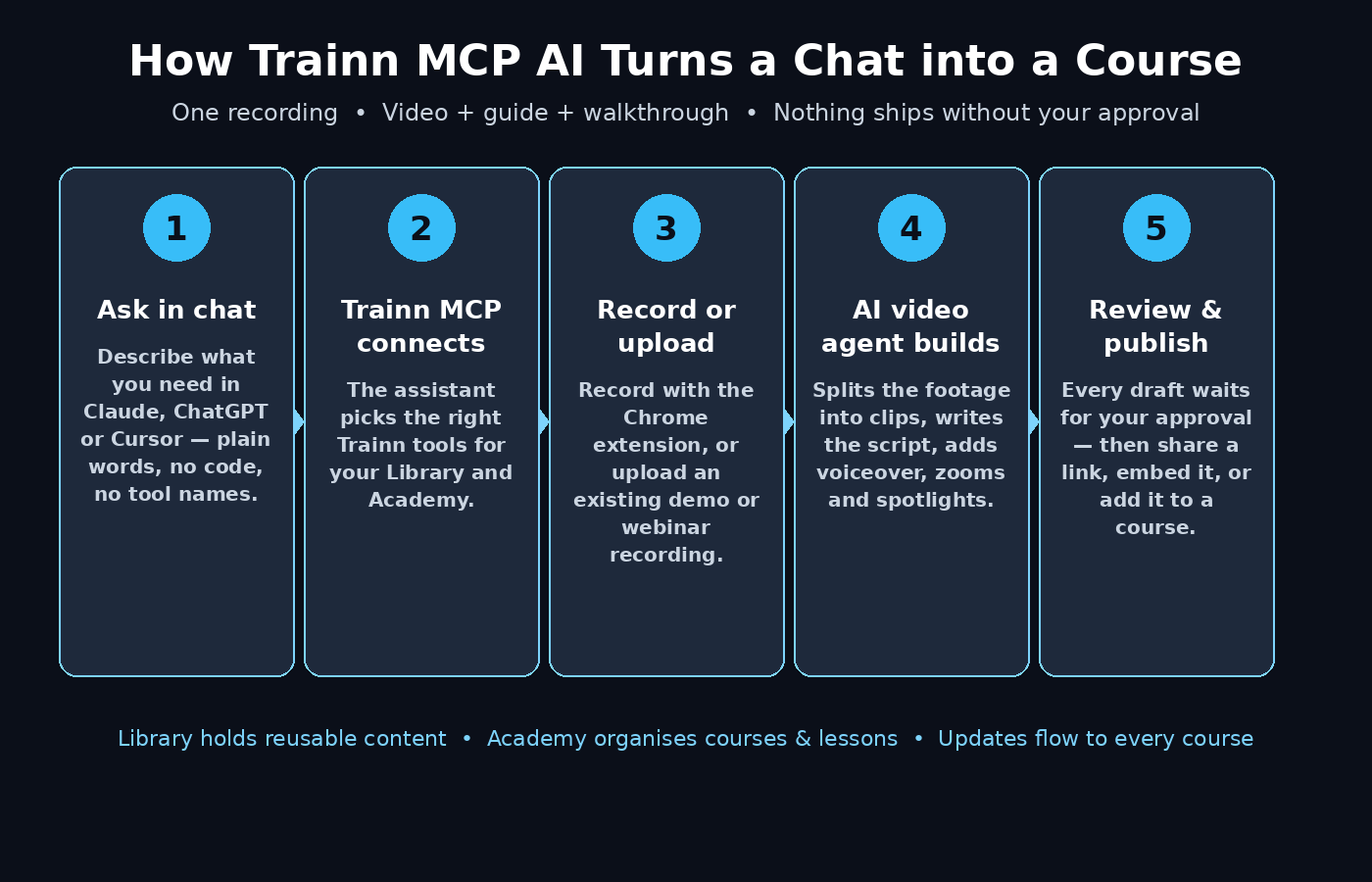
Here is the simple idea behind it. You connect Trainn MCP to Claude, ChatGPT, Cursor, or Notion, and then you describe what you want in plain language. The assistant picks the right Trainn tools and does the work: it can turn a screen recording into a polished product video, write a help article from your notes, or build a complete course for a specific audience. When your product changes, you update the content through the same conversation instead of starting over.
Three things make Trainn MCP AI different from a normal AI chatbot:
- It creates, it does not just answer. Instead of giving you a plan for a video, it actually builds the video, the guide, and the course inside Trainn.
- You stay in control. New Library items and courses start as drafts. Nothing ships, publishes, or gets deleted without your explicit request and confirmation.
- It works from your real content. Trainn MCP AI finds training content and gives answers grounded in your own Library of videos, documents, and guides, so the output matches your product instead of generic advice.
Trainn itself is built around one idea: a single screen recording can become three things at once — a narrated product video, a step-by-step written guide, and an interactive walkthrough. Trainn MCP AI simply lets you drive that whole system from a chat window you already use every day.
Why Trainn MCP AI Matters for Beginners
Most beginners who need training content face the same wall. Recording a decent product video needs a script, a voiceover, editing software, and hours of patience. Writing a help article needs screenshots, clear steps, and careful formatting. Building a course needs all of that, plus structure, quizzes, and certificates. For a small team or a solo creator, that is weeks of work before a single customer learns anything.
Trainn MCP AI removes that wall in three ways. First, you never have to learn video editing: the AI video agent splits your recording into clips, writes the script from what you did on screen, generates a clean voiceover, and adds zooms and spotlights to highlight the important clicks. Second, you never have to write the same lesson twice: one recording produces the video, the guide, and the walkthrough automatically. Third, you never have to leave your AI assistant: you ask in plain English, and the assistant selects the tools, uploads the files, and drafts the content for you.
For support teams, this means every common question can become a polished video in minutes. For course creators, it means a full course can be ready in under ten minutes of real work. And for beginners, it means you can produce professional training content on your first day, with no design or editing background at all.
Step 1: Create Your Free Trainn Account
Before you can connect Trainn MCP AI, you need a Trainn account. The good news is that Trainn offers a free trial, so you can test the full workflow before spending anything.
- Go to trainn.co and click the sign-up button.
- Create your account with your work email and choose a workspace name for your team or project.
- Start the free trial. The Creator plan starts with a 3-day free trial, then costs $19 per month, and the trial lets you record a real workflow and see the finished product video before you pay.
- Take two minutes to explore the dashboard. You will see two main areas: the Library, which holds your reusable videos, documents, articles, and guides, and the Academy, which organises training into courses, chapters, and lessons.
Do not worry about filling anything in yet. Your Library and Academy will fill up naturally as you create your first pieces of content in the steps below. The trial is the right time to test one real workflow end to end, because seeing your own product turned into a polished video is the fastest way to understand what Trainn MCP AI can do.
Step 2: Connect Trainn MCP to Your AI Assistant
This is the step that unlocks everything. Trainn MCP is the no-code way to integrate Trainn with AI assistants like Claude, GPT, Cursor, and Notion, so you can create content and get answers from Trainn through chat.
- Open your Trainn settings and find the MCP section, or open the Trainn MCP help guide from the Trainn help centre.
- Copy the Trainn MCP connection details provided for your workspace.
- Open your AI assistant of choice — Claude, ChatGPT, or Cursor — and add Trainn MCP as a connected server using those details.
- Confirm the connection by asking a simple question in chat, such as “What training content do I have in my Library?” If the assistant answers from your actual Library, the connection is live.
You do not need to type tool names or follow a technical sequence. Describe what you want in plain language, and the assistant selects the tools needed. If you can write a chat message, you can drive Trainn MCP AI — there is no code to write and no API keys to manage by hand.
Beginner tip: if your team already uses an AI assistant every day, connect Trainn MCP to that same assistant. The less you change your daily workflow, the faster the team will actually use it. If you are setting up AI workflows for a whole business and want expert help, a digital agency can help you plan which tools to connect first and how to structure your training content.
Step 3: Record Your First Screen Recording
Every great piece of Trainn content starts with a recording. You do not need a script, a microphone, or a quiet room — the AI writes the script from what you do on screen.
- Install the Trainn Chrome extension from your Trainn dashboard and click Record.
- Walk through the product workflow you want to teach, exactly as you would show a colleague. Each click, scroll, and navigation is captured in real time.
- Talk naturally while you record, or stay completely silent. If you narrate, the AI rewrites your narration for clarity, strips filler words, and removes background noise. If you record silently, the AI video agent writes and voices a script from your on-screen actions.
- Stop the recording when the workflow is finished. The AI video agent takes over immediately: it identifies individual steps, generates annotated screenshots, writes titles and descriptions for each step, and applies contextual zooms and spotlights.
You can also upload an existing screen recording if you already have one — a product demo, a webinar recording, or an old training video all work. Trainn’s AI video agent handles long demos and webinar recordings too, splitting the footage into clean teaching clips. The recording works with any browser-based application, and desktop recording is available for non-browser workflows.
Beginner tip: record the workflow once, slowly, with clear clicks. A slow, deliberate recording gives the AI clean steps to work with, and it is much easier to edit than a rushed one.
Step 4: Ask the AI to Turn the Recording into a Product Video
Now comes the part that feels like magic. Instead of opening an editor, you simply ask your AI assistant in chat.
- In your connected AI assistant, type a plain-language request such as: “Turn my latest screen recording into a 2-minute product video for new customers.”
- The assistant uses Trainn MCP to find the recording in your Library and start the AI video agent.
- The AI video agent splits the footage into clips, writes or cleans up the script, generates the voiceover, and adds zooms and spotlights. It also hides outdated sections automatically.
- Review the draft video inside Trainn. You can edit any line of narration as text, blur sensitive information, reorder steps, or remove unnecessary steps — all without touching a video timeline.
Trainn turns a new screen recording, or one you already have, into a polished product video in minutes, with an AI-written script, clean voiceover, auto-zooms, and translation into any language. No scripting, no editing, no design skills are needed. That last point matters for global teams: the same video can be translated into any language with one click, so one recording serves customers everywhere.
Step 5: Turn the Same Recording into a Step-by-Step Guide
A video is great for some learners, but many customers prefer to read and follow along at their own pace. Trainn MCP AI gives you that guide from the same recording, with no extra work.
- In the same chat, ask: “Turn this recording into a step-by-step guide for our help centre.”
- The assistant creates a written guide in your Library, with annotated screenshots, a title and description for each step, and the same zooms and spotlights as context.
- Review the draft guide. Adjust the copy, reorder steps, or remove anything that does not belong.
- Publish the guide to your help centre, share it as a link, or embed it in your product.
This is where Trainn MCP AI saves the most time. In the old workflow, the video and the written guide were two separate projects done by two different people. Here, one recording produces both, and they always agree with each other — because they came from the same source. When customers search your help centre and find the guide, they resolve the issue themselves instead of opening a support ticket.
Step 6: Build an Interactive Walkthrough
Some users learn best by doing. Trainn MCP AI can also turn your recording into an interactive, clickable demo that customers can follow step by step inside your product.
- Ask your assistant: “Create an interactive walkthrough from this recording for new users.”
- Trainn builds the walkthrough from the same steps, screenshots, and highlights as the video and guide.
- Preview the walkthrough and check that each click target is correct.
- Deliver it through Trainn’s in-app tutorial widget, so the walkthrough appears exactly when and where a user needs help.
Interactive walkthroughs are powerful for onboarding. Instead of sending a new user to a help page, you guide them through the real feature, click by click, inside your app. Combined with the video and the written guide, you now have three formats from one recording — and every type of learner is covered.
Step 7: Create a Full Course in the Academy
Once you have a few videos and guides in your Library, you can organise them into a structured course — again, just by chatting.
- Ask your assistant: “Create a course for new customer onboarding using my existing videos and guides, with a short quiz at the end.”
- Trainn MCP AI creates a complete unpublished course draft, with planned chapters and lessons built from your notes and existing content.
- Each lesson has one main activity — a video, document, article, guide, embed, quiz, or task — so learners always know exactly what to do next.
- Add teaching content, quizzes, learner tasks, and an optional final assessment with certification.
- Review the whole course, set whether learners take it sequentially or skip between chapters, then publish it when you are happy.
Trainn turns screen recordings into videos, guides, and interactive walkthroughs, then organises them into a structured course with certifications in under ten minutes, with translation into any language. That speed changes what is possible: a course that used to take a team three weeks can now be drafted in a single afternoon, and you can update it just as fast when the product changes.
Step 8: Review, Edit, and Approve Before Anything Ships
Trainn MCP AI is fast, but speed without control would be dangerous. Trainn solves this with a simple rule: nothing ships without your permission.
- New Library items and courses always start as drafts. Creating or editing content does not automatically publish it.
- Publishing, unpublishing, and deletion require your explicit request and confirmation in chat.
- Library publishing and course publishing are separate. A Library item must be published before it can be attached to a course, and uploading a file to the Library does not automatically add it to a lesson.
Build a review habit into your workflow. Before you publish anything, watch the video once, read the guide once, and click through the walkthrough once. Check names, prices, button labels, and dates — the AI is excellent at structure, but only you know whether the details match your current product. This quick human check is what keeps AI-generated training content trustworthy, and it takes only a few minutes per piece.
Step 9: Publish and Share Your Training Content
When a piece of content is ready, Trainn MCP AI gives you flexible ways to deliver it to the people who need it.
- Share one link that updates wherever it lives — send it in an email, a support reply, or a chat message.
- Embed it in your product, your website, or your help centre.
- Add it to your knowledge base so customers can find it by searching.
- Add it to a course in Trainn’s Academy, with enrolments, completions, and certifications tracked in one place.
- Surface it in-app through Trainn’s in-app tutorial widget for contextual help.
Choose the delivery method that matches where your users already look for help. A customer stuck inside your app needs the in-app widget; a customer searching Google needs the help-centre page; a new employee needs the structured course. The same content can serve all three, which is why building it once and publishing it everywhere is the most efficient habit you can develop.
Step 10: Update Content When Your Product Changes
Training content goes stale faster than anything else a team produces. A button moves, a feature is renamed, and suddenly every video and guide is wrong. Trainn MCP AI turns updates into a one-line chat message.
- Record the changed workflow, or upload a new recording of the updated feature.
- Ask your assistant: “Update the onboarding video and guide with this new recording — the checkout button has moved.”
- The AI video agent swaps the outdated clip and republishes the change, and the update propagates through every course using that content — no rebuild required.
- Review the updated draft and confirm the publish, just like the first time.
This is the feature that pays for Trainn MCP AI many times over. Instead of re-recording an entire course every time your product ships a change, you update the single changed step and everything downstream follows. Teams that ship weekly can finally keep their training content in sync with their product, instead of apologising for outdated videos.
Trainn MCP AI vs Other Ways to Make Training Content
| Feature | Trainn MCP AI | Manual video editing | Basic screen recorder |
|---|---|---|---|
| Create from a chat message | Yes — Claude, ChatGPT, Cursor | No | No |
| AI-written script and voiceover | Yes | No — write and record yourself | No |
| Video, guide, and walkthrough from one recording | Yes | No — separate projects | Video only |
| Full course with quizzes and certificates | Yes, in under 10 minutes | Weeks of manual work | No |
| Update content when the product changes | Yes, through the same chat | Re-edit everything | Re-record everything |
| Translation into any language | Yes, one click | Manual re-recording | No |
| Free trial to test it | Yes, 3-day free trial | Varies | Often free, limited features |
| Best for | SaaS teams, course creators, support teams | Full creative control | Quick one-off clips |
The table makes the trade-off clear. Manual editing still wins when you need complete creative control over every frame. A basic screen recorder is fine for a quick one-off clip. But for teams that need professional training content again and again, Trainn MCP AI is the fastest path from a recording to a published course — and the only option on this list that you can drive entirely from a chat window.
Frequently Asked Questions About Trainn MCP AI
What is Trainn MCP AI in simple words?
Trainn MCP AI is a no-code connection between Trainn and your AI assistant. It lets you create product videos, help articles, and training courses by describing what you want in plain language in Claude, ChatGPT, or Cursor. The assistant uses Trainn’s tools to do the work, and every new item starts as a draft until you approve it.
Is Trainn MCP AI free to try?
Yes. Trainn’s Creator plan starts with a 3-day free trial, then costs $19 per month. The trial lets you record a real workflow and see the finished product video before you pay, so you can judge the quality on your own product instead of a demo. Features vary by plan, so check the current pricing page before you commit.
Which AI assistants work with Trainn MCP?
Trainn MCP works with Claude, ChatGPT, Cursor, and Notion. You connect it once as an MCP server, and then you can create content and get answers from Trainn through the chat you already use. You describe what you want in plain language — you never need to type tool names or follow a technical sequence.
Does Trainn MCP AI publish content automatically?
No. New Library items and courses start as drafts, and publishing, unpublishing, and deletion require your explicit request and confirmation. This is a deliberate safety rule: the AI drafts, you review, and only then does anything go live. Library publishing and course publishing are separate, so a Library item must be published before it can be attached to a course.
Can Trainn MCP AI update my old training videos?
Yes, and this is one of its best features. When your product changes, record the new workflow and ask your assistant to update the existing video and guide. Trainn lets you swap a clip in an existing video and republish, and the change propagates through every course using that content — no rebuild required.
What kind of content can I create with Trainn MCP AI?
You can find training content and get answers grounded in your Library, upload recordings and PDFs, import supported file links, write Library articles, create complete unpublished courses for a specific audience, add quizzes, learner tasks, and final assessments with certification, and review and update existing courses, chapters, and lessons. From one recording you get a video tutorial, a step-by-step guide, and an interactive walkthrough.
Final Thoughts
Trainn MCP AI takes the most time-consuming part of running a product — teaching people how to use it — and turns it into a conversation. You record once, chat with your AI assistant, and get a video, a guide, a walkthrough, and even a full course with certificates. Nothing ships without your approval, updates take minutes instead of weeks, and the same content can be translated into any language with one click.
If you run a SaaS product, create courses, or answer the same support questions every day, the 3-day free trial is the easiest way to judge it: record one real workflow from your own product and watch what comes back. The teams that adopt tools like this early are the ones whose customers never have to wait for help — and as agentic AI tools keep getting better at doing real work instead of just answering questions, the gap between teams that use them and teams that do not will only grow.
Start small, publish one video and one guide this week, and build your Library one recording at a time. Your future self — and your customers — will thank you.
Explore More Free AI Tools
Want to keep exploring? Try these free AI tools from AI Tool Steps: the AI Title Generator for catchy headlines, the Meta Description Generator for SEO-friendly descriptions, the AI Rewriter for fresh wording, and the Keyword Density Checker to keep your content optimised. Visit AIToolSteps.com to use them all for free.