
Animations make websites, apps and presentations feel alive, but making one used to mean opening a complex motion-design program and keyframing every movement by hand. Lottie AI changes that. You describe the animation you want in plain words, and it generates a lightweight vector animation you can edit, recolour and export in seconds. It launched on Product Hunt on 10 November 2026, finished at number 7 on the daily leaderboard with 137 upvotes, and earned a 4.85 out of 5 rating from early reviewers.
In this beginner guide, you will learn exactly how to use Lottie AI, from creating your free account and writing your first prompt to editing the vector layers, previewing the result and exporting it as dotLottie, JSON, GIF or video. No design or animation experience is needed, and you can try it without paying.
Step 1: Understand What Lottie AI Actually Is
Lottie AI is an AI animation generator that turns a text prompt into an editable vector animation. The key word is editable. Unlike a video clip, which is a fixed set of pixels, a vector animation is made of shapes, paths and colours that stay separate. That means you can change the colours, resize the whole thing without losing sharpness, and adjust the timing of each movement after the animation is generated.
Think of it as the difference between a photograph and a drawing made of coloured paper cut-outs. With the photograph you can only look at it; with the cut-outs you can move each piece, swap a colour, or make one piece bigger. Lottie AI gives you the cut-outs, already animated, and lets you rearrange them.
Here is what it is good for:
- Website animations: loading spinners, success checkmarks, empty-state illustrations and hero-section motion that load fast and look sharp on any screen.
- App animations: onboarding illustrations, button feedback and celebratory effects inside mobile and web apps.
- Presentations and social posts: short looping animations that explain an idea faster than a paragraph of text.
- Product demos: animated icons and diagrams that show how a feature works without recording a video.
The animations are built on the Lottie format, a well-known open standard for vector animation that apps and websites have used for years because the files are tiny compared with video. Lottie AI simply removes the hard part: you no longer need to build the animation frame by frame in a program like After Effects.
Step 2: Create Your Free Lottie AI Account
Getting started takes about five minutes. Here is the full setup:
- Open the official Lottie AI website: go to the official site and look for the sign-up or start button. Use the official site, not a lookalike, so you always get the real tool and the current pricing.
- Create your account: sign up with your email address or a Google account. No credit card is needed to try it, and the free tier lets you generate and export animations so you can test the whole workflow before spending anything.
- Confirm your email: check your inbox for the confirmation message and click the link inside. If it does not arrive within a few minutes, check your spam folder.
- Open the studio: after signing in you land in the animation studio, where the prompt box is the first thing you see. That is where every animation starts.
- Check the free limits: open the pricing or account page and note how many generations your free plan includes. Free tiers change often, so check the tool’s own pricing page before you plan a big project around it.
One tip before you generate anything: keep a small folder on your computer for your first experiments, with a subfolder for exports. Animations are small files, but they multiply fast once you start iterating, and a tidy folder saves you from hunting through downloads later.
Step 3: Write Your First Animation Prompt
The prompt is the most important skill in Lottie AI. A vague prompt gives you a vague animation, while a specific prompt gives you something close to what you imagined. Write your prompt like a short brief, not a single word.
A good prompt has four parts: what moves, how it moves, the style, and the colours. For example, instead of typing just “loading”, try “a minimal loading spinner made of three dots that bounce one after another, flat vector style, teal and dark blue on a transparent background”. That one sentence tells the tool the subject, the motion, the style and the palette.
Try these prompt patterns for your first animations:
- Success checkmark: “a green checkmark that draws itself inside a circle, then the circle pops gently, flat vector style, friendly and clean”.
- Envelope opening: “an envelope that opens and a letter slides out with a small heart floating up, soft pastel colours, playful flat style”.
- Chart growing: “a bar chart with three bars that grow upward one by one, with a small arrow rising above them, blue and purple gradient, modern flat style”.
- Cat waving: “a cute orange cat sitting and waving one paw in a loop, simple flat vector style, warm colours”.
After you submit the prompt, Lottie AI generates the animation in a few seconds. Watch it play in the preview. If the motion is right but a detail is wrong, do not start over — the editing tools in the next steps are faster than regenerating from scratch.
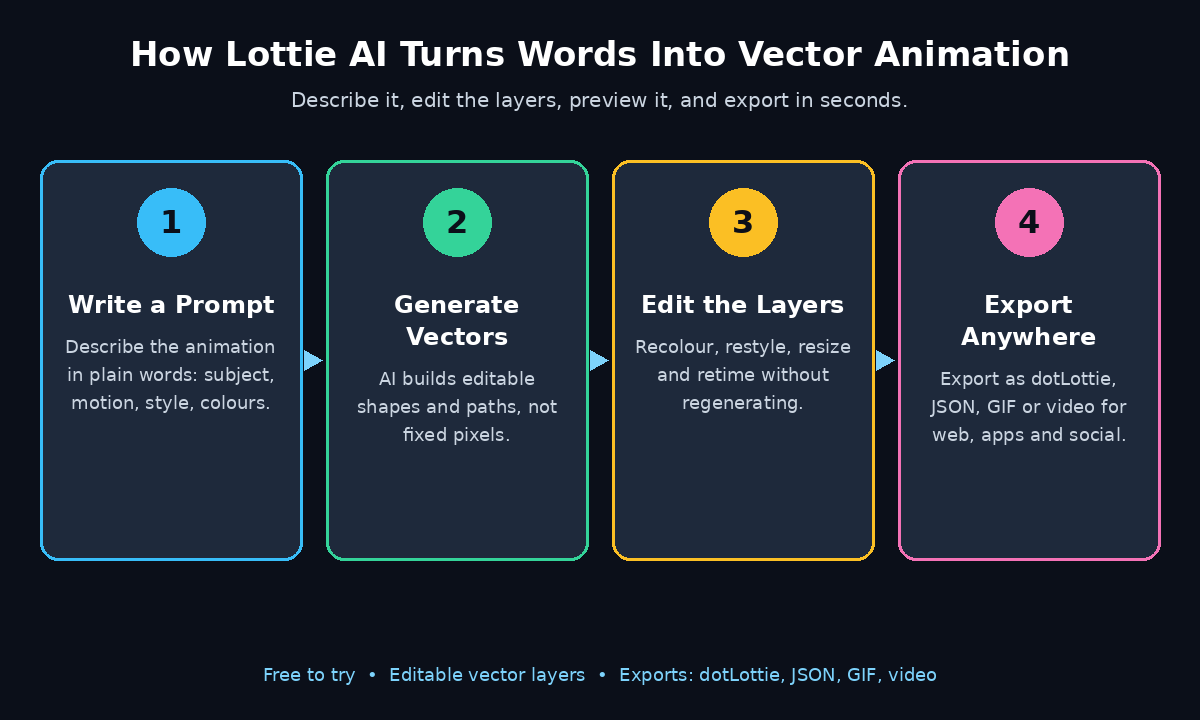
Step 4: Edit the Vector Layers (Recolour, Restyle, Resize)
This is where Lottie AI is different from a video generator: the animation you just made is fully editable. Every shape, colour and layer can be changed without regenerating anything, which means a good animation can be restyled to match your brand in a minute.
Open the layer panel and work through these edits:
- Recolour: click any shape and change its fill colour. This is the fastest way to match your website or brand palette — swap the generated colours for your own hex codes one shape at a time.
- Restyle shapes: adjust stroke width, corner roundness and opacity. A thicker stroke makes an icon feel bolder; softer corners make it feel friendlier.
- Resize without losing quality: because the animation is vector-based, you can scale it to any size and it stays perfectly sharp. A tiny 48-pixel icon and a full-width hero animation use the same file.
- Move and reorder layers: drag layers up or down to change which shape sits in front. If a background shape is covering your main subject, move it behind.
- Delete what you do not need: if the generator added an extra sparkle or shape you do not like, select it and delete it. A cleaner animation almost always looks more professional.
Make one change at a time and watch the preview after each edit. It is tempting to change five things at once, but if the animation suddenly looks wrong you will not know which edit caused it. Small, checked steps are faster in the end.
Step 5: Add Custom Controls and Fine-Tune the Motion
Lottie AI gives you custom controls for every animation, so you are not stuck with the timing the generator chose. Open the timeline or animation controls and adjust the motion until it feels right.
- Speed: slow the animation down if it feels rushed, or speed it up if it drags. A loading animation should feel brisk; a celebratory animation can take its time.
- Looping: choose whether the animation plays once or loops forever. Icons on a website usually loop; a success animation after a purchase should play once and stop.
- Easing: look for easing or smoothing controls. Eased motion — starting slow, speeding up, then settling gently — looks far more natural than motion at a constant speed.
- Direction and range: reverse the animation or trim its start and end points if only part of the motion is useful. A bounce that overshoots can be tamed by shortening the last few frames.
A useful habit is to watch the animation three times in a row before deciding it is finished. The first watch tells you if the idea works, the second shows you the timing problems, and the third confirms the fix. If you run a small business website and want motion that feels polished across every page, a digital agency can help you plan a consistent animation style, but the editing itself is simple enough to do on your own.
Step 6: Preview on Different Backgrounds and Sizes
An animation that looks perfect on a white preview canvas can disappear on your actual website. Before you export, test it the way your visitors will see it:
- Try a dark background: switch the preview background to dark. Thin light-coloured lines that looked fine on white may vanish, and dark shapes may blend into a dark page.
- Try it small: shrink the preview to the size of a phone icon. Details that are invisible at 48 pixels should be removed or thickened, because nobody will see them on a real screen.
- Try it large: blow it up to hero-section size. Vector graphics stay sharp, but a simple animation can look empty at large sizes — you may want to add a background shape or a second moving element.
- Check the loop point: watch the exact moment the animation restarts. A visible jump or flicker at the loop point is the most common sign of an unfinished animation, and it is easy to miss if you only watch the middle.
If you find a problem at this stage, go back to Step 4 or Step 5 and fix it there. Exporting first and discovering the problem later just means exporting twice.
Step 7: Export as dotLottie, JSON, GIF or Video
Lottie AI exports to several formats, and picking the right one matters. Each format has a different job, and the wrong choice can mean a file that is ten times bigger than it needs to be or one that your platform cannot use at all.
- dotLottie (.lottie): the modern, compressed format. Use this for websites and apps when your player supports it — the files are the smallest and load the fastest.
- JSON (.json): the classic Lottie format. Use this when your app or website uses a standard Lottie player that expects JSON. It is slightly larger than dotLottie but works almost everywhere Lottie is supported.
- GIF: use this only when you need an animation in a place that cannot play Lottie files, such as an email or an old social platform. GIFs are much heavier and cannot be transparent in the same clean way, so treat them as a fallback.
- Video (MP4 or similar): use this for social media posts, presentations and anywhere you need a standard video file. You lose the vector sharpness and the tiny file size, but you gain compatibility with every video player.
When you export, give the file a clear name that describes the animation, such as success-checkmark-teal.lottie, instead of the default name. Future you will be grateful when the file is buried in a folder with fifty others.
Step 8: Use Your Animation on a Website or in an App
An exported animation is only useful once it is actually running somewhere. Here is how the common cases work:
- On a website: upload the dotLottie or JSON file to your site and add it with a Lottie player. Most website builders and frameworks have a Lottie block or plugin — drop the file in, set the size, and choose whether it loops or plays on hover.
- In a mobile app: hand the JSON or dotLottie file to your developer, or add it through your app builder’s Lottie component. Because the file is vector-based, the same file works on small phones and large tablets without a second export.
- In a presentation: export as video or GIF and insert it like any other media file. Keep it short and looping so it adds energy without distracting from your words.
- In a social post: export as video, because most social platforms do not play Lottie files directly. A five-second looping clip of your animation makes a post stand out in a feed full of static images.
Start with one animation in one place — a loading spinner or a success checkmark — and measure whether visitors notice it. Teams building AI-powered products often pair these small animations with their wider automation work, and if you want that kind of joined-up help, AI automation services can show you how animations, chatbots and workflows fit together on one site.
Step 9: Fix Common Problems Beginners Hit
Most Lottie AI problems have simple fixes. Here are the ones beginners hit most often:
- The animation does not match the prompt: your prompt was probably too vague. Add the style, the colours and the exact motion, then regenerate. One specific sentence beats three vague ones.
- The colours look wrong on your site: you exported before recolouring. Go back to the layer panel, set your exact brand colours, and export again. Never trust the generated palette to match your brand by luck.
- The file is bigger than expected: you probably exported as GIF or video. Switch to dotLottie or JSON for web use — the same animation is usually a fraction of the size.
- The animation is too fast or too slow: adjust the speed in the animation controls instead of regenerating. Timing is an edit, not a new generation.
- It looks blurry on a big screen: check that you exported the vector format and not a low-resolution GIF or video. A true Lottie file cannot blur, because it is drawn fresh at every size.
- The loop jumps: watch the loop point in the preview and trim the start or end frames so the first and last positions match. A smooth loop starts and ends in the same pose.
Step 10: Build a Small Library of Reusable Animations
The real value of Lottie AI appears after your fifth or tenth animation, when you stop making one-offs and start building a library. A small, consistent set of animations makes every page, email and post feel like it came from the same brand.
Build your library in this order: a loading spinner, a success checkmark, an error or empty-state illustration, a button hover effect, and one celebratory animation for purchases or sign-ups. Five animations cover most of what a small website needs, and each one takes only a few minutes once you know the workflow.
Keep the style consistent across the library: the same stroke width, the same corner roundness, the same two or three brand colours, and the same easing. Consistency is what separates a professional-looking site from a collection of random animations. Save the source projects, not just the exports, so you can recolour the whole library in one session if your brand colours ever change.
Lottie AI vs Other Ways to Get Animations
Lottie AI is not the only way to put motion on a website. Here is how it compares with the usual alternatives, so you can pick the right tool for each job:
| Method | Design skill needed | File size | Best for |
|---|---|---|---|
| Lottie AI | None — describe it in words | Tiny (dotLottie/JSON) | Beginners who need a custom animation fast |
| LottieFiles library | None — pick a ready-made animation | Tiny | Common animations like loaders and checkmarks |
| After Effects + Bodymovin | High — professional motion design | Tiny | Fully custom, complex animations |
| Video or GIF | Low to medium | Large | Social posts and places that cannot play Lottie |
| CSS animation | Medium — you write the code | Tiny | Simple hovers and transitions on your own site |
For most beginners, the sensible combination is Lottie AI for custom animations and the LottieFiles library for standard ones. Learn After Effects only if you outgrow both — and most small websites never need to.
Frequently Asked Questions About Lottie AI
Is Lottie AI really free?
You can try Lottie AI without paying, and the free tier lets you generate and export animations so you can test the full workflow. Paid plans exist for heavier use, and the exact free limits can change, so check the pricing page inside your account before you plan a large project.
Do I need design skills to use Lottie AI?
No. You describe the animation in plain words, and the tool generates it. The editing panel is built for beginners: you click a shape and change its colour, or drag a slider to change the speed. Knowing basic design ideas like brand colours helps, but you do not need to draw anything.
What is the difference between dotLottie and JSON?
Both are Lottie formats. JSON is the original format and works with almost every Lottie player. dotLottie is a newer, compressed container that holds the same animation in a smaller file and can bundle several animations together. Use dotLottie when your player supports it, and JSON when you need maximum compatibility.
Can I use Lottie AI animations commercially?
Animations you generate are generally yours to use on your website, app or social posts, but the exact terms depend on your plan. Read the terms on the official site before using an animation in a paid product or a client project, because free and paid plans can differ.
Will Lottie animations work on mobile apps?
Yes. Lottie was designed for mobile apps as well as websites, and the same dotLottie or JSON file works on iOS and Android through the standard Lottie players. Because the animation is vector-based, it stays sharp on every screen size and uses very little battery compared with video.
What if the animation does not match my prompt?
Make the prompt more specific first: add the style, the colours, the exact motion and the background. If the result is still wrong, edit the layers instead of regenerating — changing a colour or deleting an extra shape is faster than rolling the dice on a new generation. Regenerate only when the whole idea is wrong.
Final Thoughts
Lottie AI turns animation from a specialist skill into something any beginner can do in an afternoon. Describe what you want, edit the vector layers to match your brand, preview it at real sizes, and export the format your platform needs. The whole workflow takes minutes, and the files are so small that adding motion to your site costs almost nothing in loading speed.
Start with one animation today — a loading spinner or a success checkmark — and put it somewhere real visitors will see it. Once you see how much life a small loop adds to a page, the rest of your library will build itself.
Explore More Free AI Tools
Keep building with these free tools from AI Tool Steps: AI Title Generator, Meta Description Generator, AI Rewriter and Keyword Density Checker. Each one is free to try and takes minutes to learn.