

Perplexity Teammates AI is the newest member of the Perplexity family, announced on November 4, 2026. Instead of answering one question and forgetting you, a Teammate takes on an ongoing job — triaging your inbox every morning, watching your competitors, or drafting replies to customer emails — and keeps doing it until the work is ready for your review.
If you have ever wished your AI assistant could remember what it was doing yesterday, this guide is for you. Below, you will learn what Perplexity Teammates AI is, who can use it, and how to set up your first teammate in about ten minutes.
Step 1: Understand What Perplexity Teammates AI Actually Is
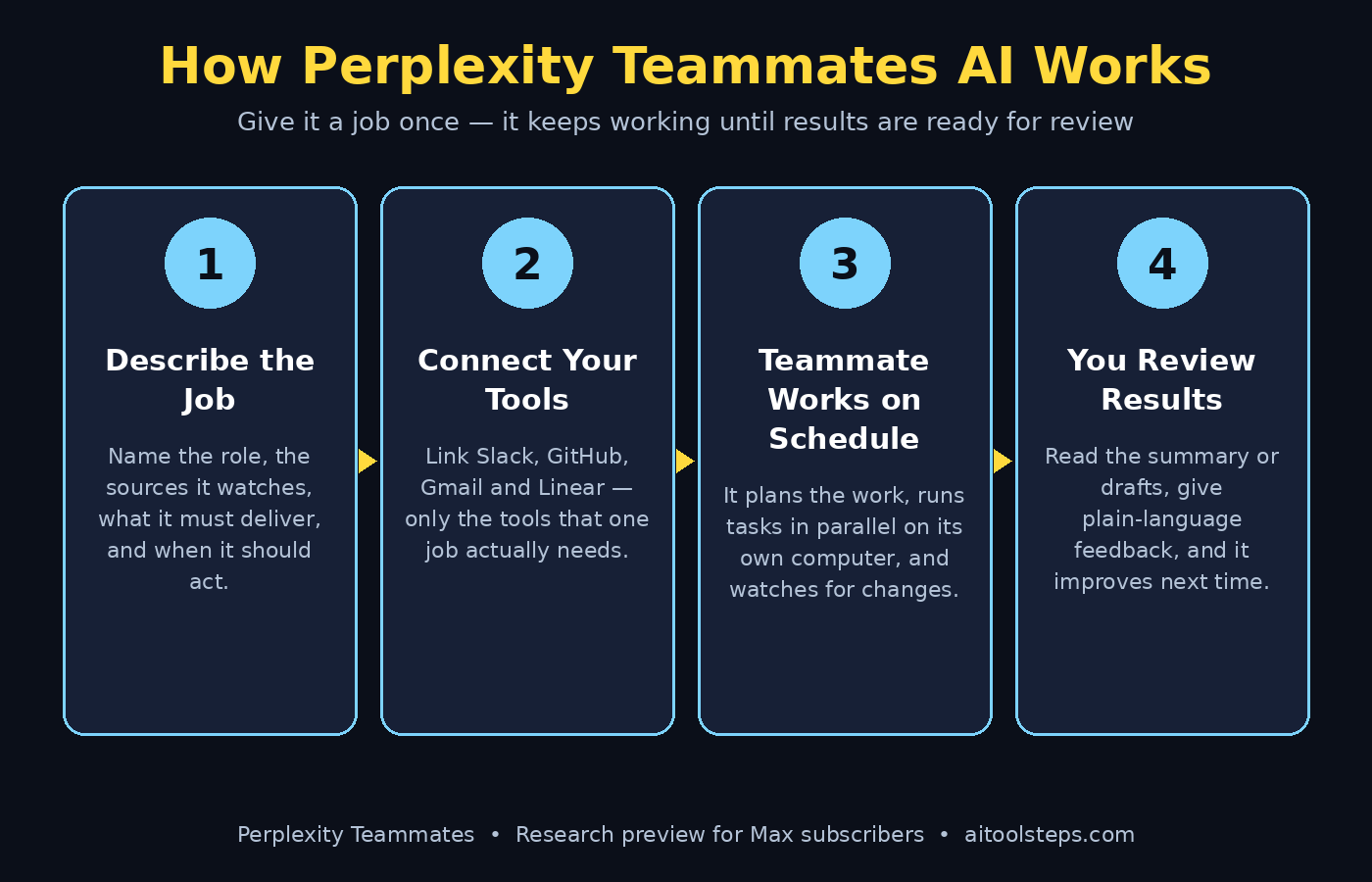
A Teammate is an AI agent that owns an ongoing job instead of a single task. You give it a responsibility — not a prompt — and it plans the work, runs tasks in parallel, and follows through until results are ready for your review.
Here is what makes it different from a normal chatbot:
- It remembers. A Teammate carries project goals, task history, and shared files across runs. Feedback you give today shapes how it works tomorrow.
- It watches for change. It can monitor connected tools such as Slack, GitHub, and Linear, and act when something changes — without you asking again.
- It works in parallel. A Teammate breaks a big goal into smaller tasks and hands them to individual agents that run at the same time.
- It has its own computer. Each Teammate runs on its own isolated computer with its own desktop and browser, so its work never mixes with yours.
- It hands work back for review. Nothing is sent or published on your behalf without you seeing it first. You stay the boss.
Think of it this way: a chatbot is a helpful stranger you meet once. A Teammate is a new colleague who learns your job, keeps notes, and shows up every day.
Step 2: Check Whether You Can Use Perplexity Teammates AI
Before you get excited, check the access rules, because Teammates is not open to everyone yet.
- Plan: Teammates is a research preview for individual Perplexity Max subscribers only. Free and Pro users cannot access it yet.
- Price: Perplexity Max costs $200 per month, or $2,000 per year (about $167 per month billed annually).
- Platform: Web first. iOS is coming soon, and Perplexity says access will expand in the coming weeks.
- Enterprise: Enterprise Pro and Enterprise Max are not included by default — an admin must request access.
- Credits: Teammates draw on your Max monthly credit allowance. Perplexity also includes a promotional grant of Teammates credits for Max subscribers. Heavy use — many parallel agents, large codebases, very frequent automations — consumes more credits.
If you are already a Max subscriber who runs Perplexity Computer every day, Teammates is ready for you right now. If you are on Free or Pro, you can still learn the workflow in this guide and be ready the day access expands — and the free Perplexity search and Computer features on lower plans already teach you the same agent habits. If your team is weighing whether an AI agent is worth the upgrade, a quick chat with a digital agency that runs AI automation for clients can help you estimate the hours you would actually save before you pay.
Step 3: Create Your First Teammate in Three Steps
Setup is short. Open Perplexity on the web and follow these steps:
- Find Teammates in the sidebar. Hover over Teammates and select Create teammate.
- Name it by its role. Give it a name or a job title, such as “Inbox Triage” or “Competitor Watcher”. A role-based name keeps things clear when you later run several teammates at once.
- Describe the job. Write what the teammate is responsible for, including a schedule if the work repeats. A chat opens to finish the setup — answer its questions and your teammate is ready.
That is the whole setup. The real skill is not clicking buttons; it is describing the job well, which is exactly what Step 4 covers.
Step 4: Describe the Job Like a Manager, Not Like a Prompt
Most beginners fail here. They write a one-line prompt — “watch my competitors” — and then wonder why the results are vague. A Teammate is not a search box. It is an employee. Describe the job the way you would brief a new hire:
- Where does the work come from? Name the sources: a Gmail inbox, a Slack channel, a GitHub repository, a list of competitor websites.
- What should it deliver? Be concrete: “a 5-bullet morning summary with links” beats “keep me updated”.
- When should it act? Daily at 8 a.m.? Every time a new issue opens? Only on weekdays?
- What counts as done? Tell it when to stop and bring results back for review instead of working forever.
- What is off-limits? Say what it must never do — never reply to a customer without a draft review, never touch the production repository, never share internal data outside the team.
A good job description is about five to eight sentences. Write it once, save it, and reuse the pattern for every teammate you create.
Step 5: Connect Slack, GitHub, Gmail, and Your Other Tools
A Teammate is only as useful as the tools it can see. To connect a service, simply ask the teammate — for example, type “Connect Slack” — and review the permissions it requests before approving.
Useful connections for beginners include:
- Slack — so a teammate can message coworkers, post summaries in a channel, and ask a human when it is stuck.
- GitHub — so it can watch repositories, triage issues, and prepare pull-request summaries. When you connect GitHub, select only the repositories the teammate actually needs.
- Gmail — so it can triage your inbox, draft replies, and flag urgent messages.
- Linear — so it can track product work and update tickets as things change.
- Your files and projects — Teammates draw on the projects, skills, memory, and tools you already use in Perplexity Computer, so past context carries over instead of starting from zero.
Two safety notes that matter. First, each teammate’s browsing sessions and cookies stay with that teammate, and saved credentials are encrypted — teammates cannot view them. Second, connect only what the job needs. A competitor-watching teammate does not need your Gmail, and an inbox teammate does not need your code repositories. If you run a business and want these connections set up safely across a whole team, AI automation services can map the right permissions for each role before you switch anything on.
Step 6: Give Your Teammate a Schedule So It Works While You Sleep
The biggest win of Perplexity Teammates AI is that it works on a schedule. You do not prompt it every morning — it is already working when you wake up.
Try one of these starter schedules:
- Morning briefing teammate: every weekday at 8 a.m., check email and calendar, then send a summary of what needs a reply plus prep notes for the day’s meetings.
- Competitor watch teammate: every Monday, check the five competitor sites and changelogs, and report what changed, with links.
- Support draft teammate: every two hours during work hours, scan the support inbox and draft replies for anything routine, leaving the tricky ones for you.
- Research roundup teammate: every Friday, gather the week’s new papers, posts, and product launches on your topic into one digest.
Start with one scheduled teammate and one job. Once you trust its output for two weeks, add a second. Beginners who launch five teammates on day one usually spend more time fixing them than the teammates save.
Step 7: Let Teammates Work Together in Parallel
One teammate is useful. A small team of them is where the magic happens. Perplexity designed Teammates to collaborate: they can pass tasks to one another, split a big goal into parallel pieces, and message coworkers in Slack when they need a human.
A simple example for a small business:
- Researcher teammate gathers new customer questions from email and Slack.
- Writer teammate drafts help-centre answers from those questions.
- Reviewer teammate checks each draft against your existing guides and flags anything that contradicts them.
Each agent runs on its own isolated computer, so they work at the same time instead of queuing behind each other. You review the finished bundle once, instead of babysitting three separate chats. This is the same pattern bigger companies use when they hire digital agency teams to run always-on AI workflows — only now the team fits inside one subscription.
Step 8: Review Results, Give Feedback, and Make It Better
A Teammate is not “set and forget”. The first week is a training week. Build this simple review habit:
- Read the results the same day. Check every summary, draft, and report your teammate produces for the first two weeks.
- Correct it in plain language. “You missed the pricing page — check it every time” is better than a thumbs-down. Feedback carries forward into future runs.
- Tighten the job description. Every time you correct the same mistake twice, add one sentence to the job description so it never happens again.
- Check the credit use. Teammates spend Max credits. If a teammate burns credits on huge codebases or very frequent checks, slow its schedule or narrow its scope.
- Celebrate the wins. When a teammate saves you an hour, note what worked. That is the template for your next teammate.
Remember: Perplexity itself calls Teammates a research preview and warns that behaviour may change while it is still under development. Expect rough edges, report them, and keep a human in the loop on anything that touches customers, money, or public posts.
Step 9: Pick the Right Model for Each Teammate
New teammates default to Claude Opus 5.5, Anthropic’s flagship model, and you can choose a different model per teammate or per task.
A practical rule of thumb:
- Keep Opus 5.5 for judgement-heavy work: drafting customer replies, summarising messy threads, or deciding what is urgent.
- Switch to a faster, cheaper model for repetitive scanning: checking whether a page changed, sorting messages into folders, or extracting dates and links.
- Match the model to the risk. If a wrong answer costs you a customer, use the strongest model. If a wrong answer costs you thirty seconds of re-reading, use the fast one.
You do not need to understand model benchmarks to make this choice. Start with the default, and only change it when you notice a teammate is slow, expensive, or sloppy at its particular job.
Step 10: Stay in Control — Credits, Privacy, and Safety
Teammates are powerful, so set your guardrails before you scale up:
- Review before anything goes out. Drafts are for review, not auto-send. Keep it that way until a teammate has earned your trust over weeks, not days.
- Limit tool access. Give each teammate the smallest set of tools its job needs, and review connected permissions monthly.
- Watch the credits. Parallel agents and frequent automations consume more of your Max allowance. A daily schedule is usually cheaper than an hourly one for the same job.
- Keep sensitive data out. Do not give a teammate access to payroll, private customer data, or anything you would not hand to a new contractor on day one.
- Know the limits. Teammates are web-only in the research preview, iOS is coming soon, and the feature is still under development. Do not build a business-critical process on it until it is generally available.
Used with these guardrails, a Teammate behaves like a careful junior colleague: fast, tireless, and honest about what it does not know — as long as you check its work.
Perplexity Teammates AI vs the Other Perplexity Tools
| Feature | Teammates | Perplexity Computer | Automations | Normal Chat |
|---|---|---|---|---|
| Owns an ongoing job | Yes | One task at a time | Repeating task | No |
| Remembers across runs | Yes | Partial | Limited | No |
| Works on a schedule | Yes | On request | Yes | No |
| Runs tasks in parallel | Yes | Limited | No | No |
| Connects Slack, GitHub, Linear | Yes | Yes | Some | No |
| Has its own computer | Yes | Yes | No | No |
| Who can use it | Max only (preview) | Pro, Max, Enterprise | Pro and Max | Everyone |
| Best for | Always-on roles | Multi-step tasks | Simple repeats | Quick answers |
Frequently Asked Questions
Is Perplexity Teammates AI free?
No. Teammates is a research preview for individual Perplexity Max subscribers only. Max costs $200 per month or $2,000 per year (about $167 per month billed annually). Teammates use your Max monthly credits, plus a promotional grant of Teammates credits included for Max subscribers. Free and Pro users cannot access Teammates yet.
When did Perplexity Teammates AI launch?
Perplexity announced Teammates on November 4, 2026, and the changelog entry is dated November 6, 2026. It launched as a research preview on the web for individual Max subscribers, with iOS support coming soon.
What is the difference between Teammates and Perplexity Computer?
Computer is an agent that runs a multi-step task you give it, then stops. Teammates builds on Computer but owns an ongoing job: it remembers goals and history across runs, watches for changes, works on a schedule, and keeps going until results are ready for your review. Think of Computer as a task runner and Teammates as a role holder.
Which model do Teammates use?
New teammates default to Claude Opus 5.5. You can change the model per teammate or per task, so a research-heavy teammate can use the strongest model while a simple monitoring teammate uses a faster one.
Can Teammates work with my team on Slack and GitHub?
Yes. Teammates can monitor connected tools such as Slack, GitHub, and Linear, message coworkers in Slack, collaborate with other teammates, and pass tasks between each other. Each teammate runs on its own isolated computer with its own browser, and saved credentials are encrypted.
Is Perplexity Teammates AI safe to use for work?
It is a research preview, so treat it like a promising new hire: useful, but supervised. Keep a human review step before anything is sent to customers, connect only the tools each job needs, and avoid giving teammates access to highly sensitive data until the feature is generally available.
Final Thoughts
Perplexity Teammates AI is a small shift in how we use AI — from asking questions to assigning jobs. The setup takes ten minutes, but the real work is describing the job clearly, connecting the right tools, and reviewing the results for the first two weeks. Do that, and you get something no chatbot has ever given you: a colleague who remembers, watches, and works while you sleep.
Start with one teammate and one simple recurring job — a morning inbox summary is the best first pick. Let it earn your trust, then grow your little AI team one role at a time. The future of productivity is not a smarter prompt. It is a teammate that never forgets the job.
Explore More Free AI Tools
Want to keep building your AI toolkit? Try these free tools on AI Tool Steps: the AI Title Generator for headlines that get clicks, the Meta Description Generator for search snippets that earn the click, the AI Rewriter for polishing rough drafts, and the Keyword Density Checker for keeping your SEO on target. Visit https://aitoolsteps.com/ and explore them all — free, no sign-up needed.