

Every day, useful information disappears the moment a conversation ends. A client explains exactly what they want on a call, a colleague agrees to a deadline in a meeting, a great idea pops into your head while you are walking — and by the evening, the details are gone. You remember the gist, but not the exact words, the exact number, or the exact promise. Pauta AI is built to fix exactly that problem.
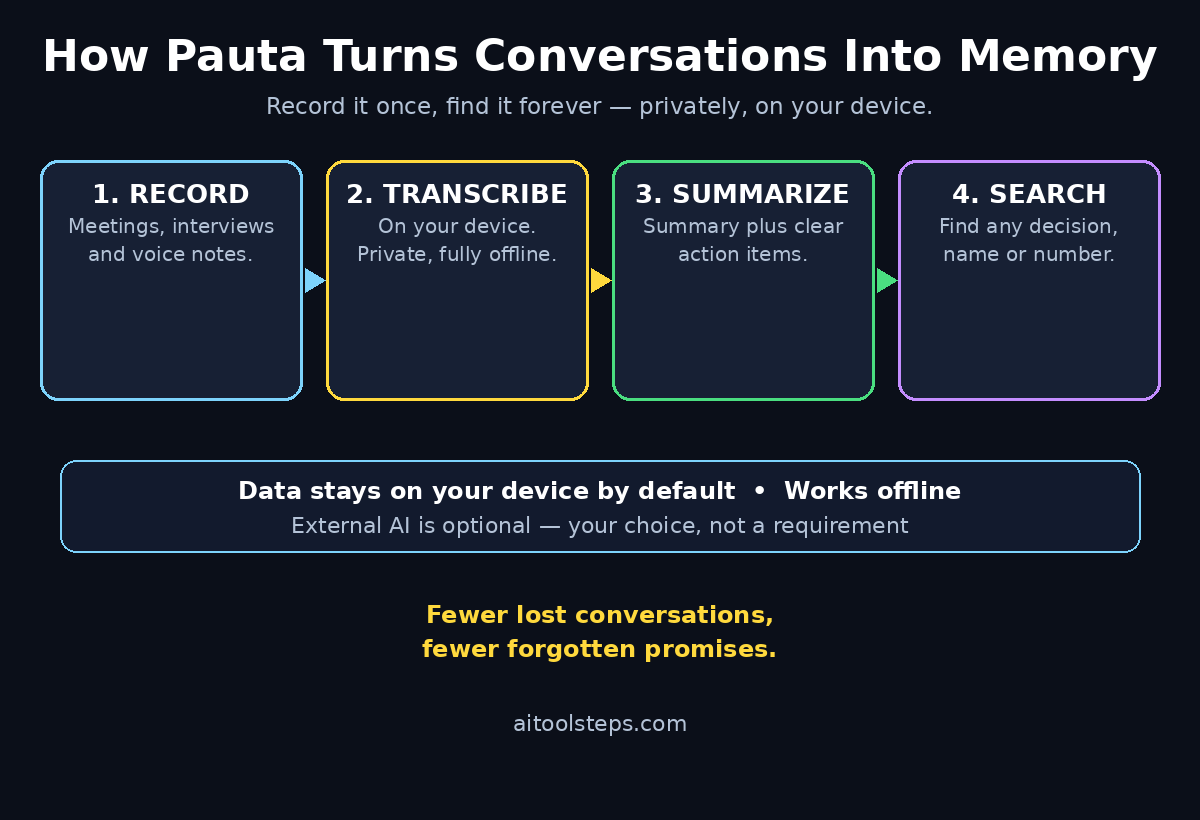
Pauta launched on Product Hunt on November 4, 2026, and it is free to start. It records and transcribes your meetings, interviews and voice notes, then turns them into summaries and action items you can search later. The part that makes it different from most meeting tools is privacy: your recordings and data stay on your device by default, Pauta works fully offline, and connecting an external AI is your choice — not a requirement. In this beginner guide, you will learn how to use Pauta AI from your first download to your first searchable conversation, with no technical skills and no credit card.
Step 1: What Is Pauta AI and Why Private Memory Matters
Pauta was built by a small team at Foreigners INC — founders Paulo, Fê and Leo — from a simple frustration. A huge amount of useful information lives inside conversations: meetings, interviews, voice messages and spontaneous ideas. Most of it disappears as soon as the conversation ends, because nobody writes it down in time, and even when someone does, the notes capture only a fraction of what was actually said.
Pauta’s answer is to turn your conversations into useful memory while keeping that memory yours. The app records a conversation, transcribes it into text, and then helps you revisit what was actually said — with a summary, a list of action items, and a search box that works across everything you have recorded.
Here is why the privacy part matters. Most popular meeting note tools upload your audio to their servers for transcription and storage. That is fine for a public webinar, but it is a real problem for a job interview, a client negotiation, a medical discussion or a private family conversation. Pauta flips the default: your recordings stay on your device unless you decide otherwise, and the app works fully offline. As AI automation services become a normal part of everyday work, tools that keep your data on your own device instead of a distant server are becoming the smarter default, not the paranoid one. You can read more about that shift at Agentic Affairs, where the team tracks how AI agents and automation are reshaping real workflows.
Think of Pauta as a memory, not a meeting app. It does not run your meetings for you. It remembers them for you, privately, and lets you ask “what did we actually agree?” days or weeks later.
Step 2: Download and Install Pauta for Free — How to Use Pauta AI
Pauta is available today on macOS and iOS, and the team is currently testing a Windows version. Product Hunt lists the price as $0, so you can start free — there is no credit card step and no trial clock ticking.
Here is how to get started:
- Go to Pauta’s official website or find Pauta in the App Store on your Mac or iPhone.
- Download and install the app. It is a small, focused tool, so installation takes a minute or two.
- Open Pauta once and let it finish its first launch. Because the app works on-device, there is no long cloud setup and no account maze to fight through before you can record anything.
If you are on Windows, you will have to wait a little longer — the Windows version is in testing. Mac and iPhone users can start today, and the app is designed to feel the same on both: record on your phone while you walk, review on your Mac when you sit down.
Step 3: Set Up Pauta for the First Time
Before your first recording, spend two minutes on setup. This is the step most beginners skip, and it is the step that decides whether Pauta feels effortless or annoying later.
- Grant microphone permission when Pauta asks. Without it, the app cannot record anything, and macOS and iOS will both ask you to confirm this the first time.
- Decide how you want to handle external AI. Pauta works fully offline by default, and you do not need to connect any external AI service for recording, transcription, summaries and search to work. If you do want to connect one later, that is your choice — the app treats it as an option, not a requirement.
- Pick where your recordings will live and how you want them named. Give meetings a clear, searchable name from the start — “Client call, November 7” beats “Recording 12” when you search for it next month.
One more setup habit worth starting now: decide what you will record and what you will not. Pauta is most useful when you record deliberately — meetings, interviews, voice notes to yourself — and leave casual chats alone. A clear rule keeps your memory clean and searchable instead of turning it into a pile of noise.
Step 4: Record and Transcribe Your First Meeting — How to Use Pauta AI
Your first recording is the moment Pauta clicks. The workflow is simple on purpose: start the recording, have the conversation, stop the recording, and read the transcript.
- Open Pauta and start a new recording before the meeting begins. Starting early is better than starting late — the first thirty seconds of a call often contain the decision that matters most.
- Place your device close to the people speaking. A phone on the table between two people captures far more than a laptop at the far end of a conference room.
- Speak naturally. You do not need to slow down or announce words for the transcript — modern on-device transcription handles normal conversation well.
- Stop the recording when the conversation ends, then wait a moment while Pauta transcribes it. The transcript appears in the app, ready to read, search and summarise.
Two practical tips make a real difference. First, a quiet room beats a clever microphone: background noise is the single biggest cause of bad transcripts. Second, if you are recording a call with another person, tell them first. A simple “I am recording this so I remember the details — is that okay?” takes five seconds and avoids awkwardness later. In many places, recording without consent is also a legal problem, so always ask.
Step 5: Turn Conversations into Summaries and Action Items
A raw transcript is useful, but a transcript you never read is just a longer version of the problem you started with. Pauta’s real value is what it does after the recording stops: it generates a summary and pulls out the action items, so a forty-minute meeting becomes a two-minute read.
Here is how to use that well:
- Read the summary first, not the full transcript. The summary tells you what was decided, what changed, and what is still open. If something in the summary surprises you, open the transcript and check the exact words.
- Go through the action items one by one. For each one, add a name and a date if Pauta did not catch them. “Sarah will send the revised quote by Friday” is an action item; “revised quote” on its own is a wish.
- Send the action items to the people involved while the meeting is still fresh. A short message with the agreed tasks prevents the most common meeting failure: two people leaving the same room with two different understandings of who does what.
This is where Pauta earns its place for small teams and freelancers. A digital agency that handles five client calls a day cannot remember every promise from every call — and a missed promise is a lost client. With Pauta, the summary and the action list are ready before the next call starts, and the exact wording is one search away if anyone disagrees later. If that is your world, the team at D365A works with businesses that run on exactly this kind of organised, AI-assisted workflow.
Step 6: Search Your Memory — Find Anything That Was Said — How to Use Pauta AI
Search is the feature that turns Pauta from a recorder into a memory. Every conversation you record becomes searchable, so you can find a decision, a number or a name weeks after the conversation happened.
- Open the search in Pauta and type what you remember: a person’s name, a project, a date, a phrase like “launch date” or “refund policy”.
- Look at the matching conversations, then open the one you need and jump to the exact part of the transcript. You do not need to remember which meeting it was in — that is the whole point.
- Use search before meetings, not just after them. Five minutes of searching before a follow-up call tells you what was promised last time, so you walk in prepared instead of guessing.
A good habit is to search for the same thing in two ways: once by topic and once by person. “Pricing” finds every conversation where pricing came up; “Ahmed” finds everything Ahmed said or was asked to do. Together, they rebuild the full picture of a project faster than scrolling through old chat messages ever will.
Step 7: Capture Voice Notes and Spontaneous Ideas
Not every useful conversation involves another person. Some of the best ideas arrive while you are walking, driving or cooking — and they vanish just as fast if you do not capture them. Pauta works for those moments too.
- When an idea shows up, open Pauta on your phone and record a short voice note. Talk the way you think: messy, half-finished, out of order. The transcript will sort it into readable text.
- Name the voice note immediately, while you still remember why it mattered. “Podcast idea — AI tools for teachers” is useful; “Voice note 4” is not.
- Review your voice notes once a day, ideally in the evening. Most will be small; one or two a week will be worth acting on. Move the good ones into your task list or your notes app, and delete the rest so your memory stays clean.
The founders built Pauta for exactly this use case as well as meetings — they use it themselves for voice messages and moments when an idea shows up and you just want to start talking. That is the test of a good capture tool: it must be faster than forgetting, which means opening the app and pressing record has to take less time than finding a pen.
Step 8: Use Pauta for Job Interviews
Job interviews are one of the best uses for Pauta, and one of the places where its privacy design matters most. An interview is a high-stakes conversation full of exact details — salary figures, start dates, role expectations — and you cannot take reliable notes while also trying to make a good impression.
- Ask permission before the interview starts. “Would you mind if I record this so I can review your answers properly afterwards?” is professional, and most interviewers say yes.
- Record the whole interview, then let Pauta transcribe it. After the call, read the summary and the action items — usually things you promised to send, like a portfolio or references.
- Before the next round, search the transcript for the exact questions you were asked and the exact answers you gave. You will walk into the follow-up consistent with what you said the first time, which interviewers notice.
- Use the transcript to write a better thank-you note. Quoting something specific the interviewer said — a project they mentioned, a problem they want solved — makes your follow-up stand out from the ten generic emails they received the same day.
The same approach works in reverse if you are the interviewer. A searchable record of every candidate you spoke to makes hiring decisions fairer, because you compare what people actually said instead of what you vaguely remember them saying.
Step 9: Control Your Privacy — Offline Mode and Optional AI — How to Use Pauta AI
Pauta’s privacy model is simple, and it is worth understanding properly, because it is the main reason to choose Pauta over a cloud meeting tool.
- Your recordings and data stay on your device by default. Nothing is uploaded just because you pressed record.
- Pauta can work fully offline. Recording, transcription, summaries and search all work without an internet connection, which also means they work on a plane, in a basement office, or anywhere the Wi-Fi is unreliable.
- Connecting an external AI is optional. If you want a more powerful model to help with summaries or questions, you can connect one — but that is your choice, and the product does not require it to work.
Three privacy habits go with this design. First, delete recordings you no longer need — a memory you keep forever is a liability you keep forever. Second, keep sensitive conversations offline and skip the external AI connection for them. Third, remember that on-device privacy protects your data from servers, not from someone holding your unlocked phone — so keep your device locked, as you would with any private notes.
Step 10: Build a Daily Pauta Habit That Actually Sticks
Tools fail when they ask for too much effort. Pauta works when it asks for almost none, so build the smallest habit that still pays off.
- Record one conversation a day. Just one — your most important meeting, or a two-minute voice note if you have no meetings. Small and daily beats big and occasional.
- Review the summary the same day. A summary you read the same evening is useful; a summary you never open is storage. Five minutes is enough: read it, fix the action items, send them out.
- Do a weekly search. Once a week, search Pauta for one open project and read what was actually agreed. You will catch at least one forgotten promise a month — and that one catch pays for the whole habit.
- Clean up monthly. Delete voice notes that went nowhere and recordings whose action items are done. A memory with ten useful conversations beats a memory with a hundred forgotten ones.
After a month, you will have something no notebook can give you: a searchable record of what was actually said, in your own words and other people’s, kept private on your own device. That is what Pauta is for — not more notes, but fewer lost conversations.
Pauta AI vs Other Meeting Note Tools
| Feature | Pauta AI | Otter.ai | Granola | NoteOwl |
|---|---|---|---|---|
| Price to start | Free ($0) | Free plan available | Free plan available | Free |
| Where recordings live | On your device by default | Cloud servers | Cloud servers | On your Mac |
| Works fully offline | Yes | No, needs internet | No, needs internet | Yes |
| Summaries and action items | Yes | Yes | Yes | Yes |
| Search across conversations | Yes | Yes | Yes | Yes |
| Best for | Private meeting memory | Team meeting notes | Voice typing and notes | Mac users who want private notes |
| Platforms | macOS, iOS (Windows in testing) | Web, iOS, Android | macOS, Windows | Mac |
Frequently Asked Questions
Is Pauta AI really free?
Yes, to start. Product Hunt lists Pauta at $0, and there is no credit card step to begin recording, transcribing and searching your conversations. Because Pauta launched on November 4, 2026, pricing can change as the product grows, so check the official website or the App Store listing for the current plan details before you rely on any specific limit.
Does Pauta upload my recordings to the cloud?
No, not by default. Your recordings and data stay on your device, and Pauta works fully offline. Connecting an external AI service is optional and your choice — the app does not require it for recording, transcription, summaries or search to work.
Which devices does Pauta work on?
Pauta is available on macOS and iOS today. A Windows version is currently in testing. If you use Windows as your main computer, you can still use Pauta on your iPhone for voice notes and interviews while you wait for the desktop version.
Is it legal to record meetings with Pauta?
It depends on where you are. Some places require only one person’s consent to record a conversation; others require everyone in the room to agree. The safe rule everywhere is the same: tell people you are recording and ask permission before you start. It takes five seconds and protects you legally and professionally.
How is Pauta different from Otter or Granola?
The main difference is privacy and where your data lives. Otter and Granola are strong meeting tools, but they process your audio in the cloud. Pauta keeps your recordings on your device by default and works fully offline, with an external AI connection only if you choose it. If your conversations are sensitive — interviews, negotiations, private ideas — that difference is the whole decision.
Can I search old conversations in Pauta?
Yes. Every conversation you record becomes searchable, so you can find a decision, a number or a name weeks later by typing a keyword, a topic or a person’s name. That search is the feature that turns a pile of recordings into an actual memory.
Final Thoughts
Most productivity tools ask you to do more work: more notes, more tags, more organisation. Pauta asks for less — press record, have the conversation, and let the app remember the details. The summary tells you what was decided, the action items tell you what to do next, and the search box tells you what was actually said when your memory disagrees with someone else’s.
The privacy design is what makes it worth trying first instead of tenth. Your recordings stay on your device, the app works offline, and no external AI is required. For meetings, interviews and voice notes, that is the right default in 2026. Download Pauta free on your Mac or iPhone, record one conversation today, and read the summary tonight. If it saves you from one forgotten promise this week, it has already earned its place on your home screen.
Explore More Free AI Tools
Want to keep building your AI toolkit? Try these free tools on AIToolSteps: the AI Title Generator for headlines that earn clicks, the Meta Description Generator for search snippets under 160 characters, the AI Rewriter for polishing rough drafts, and the Keyword Density Checker for keeping your focus keyphrase at the right level. Each one is free, takes less than a minute, and pairs perfectly with the Pauta workflow in this guide — record your meeting, generate the title, check the density, then publish and let your content do the talking.