

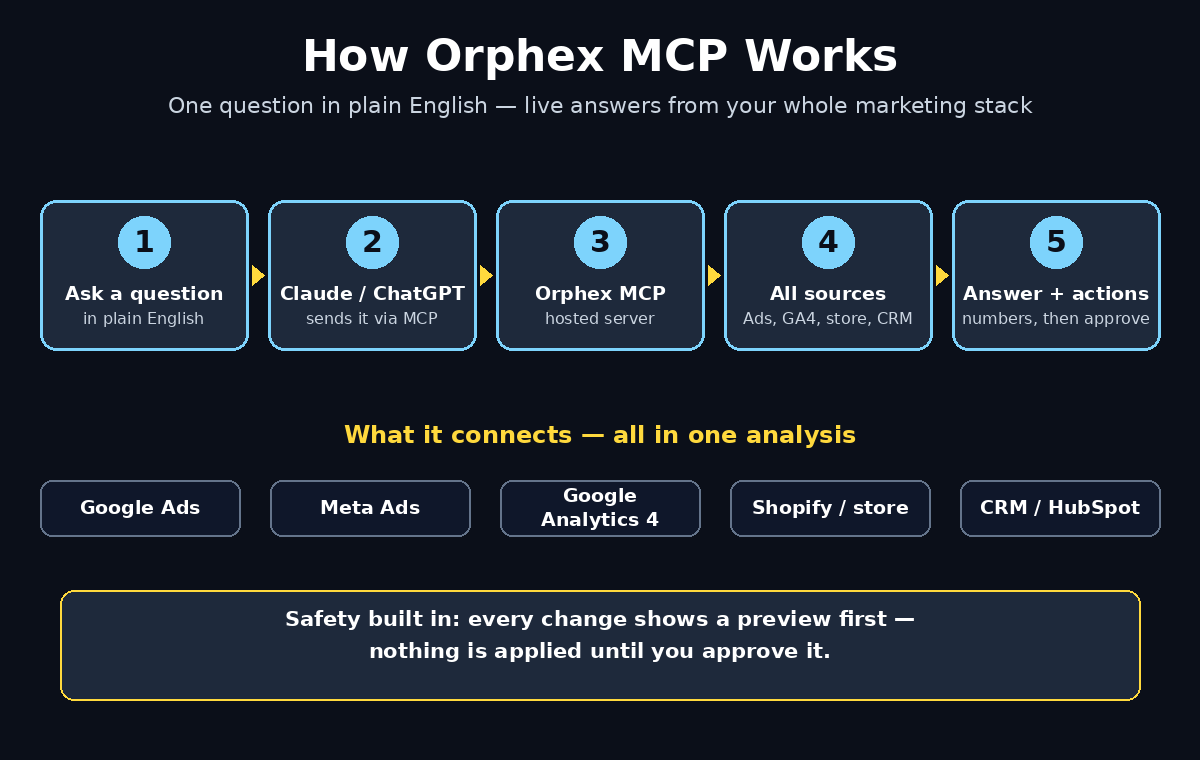
If you run ads on Google and Meta, check GA4 for traffic, open Shopify for sales, and then dig through your CRM for leads, you already know the problem: your marketing data lives in five different tabs, and none of them talk to each other. Orphex MCP fixes that by giving your AI assistant one live connection to your whole marketing stack — so instead of building reports by hand, you simply ask Claude or ChatGPT a question in plain English and get an answer with numbers.
Orphex MCP launched on Product Hunt on November 4, 2026, where it took the number one spot for the day. It is the official MCP server from Orphex, a marketing analytics platform, and it connects paid media, web analytics, mobile apps, e-commerce backends, and CRM data into a single intelligence engine. In this guide, you will learn how to use Orphex MCP for free, connect your first sources, and ask your first questions — no coding required.
What Is Orphex MCP?
MCP stands for Model Context Protocol, an open standard that lets AI assistants connect to outside tools and data. An MCP server is the bridge: it exposes your data to the assistant in a safe, structured way. Orphex MCP is a hosted MCP server, which means it runs on Orphex’s own infrastructure. You do not need to install anything on your computer or self-host a server — you connect your accounts once, add the server to your AI assistant, and start asking questions.
What makes Orphex MCP different from a generic dashboard is that it brings three layers together in one flow. First, it pulls live data from your connected sources. Second, it runs its own built-in analysis on that data inside Orphex’s analytics layer, so the assistant receives calculated results rather than raw exports. Third, on supported platforms, it can take controlled actions — such as budget or campaign changes — but only after a preview and approval step, so nothing changes without your say-so.
Orphex MCP works with Claude, ChatGPT, Gemini, and Microsoft 365 Copilot. A free tier is available, which gives you great initial functionality for trying the workflow, though extended historical data beyond 30 days and heavy daily API usage require a higher workspace plan. For a beginner testing the tool, the free tier is more than enough to see whether this way of working suits you.
Step 1: Understand What Orphex MCP Actually Does
Before you connect anything, it helps to understand the three jobs Orphex MCP does for you. First, it unifies your data. Instead of opening Meta Ads Manager, Google Ads, GA4, and your CRM separately, Orphex pulls their performance signals into one place. Second, it analyses that data. You can ask which campaigns are wasting money, which search terms are underperforming, or which creative is driving the cheapest conversions, and the built-in analytics layer does the maths. Third, it acts — carefully. If your plan and workspace settings allow write access, you can approve budget shifts or campaign changes right from the chat, with a preview shown before anything is applied.
Think of it this way: your AI assistant becomes a junior marketing analyst who never sleeps, never forgets a login, and always shows its working. You stay in charge of decisions; the assistant does the fetching, comparing, and summarising. A digital agency team, for example, can use the same setup to answer a client question in seconds instead of spending an afternoon in spreadsheets — and if you work with a digital agency that manages campaigns for you, asking them whether they use AI-connected reporting like this is a smart question for your next review call.
Step 2: Create Your Free Orphex Account
Start by signing up for a free Orphex account. Go to the Orphex website and create your workspace with your work email — use the same email you use for your ad accounts if possible, because it makes connecting sources smoother later. The sign-up flow asks for basic details about your business and the channels you use, so it can suggest the right connectors for you.
Once your workspace is created, take a minute to look around the main dashboard. You will see places to connect data sources, view reports, and manage workspace settings. Do not worry about the advanced reporting screens yet — the MCP connection is what matters for this guide, and you will set that up in Step 4. For now, just confirm that your workspace name and timezone are correct, because every report and comparison you run later will use those settings.
Step 3: Connect Your Marketing Sources
This is the most important step, because Orphex MCP can only answer questions about the data you connect. Inside your Orphex workspace, open the integrations or data sources section and connect the platforms you actually use. The most common starting set is Google Ads, Meta Ads, and Google Analytics 4, plus your store or CRM if you have one — for example Shopify, WooCommerce, or HubSpot.
Each connection uses the platform’s own official login flow, so you sign in with your existing account and grant Orphex read access to the ad accounts, properties, or stores you choose. Connect only the accounts you need; you can add more later. After each connection, Orphex will start syncing your recent performance data. Give it a few minutes, then check that the numbers look right — compare one day’s spend in Orphex with the same day in Google Ads or Meta Ads Manager. If the figures match, your connection is healthy and you are ready for the next step.
A useful tip for beginners is to connect your biggest spend channel first and get one good answer from it before adding the rest. That way, if something looks wrong, you know exactly which connection to check. Teams that run AI automation services across many clients often follow the same pattern: one channel, one verified answer, then scale up.
Step 4: Add Orphex MCP to Claude (or ChatGPT / Gemini)
With your sources connected, the next step is to add Orphex MCP to your AI assistant. Because Orphex MCP is hosted, there is no server to install. In your Orphex workspace, find the MCP setup section — it will give you a connection URL or configuration details, plus a guide for your assistant of choice.
If you use Claude, open Claude’s settings, go to the MCP or connectors section, and add the Orphex MCP server using the details Orphex provides. If you use ChatGPT, add it as an MCP connector in the same way, following Orphex’s ChatGPT guide. Gemini and Microsoft 365 Copilot are also supported, so pick whichever assistant your team already uses daily — the questions you ask will work the same way in all of them.
After adding the server, restart the assistant or refresh the connection if prompted, then test it with a simple check: ask “What marketing sources are connected through Orphex?” If the assistant lists your Google Ads, Meta Ads, and GA4 connections, the setup is complete. If it says no tools are available, re-check the connection details and make sure you pasted them exactly as Orphex showed them.
Step 5: Ask Your First Marketing Question
Now comes the fun part. Open a fresh chat with your assistant and ask a question in plain English, exactly as you would ask a colleague. Good first questions are:
- “How much did we spend on Google Ads and Meta Ads last week, and which one brought cheaper conversions?”
- “What were our top 5 campaigns by revenue in the last 7 days?”
- “Which ad creatives have the highest click-through rate this month?”
The assistant will call Orphex MCP, pull the live numbers from your connected sources, and answer with figures, not guesses. Read the answer carefully the first few times and spot-check one number against the platform itself. This builds trust in the system and teaches you how the assistant phrases its findings. Within a day or two, you will stop opening dashboards for routine questions entirely.
Step 6: Compare Channels in One Analysis
The real power of Orphex MCP shows up when you ask questions that span more than one channel. A single-platform dashboard can tell you that Meta Ads had a good week, but it cannot tell you whether that week was better than Google Ads, or whether the traffic Meta sent actually converted on your website. Orphex MCP can, because it sees all your connected sources in the same analysis.
Try questions like “Compare Google Ads and Meta Ads for the last 30 days by spend, conversions, and cost per conversion” or “Which channel drove the most revenue per dollar spent last month, including our Shopify sales data?” The built-in analytics layer does the cross-channel maths and hands the assistant a clean comparison. This is also where you catch the classic beginner mistake: judging a channel by clicks alone. When revenue and cost sit side by side, the best channel is usually obvious.
Step 7: Find Underperforming Ads and Keywords
Every ad account has waste hiding in it — a keyword that eats budget without converting, or a creative that gets clicks but no sales. Finding that waste by hand means exporting tables and sorting them yourself. With Orphex MCP, you just ask.
Use prompts such as “Which search terms spent the most money in the last 14 days without a single conversion?” or “Show me the 5 ad sets with the worst return on ad spend this month.” The assistant will return the culprits with their spend and performance, and you can decide what to do about each one. A good weekly habit is to run this check every Monday morning: five minutes of questions can regularly surface budget you can move to winners.
Step 8: Get Budget Reallocation Suggestions
Once you know what is underperforming, the next logical question is where the money should go instead. Ask your assistant something like “If I move $200 per week from our worst-performing campaigns to our best ones, what would the expected impact be?” Orphex MCP’s analysis layer can propose budget reallocations based on the performance data it has already analysed, and the assistant will explain the reasoning in plain language.
Treat these suggestions as recommendations, not orders. You know things the data does not — a seasonal promotion, a product launch, or a campaign that is still in its learning phase. The best workflow is to let the assistant propose, then apply your own judgement before approving anything. This is also where the preview and approval flow in Step 9 protects you: no suggestion becomes a real change until you explicitly approve it.
Step 9: Make Changes Safely with Preview and Approval
If your plan and workspace settings enable write access, Orphex MCP can do more than report — it can make changes on supported platforms. For example, you can ask it to pause an underperforming ad set or shift a daily budget, and it will show you a preview of exactly what will change before anything happens. You review the preview, approve it, and only then is the change applied.
Beginners should keep this feature conservative at first. Start with read-only questions for a week, then try one small, low-risk change — pausing a single ad set that has spent money for two weeks without a conversion — and watch the preview carefully. Never approve a change you do not understand, and never give write access to a workspace shared with people who should not be moving budgets. The approval step exists for a reason: it turns the AI from a risk into a supervised helper.
Step 10: Set Up a Daily Reporting Routine
The final step is to turn this from a one-time experiment into a daily habit. Ask your assistant for a short daily summary each morning: spend yesterday, conversions, best and worst campaigns, and anything that changed sharply. Save the prompt that gives you the best summary and reuse it every day, so your reporting stays consistent.
Over a month, this routine quietly replaces hours of manual reporting. You will spot problems a day earlier, stop wasteful spend sooner, and walk into every marketing meeting with fresh numbers you did not have to compile. If you run a small business or a digital agency, that saved time is the real return on setting Orphex MCP up — the tool is free to start, but the hours it gives back are worth far more. And as AI assistants keep gaining access to business tools through standards like MCP, learning this workflow now puts you ahead of competitors who are still exporting CSVs by hand — the same shift that AI automation services are built around.
Orphex MCP vs the Alternatives
| Option | Setup effort | Cross-channel view | Ask in plain English | Free to start |
|---|---|---|---|---|
| — | — | — | — | — |
| Orphex MCP | Low — hosted, no server to run | Yes — ads, analytics, e-commerce, CRM | Yes — Claude, ChatGPT, Gemini, Copilot | Yes — free tier |
| Manual dashboards | None, but hours of weekly work | No — one tab per platform | No — you build every report | Yes, but costs your time |
| Semrush / Ahrefs MCP | Medium — needs a paid plan | SEO-focused, not full marketing | Partly — SEO data only | No — paid subscription needed |
| Building your own MCP server | High — code, hosting, maintenance | Only what you build yourself | Yes, if you build it | Server and time costs |
The table makes the trade-off clear. Manual dashboards cost nothing in money but a lot in time, SEO-focused MCP servers are excellent for search data but narrow, and building your own server is a project, not a shortcut. Orphex MCP is the only option here that covers the whole marketing stack, works with the assistants you already use, and starts free.
Frequently Asked Questions
Is Orphex MCP really free?
Yes, Orphex offers a free tier that gives you great initial functionality, including connecting sources and asking questions through your AI assistant. The limits to know about are that extended historical data beyond 30 days and heavy daily API usage require upgrading to a higher workspace plan. For a beginner evaluating the workflow, the free tier is enough — and Orphex also offers a free trial of paid features.
Do I need to know how to code to use Orphex MCP?
No. Orphex MCP is a hosted server, so there is nothing to install, self-host, or configure in code. You connect your accounts through normal login screens, add the MCP server to Claude, ChatGPT, Gemini, or Microsoft 365 Copilot using the details Orphex gives you, and then ask questions in plain English. If you can use a chatbot, you can use Orphex MCP.
Which AI assistants work with Orphex MCP?
Orphex supports Claude, ChatGPT, Gemini, and Microsoft 365 Copilot. The same connected sources and the same kinds of questions work across all of them, so choose the assistant your team already uses. The Product Hunt launch on November 4, 2026 highlighted the Claude integration in particular, with users reporting that asking Claude to analyse performance and propose budget reallocations replaced hours of dashboard work.
Is it safe to let an AI assistant change my ad campaigns?
It is safe as long as you keep the approval flow on. Changes on supported platforms go through a preview and approval step, so nothing is applied until you review and approve it. Start with read-only questions, try one small change first, and only enable write access for workspaces where you trust everyone with access. You can also keep write access off entirely and use Orphex MCP purely for analysis and reporting.
What data can Orphex MCP see?
It can see the sources you connect: paid media such as Google Ads and Meta Ads, web analytics such as GA4, mobile measurement, e-commerce backends such as Shopify, and CRM data. It only sees the accounts and properties you explicitly connect, and you can disconnect a source at any time. It cannot see accounts you never connected.
How is Orphex MCP different from just asking ChatGPT about my ads?
ChatGPT on its own cannot see your live ad accounts — it has no access to your spend, conversions, or campaign data. Orphex MCP is the connection that gives it that access, plus a built-in analytics layer that calculates results before the assistant answers. Without the MCP connection, the assistant can only give general advice; with it, it can answer with your real numbers.
Final Thoughts
Orphex MCP turns marketing reporting from a chore into a conversation. You connect your ad platforms, analytics, and CRM once, add the hosted server to Claude, ChatGPT, Gemini, or Copilot, and from then on you ask questions in plain English instead of hunting through dashboards. The free tier is enough to prove the workflow on your own data, the cross-channel comparisons surface waste and winners that single-platform reports hide, and the preview-and-approval flow keeps every change safely in your hands.
The best way to learn it is to set it up today with one channel and one question — “What did we spend last week, and what did it bring back?” — and let the answer convince you. Once you have seen your own numbers answered in seconds, going back to five open tabs will feel like the slow way of working.
Explore More Free AI Tools
Want more beginner-friendly AI guides like this one? Try the free tools on AIToolSteps: the AI Title Generator, the Meta Description Generator, the AI Rewriter, and the Keyword Density Checker. Each one is free to use and built to make your content and marketing work faster — the same way Orphex MCP makes your reporting faster.