

Every AI chat app you have ever used keeps a record. Your questions, your follow-ups, your late-night ideas — they all sit in a sidebar, searchable forever. Howler AI does the opposite. It is a free, open-source app for Mac that lets you ask an AI a question, read the answer on a beautiful parchment letter, and then burn the whole conversation with a single keypress. This Howler for beginners guide walks you through it, step by step.
Howler was released by developer Aries Zhou and first reported on October 29, 2026. Its name comes from the Harry Potter films: a Howler is a magical letter that shouts its message at the recipient and then bursts into flames. This app borrows that idea. You press Option+H, a parchment letter appears on your screen with a wax seal, the AI writes its answer out by hand, and when you press Escape, the chat is gone — no history, no logs, nothing left behind.
In this Howler AI for beginners guide, you will learn how to use Howler AI step by step: what it is, how to download and set it up, how to connect an AI model, how to ask questions, and how to burn your chats. You do not need to be a developer, but you should know that the setup is a little more hands-on than installing a normal app — and this guide walks you through both setup paths.
Step 1: Understand What Howler AI Is
Howler AI for beginners starts with one simple idea: a small macOS app with one job — quick, private AI questions without a permanent chat history.
Here is how it works in plain language:
- You press Option+H anywhere on your Mac.
- A parchment-style letter appears on your screen, sealed with a wax seal that shows a letter for the AI model you chose.
- You type your question, and the answer is written out slowly, “at a hand’s pace,” first in glowing gold text that settles into a sepia-toned print.
- When you are done, you press Escape, and the conversation disappears.
The privacy design is the whole point. According to the project, Howler keeps messages only in your computer’s memory while the window is open. It sends your question straight to the AI service you chose, with no relay server in the middle, and it keeps no logs. Your API key is stored in the macOS Keychain and never appears inside the chat window. The only time Howler connects to an outside service on its own is to check for updates — and you can turn even that off.
That makes Howler very different from a normal chatbot. There is no account to create, no chat sidebar, no search through old conversations, and no cloud history to delete later. If you want an AI answer and then want it gone, Howler is built exactly for that.
Step 2: Check Before You Download
Before you install anything, check these three things so you do not get stuck halfway through setup:
- You need a Mac. Howler is a macOS app. There is no Windows, Linux, iPhone, or Android version.
- You need an AI model to connect. Howler is not an AI model itself — it is a window into one. You connect it either with an API key from an AI provider or with a compatible AI model running locally on your Mac.
- Setup needs a little technical help. The recommended setup uses an AI coding agent such as Claude Code: you paste a setup prompt into the agent and it runs the configuration commands for you. If you do not have a coding agent, you can run the configuration commands yourself, but it takes more patience.
If you are a complete beginner and the word “API key” sounds intimidating, do not worry. Step 6 explains API keys in simple terms, and Step 7 shows the local-model route, which avoids API keys and billing entirely.
Step 3: Download Howler AI for Mac
Howler is open source, and you can get it from the project’s GitHub page or from its official website.
- Open your browser and go to the Howler project on GitHub (github.com/HiAriesZhou/Howler) or the project’s website.
- Download the Mac version of the app.
- Move the downloaded app into your Applications folder, just like any other Mac app.
- Open it once to make sure macOS accepts it. If macOS warns you that the app is from an unidentified developer, right-click the app and choose Open, then confirm.
Because Howler is open source, anyone can read its code and check what it does. That transparency is part of why privacy-minded users trust it: the claim that it keeps no logs is not just a promise on a website — it is something other developers can verify in the code itself. That transparency is why this Howler AI for beginners guide recommends it.
Step 4: Set Up Howler with an AI Coding Agent
This is the recommended setup method, and it is the easiest one for beginners.
- Open an AI coding agent that can run commands on your Mac, such as Claude Code or another coding agent you already use.
- Find the setup prompt on Howler’s GitHub page or website. It is a short block of text written for the agent.
- Paste that setup prompt into the agent’s input field and let it run.
- The agent runs the configuration commands, installs what Howler needs, and prepares the app for first use.
- When the agent says setup is finished, open Howler and move on to connecting your model.
Think of the setup prompt as a recipe card: instead of typing every command yourself, you hand the whole recipe to an assistant that follows it for you. If your workplace already uses AI agents to automate routine work, this pattern will feel familiar — and if you want that kind of automation set up properly for a whole team, a digital agency can help you put the right tools and workflows in place.
If you do not have a coding agent installed, use the manual method in the next step instead. This Howler AI for beginners guide covers both paths, so pick the one that suits you.
Step 5: Set Up Howler Manually
If you would rather not use a coding agent, you can set Howler up by running the configuration commands yourself.
- Open the Terminal app on your Mac.
- Follow the manual configuration commands listed on Howler’s GitHub page, running them one at a time.
- Read each command’s output before moving to the next one. If a command reports an error, stop and read the message — it usually tells you exactly what is missing.
- Once the commands finish without errors, Howler is ready to connect to a model.
Manual setup takes longer and needs more care, but it gives you full control over what runs on your machine. Take it slowly, copy commands exactly, and never paste a command from an untrusted source into your Terminal. Only use the commands published on Howler’s own GitHub page or website.
Step 6: Connect Your AI Model with an API Key
An API key is like a password that lets an app talk to an AI service on your behalf. Howler needs one so it can send your questions to a model and get answers back.
- Get an API key from the AI provider whose model you want to use. Most providers let you create one from your account dashboard on their website.
- In Howler, add the key when the app asks for it during setup or in its settings.
- Howler stores the key in the macOS Keychain — the same secure storage your Mac uses for Wi-Fi and website passwords.
- The key never appears inside the chat window, and Howler never sends it anywhere except to the AI provider when answering your question.
Two beginner tips will save you trouble later:
- Keep your key private. Treat it like a password. Anyone with your key can use your AI account, so never paste it into a chat message, a screenshot, or a public post.
- Watch your usage. Most API keys are billed per use, so each question costs a tiny amount depending on the model and the length of the answer. Check your provider’s pricing page before you start asking long questions, and set a spending limit on your account if the provider offers one.
Step 7: Connect a Local AI Model Instead
If you do not want an API key or any billing at all, Howler can also connect to a compatible AI model running locally on your Mac.
- Install a local model runner on your Mac and download a model that fits your machine.
- Start the local model so it is listening for requests.
- Point Howler at your local model during setup, following the instructions on the project’s page.
- Ask a question and check that the answer comes back.
The local route is slower on older Macs and the answers depend on which model you picked, but it has a big advantage: your question never leaves your computer at all. Combined with Howler’s burn-after-reading design, that is about as private as asking an AI can get. This is also the direction personal AI is heading — small agents that live on your own device and work for you directly. If you want to follow how agentic AI is developing beyond single apps like this, the team at Agentic Affairs covers agentic AI tools and workflows in depth. That is why this Howler AI for beginners guide suggests trying the local route if privacy matters most to you.
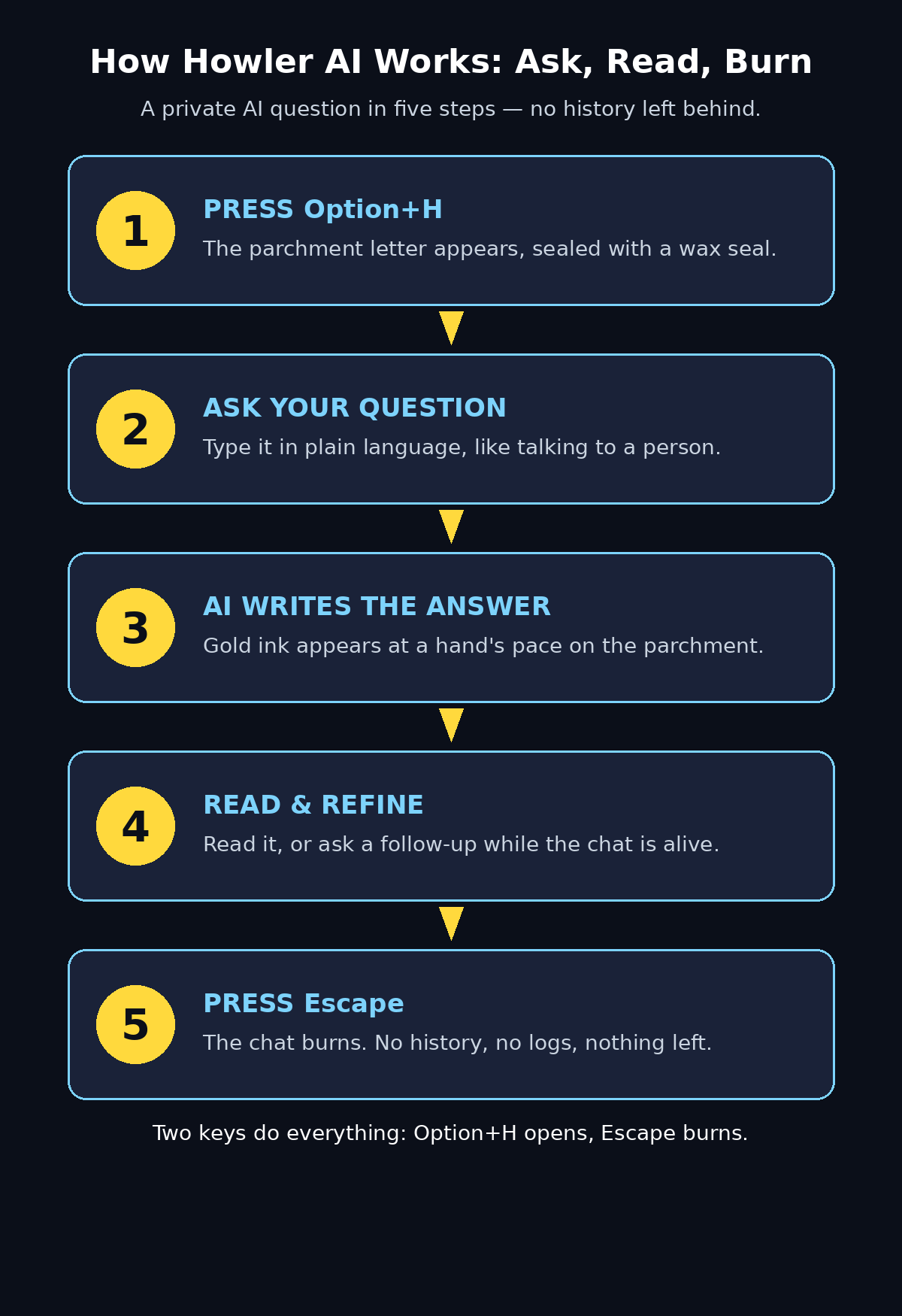
How Howler AI works — one keystroke opens the parchment, the AI writes its answer, and Escape burns the chat.
Step 8: Ask Your First Question with Option+H
Once Howler is set up and connected, using it is delightfully simple.
- Press Option+H on your keyboard, from anywhere on your Mac.
- The parchment letter appears on your screen, with a wax seal showing the letter of your chosen model.
- Type your question in plain language, just as you would ask a person.
- Press Enter and watch the answer write itself out.
Good first questions to try:
- “Explain quantum computing in three simple sentences.”
- “Give me five healthy lunch ideas I can make in 15 minutes.”
- “What is the difference between a Roth IRA and a traditional IRA?”
- “Write a polite email asking my manager for a day off next Friday.”
Howler shines for quick lookups, fast explanations, and questions you want answered once and then forgotten. It is not a workspace for long research projects — for that, a tool with history and saved chats is a better fit. This Howler AI for beginners guide suggests starting with a quick lookup, so you can see the whole ask-read-burn cycle in under a minute.
Step 9: Read the Answer on the Parchment
Howler’s answer is not just text in a box. It is written out on the parchment at a hand’s pace, starting in glowing gold and settling into sepia-toned print, like ink drying on old paper.
- Read the answer while the parchment is open. There is no rush — it stays until you dismiss it.
- If the answer is long, scroll or read it in parts. The parchment is a reading surface, not a race.
- If the answer is not what you wanted, ask a follow-up in the same parchment before you burn it. You can refine a question while the conversation is still alive.
The wax seal is a small but useful detail: it shows a letter representing the model you connected, so you can tell at a glance which AI is answering you — handy if you switch between models for different jobs.
Step 10: Burn the Chat with Escape
This is the step that makes Howler special.
- When you are done reading, press Escape.
- The parchment disappears, and the conversation is wiped from memory.
- There is no trash folder, no “recently deleted” list, and no history sidebar to clean up later.
Burning a chat is instant and permanent, so build one habit: if an answer is worth keeping, copy it somewhere safe before you press Escape. Save a useful explanation into your notes app, paste a good email draft into your drafts folder, or screenshot a list you want to reuse. Once the parchment burns, that answer is gone from your Mac for good.
Remember the one limit: burning the chat clears your Mac. It does not erase anything the AI provider may have kept on its own servers. If you asked something truly sensitive, choose a provider whose privacy policy you trust — or use a local model, where nothing leaves your machine.
Step 11: Customise Howler for Everyday Use
A few small settings turn Howler from a novelty into a daily tool — and they complete the Howler AI for beginners workflow.
- Pick your default model. Choose the model that fits most of your questions, and switch only when a job needs something different.
- Turn off the update check if you want zero outside connections. Howler’s only automatic outside connection is its update check. You can disable it in the settings if you prefer the app to never phone home at all.
- Learn the two shortcuts by heart. Option+H opens the parchment; Escape burns it. That is the whole interface — two keys cover everything.
- Use it for questions, not projects. Quick lookups, definitions, translations, email drafts, and “explain this to me” questions are Howler’s sweet spot. Long documents and multi-day research belong in a tool with saved history.
- Keep the app updated manually. If you turned off the automatic update check, visit the GitHub page now and then to see whether a new version fixes bugs or adds models.
Howler AI vs Other Private AI Options
| Feature | Howler AI | ChatGPT Mac App | Duck.ai | Ollama (Local) |
|---|---|---|---|---|
| Chat history kept | None — burns on Escape | Yes, saved in sidebar | None per session | Depends on the app |
| Cost | Free app; model API fees may apply | Free tier + paid plan | Free | Free; runs on your Mac |
| Setup difficulty | Medium (agent or manual config) | Easy | Easy | Medium |
| Works offline | Only with a local model | No | No | Yes |
| API key storage | macOS Keychain | Account login | No account needed | Local only |
| Best for | Quick, private questions | Everyday AI work | Private web chats | Fully offline AI |
Howler wins when you want speed plus privacy in one keystroke. The ChatGPT app wins for long projects and saved work. Duck.ai wins if you want private chats in a browser with zero setup. Ollama wins if you want everything offline. Many people use two of these together — Howler for quick questions, and one of the others for deeper work.
What Howler Can and Cannot Hide
Howler’s privacy is real, but it has honest limits, and beginners should know them before trusting it with sensitive questions.
- It hides your chats from your Mac. No history file, no logs, no sidebar. Anyone who opens your computer later will not find your Howler questions.
- It hides your API key from the chat. The key lives in the Keychain and never appears in the conversation.
- It does not hide your questions from the AI provider. Your question still travels to the provider’s servers to get an answer. The provider’s own logging and retention rules apply, and Howler cannot change them.
- It does not make you anonymous. Your network connection and your provider account can still identify you. For full anonymity you would need additional tools, which is beyond what Howler promises.
Used with those limits in mind, Howler is an excellent privacy upgrade over a normal chatbot — just pair it with a trustworthy provider or a local model for the most sensitive questions.
FAQ: Howler AI for Beginners
Is Howler AI really free?
Yes, the Howler app itself is free and open source. You can download it and use it without paying anything. The only possible cost is the AI model you connect: if you use a provider’s API key, that provider may charge per use. If you connect a local model instead, there is no usage cost at all.
Does Howler AI work on Windows?
No. Howler is a macOS-only app. There is no Windows, Linux, or mobile version. If you use Windows, look for a privacy-focused web option such as Duck.ai instead, or run a local model on your own machine.
What happens when I press Escape in Howler?
The parchment closes and the conversation is wiped from your Mac’s memory. There is no history, no trash, and no way to recover it. Copy anything you want to keep before you press Escape.
Is Howler AI safe to use?
Howler is open source, stores your API key in the macOS Keychain, sends requests directly to your chosen AI service with no relay, and keeps no logs. Those are strong safety features. The main risk is the same as with any AI tool: the model provider may keep a copy of your questions on its servers, so choose a provider you trust or use a local model for sensitive topics.
Do I need to know how to code to use Howler?
No, you do not need to code to use Howler day to day — asking questions is just typing. But the first-time setup is more technical than a normal app: it needs either an AI coding agent to run the configuration or manual commands in Terminal. If that feels too advanced, ask a technical friend to help with setup once; after that, daily use is just two keyboard shortcuts.
Can Howler remember my previous questions?
No, and that is the point. Howler deliberately keeps no history. Every time you press Option+H you start fresh. If you need an AI that remembers context across days, use a regular chatbot with saved chats alongside Howler.
Final Thoughts
Howler AI for beginners is a small app with a clear idea: some questions do not deserve a permanent record. The parchment letter, the wax seal, and the burn-on-Escape design make privacy feel delightful instead of technical, and the open-source code means the privacy claims can be checked rather than just believed.
It is not for everyone. The setup takes more effort than installing a normal app, it only runs on Mac, and it cannot remember anything between sessions. But if you are a Mac user who asks quick AI questions all day and dislikes the growing pile of chat history, Howler is worth the one-time setup. Install it, connect a model, press Option+H, ask something, and press Escape. The answer appears, the parchment burns, and your Mac keeps no trace — exactly as it should be.
Explore More Free AI Tools
Want to keep exploring free AI? Try the AI Title Generator, Meta Description Generator, AI Rewriter, and Keyword Density Checker at https://aitoolsteps.com/ — they are free, beginner-friendly, and a great next step after your first Howler question. If you like step-by-step guides like this one, see our beginner guide to Meta Style Sketch AI.