

Imagine this: you have an idea for a small app — a habit tracker that fits exactly how you live, a recipe organiser for your family’s favourite dishes, or a simple expense log for your side business — but you have never written a line of code. Until recently, that idea would stay an idea, or it would mean hiring a developer, learning to program, or registering as a professional developer just to put an app on your own phone.
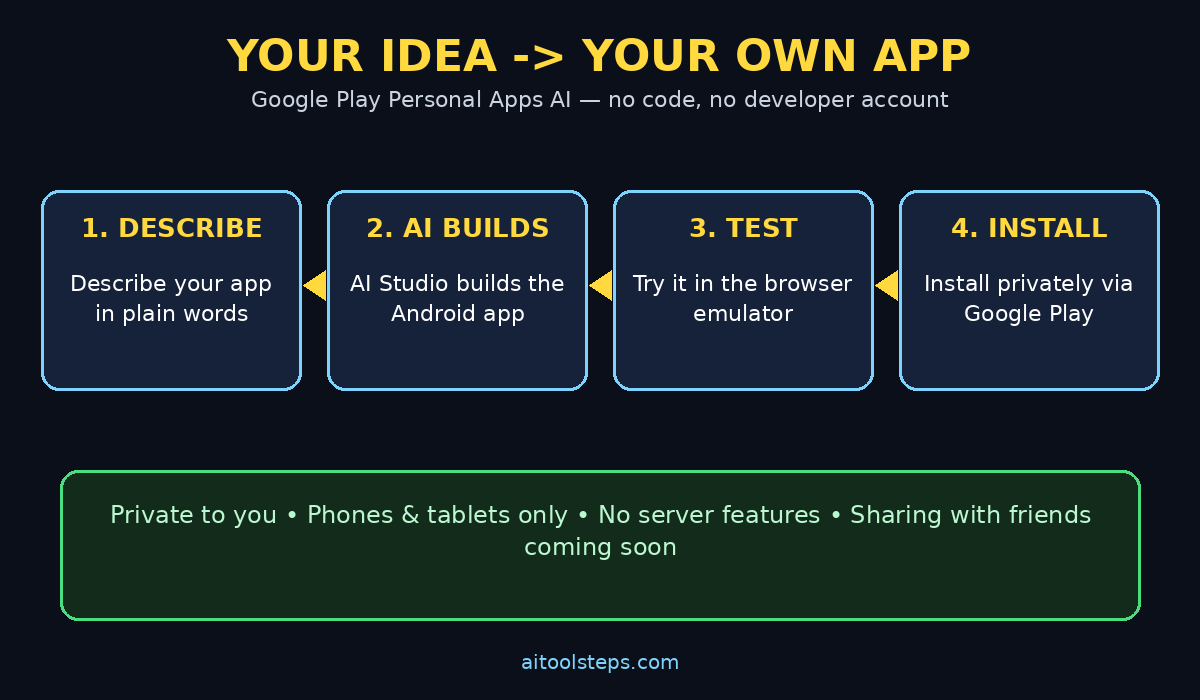
Google changed that in October 2026. With Google Play Personal Apps AI, powered by Google AI Studio, you can now describe the app you want in plain language, let AI build it for you, and install it on your own Android phone through Google Play — without a developer account, without publishing anything to the public store, and without touching code unless you want to. The app stays private to you, in a separate personal library, away from the public catalogue.
This beginner guide walks you through the whole process step by step: what Personal Apps are, who can use them, how to build your first app with AI, how to test it, how to install it on your phone, and what the limits are. By the end, you will know exactly how to turn one of your own ideas into a working app on your own device.
Step 1: Understand What Google Play Personal Apps AI Actually Are
Google Play Personal Apps are private Android apps that you create for yourself. Google announced the feature on October 13, 2026, as part of its October 2026 Google Play updates. The idea is simple: you open Google AI Studio, describe an app in everyday language — a process the industry calls “vibe coding” — and the AI generates a working Android app project for you.
Once the app is ready, you launch it on your own Android device through Google Play. It appears in a new personal library area of the Play Store, separate from the public store. Nobody else can see it, download it, or review it. Google is clear about the boundary: these apps are for personal use only, and they are not reviewed by Google Play in the way public apps are.
That distinction matters. A personal app is not a shortcut to publishing on the Play Store. It is a way to solve your own problem on your own phone. If you later decide an app is good enough to share with the world, Google Play offers a path to upgrade to a professional developer account, and the public version then goes through the normal safety reviews and quality checks.
Think of it like cooking at home versus opening a restaurant. Personal Apps are home cooking: quick, private, and made exactly to your taste. Publishing publicly is the restaurant: it needs licences, inspections, and a menu everyone can order from.
Step 2: Check Whether You Can Use Personal Apps Yet
Before you start, check the eligibility basics so you do not waste time on a feature that has not reached you yet.
First, you need to be 18 or older. Second, you need a standard Google account — and that is a real change, because until now getting your own app onto your phone outside the store usually meant developer settings, sideloading, or registering as a developer. With Personal Apps, no developer account is required at all.
Third, availability is rolling out gradually. The feature began rolling out on October 13, 2026, in select markets including the United States. Google has not published a full list of every country in the first wave, and it has not announced a date for worldwide availability. So if you open Google AI Studio and do not see the personal-app option yet, it may simply not have reached your region. In that case, there is nothing to sign up for — you wait for the rollout, and you can still practise by building app ideas in AI Studio.
You also need an Android phone or tablet to install the finished app. Google’s documentation describes personal apps as client-side apps for phones and tablets. Wear OS watches and Android TV are not supported targets for this route.
Step 3: Open Google AI Studio and Start a New App Project
Everything starts in Google AI Studio, Google’s free browser-based workspace for building with its AI models. Sign in with your standard Google account and look for the app-building experience.
You do not need to install any software on your computer to begin. AI Studio runs in your browser. When you start a new app, the AI agent generates a Kotlin project using Jetpack Compose, Google’s modern toolkit for Android interfaces. You do not need to know what Kotlin or Jetpack Compose are — the AI handles that layer — but it helps to know that a real, editable project sits underneath your description, not just a mock-up picture of an app.
If you have used other AI tools before, this step will feel familiar: a chat panel where you type what you want, and a workspace where the result takes shape. If you are completely new to AI tools, do not worry. The whole point of this feature is that plain language is the input. You describe the outcome, and the AI worries about the code.
Step 4: Describe Your App in Plain, Specific Language
This is the most important step, and it is where beginners either succeed quickly or get stuck in vague loops. The AI can only build what you describe, so be specific about four things: who the app is for, what it should do, what it should look like, and what it should not do.
Instead of writing “make me a fitness app,” try something like: “Build a simple habit tracker for one person. The home screen shows five habits with checkboxes for today, a weekly streak count, and a button to add a new habit. Use large buttons, a dark theme, and no login screen.”
That one paragraph gives the AI a user, a screen layout, the exact features, and the style. Good prompts name the screens (“home screen,” “add habit screen”), the actions (“tap to check off,” “swipe to delete”), and the data (“store habits on the device only”).
Start small. Your first app should do one job well. A single-screen expense log beats a ten-screen super-app that half works. You can always ask the AI to add a second screen later, once the first one works. Small businesses often start the same way: a simple tool that solves one daily annoyance — a booking log, a price calculator, or a customer note keeper — and a digital agency can later help turn a proven personal tool into a polished public product.
Step 5: Test Your App in the Built-In Android Emulator
Once the AI builds your first version, do not rush to your phone. AI Studio runs the app in a browser-based Android emulator, so you can try it right there in your browser. Tap the buttons, add a test entry, delete it, and rotate through the screens.
Testing early catches the two most common beginner problems: buttons that do nothing, and layouts that look fine in the description but feel cramped on a real phone screen. If something is wrong, say so in plain language in the chat panel: “The Add button does nothing when I tap it,” or “Make the habit names bigger and put the checkbox on the right.” The AI revises the project, and you test again.
Treat this loop as normal, not as failure. Professional developers also build, test, fix, and test again. The difference here is that each loop takes minutes and costs you no coding knowledge. Two or three test-and-fix rounds are enough for most simple apps.
Step 6: Refine the App in the Chat Panel or the Code Tab
When the app mostly works, refine it. The chat panel is your main tool: keep describing changes in everyday words. Ask for a new screen, a different colour, larger text, or a new feature, one change at a time. Changing one thing at a time makes it easy to tell what broke if something stops working.
If you are curious, open the Code tab. You will see the generated Kotlin code. You do not need to edit it, but reading it demystifies the process: your words became structured instructions a phone can run. You can also download the whole project as a ZIP file, which is useful as a backup or if you later hand the project to a developer.
A practical tip: keep a short note of what you asked for and what worked. If you build several personal apps, that note becomes your own recipe book. Teams that work with AI automation services often keep the same kind of record, because the prompts that produce good results are worth reusing.
Step 7: Send Your Google Play Personal Apps AI App to Your Phone
When you are happy with the emulator version, it is time for the real test: your own phone. From AI Studio, you send the app to Google Play’s personal library. On your Android device, open Google Play and look for your personal library area — the private section that holds only the apps you created.
Install the app from there, exactly as you would install any app, except that nobody else can see or install it. Google’s own preview wording spells out the deal plainly: only you can see and install the apps you create, they are for personal use, and they are not reviewed by Google Play.
Open the app on your phone and use it for a real task: log a real expense, check off a real habit, or save a real note. The emulator is a rehearsal; your phone is the performance. If a button feels too small on a real screen, or a feature is awkward with one hand, go back to AI Studio, describe the fix, and send the updated version again.
Step 8: Use Your Personal App Every Day and Manage It Like Any App
Once installed, a personal app behaves like a normal app on your phone: it has an icon, it opens from your home screen or app drawer, and you can uninstall it any time. Because it is yours alone, you control its data. For most simple personal apps, data stays on the device, which is one reason privacy-conscious beginners like this route.
Be sensible about permissions. If a simple habit tracker asks for your contacts or location, ask yourself why it needs them. A good rule for any app, personal or public, is to grant only the permissions its job actually requires. Personal apps are not reviewed by Google Play, so that judgement call is yours — which is another reason to start with simple apps that need little or no sensitive access.
Also remember the technical limit: personal apps built this way are client-side apps with no server component. That means features that need a server runtime — such as Firebase backends, Google Workspace APIs, secrets management, or multiplayer — are not available through this route. A personal to-do list, calculator, tracker, or organiser works beautifully. A chat app for thousands of users does not, and that is by design.
Step 9: Share With a Small Circle Later, or Upgrade to Publish Publicly
Right now, you cannot share a personal app with friends from the personal library. Google says an option to share your apps with a small group of friends and family is coming in the next few months. Until then, your app stays yours alone, which is worth knowing before you promise a family member a copy.
If an app turns out to be genuinely useful to other people, you have a path forward. Google Play will help you move to a professional developer account, and the public release then passes the same Trust and Safety reviews and quality standards as any professional app. That upgrade is a decision, not an accident: it changes your app from a private tool into a public product, with all the responsibility that brings.
For most beginners, the right order is: build privately, use it yourself for a week or two, fix the annoyances, and only then ask whether anyone else needs it. The apps that survive two weeks of daily personal use are the ones worth sharing.
Step 10: Fix Common Problems Without Panicking
Most beginner problems with Personal Apps have simple fixes. If the personal-app option does not appear, check your age, your account, and your region — the rollout is still gradual, and absence usually means “not yet here” rather than “something is broken.”
If the AI builds something different from what you described, shorten and sharpen your description. One screen, one job, named buttons. If a feature keeps failing, remove it, get the rest working, and add it back later as a separate request. If the app installs but looks wrong on your phone, remember that emulator screens and real phone screens differ — test on the phone itself before judging.
Finally, keep your expectations honest. AI-built personal apps are wonderful for single-purpose tools, and limited for complex, server-powered products. Knowing that limit in advance is what separates a happy beginner from a frustrated one.
Personal Apps vs Other Ways to Get an App on Your Phone
| Option | Coding needed? | Developer account? | Who can install it? | Reviewed by Google Play? | Best for |
|---|---|---|---|---|---|
| Google Play Personal Apps (AI Studio) | No | No | Only you | No — personal use only | Private tools you build for yourself |
| Public Google Play app | Yes (or a developer) | Yes | Anyone | Yes | Sharing or selling an app publicly |
| Sideloading (APK install) | Yes | No | Anyone with the file | No | Testing builds, with security risk |
| Web app / bookmark | No | No | Anyone with the link | No | Simple pages that need internet |
The table shows why Personal Apps fill a gap: they are the only route that combines no coding, no developer account, and a proper Play installation — at the price of staying private and client-side only.
Frequently Asked Questions
Is Google Play Personal Apps really free?
Yes, for the personal route itself: you need only a standard Google account, and no developer account or registration fee is required. Google has not announced a separate price for creating personal apps. Paid costs could still appear indirectly — for example, if you later upgrade to a professional developer account to publish publicly — but building and installing a private app for yourself carries no developer fee.
Do I need to know how to code?
No. You describe the app in plain language, and Google AI Studio’s agent generates the Kotlin and Jetpack Compose project. You can look at the code in the Code tab and download it as a ZIP file, but editing it is optional. Clear, specific descriptions matter far more than coding knowledge.
Can my friends download my personal app?
Not yet. Personal apps are visible only to you in your personal library. Google says sharing with a small circle of friends and family is coming in the coming months. If you need to share widely today, the public Play Store route — with a developer account and full review — is the correct path.
Will my personal app work without the internet?
Simple client-side personal apps generally work on the device itself once installed, because they do not rely on a server component. That is also why server features such as Firebase, multiplayer, and Workspace APIs are not available in this route. If your app idea needs live online data, it may not fit the personal-app model.
Is a personal app safe if Google Play does not review it?
It is as safe as the permissions and code you accept. Because personal apps skip Play review, you should keep them simple, grant only necessary permissions, and avoid pasting passwords, secrets, or sensitive account details into an app you built for convenience. For anything handling money, health data, or other people’s private information, use a properly reviewed public app or a professional build instead.
What happens if Google expands the rollout to my country later?
Nothing breaks. When the feature reaches your region, the same Google account and AI Studio workflow should let you build and install personal apps. Keep an eye on Google Play announcements, and try AI Studio again after a few weeks if the option is missing today.
Final Thoughts
Google Play Personal Apps AI is one of the most beginner-friendly AI launches of 2026, because it removes the three barriers that used to stop non-developers: code, developer registration, and public publishing. You describe an app, test it in the browser, install it privately on your phone, and use it for a real problem the same day.
Start with one small idea, describe it specifically, test it twice, and use it for a week before building the next one. That habit — small, private, useful — is how beginners turn AI curiosity into a tool they actually rely on. And if one of your private tools grows into something others need, the path to a public release is waiting, with its reviews and responsibilities, when you are ready.
Explore More Free AI Tools
Want to keep building with free AI? Try the AI Title Generator, Meta Description Generator, AI Rewriter, and Keyword Density Checker at https://aitoolsteps.com/ — they are free, beginner-friendly, and a great next step after your first personal app.