
If your smart TV home screen feels more like an advertising billboard than your own living room, you are not imagining it. Sponsored rows, giant banners, preloaded apps you never asked for, and background tracking services have become the default experience on many Android TVs and Google TVs. CleanYourTV AI changes that in about fifteen minutes, and it does so without rooting your television, without a cable, and without deleting anything permanently.
CleanYourTV is a free, open-source project created by developer Gathin in October 2026. It went viral within days of its first release, collecting thousands of GitHub stars after its creator used an AI coding assistant to clean up his parents’ Xiaomi TV, which was showing a sponsored advertisement before anyone could even reach Netflix. The idea is simple: instead of you typing dozens of technical commands by hand, you paste one prompt into an AI coding assistant such as Claude Code, and the assistant does the careful, checklist-driven work over your home Wi-Fi. Every change is reversible, because apps are disabled rather than uninstalled, and a single restore script can undo everything.
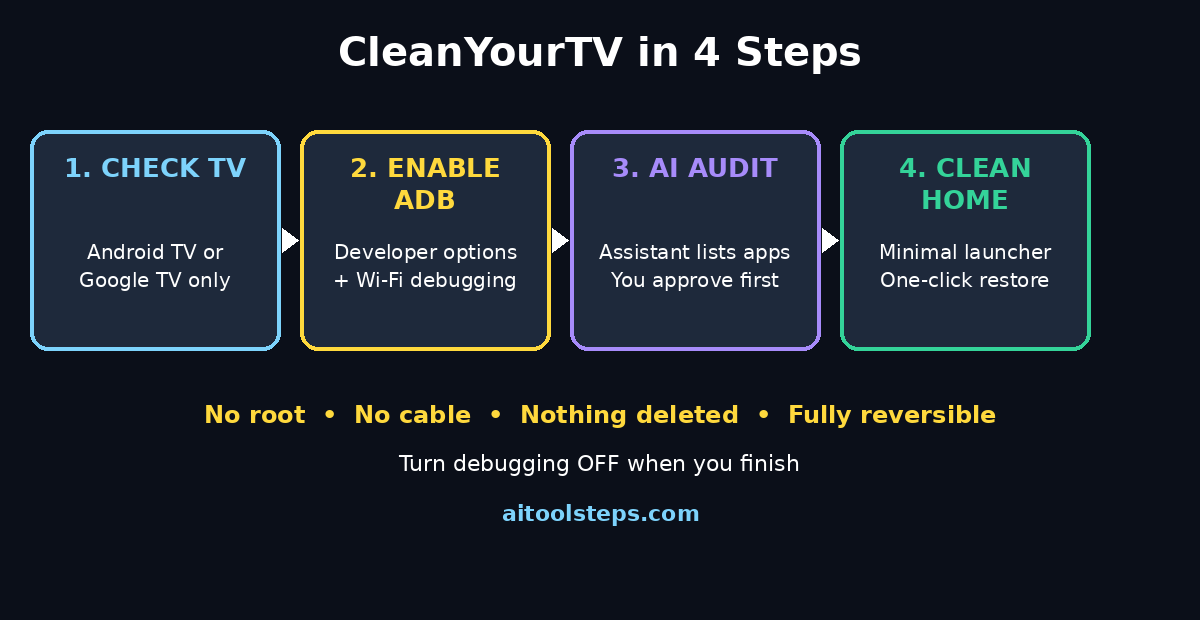
This beginner guide walks you through the whole process step by step, explains what each part does in plain language, and shows you how to stay safe. You do not need coding experience. You need an Android TV or Google TV, a computer on the same Wi-Fi network, and about fifteen minutes of patience.
Step 1: Check Whether CleanYourTV AI Works on Your TV
Before you touch any setting, confirm that your television is supported. CleanYourTV AI is built for Android TV and Google TV devices. That includes popular models from TCL, Xiaomi, Sony Bravia, Hisense, Philips, Panasonic, BenQ, Nvidia Shield, onn, Chromecast with Google TV, and XGIMI, with tested package lists for more than one hundred models from dozens of brands.
There are two important exceptions. Samsung televisions running Tizen and LG televisions running webOS are not supported, because they do not use the same Android system underneath. Amazon Fire TV devices get the cleanup only: the debloat works, but Fire OS will not hand over the home screen to a replacement launcher, so you keep Amazon’s home screen with less clutter inside it.
To check your model, look at Settings, then Device Preferences, then About on your TV, and note the exact model name. Then search the CleanYourTV repository’s examples folder for that brand and model. If you find a tested list for your exact model, your job is easier. If you only find a similar model from the same brand, you can still proceed, but you must read the list carefully and work in small batches, skipping anything you actually use. Never apply a list blindly to a television you have not checked.
Step 2: Enable Developer Options and ADB Debugging on Your TV
CleanYourTV AI works through Android Debug Bridge, usually called ADB. ADB is the same maintenance tool that Android phones use, and it lets a computer on your local network manage a television. Turning it on sounds technical, but it is just a hidden settings menu.
On most Android TVs and Google TVs, go to Settings, then Device Preferences, then About, and click on Build seven times. A message will tell you that you are now a developer. Go back one menu, open Developer Options, and turn on USB debugging. If your television offers Network debugging or Wireless debugging, turn that on too. Your television will show its IP address on your network, which is how your computer finds it.
Treat this step seriously. Developer options give a connected computer real control over your television, so you should only approve a computer you own, on a Wi-Fi network you trust, and you should turn debugging off again when you finish. That single habit keeps a useful tool from becoming a security risk.
Step 3: Put Your Computer and TV on the Same Wi-Fi Network
Your computer and your television must be on the same home Wi-Fi network, because ADB over Wi-Fi works locally. It does not work across the internet, and it does not work if one device is on a guest network and the other is on your main network. If your computer is connected by an ethernet cable to the same router, that usually works too, because both devices are still on the same home network.
Open a terminal or an AI coding assistant on your computer. Beginners most often use Claude Code, but the project also works with similar assistants such as Codex or Gemini CLI. Make sure your computer can reach the television by using the IP address shown in the television’s network settings. When you connect for the first time, your television will show an approval prompt. Read it, confirm that the computer name matches your own machine, and tap Allow. If anything looks unfamiliar, tap Cancel and check your network again.
Step 4: Get the CleanYourTV Prompt from the Repository
CleanYourTV is not an app you download from a store. There is no file to install on your television at this stage. You start from the project repository on GitHub, where the main file you need is a prompt document called PROMPT.md. That prompt is the instruction set your AI assistant follows.
Open the repository, read the short introduction, and copy the prompt. Then paste it into your AI coding assistant and add your television’s exact model name. The prompt tells the assistant to discover what is installed on your television, compare it with the tested list for your model, and ask you before touching anything you might use. That checklist step is the most important safety feature in the whole project: the assistant must not disable an app you rely on, such as your streaming service, your live TV app, or your television’s own settings tools.
If you prefer not to use an AI assistant at all, the repository also documents manual commands, but they require Python, a Java development kit, and the Android software development kit, plus careful handling of package lists. For most beginners, the AI-assisted route is simpler and safer, because the assistant follows the same checklist every time.
Step 5: Let the AI Assistant Audit Your TV First
Do not rush this step. A good run starts with an audit, not with deletions. Your AI assistant should list the packages installed on your television, mark which ones belong to advertising, telemetry, sponsored content rows, and preloaded apps, and present that list for your approval. Read it slowly. Keep everything you use, everything your television needs to function, and anything you are unsure about.
The assistant then disables the approved items using a standard Android command that disables a package for your user profile. Nothing is uninstalled. The television’s firmware stays untouched, and if something goes wrong later, your television’s own Settings and Apps page can re-enable a package even without the project’s tools. That reversibility is what makes CleanYourTV different from risky rooting methods or factory-reset tricks that wipe your settings.
Expect the audit to take a few minutes. If the assistant wants to disable something you do not recognise, ask it what the package does before you approve it. A careful beginner who asks one extra question is doing the process correctly.
Step 6: Install the Clean Launcher as Your New Home Screen
Once the clutter is disabled, CleanYourTV AI installs a small native launcher and makes it your television’s default home screen. This is the part you will actually see every day. Instead of sponsored rows and banners, you get a minimal, Apple TV-inspired layout: your apps in a clean dock, a top shelf, themes, and a clock screensaver. The launcher is tiny, only a few hundred kilobytes, which is part of why older televisions often feel faster afterwards. Some users have reported noticeably more free memory after replacing a heavy stock launcher that weighed close to two hundred megabytes.
When your television asks which home app to use, choose the new CleanYourTV launcher and select Always, so it becomes the default. Test it immediately. Open your streaming apps, check that your remote works as expected, and confirm that your picture and sound settings are unchanged. The launcher only changes the home screen; it does not change your television’s picture quality or your streaming subscriptions.
Step 7: Verify the Result and Customise Your Home Screen
A clean home screen should pass a simple test: you can reach the app you want within seconds, without scrolling past advertisements. Open Netflix, YouTube, or whichever service you use most, and confirm it launches normally. Check that live TV, HDMI inputs, and your soundbar or audio settings still work. If anything feels wrong, note the exact app or feature before you change anything else, so you can undo one step at a time.
Now make the home screen yours. Arrange your most-used apps first, remove shortcuts you never open, and pick a theme you like looking at. The goal is not minimalism for its own sake; it is a television that respects your attention. Many people find that a calmer home screen also changes viewing habits for the better, because choosing a show becomes a decision instead of a reaction to whatever sponsored row appears first.
Step 8: Turn Debugging Off and Lock Things Down
When you are happy with the result, turn debugging off. Go back to Developer Options on your television and switch off USB debugging and network debugging. This closes the door you opened for the setup, and your television returns to its normal, locked-down state. The clean launcher and the disabled packages stay exactly as you left them.
This step is easy to forget, and forgetting it is the most common beginner mistake in the whole guide. Debugging is a setup tool, not a permanent setting. If you ever want to change the setup again, you can turn it back on for fifteen minutes, make your change, and turn it off again. Think of it like leaving a ladder against the house: useful while you work, unwise to leave overnight.
Step 9: Restore Everything in One Step If You Change Your Mind
One of the best reasons to try CleanYourTV is that changing your mind costs almost nothing. The project includes a restore script that re-enables everything from the same list you applied. Run it with the same model list, turn debugging on just for the restore, and your television returns to its original state, including its original home screen if you switch the default home app back.
You might restore because you sold the television, because a family member prefers the original interface, or because a future software update behaves better with the stock setup. Whatever the reason, you do not need to factory reset the television, lose your logins, or reconfigure your picture settings. Keep a note of which model list you used and where you stored the restore command, so a future you can undo the change without guessing.
Step 10: Keep Your TV Clean and Private Over Time
Television software updates can occasionally re-enable a disabled package or restore a sponsored row. That is normal, not a failure. After a major update, repeat the audit step: check your home screen, review what changed, and re-run the debloat for the items you want gone. Do not let the assistant disable anything new without asking you first.
You can also reduce tracking in other ways. Review your television’s privacy settings, turn off personalised advertising where the option exists, and avoid signing into services you do not use. For a broader look at how small teams use automation to keep digital products tidy, a digital agency perspective on clean, user-first interfaces is a useful reference, and readers interested in how AI agents are changing everyday software work can explore AI automation services for context on the same trend. The principle is the same everywhere: technology should serve the person using it, not the advertiser buying the screen.
CleanYourTV vs Other Ways to Fix a Cluttered TV
| Method | Cost | Root required | Reversible | New home screen | Best for |
|---|---|---|---|---|---|
| CleanYourTV AI | Free and open source | No | Yes, one restore script | Yes, except Fire TV | Android TV and Google TV owners who want a clean, fast home screen |
| Factory reset | Free | No | No, wipes your settings | No, stock ads return | Fixing a broken TV, not removing ads |
| Manual ADB debloat | Free | No | Yes, if you track changes | No, unless you add a launcher | Technical users who want full control |
| Universal Android Debloater | Free | No | Yes, with a graphical tool | No | Phone and TV users who prefer a point-and-click tool |
| Buying an Apple TV box | Hardware cost | No | Not applicable | Yes, Apple interface | Anyone who wants a separate streaming box |
CleanYourTV wins for most beginners because it combines three things no other option offers at once: an AI assistant that follows a checklist, a tested package list for your exact television model, and a clean launcher in the same workflow. The manual route gives you more control, but it also gives you more ways to make a mistake. A separate streaming box is simpler still, but it costs money and adds another remote to your living room.
Frequently Asked Questions
Is CleanYourTV safe for beginners?
Yes, if you follow the checklist and turn debugging off afterwards. Apps are disabled, not deleted, and the restore script undoes the changes. The main risks come from rushing: approving a package list without reading it, approving an unfamiliar computer on your network, or leaving debugging switched on. Slow down at those three points and the process is low risk.
Will CleanYourTV AI work on my Samsung or LG TV?
No. Samsung televisions running Tizen and LG televisions running webOS are not supported, because they do not run Android TV. If you own one of those televisions, a separate streaming device is the practical alternative. Fire TV owners can use the debloat part of the project, but Fire OS will not allow a replacement home screen.
Does CleanYourTV AI delete my apps or logins?
No. Packages are disabled for your user profile, not uninstalled, and your streaming logins stay untouched. If you restore, everything returns. Your picture settings, sound settings, and HDMI inputs are also unaffected, because the project only touches software packages and the home launcher.
Do I need to pay for CleanYourTV AI or Claude Code?
CleanYourTV itself is free and open source under the MIT licence. Your AI coding assistant may have its own free tier or usage limits, so check that before you start. Many beginners complete the whole cleanup inside a free allowance, but limits change, so confirm the current terms on your assistant’s own page.
What if my TV model is not listed?
Start from the list for a similar model from the same brand, read every entry, and apply it in small batches. Skip anything you use or do not understand, and test the television after each batch. If you are unsure about a package, leave it enabled. A slightly less clean television is always better than a broken one.
Will a software update undo CleanYourTV?
Sometimes, partly. An update can re-enable a package or restore a sponsored row, but it does not break the launcher or delete your settings. Just re-run the audit after a major update and clean up the items that returned. Treat it as routine maintenance, a few minutes a few times a year.
Final Thoughts
CleanYourTV AI is a small project with a big idea: your television’s home screen should belong to you. In about fifteen minutes, with no root, no cable, and nothing permanently deleted, you can replace an advertising-heavy interface with a calm launcher that puts your apps first. The AI assistant does the tedious work, the checklist keeps you in control, and the restore script means trying it is a low-stakes decision.
Start with the compatibility check, enable debugging only for the setup, read the audit before you approve anything, and turn debugging off when you finish. Do those four things and you will enjoy a faster, quieter television tonight, with the confidence that you can undo every change tomorrow.
Explore More Free AI Tools
Want more free tools that make everyday tech simpler? Try the AI Title Generator, Meta Description Generator, AI Rewriter, and Keyword Density Checker at AIToolSteps — all free, all in your browser, and all built for beginners who want useful results without a learning curve.