

Imagine chatting with an AI like ChatGPT, except it runs entirely on your own computer — no subscriptions, no accounts, no sending your conversations to some company’s servers. That is exactly what Ollama makes possible, and learning how to use Ollama is easier than most beginners expect. Ollama is a free, open-source tool that downloads and runs open AI models — including well-known names like Llama, Gemma, Mistral, DeepSeek, Qwen, and Phi — right on your machine.
For years, powerful AI felt locked behind monthly subscriptions and web logins. Ollama flips that model. Once a model is downloaded, everything happens locally: your prompts stay private on your device, you can work completely offline, and there are no usage fees no matter how much you chat. Whether you want a private writing assistant, a coding helper, or just a sandbox to explore what AI can do, this beginner’s guide walks you through every step — from checking your hardware to running your first model and connecting your favorite apps.
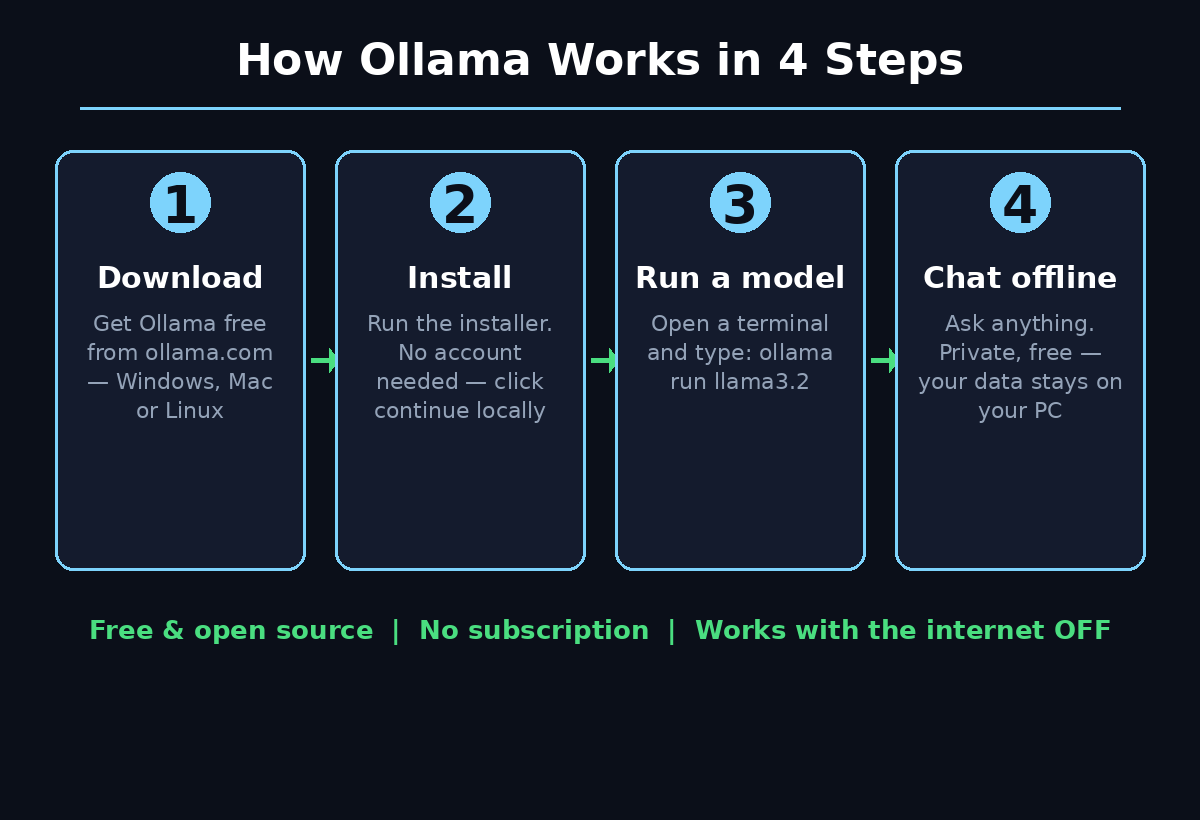
Step 1: Check If Your Computer Can Run Ollama
Before installing anything, it helps to know whether your machine has enough power. The good news: Ollama works on Mac, Windows, and Linux, and you do not need an expensive gaming PC or a powerful graphics card to get started. Most modern laptops from the last five or six years can run a small model comfortably.
The key factor is memory (RAM). A practical rule of thumb for local models is about 1 GB of memory per billion parameters. Model sizes are usually given in billions of parameters — you will see names like “3B” or “8B” — so the math is simple:
- 3B models (for example Llama 3.2 3B): need roughly 3 GB of memory and run fine on an 8 GB laptop.
- 7B–8B models: need about 8 GB or more and feel snappier on machines with 16 GB of RAM.
- Larger models (13B and up): need 16 GB+ and are better suited to desktops or workstations.
As a beginner, start with a 3B model. It downloads quickly (around 2 GB), loads fast, and still answers everyday questions, writes text, and explains ideas surprisingly well. You can always try bigger models later once you are comfortable. If you can browse the web and run a few apps at the same time, your computer almost certainly qualifies.
Step 2: Download and Install Ollama
Installing Ollama is a one-time job that takes only a few minutes, and the steps differ slightly by operating system. Always get Ollama from the official download page at ollama.com so you know you are getting the genuine, safe installer.
- Windows: Download
OllamaSetup.exefrom ollama.com and run the installer. It sets everything up automatically and adds Ollama to your system. - Mac: Download the
.dmgfile from ollama.com, open it, and drag the Ollama app into your Applications folder — just like installing any other Mac app. - Linux: Open a terminal and run the one-line install command provided on the Ollama download page (a simple curl command that downloads and installs Ollama for you).
That is the entire installation. There is no signup form, no license key, and — this is worth repeating — no account needed to use Ollama locally. Businesses that prefer a fully managed setup can also talk to specialists for AI automation services like the team at d365a.com, but for personal use, the free installer is all you need.
Step 3: Run Your First Model
Now comes the exciting part. Open a terminal (Command Prompt or PowerShell on Windows, Terminal on Mac and Linux) and type this single command:
ollama run llama3.2
The first time you run it, Ollama downloads the Llama 3.2 3B model — about 2 GB — which may take a few minutes depending on your internet speed. After that one-time download, the model lives on your computer and a chat prompt opens right in the terminal. Type a question, press Enter, and the AI answers. That is genuinely all there is to it.
Why llama3.2 first? It is one of the most beginner-friendly starter models: small enough to run on an ordinary 8 GB laptop, fast enough to feel responsive, and capable enough for writing help, brainstorming, explanations, and casual coding questions. If you want to experiment with others later, the Ollama library also offers Gemma, Qwen, Mistral, Phi, DeepSeek’s deepseek-r1, and CodeLlama (a great pick for programming help).
Step 4: How to Use Ollama in the Terminal
Once your chat is open, you are just talking to the model — type normally and press Enter. A few built-in commands make the terminal chat much more useful, and they are worth learning on day one:
/bye— leaves the chat and returns you to your normal terminal./?— shows the list of available commands./show info— displays details about the model you are chatting with./set— lets you tweak settings for the current session.
The model keeps the conversation context while you chat, so you can ask follow-up questions naturally: “Explain that again but simpler,” or “Now turn that into a bullet list.” When you are done, type /bye. The next time you run ollama run llama3.2, you start a fresh conversation instantly — no download, no waiting.
If the terminal feels intimidating, do not worry: Step 6 shows you the friendlier desktop app with a normal chat window. But honestly, the terminal chat is so simple that most beginners get comfortable with it within minutes.
Step 5: Manage Your Models Like a Pro
Once you have one model running, you will want to try more — and Ollama gives you a small set of everyday commands for managing your local model collection. Run each of these in your terminal:
ollama pull <model>— downloads a model without starting a chat. Example:ollama pull gemma3.ollama list— shows every model you have downloaded, along with its size.ollama ps— shows which models are currently loaded and running.ollama rm <model>— deletes a model to free up disk space. Example:ollama rm mistral.ollama --version— checks which version of Ollama you have installed.
Think of it like a small personal library: pull the models you are curious about, list what you own, and remove the ones you no longer use. Models are just files on your disk, so trying a new one is always reversible and always free. Keeping an eye on disk space is the only real “maintenance” Ollama asks of you — each model takes a few gigabytes, so clean out the ones gathering dust.
Step 6: Use the Desktop App Instead of the Terminal
Prefer a normal chat window over a black terminal screen? Ollama also ships a desktop app. When you open it, you get a clean chat interface with a model picker — you can switch between your downloaded models with a click and “continue locally,” all without typing a single command.
The desktop app is perfect for everyday use: asking questions, drafting emails, summarizing text, or brainstorming ideas. Under the hood it is the exact same local engine, so you keep every advantage — privacy, offline use, zero cost. Many beginners start with the desktop app for comfort and only later discover the terminal commands when they want more control. There is no wrong door here; pick whichever feels natural.
Step 7: Pick the Right Model for Your Hardware
Not all models are created equal, and picking the right one for your machine is the difference between a smooth experience and a sluggish one. Here is a beginner-friendly shortlist from Ollama’s library, matched to typical hardware:
- 8 GB RAM laptop: llama3.2 (3B) or gemma3 — fast, light, great for general chat and writing.
- 16 GB RAM machine: mistral, qwen3, or phi — noticeably smarter answers and better reasoning.
- Coding tasks: codellama — a model tuned specifically for programming help.
- Deep reasoning: deepseek-r1 — takes longer to answer but “thinks through” harder problems step by step.
Start small and work your way up. If a model feels slow on your machine, switch down to a smaller one rather than suffering through long pauses — a quick 3B model you actually enjoy using beats a big one you avoid. And remember the 1-GB-per-billion-parameters rule whenever you eye a new download.
Step 8: Connect Apps with the Local API
Here is where Ollama gets really powerful. While Ollama runs, it also serves a local API at http://localhost:11434 — an OpenAI-compatible endpoint that other apps and tools can talk to. In plain terms: any app that knows how to call an AI can use your local models instead of a cloud service.
Popular tools like Open WebUI and AnythingLLM connect to Ollama and give you a polished, ChatGPT-style interface in your browser — with features like file uploads, saved chats, and multiple model tabs — all still running privately on your machine. Developers can also point their own scripts and projects at the local endpoint, which makes Ollama a favorite for prototyping AI features without API bills.
For anyone following the fast-moving world of AI agents and automation, publications like agentic-affairs.com are worth watching — local models are becoming a key building block in the agent ecosystem, and Ollama is often at the center of that conversation. Even as a beginner, knowing the API exists means your setup can grow with you from casual chats to real projects.
Step 9: Go Offline and Stay Private
This is Ollama’s superpower, and it deserves its own step. After the one-time model download, everything runs on your machine. Your prompts never leave your computer, there is no account tracking what you ask, and there are no usage fees no matter how much you chat. You can even disconnect from the internet entirely and keep chatting — try that with a cloud chatbot.
That privacy matters more than it first seems. People paste all kinds of sensitive things into AI chats: business plans, medical questions, private documents, kids’ homework with personal details. With Ollama, none of that travels anywhere. The table below sums up how local AI compares with the cloud chatbots you already know:
| Feature | Ollama (Local) | Cloud AI Chatbots |
|---|---|---|
| Privacy | Prompts stay on your computer | Prompts sent to company servers |
| Cost | Free, no usage fees | Free tiers limited; paid plans common |
| Internet needed | Only for the first download | Required for every single message |
| Speed | Depends on your hardware | Fast, but depends on server load |
| Best for | Private, offline, unlimited use | Biggest models, zero setup |
Neither option is “better” in every case — cloud services still run the very largest models — but for everyday tasks, local AI through Ollama is private, free, and always available. That combination is hard to beat.
Common Beginner Mistakes to Avoid
Most Ollama frustrations come from a handful of avoidable mistakes. Learn them now and save yourself the headache:
- Downloading a model that is too big for your RAM. A 70B model on an 8 GB laptop will crawl or crash. Respect the 1-GB-per-billion-parameters rule and start with 3B models.
- Panicking during the first download. The first
ollama rundownloads gigabytes — it is supposed to take a few minutes. It only happens once per model. - Forgetting models take disk space. Each model is several gigabytes. Use
ollama listandollama rmregularly to keep your drive tidy. - Expecting cloud-level smarts from a 3B model. Small models are quick and handy, not geniuses. Match your expectations — and your model choice — to the task.
- Skipping the desktop app. If the terminal puts you off, the desktop app with its model picker gives you the same local AI with zero commands.
- Typing passwords or secrets into any AI chat. Local is far more private than cloud, but good security habits still apply everywhere.
Frequently Asked Questions
Is Ollama really free?
Yes. Ollama itself is free and open-source, and the models in its library (Llama, Gemma, Mistral, Qwen, Phi, DeepSeek, and others) are free to download and run. There are no accounts, no subscriptions, and no per-message fees — you can chat as much as you want at zero cost.
Does Ollama work offline?
Yes — after the initial model download, which does require internet. Once a model is on your computer, you can disconnect entirely and keep chatting. Everything runs locally, which also makes Ollama great for travel or places with unreliable connections.
How much RAM do I need to run Ollama?
Use the rule of thumb of about 1 GB of memory per billion parameters. A 3B model like llama3.2 runs comfortably on an 8 GB laptop, while 7B–8B models feel best with 16 GB of RAM. Start with a small model and upgrade only if your hardware allows.
Is Ollama safe and private?
Ollama runs entirely on your machine: your prompts are processed locally and never sent to external servers. There is no account tracking your activity. As always, download only from the official site (ollama.com) and keep normal security habits — but for day-to-day privacy, local AI is about as good as it gets.
Which model should a beginner start with?
Start with llama3.2 — it is small (about 2 GB), fast on ordinary laptops, and handles everyday questions, writing, and explanations well. Once you are comfortable, explore gemma3, qwen3, mistral, or phi. Coders should try codellama, and the curious can test deepseek-r1 for harder reasoning tasks.
Can I use Ollama without the terminal?
Absolutely. The Ollama desktop app opens a normal chat window with a model picker, so you can chat and switch models without typing commands. Tools like Open WebUI and AnythingLLM also connect to Ollama’s local API for an even richer browser-based interface.
Final Thoughts
Learning how to use Ollama is one of the highest-value skills a curious beginner can pick up in 2026. In under ten minutes you can go from zero to chatting with a capable AI that lives on your computer, costs nothing, works offline, and keeps your conversations private. Start with ollama run llama3.2, get comfortable with the basic commands, and let your setup grow — try new models, explore the desktop app, and connect tools through the local API when you are ready.
Local AI is no longer a hobbyist curiosity; it is quickly becoming the practical, private default for everyday AI tasks. Download Ollama today, run your first model, and experience what it feels like when the AI is truly yours.
Explore More Free AI Tools
Loved running AI locally? AIToolSteps has more free tools you can use right in your browser — no installs, no accounts:
- AI Title Generator — craft catchy headlines in seconds.
- Meta Description Generator — write search-friendly snippets fast.
- AI Rewriter — refresh and improve any text instantly.
- Keyword Density Checker — keep your SEO perfectly balanced.