

Running a small business means wearing every hat: designer, accountant, marketer, copywriter. On October 21, 2026, Google rolled out a new set of Gemini tools built specifically for that reality — a dedicated business landing page inside the Gemini app that acts as a central hub for building your brand, analyzing your finances, and understanding your customers.
Google says tens of millions of small business owners already use Gemini to brainstorm products, handle customer feedback, and analyze business performance. The new Gemini Business Hub (the business landing page plus its marketing and finance tools) pulls those scattered uses into one place — and adds brand-consistent visual generation powered by Google’s latest image model, Nano Banana 2.1, plus connections to the apps you already run your business on.
This beginner-friendly guide walks you through the Gemini Business Hub step by step: finding it in the app, connecting your tools, teaching Gemini your brand style, generating on-brand marketing visuals, and turning messy receipts and spreadsheets into plain-language financial insights. No design experience, accounting background, or credit card required.
Step 1: Understand What the Gemini Business Hub Actually Is
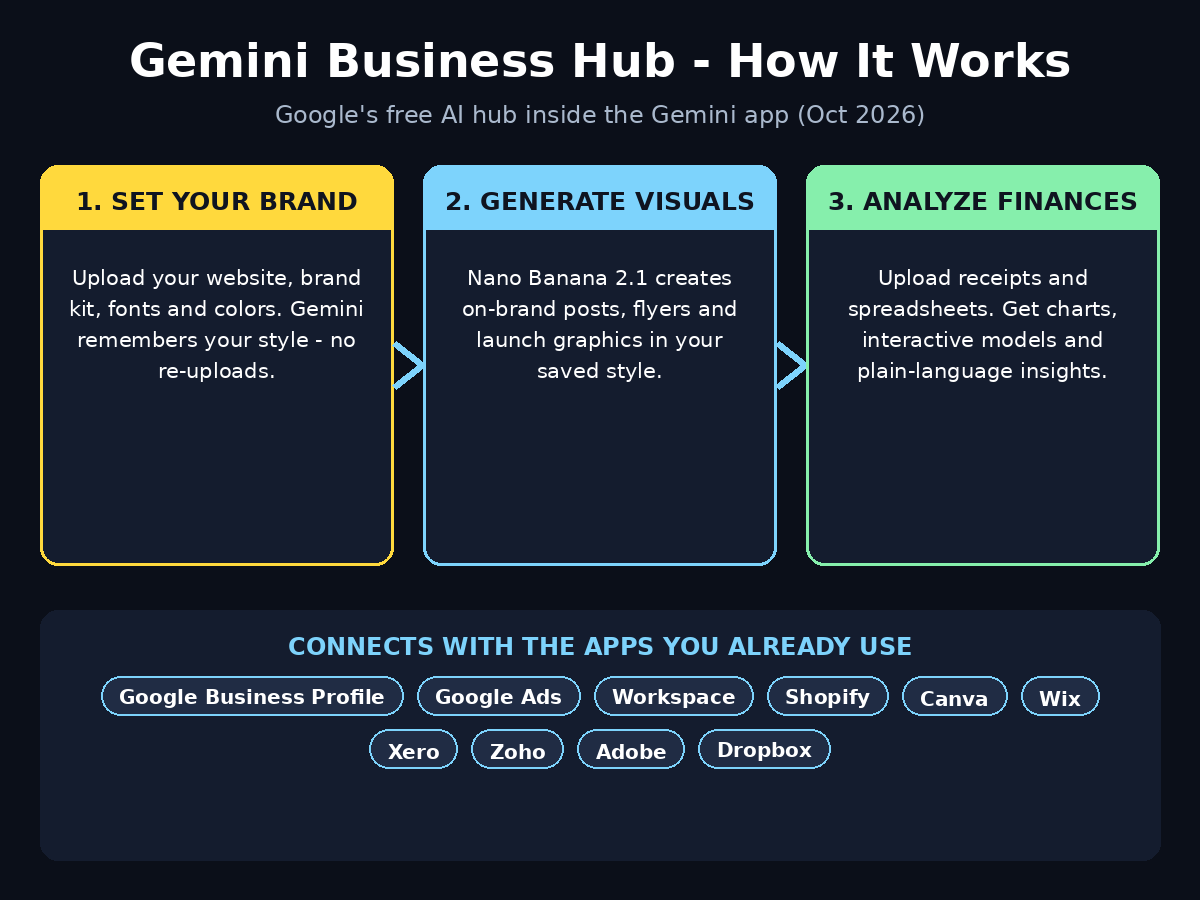
Before you open anything, get clear on what this is — and what it is not. The Gemini Business Hub is not a separate app you download. It is a business landing page inside the Gemini app (web and mobile) that bundles three things together:
- Brand building tools — set your visual identity once, then generate marketing visuals that match it every time.
- Finance analysis tools — upload spreadsheets, receipts, and purchase records, and get back clear graphics, interactive models, and plain-language explanations.
- Customer insight tools — connect your business apps so Gemini can help you understand feedback, reviews, and performance in one place.
Think of it as a home screen for the daily grind of running a small business. Instead of bouncing between six tabs — your design tool, your spreadsheet, your ad account, your review page — Gemini pulls it together so you spend less time on admin and more time on the work you started the business for.
Note: Google also offers a separate product called Gemini for Business for larger companies, with centralized admin controls and enterprise data governance. The hub described in this guide is for small business owners using the regular Gemini app — that is the free route.
Step 2: Open the Gemini App and Find the Business Landing Page
Google announced the rollout on October 21, 2026, and said the business landing page, marketing tools, and finance tools would reach Gemini app users worldwide in the coming days. Because it is a phased rollout, here is exactly what to do:
- Update the Gemini app to the latest version (phone) or reload gemini.google.com (web). Rollouts often gate features behind the newest build.
- Sign in with the Google account you use for your business — ideally the same one tied to your Google Business Profile and Google Ads, so connections work smoothly later.
- Look for the business landing page entry point in the Gemini app. Google describes it as a dedicated page for brand building, financial analysis, and customer insights. If you do not see it yet, check back over the next few days — phased rollouts can take a week or more to reach every account.
- While you wait, you can still practice with the current Gemini app: it already handles brainstorming, copywriting, and image generation, which are the building blocks of the hub.
Beginner tip: use the web version of Gemini for setup work like uploading brand kits and spreadsheets. File uploads are easier to manage on a computer than on a phone, and you will want a big screen to review the financial graphics Gemini produces.
Step 3: Connect Your Google Business Tools
The hub’s power comes from connections. The first set to wire up are Google’s own: Google Business Profile, Google Ads, and Google Workspace.
- Google Business Profile lets Gemini understand your real business identity — name, category, location, hours, and public reviews. This grounds its copywriting and customer insights in facts about your actual business instead of guesses.
- Google Ads connection means Gemini can help you draft, review, and refine ad copy and creative with your actual campaign context in view.
- Google Workspace (Gmail, Docs, Sheets, Drive) gives Gemini access to the documents and spreadsheets where your business data already lives — with your permission.
When the business landing page asks to connect an app, you will go through Google’s normal authorization screen. Connect only the accounts you actually use for the business, and review permissions before approving. You can disconnect any app later from your Google account settings.
Once connected, try a simple test prompt: “Summarize my latest customer reviews from my Business Profile and tell me the top 3 things customers praise.” If Gemini can answer with real specifics, your connections are working.
Step 4: Link the Third-Party Apps You Already Use
Beyond Google’s own tools, the Gemini Business Hub is launching with integrations for the apps small businesses actually live in: Adobe, Canva, Dropbox, Shopify, Wix, Zoho, and Xero.
This matters because your business data is scattered:
- Shopify or Wix — your products, orders, and store content
- Xero or Zoho — your invoices, expenses, and accounting records
- Canva or Adobe — your existing designs and brand assets
- Dropbox — your files, photos, and documents
Linking them means you stop retyping numbers from one system into another. Instead of exporting a sales report from Shopify, reformatting it, and pasting it into a spreadsheet, you can ask Gemini to pull the picture together directly.
Beginner tip: do not connect everything on day one. Start with the two apps where your most important data lives — for most small businesses, that is the store or booking platform (Shopify, Wix) and the accounting tool (Xero, Zoho). Add the rest once you are comfortable with how Gemini handles your data.
Step 5: Teach Gemini Your Brand Style (Upload Your Brand Kit)
This is the feature that changes the game for non-designers. Most small businesses face the same dilemma: pay a designer for every little asset, or cobble something together late at night and hope it looks on-brand. The Gemini Business Hub offers a third option: define your brand style once, and Gemini remembers it.
You can set your visual identity by uploading:
- Your website URL — Gemini reads your site’s look and feel
- Your brand kit — logos, brand guidelines, if you have them
- Your fonts — the typefaces your business uses
- Your color palettes — your brand colors
Once uploaded, Gemini retains your style. You do not have to re-upload your guidelines every time you want new material — it remembers. Combined with Nano Banana 2.1, Google’s latest image-generation model, Gemini can then produce end-to-end visuals for product launches and marketing campaigns that follow your brand automatically.
If you do not have a formal brand kit yet, do not let that stop you. Upload your website and pick two or three brand colors, and you already have enough for Gemini to work with. And if you want a professionally designed identity to upload later, a digital agency like Digital 365 Agency can build one for you — having real brand guidelines makes every AI-generated asset sharper.
Beginner tip: keep your brand inputs simple and consistent. One logo file, one color palette, one or two fonts. The cleaner your inputs, the more consistent Gemini’s outputs will be.
Step 6: Generate Your First On-Brand Visual with Nano Banana 2.1
With your brand style saved, it is time to make something. Nano Banana 2.1 is the image model powering the hub’s visual tools, and the workflow is refreshingly simple:
- Describe what you need in plain language: “a social media post announcing our new autumn candle collection,” or “a flyer for our weekend sale.”
- Mention your brand — or just ask, since Gemini remembers your saved style: “Use my brand colors and logo.”
- Review and refine — if the first result is not quite right, say what to change: “Make the headline bigger,” “Use a warmer background,” “Add our store hours at the bottom.”
Because Gemini retains your visual identity, every new visual stays consistent with the last one — your Instagram posts, flyers, and product launch graphics finally look like they come from the same business.
Beginner tip: generate in batches. Ask Gemini for five social media posts for the week in one session, all in your brand style, instead of making them one by one. Small business owners like Morgane — a ceramicist in Bordeaux who runs the tableware brand Bleu Clementine — use Gemini to write product descriptions, newsletters, and social posts, saving two to three hours a day. Batching is how you get those hours back.
Step 7: Turn Receipts and Spreadsheets into Financial Insights
Here is where the hub earns its keep for owners who hate bookkeeping. Gemini can take disorganized spreadsheets, receipts, and purchase records and turn them into clear financial graphics and interactive models within seconds, according to Google.
In practice, the workflow looks like this:
- Upload your records — a photo of receipts, an exported spreadsheet, or your purchase history from a connected app like Xero.
- Ask plain-language questions — “Where is my money going each month?” “Which product category is most profitable?” “Summarize my expenses this quarter.”
- Get visual answers — charts, breakdowns, and interactive models instead of raw tables, plus plain-language explanations of what the numbers mean.
The goal is to let owners get insights in plain language rather than working through the numbers themselves. A bar chart of your monthly spending by category is worth more than a 500-row spreadsheet you will never open.
Important beginner habit: always sanity-check AI-generated financial summaries against your real records before making decisions. AI is a brilliant analyst but a terrible accountant — verify the totals, then act on the insights.
Step 8: Get Customer Insights Without Reading Hundreds of Reviews
Customer feedback is gold, but reading hundreds of reviews is a part-time job. With your Business Profile connected, the hub helps you understand what customers are really saying:
- Ask for summaries: “What are customers saying about our service this month?”
- Spot patterns: “Are there recurring complaints about delivery times?”
- Find your strengths: “What do customers praise most? Use that in our marketing.”
You can then feed the answers straight back into the brand tools: take your top three customer praises and ask Gemini to turn them into on-brand testimonial graphics for social media. Review insights become marketing assets in minutes.
Pair this with your connected store data (Shopify, Wix) to connect feedback to sales: which praised products actually sell best? That is the kind of question that used to require an analyst.
Step 9: Build a Weekly Routine That Runs on Autopilot
Tools only save time if they become habits. Here is a simple weekly routine that squeezes the most out of the Gemini Business Hub:
- Monday: upload last week’s receipts and ask for a spending summary (10 minutes).
- Tuesday: generate the week’s social media visuals in your brand style — one batch, five posts (20 minutes).
- Wednesday: check customer insights — new reviews summarized, complaints flagged (10 minutes).
- Thursday: draft next week’s newsletter or product descriptions with Gemini (20 minutes).
- Friday: ask for a plain-language financial snapshot of the week (10 minutes).
That is roughly an hour a week for marketing, finance, and customer intelligence that used to eat entire evenings. As your needs grow — connecting these workflows into real automation across your whole operation — AI automation services like Agentic Affairs can help you go further, wiring AI into your sales, support, and fulfillment pipelines.
Beginner tip: save your best prompts. When a prompt produces a great result (“Write product descriptions in a warm, friendly tone, 80 words each, ending with a call to action”), keep it in a note. Reusing proven prompts is the difference between a tool you play with and a system you rely on.
Step 10: Review, Refine, and Scale as the Rollout Grows
The Gemini Business Hub is brand new — announced October 21, 2026, and still rolling out. Treat your first month as a learning phase:
- Check for new features regularly. Google is rolling out the landing page, marketing tools, finance tools, and app connections in waves — what is available today may expand next week.
- Refine your brand inputs. If generated visuals drift off-brand, tighten your uploaded palette and fonts. Consistency in, consistency out.
- Verify everything financial. Double-check numbers against your accounting tool before tax time or big decisions.
- Keep your human touch. AI-generated copy is a draft, not a voice. Read everything before it goes public, especially customer-facing content.
- Watch your data permissions. Review connected apps quarterly and disconnect anything you no longer use.
Early adopters get the compounding advantage: every brand asset you generate, every financial pattern you spot, and every customer insight you act on builds a smarter system. The businesses that learn these tools in 2026 will be the ones that look effortlessly professional in 2027.
Gemini Business Hub vs. The Old Way
| Marketing/Finance Task | The Old Way (Time + Cost) | With the Gemini Business Hub |
|---|---|---|
| On-brand social media posts | Designer ($25–100/post) or late-night DIY in Canva | Generated in your saved brand style in seconds, free |
| Product launch graphics | Freelancer brief + revisions (days, $100+) | End-to-end visuals with Nano Banana 2.1 in minutes |
| Flyer or sale poster | Template hunting, mismatched branding | One prompt, on-brand, ready to print |
| Expense tracking | Manual spreadsheet entry, hours monthly | Upload receipts, get visual summaries in seconds |
| Sales data analysis | Export, reformat, pivot tables | Plain-language questions, charts back instantly |
| Product descriptions & newsletters | Hours of writing per week | Drafted in your tone, saving 2–3 hours a day (per Google’s user examples) |
Frequently Asked Questions
Is the Gemini Business Hub free?
Yes — it lives inside the regular Gemini app, which has a free tier. Google announced the business landing page, marketing tools, and finance tools as part of the Gemini app experience, rolling out to users worldwide. No separate purchase or business subscription was announced for these features. (Google’s separate “Gemini for Business” product for large enterprises is a different, paid offering.)
When will the business landing page appear in my Gemini app?
Google said the rollout would begin in the coming days after the October 21, 2026 announcement. Phased rollouts can take a week or more to reach every account and region. Update your app, sign in with your business Google account, and check back regularly.
How is this different from just chatting with Gemini?
Three things: memory of your brand (it retains your style instead of starting fresh each chat), connected apps (it sees your real business data from Shopify, Xero, Google Ads, and more), and specialized tools (financial graphics and interactive models, not just text answers). It is Gemini pointed at your business instead of at general questions.
Do I need a brand kit to use the Gemini Business Hub?
No. A formal brand kit helps, but your website URL plus a few brand colors is enough to start. Gemini reads your site’s look and builds from there. You can always upload a fuller brand kit later as your identity matures.
Is my business data safe with Gemini?
You connect apps through Google’s standard authorization screens, and you can review or revoke access anytime in your Google account settings. Still, follow basic hygiene: connect only the accounts you need, review permissions before approving, disconnect unused apps quarterly, and never upload sensitive documents (like full bank statements or ID scans) that the tool does not need. For finance questions, summarized exports work better than raw account dumps anyway.
Final Thoughts
The Gemini Business Hub is Google’s bet that small business owners should not need a design team, an analyst, and a marketing department to look professional and stay on top of their numbers. A business landing page that remembers your brand, generates on-brand visuals with Nano Banana 2.1, turns receipts into charts, and pulls your apps together in one place — free, inside an app tens of millions of owners already use — is a genuinely practical leap.
Start simple: update the app, connect two apps, upload your website and colors, and generate your first batch of social posts. Build the weekly routine, save your best prompts, and verify the financials. In a few weeks, the hours you used to lose to admin will be hours you spend growing the business.
Explore More Free AI Tools
Want to keep building with AI? Try these free tools on AIToolSteps:
- AI Title Generator — create catchy headlines for your product launches in seconds: https://aitoolsteps.com/
- Meta Description Generator — write SEO-friendly descriptions that get clicks from Google: https://aitoolsteps.com/
- AI Rewriter — polish your product descriptions and ad copy instantly: https://aitoolsteps.com/
- Keyword Density Checker — optimize your site’s content to rank higher in search results: https://aitoolsteps.com/
Want more step-by-step tutorials like this one? Browse our AI how-to guides for beginner-friendly walkthroughs of the newest free AI tools.