

Screen recording used to be a two-app job: one app to capture your screen, another app (and a few hours) to edit the footage into something worth watching. Lumiko AI screen recorder flips that around. It is a free Chrome screen recorder that edits your video automatically while you record — tracking your cursor, adding smooth zoom and pan moves over your clicks, and hiding sensitive information with a one-drag Smart Blur. No account, no time limit on recordings, and no editing timeline to wrestle with if you do not want one.
In this beginner’s guide, you will learn how to install Lumiko AI, record your first polished tutorial, use its auto-editing magic, blur out passwords and API keys, and export a video that looks like it took a professional editor an hour to cut. Let’s get started.
Step 1: Install the Lumiko AI Chrome Extension
Everything in the Lumiko AI screen recorder happens inside a Chrome extension, which is why it works on any computer that runs desktop Chrome — Windows, macOS, Linux, or ChromeOS. You do not need to create an account, hand over an email address, or install a desktop app.
- Open Chrome and head to the Chrome Web Store.
- Search for “Lumiko” and click Add to Chrome, then confirm Add extension.
- Click the puzzle-piece Extensions icon in your Chrome toolbar and pin Lumiko so its icon stays visible.
- That is the entire setup. There is no onboarding wizard, no login wall, and no “start your free trial” button.
The free tier gives you every recording and editing feature, including automatic zoom, click effects, keyboard highlights, and usage on up to three devices. Free exports carry a small watermark and export in standard quality; a one-time $49 lifetime license removes the watermark and unlocks HD and MAX quality — there is no subscription, ever.
Step 2: Choose What to Record (Tab, Window, or Screen)
Click the Lumiko icon in your toolbar and you will see the recording controls. Before you hit record, pick your capture source:
- Chrome tab: records a single browser tab — best for web-app tutorials, since the automatic zoom works at its smoothest here.
- Window: captures one application window.
- Entire screen: records everything on your monitor.
You can also toggle your microphone for narration and add a webcam bubble so viewers see your face in the corner — perfect for tutorials where a human touch builds trust. Take ten seconds to pick the right source before recording, because switching mid-recording means starting over.
Step 3: Record Your First Tutorial the Smart Way
Lumiko AI does its best work when you record naturally. Its auto-editing watches your cursor and clicks, so a few small habits make the automation shine:
- Narrate as you go. Explain each step out loud like you are showing a friend — the narration makes the automatic zooms feel intentional.
- Click deliberately. Pause a beat on the button or menu you are clicking so the auto-zoom has a clean moment to highlight.
- Slow your cursor down slightly. Fast, jittery mouse movement produces restless camera motion; calm movement produces cinematic pans.
- Do it in one take. Mistakes are fine — Lumiko has a timeline editor in the browser, so you can trim and reorder clips afterward.
Hit the record button, work through your demo at a relaxed pace, and hit stop. Lumiko processes the footage locally — there is no upload queue and no waiting for cloud rendering.
Step 4: Let the Automatic Zoom Do the Editing for You
This is Lumiko’s signature feature and the reason it exists. Instead of manually keyframing zoom-ins in an editor, Lumiko tracks your cursor and clicks and builds smooth zoom and pan moves automatically:
- When you click a button, the camera glides in to highlight it.
- When you move to a new area of the screen, it pans across smoothly.
- Click effects (ripple animations on each click) and keyboard highlights show viewers exactly what you pressed.
You can fine-tune every automatic move in the timeline editor — adjust zoom intensity, change the timing, or disable a zoom that feels unnecessary. But most beginners will find the defaults look remarkably professional. This single feature is what separates Lumiko from raw-capture tools like Loom, which records your screen exactly as-is with no polish.
Step 5: Hide Passwords and API Keys with Smart Blur
Tutorials often pass through login screens, dashboards with personal data, or code editors with API keys. Lumiko’s Smart Blur hides all of that with one drag:
- Select the Smart Blur tool in the editor.
- Drag a box over the password field, email address, API key, or personal detail.
- The blur tracks the region for the duration you set — no manual keyframing.
Developers and freelancers will love this: you can record a real client dashboard demo without pausing to redact frames later. If you ever outsource tutorial production to a digital agency, Smart Blur is also the feature that lets you hand over raw recordings without worrying about leaked credentials.
Step 6: Trim, Split, and Reorder Clips on the Timeline
Under the automatic magic sits a real timeline editor that runs entirely in your browser. After recording, open your project and you can:
- Trim dead air from the start and end of clips.
- Split a long recording into chapters or separate lessons.
- Reorder clips by dragging them — handy when you explained step three before step two.
- Remove mistakes by cutting the section where you fumbled a click.
The editor is deliberately simple compared to desktop editors like Premiere, but it covers the 90% of edits tutorial makers actually need. Because everything runs locally in Chrome, there is no render queue — what you see is what you export.
Step 7: Add Polish — Backgrounds, Webcam Bubble, and Effects
Raw screen footage fills the frame edge-to-edge, which can look cramped. Lumiko lets you dress it up like a design-conscious creator:
- Custom backgrounds: place your recording on a gradient or branded background with padding, the way polished YouTube tutorials look.
- Webcam bubble: add, resize, and reposition your face cam so viewers connect with you.
- Smooth cursor: Lumiko smooths cursor motion so it glides instead of jumping.
- Click effects and keyboard overlay: visual cues that show every click and keypress, so viewers never wonder “what did they just press?”
Spend five minutes on this step and your free recording looks like it came from a $108/year studio tool. These finishing touches are the difference between “someone’s screen recording” and “a tutorial I would pay for.”
Step 8: Export and Share Your Video
When you are happy with the edit, hit export. On the free plan, exports include a small Lumiko watermark and come out in standard quality — perfectly fine for internal training videos, bug reports, and early YouTube uploads. The $49 one-time lifetime license removes the watermark and unlocks HD and MAX export, with lifetime updates and priority support. Compare that to Loom’s monthly subscription or Screen Studio’s $108/year, and the value is obvious for creators on a budget.
Share your exported MP4 wherever your audience lives: YouTube tutorials, course platforms, client deliverables, or embedded in help docs. Teams building AI automation services can use Lumiko recordings to document workflows for clients in minutes instead of writing long SOP documents.
Step 9: Put Lumiko to Work — 5 Beginner Use Cases
Here is where the Lumiko AI screen recorder earns its place in your toolbox. Try these starter projects:
- YouTube tutorials: record a “how to” for any tool you know and let the auto-zoom make it look pro.
- Product demos: walk prospects through your app with a webcam bubble and branded background.
- Course lessons: split one long recording into a multi-lesson module with the timeline editor.
- Bug reports: record the bug, let the zoom highlight the exact failing click, and send it to the developer.
- Client onboarding: record a personalized walkthrough once, blur anything sensitive, and reuse it for every new client.
Step 10: Pro Tips for Recordings That Look Expensive
- Record in a clean browser profile — close extra tabs and hide bookmarks so the frame looks tidy.
- Zoom your browser to 125% before recording web tutorials — text stays readable after the export.
- Use Smart Blur on notification popups too, not just passwords — a stray message preview ruins professionalism.
- Batch your recordings: record three tutorials in one sitting, then edit them all in Lumiko’s timeline back-to-back.
- Upgrade only when it pays: stay on the free plan until your videos earn or save you more than the $49 lifetime license costs.
Lumiko AI Screen Recorder vs the Competition
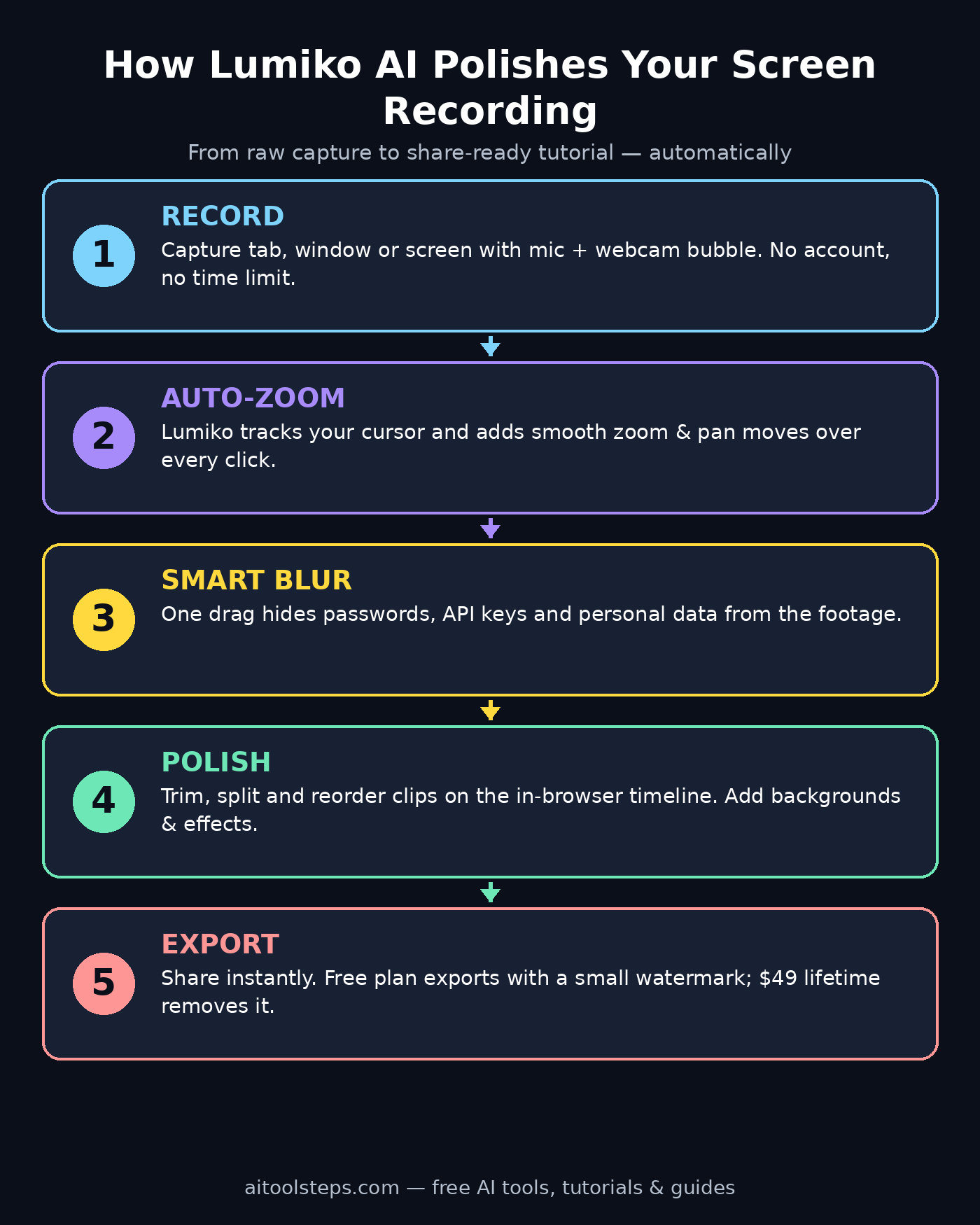
Here is the Lumiko workflow at a glance — how each step turns raw footage into a polished tutorial:
How does Lumiko stack up against the screen recorders beginners usually consider?
| Feature | Lumiko AI | Loom | Screen Studio | Guidde |
|---|---|---|---|---|
| Price | Free / $49 one-time | Free limited / monthly plans | $108/year | Free 25 videos / paid plans |
| Signup required | No | Yes | Yes | Yes |
| Automatic zoom on clicks | Yes | No | Yes | Partial |
| Smart Blur for sensitive data | Yes | No | Yes | No |
| Timeline editor | Yes (in browser) | Basic trim | Yes (desktop) | Yes |
| Works on Windows & Chromebook | Yes | Yes | Mac only | Yes |
| Watermark on free plan | Small | Varies | N/A (paid) | Varies |
For beginners who want polished results with zero editing skills and zero budget, Lumiko is the easiest recommendation in 2026. Power users on Mac who need 4K may still prefer Screen Studio, and teams needing cloud collaboration may stick with Loom — but for everyone else, free-and-automatic wins.
Frequently Asked Questions
Is Lumiko AI really free?
Yes. The Lumiko AI screen recorder gives you every recording and editing feature free forever, including automatic zoom, Smart Blur, the timeline editor, and click effects. Free exports include a small watermark and standard quality. A one-time $49 lifetime license removes the watermark and unlocks HD/MAX export — there is no subscription.
Does Lumiko work on Windows?
Yes. Lumiko is a Chrome extension, so it runs anywhere desktop Chrome runs: Windows, macOS, Linux, and ChromeOS, plus Chromium browsers like Edge, Brave, and Arc. It does not run on phones or tablets.
Do I need to create an account?
No. There is no signup, no email required, and no login wall. Install the extension and start recording. Your projects stay on your machine — processing happens locally, not in the cloud.
Can Lumiko record desktop apps like VS Code or Figma?
It can record any window or your entire screen, but its signature automatic zoom works best inside Chrome tabs. If most of your recording happens in desktop apps, test the free plan first to see whether the zoom behavior suits your workflow.
How is Lumiko different from Loom?
Loom is built for quick video messages and records your screen raw, with no automatic polish. Lumiko automatically adds zooms, pans, backgrounds, and click effects while you record, and includes a real timeline editor — it is designed for tutorials that look professionally edited with no editing skills.
Is there a recording time limit?
No. The free plan includes unlimited recordings with no time limit, usable on up to three devices. The only free-plan trade-offs are the small watermark and standard-quality export.
Final Thoughts
The Lumiko AI screen recorder is one of those rare free tools that removes an entire skill barrier: you no longer need to learn video editing to publish tutorials that look edited. Install the extension, record naturally, let the automatic zoom and Smart Blur do the heavy lifting, and spend your five minutes of “editing” on a branded background instead of an hour of keyframes. For beginners creating tutorials, demos, or course content in 2026, it is the fastest path from “I should record this” to a video you are proud to share.
Explore More Free AI Tools
Want to create more content with free AI tools? Try our AI Title Generator to craft clickable headlines for your tutorials, the Meta Description Generator to write search-friendly video descriptions, the AI Rewriter to polish your scripts, and the Keyword Density Checker to optimize your tutorial pages for search — all free at aitoolsteps.com.