

Paraphrasing used to be one of the most painful parts of writing. You would stare at a sentence, swap a word or two, rearrange the clause order, and still wonder if it sounded natural or if it would get flagged for plagiarism. Then along came QuillBot AI, and everything changed. QuillBot is a free AI-powered writing assistant that rewrites, paraphrases, and polishes your text in seconds, and it has become one of the most popular writing tools in the world, with millions of students, writers, and professionals relying on it every day.
If you are new to QuillBot, this beginner-friendly guide is for you. By the end of this article, you will know exactly how to use QuillBot AI: how to paraphrase text without losing the original meaning, how to check your grammar, how to summarize long articles, and how to avoid the most common mistakes beginners make. The best part is that you can do almost all of this on the free plan, without entering a credit card. Let us get started.
Step 1: Understand What QuillBot AI Actually Does
Before you click a single button, it helps to know what QuillBot is and what it is not. QuillBot is an AI paraphrasing tool first and a full writing suite second. Its flagship feature, the Paraphraser, takes your sentence or paragraph and rewrites it in a fresh way while keeping the original meaning intact. It does this using advanced language models trained on enormous amounts of text, so the rewrites usually sound natural rather than robotic.
Beyond paraphrasing, QuillBot packs in several companion tools: a Grammar Checker that catches spelling and punctuation errors, a Summarizer that condenses long articles into key points, a Citation Generator that builds references in APA, MLA, and Chicago styles, a Co-Writer that acts like a mini writing assistant, and even a Plagiarism Checker and Translator. For a beginner, the Paraphraser and Grammar Checker are the two tools you will use ninety percent of the time.
One important thing to understand: QuillBot is a rewriting assistant, not a magic originality machine. If you paraphrase someone else’s text and present it as your own without credit, that is still plagiarism. Use QuillBot to express ideas in your own voice, polish your own drafts, and avoid accidental repetition — and always cite your sources in academic and professional work.
Step 2: Create Your Free QuillBot Account
Getting started takes about two minutes. Head to quillbot.com and click the Sign Up button in the top-right corner. You can register with your Google account, which is the fastest option, or with any email address. A free account is important even though QuillBot lets you paraphrase without one, because signing up raises your free usage limits and unlocks features like document saving and the Chrome extension.
Once you are logged in, you will land on the Paraphraser dashboard. Take a moment to look around: the left panel is where you paste your text, the right panel shows the paraphrased output, and the toolbar above the output offers the different paraphrasing modes. There is no software to install, everything runs in your browser, and the interface is deliberately simple so beginners do not feel overwhelmed.
Tip: install the free QuillBot Chrome extension right away. It lets you paraphrase and grammar-check text directly inside Gmail, Google Docs, and almost any website, which saves you from constantly copying and pasting between tabs.
Step 3: Paste Your Text Into the Paraphraser
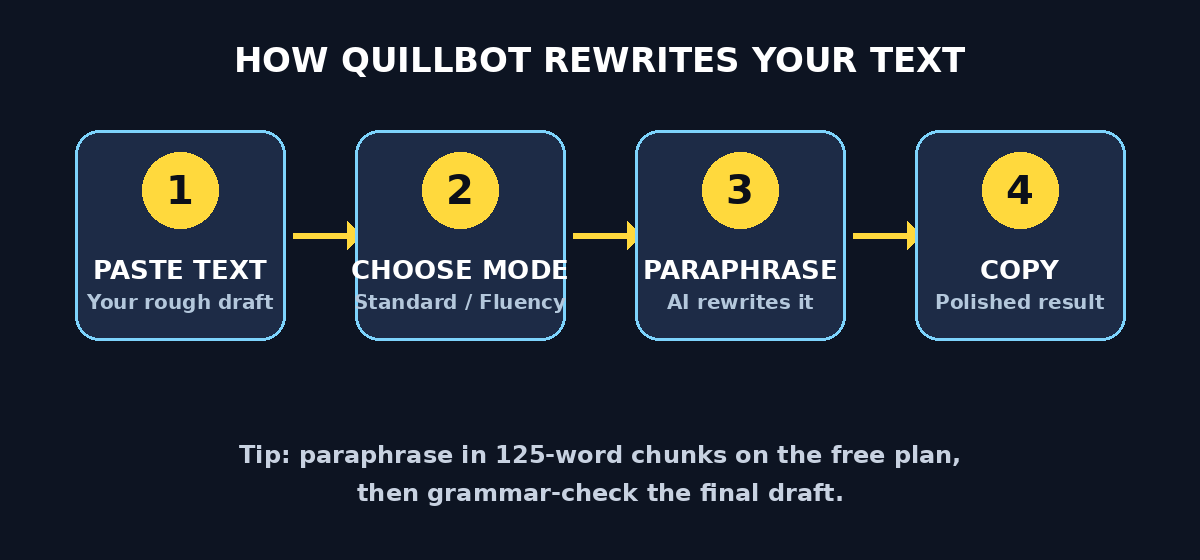
Now the fun part. Copy the text you want to rewrite — it could be a sentence from your essay, a product description, or an email draft — and paste it into the left-hand input box. On the free plan, you can paraphrase up to 125 words at a time. That sounds small, but it is plenty for most sentences and short paragraphs. If your text is longer, split it into chunks and paraphrase them one by one; you will often get better, more focused rewrites that way.
A quick beginner tip: paraphrase your own drafts rather than someone else’s published text. Paste a rough paragraph you wrote, let QuillBot smooth it out, and you will instantly see how professional rewriting works. This is also the safest way to use the tool ethically — you are polishing your own words, not disguising someone else’s.
Step 4: Choose the Right Paraphrasing Mode
This is where QuillBot gets powerful. Above the output panel, you will see mode buttons. The free plan gives you two modes, and each one rewrites your text with a different personality:
- Standard Mode — the default. It changes vocabulary and sentence structure while keeping your tone close to the original. This is your everyday mode for essays, emails, and blog posts.
- Fluency Mode — focuses on making your text read smoothly and naturally. Perfect for non-native English speakers who want their writing to sound polished and confident.
Premium users get five extra modes — Formal, Simple, Creative, Expand, and Shorten — but as a beginner, Standard and Fluency cover almost every situation. Try pasting the same paragraph into both modes and compare the outputs. You will quickly develop a feel for which mode suits which type of writing.
Step 5: Use the Synonym Slider to Control the Rewrite
Below the paraphrase button, you will find the Synonyms slider — a small control with a big impact. It decides how aggressively QuillBot changes your words:
- Less changes (left) — keeps your text close to the original, swapping only a few words. Best when you like your sentence structure and just want light polishing.
- More changes (right) — rewrites more boldly, replacing phrases and restructuring sentences. Best when the original text feels stale or repetitive.
Beginners often leave this slider untouched, which is fine, but experimenting with it is the fastest way to get rewrites that actually match your intent. If an output sounds too different from what you meant, pull the slider left. If it barely changed anything, push it right and paraphrase again.
Step 6: Click Paraphrase and Review the Output
Hit the green Paraphrase button and wait a couple of seconds. Your rewritten text appears in the right panel, with every changed word highlighted in orange. Clicking any highlighted word opens a dropdown of alternative synonyms, so you can fine-tune individual word choices without re-running the whole paraphrase.
This review step is crucial: never blindly accept the first output. Read the paraphrased version carefully and ask yourself three questions. Does it keep the original meaning? Does it sound natural? Is the tone right for my audience? If anything feels off, tweak the synonym slider, switch modes, or click individual words to pick better alternatives. A thirty-second review turns a decent rewrite into a great one.
Step 7: Fix Grammar With the Grammar Checker
Once your text is paraphrased, switch to the Grammar Checker tab. Paste your text in, and QuillBot will scan it for spelling mistakes, punctuation errors, wrong verb tenses, and awkward phrasing, underlining each issue the way spellcheckers do. Click any underlined word to see the suggested fix and accept it with one click.
The smart workflow is to paraphrase first and grammar-check second, because paraphrasing can occasionally introduce small grammatical quirks. Running your final draft through the Grammar Checker catches these before anyone else sees them. The free plan includes unlimited grammar checks, so there is no reason to skip this step — it is the easiest quality boost in the entire process.
Step 8: Summarize Long Articles With the Summarizer
QuillBot’s Summarizer is a hidden gem for students and researchers. Paste in a long article, report, or research paper, and it will condense it into either key sentences or a flowing paragraph summary. You can drag a slider to control the summary length, from a quick overview to a detailed digest.
Use it to preview whether a long source is worth reading in full, to create study notes from dense material, or to double-check that you have captured the main points of something you wrote. One caution: always verify important facts against the original source. Summarizers occasionally drop nuance, so treat the summary as a starting point, not a replacement for reading when accuracy truly matters.
Step 9: Generate Citations the Easy Way
If you are writing essays or research papers, the Citation Generator will save you real headaches. Select your style — APA, MLA, or Chicago — enter the website URL, book title, or journal details, and QuillBot builds a properly formatted citation for you. You can generate both in-text citations and full bibliography entries.
Beginners make two mistakes here: trusting auto-generated citations without checking them, and forgetting that different institutions have slightly different style requirements. Always compare the generated citation against your school’s style guide, especially for unusual sources. Used carefully, this tool turns a tedious fifteen-minute task into a thirty-second one.
Step 10: Combine Everything Into a Smooth Workflow
By now you know each tool individually. Here is how experienced users combine them into one efficient workflow:
- Write your rough draft yourself — QuillBot polishes writing, it does not replace thinking.
- Paraphrase awkward sentences in Standard or Fluency mode, adjusting the synonym slider as needed.
- Review every output and fine-tune highlighted words with the synonym dropdown.
- Run the full draft through the Grammar Checker and accept sensible fixes.
- Summarize your own draft to check whether your main points come through clearly.
- Generate citations for any sources you referenced.
This six-step loop takes minutes once you are used to it, and it consistently produces cleaner, more professional writing than either AI or human effort alone. The key insight is that QuillBot works best as a collaborator: you bring the ideas and judgment, it brings speed and polish.
QuillBot Free vs Premium: Is Upgrading Worth It?
The free plan is genuinely useful, but QuillBot also sells a Premium subscription. Here is an honest comparison so you can decide whether you need it:
| Feature | Free Plan | Premium Plan |
|---|---|---|
| Paraphrase word limit | 125 words per paraphrase | Unlimited words |
| Paraphrasing modes | 2 (Standard, Fluency) | 7 (all modes) |
| Paraphrases per session | Limited | Unlimited |
| Grammar Checker | Included | Included |
| Summarizer | 1,200 words | 6,000 words |
| Citation Generator | Included | Included |
| Plagiarism Checker | 20 pages/month | 20 pages/month (faster) |
| Freeze words feature | No | Yes |
| Fastest processing speed | No | Yes |
For most beginners, the free plan is more than enough. Consider Premium only if you regularly paraphrase long documents, need the Formal or Creative modes for professional work, or want the Freeze Words feature to protect technical terms from being rewritten. Otherwise, the free 125-word limit just teaches you to work in focused chunks, which is good practice anyway.
FAQ
Is QuillBot really free to use?
Yes. QuillBot’s free plan includes the paraphraser (125 words per use), the grammar checker, the summarizer, the citation generator, and the translator, with no credit card required. A Premium plan exists for heavier users, but beginners can accomplish a great deal without paying anything.
Is using QuillBot considered cheating or plagiarism?
It depends entirely on how you use it. Polishing your own writing, improving your English fluency, and rewording your own drafts are legitimate uses. Paraphrasing someone else’s work and submitting it as your own without citation is plagiarism, with or without AI. Many schools have their own AI-use policies, so check your institution’s rules before using any AI writing tool for coursework.
Does QuillBot work for non-native English speakers?
Absolutely — it is one of the best tools for this. Fluency mode specifically smooths out awkward phrasing, and the Grammar Checker catches the article, preposition, and tense mistakes that are hardest to spot yourself. Many ESL learners use QuillBot as a daily writing coach.
What is the 125-word limit on the free plan?
Each time you press the Paraphrase button on the free plan, your input is limited to 125 words. You can paraphrase as many separate chunks as you like, so long documents just need to be processed piece by piece. Premium removes this limit entirely.
Can QuillBot paraphrase in languages other than English?
Yes. QuillBot supports paraphrasing in more than 30 languages, including Spanish, French, German, Portuguese, and Hindi, and its translator covers over 45 languages. The interface and most advanced features are strongest in English, but multilingual support is solid for everyday use.
Is QuillBot better than Grammarly?
They solve different problems. QuillBot’s strength is paraphrasing and rewriting — no competitor matches its mode system and synonym control. Grammarly’s strength is deep grammar checking and tone detection across everything you type. Many writers happily use both: QuillBot for rewriting, Grammarly for final proofreading.
Final Thoughts
Learning how to use QuillBot AI is one of the highest-return skills a beginner writer can pick up. In under an hour, you can go from clunky first drafts to polished, professional text — for free. Remember the core lessons: choose the right mode for the job, use the synonym slider to control how bold the rewrite is, always review the output before accepting it, and run everything through the Grammar Checker as a final pass.
Used ethically and thoughtfully, QuillBot does not replace your writing ability — it accelerates it. Start with the free plan, build the six-step workflow into your routine, and only consider Premium when your volume genuinely outgrows the free limits. Happy writing!
Explore More Free AI Tools
Want to level up your content even further? Check out these free AI tools on AIToolSteps:
- AI Title Generator — craft click-worthy headlines in seconds
- Meta Description Generator — write SEO-friendly meta descriptions automatically
- AI Rewriter — rewrite any text with AI assistance
- Keyword Density Checker — optimize your content for search engines