
Most of us can speak three to four times faster than we can type. So why do we still spend hours every day tapping keys one by one? AI voice typing changes that equation completely — and Typeless is one of the best free tools leading the charge.
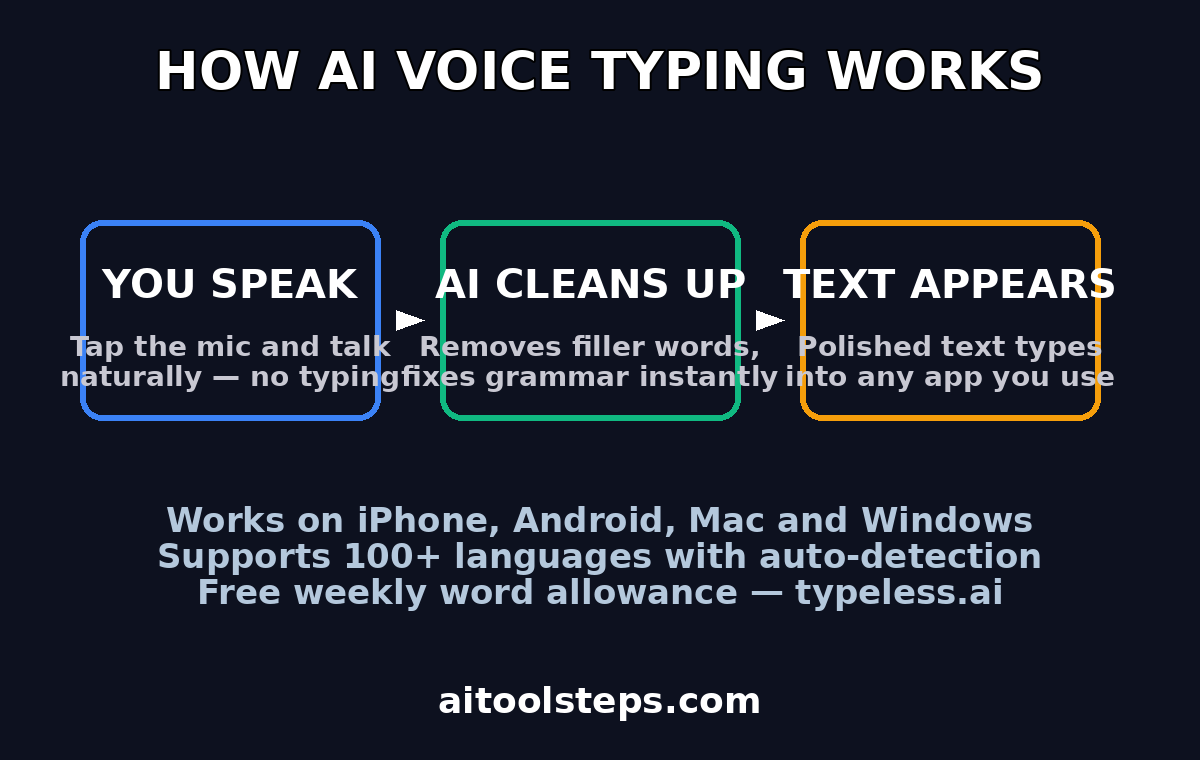
Typeless is an AI-powered voice keyboard that works on iPhone, Android, Mac, and Windows. Instead of typing, you simply speak, and Typeless transcribes your words directly into whatever app you are using. But it does far more than basic dictation: it cleans up your speech in real time, removing filler words like “um” and “uh,” fixing your grammar, adding punctuation, and formatting your text so the final output reads like polished writing — not a raw voice memo transcript.
Whether you want to fire off WhatsApp replies without touching your phone, draft emails faster than you ever could by typing, or take meeting notes hands-free, this beginner guide walks you through everything: installing Typeless on your phone and computer, setting it up correctly, dictating like a pro, using it across your favorite apps, and getting the most out of the free weekly word allowance.
Step 1: Understand What Typeless Actually Does
Before installing anything, it helps to know exactly what you are getting. Typeless is not a separate notes app or a transcription tool you open on its own — it is a system-level keyboard (on phones) and a desktop input tool (on Mac and Windows) powered by AI.
Here is what makes it different from the basic microphone button on your phone’s keyboard:
- AI cleanup in real time: It strips out filler words, corrects grammar, and adds punctuation and paragraph breaks automatically. You can speak in a casual, messy, thinking-out-loud style, and the output still reads clean.
- Types into ANY app: Because it works at the operating system level, your dictated text goes directly into WhatsApp, Gmail, Notion, Notes, Google Docs, Slack, your browser — wherever the cursor is.
- 100+ languages with auto-detection: It recognizes which language you are speaking without you switching settings manually, making it ideal if you switch between languages during the day.
- Adapts to your style: Over time, Typeless learns your vocabulary, your phrasing, and your writing style, so transcriptions get more accurate the more you use it.
- Free weekly word allowance: You can start using it completely free, with a weekly allowance of AI-processed words that resets automatically.
The core benefit is simple: you talk, it writes. Let us get it installed.
Step 2: Download and Install Typeless on Your Phone
Getting started on mobile takes just a couple of minutes.
- Download the app. On iPhone, open the App Store; on Android, open the Google Play Store. Search for “Typeless” and install the official app. The official download hub is typeless.ai, where you will find links to every platform version.
- Open the app and create an account. You will be guided through a quick sign-up so Typeless can sync your settings and track your free weekly word allowance.
- Follow the in-app setup wizard. The app walks you through the two critical steps covered next: granting microphone permission and enabling Typeless as your keyboard.
If you are installing on multiple devices, use the same account so your style preferences and allowance stay in sync.
Step 3: Grant Microphone Permission
Voice typing obviously needs your microphone. When the app asks for microphone access during setup, tap Allow.
Pro tip: voice typing lives or dies by mic quality — a pair of wired earbuds with a clear microphone gives Typeless clean audio and far fewer transcription errors. Disclosure: as an Amazon Associate, AIToolSteps earns from qualifying purchases.
- On iPhone, go to Settings → Privacy & Security → Microphone and confirm Typeless is enabled if the prompt did not appear.
- On Android, go to Settings → Apps → Typeless → Permissions → Microphone and set it to “Allow.”
Without this permission, the voice button will not capture any audio, so double-check it if dictation ever seems dead. Also make sure you are not in silent mode with a headset issue — if the app cannot hear you, no AI in the world can transcribe you.
Step 4: Set Typeless as Your Default Keyboard (Phone)
This is the step that transforms Typeless from “an app” into “the way you type everywhere.” On mobile, Typeless works as a keyboard replacement, which means you need to enable it in your system keyboard settings and then switch to it.
On iPhone:
- Open Settings → General → Keyboard → Keyboards → Add New Keyboard → Typeless.
- Select Typeless in the list and toggle on Allow Full Access so it can process voice input.
- When you want to dictate, open any app and tap the globe icon on your keyboard to switch to Typeless.
On Android:
- Open Settings → System → Languages & input → On-screen keyboard (the exact path varies by manufacturer).
- Enable Typeless in the keyboard list.
- Open any app, tap a text field, then switch to Typeless from the keyboard switcher icon (usually in the bottom-right or the notification shade).
Once it is active, you will see the Typeless keyboard with a prominent microphone button. From now on, that mic button is your new best friend.
Quick checklist if the keyboard does not appear:
- Did you enable it in system keyboard settings, not just in the app?
- Did you grant Full Access (iPhone) or the equivalent permissions (Android)?
- Have you switched to it with the keyboard switcher — installing is not the same as activating?
Step 5: Install Typeless on Mac or Windows (Desktop)
Typeless is not mobile-only. There are desktop versions for Mac and Windows, and they are just as useful — arguably more so, because most people’s heavy typing happens on a computer.
- Download the desktop app from typeless.ai and run the installer.
- Sign in with the same account you used on your phone so everything stays synced.
- Grant microphone permission when your OS asks (macOS: System Settings → Privacy & Security → Microphone; Windows: Settings → Privacy & security → Microphone).
- Learn the hotkey. On desktop, Typeless is triggered by a keyboard shortcut rather than a keyboard switch. Open the app’s settings to see (and customize) the hotkey — pressing it brings up the voice input wherever your cursor is.
The desktop flow feels magical the first time: click into an email in Gmail, hit the hotkey, talk, and watch clean, punctuated sentences appear as if you typed them at superhuman speed.
Step 6: Dictate Your First Message — The Basics
Time for the fun part. Here is the basic dictation workflow, which is the same on every platform:
- Place your cursor where you want the text — a message box, an email, a document.
- Tap the mic button (phone) or press the hotkey (desktop).
- Speak naturally. Do not over-enunciate like a robot; talk the way you normally would, in complete thoughts.
- Stop when done by tapping the mic button again or releasing the hotkey.
- Watch the AI cleanup happen. Typeless processes your speech and inserts polished text: fillers removed, grammar fixed, punctuation added.
Try this exercise for your first dictation: say “Um, hi Sarah, uh, just wanted to let you know that, like, the report is almost finished and I will send it, you know, by tomorrow morning, okay?” and watch what comes out. You will likely get something like: “Hi Sarah, just wanted to let you know that the report is almost finished and I will send it by tomorrow morning.” That transformation — messy speech to clean writing — is the whole point of Typeless.
Beginner dictation tips:
- Speak in complete thoughts, not word by word. The AI formats better with context.
- Pause briefly between sentences so punctuation lands correctly.
- Say punctuation out loud when it matters (“comma,” “question mark,” “new paragraph”) — Typeless understands these commands.
- Find a reasonably quiet spot for important dictations; background noise is the number one accuracy killer.
Step 7: Use Typeless in WhatsApp, Email, and Messaging Apps
This is where Typeless shines brightest for most people: everyday messaging. Because it types at the OS level, there is nothing special to learn per app.
- WhatsApp and Telegram: Open a chat, switch to the Typeless keyboard, tap the mic, and speak your reply. Long replies that would take two minutes to thumb-type take twenty seconds to dictate.
- Gmail and email apps: Hit compose, place the cursor in the body, and dictate full emails. Say “new paragraph” between sections for clean formatting. Review before sending — email still deserves a quick human proofread.
- SMS and iMessage: Same flow. Dictation is perfect for those “hands full” moments.
- Slack, Discord, Teams: Dictate quick updates and longer messages alike. The AI cleanup means your dictated messages read professionally, not like raw speech-to-text dumps.
The mental shift: stop thinking of the microphone as a novelty and start treating it as your primary input for anything longer than a sentence.
Step 8: Use Typeless for Notes, Documents, and Content Writing
Beyond messaging, Typeless is a genuine productivity tool for longer-form writing:
- Meeting notes: Open your notes app, start dictating as the meeting runs. You will capture far more detail talking than typing, and the AI cleanup keeps it readable.
- Brain dumps and journaling: Speak your thoughts freely; Typeless turns the ramble into structured text you can edit later.
- First drafts: Blog posts, captions, scripts, essays — dictate the rough draft, then edit. Many writers find that speaking a first draft is faster and less blocked than staring at a blank page.
- To-do lists and reminders: “Add buy groceries, call the bank, and finish the presentation to my list” becomes a clean list in seconds.
One powerful habit: dictate first, edit second. Do not try to speak perfectly — let the AI do the cleanup, then spend your energy on a quick edit pass. The combined workflow is dramatically faster than typing from scratch.
Step 9: Master Voice Commands and Formatting Tips
Typeless handles plain speech beautifully, but knowing a few spoken commands takes your output from good to great:
- Punctuation: Say “period,” “comma,” “question mark,” “exclamation mark,” “colon,” or “semicolon” to insert them precisely.
- New lines: Say “new line” or “new paragraph” to break up text — essential for emails and longer documents.
- Capitalization: Most sentence starts are capitalized automatically, but you can say “capital” before a word for emphasis.
- Numbers and symbols: Say “at sign” (@), “hashtag” (#), “percent” (%) — handy for emails, social posts, and prices.
- Undo and fix: If a word comes out wrong, just select it and re-dictate, or tap to edit manually. Do not re-dictate the whole paragraph for one typo.
Pro formatting habit: Dictate in short bursts of one to three sentences, glancing at the output between bursts. This gives you natural checkpoints for corrections and keeps the AI’s context window focused, which improves accuracy.
Step 10: Type in 100+ Languages with Auto-Detection
One of Typeless’s standout features is multilingual support. It handles 100+ languages and — critically — detects which language you are speaking automatically.
- Code-switching: If you mix languages in one conversation (extremely common in messaging), Typeless follows along without you toggling anything.
- Accents: The AI models are trained on diverse accents, so non-native speakers generally get strong accuracy. Speaking a little more slowly than usual helps in a second language.
- Learning new languages: Dictate in the language you are learning and read back the cleaned transcription — it doubles as a pronunciation and phrasing check.
You do not need to configure anything for this to work. Just speak, and let the auto-detection do its job.
Step 11: Manage Your Free Weekly Word Allowance
Typeless is free to start, and the free plan includes a weekly allowance of AI-processed words that resets every week. Since the AI cleanup is what consumes the allowance (not just raw transcription), it pays to use it wisely:
- Check your usage in the app’s settings or account section so you know where you stand each week.
- Dictate with intent. Rambling for five minutes to produce two usable sentences wastes allowance — think for a second, then speak.
- Batch your dictation. If you have several messages or a document to write, doing them in one focused session is more efficient than scattered one-liners.
- Know the reset. The allowance refreshes weekly, so if you run low, plan heavier dictation tasks for after the reset.
For most casual users — messages, emails, quick notes — the free allowance is plenty. Heavy daily users who dictate long documents may eventually want to look at paid options, but start free and see how far it takes you.
Step 12: Pro Tips to Get the Most Out of Typeless
You know the basics now. These advanced habits separate casual users from power users:
- Teach it your vocabulary. The more you use Typeless, the more it adapts to your writing style, names, and terminology. Correct its mistakes when they happen — that feedback loop improves future accuracy.
- Create a dictation-friendly environment. A cheap headset mic or earbuds dramatically improve accuracy over a phone’s built-in mic in noisy places.
- Use it for accessibility. If typing causes strain, fatigue, or pain, voice typing is not just faster — it is genuinely easier on your body.
- Combine with templates. For repetitive messages (follow-ups, introductions, status updates), dictate once, save the polished result as a template, and reuse it.
- Review before sending anything important. AI cleanup is excellent but not infallible. A five-second skim of a dictated email catches the rare misheard word that could embarrass you.
- Practice daily. Like any skill, dictation fluency improves with practice. After a week of regular use, most people dictate noticeably faster and cleaner than on day one.
Typeless vs Built-in Dictation vs Plain Typing
How does Typeless actually compare to the alternatives you already have? Here is an honest breakdown:
| Feature | Typeless (AI Voice Keyboard) | Built-in Phone Dictation | Plain Typing |
|---|---|---|---|
| Filler-word removal (“um,” “uh”) | Yes — automatic AI cleanup | No — transcribes everything raw | N/A |
| Grammar correction | Yes, real-time | No | Manual |
| Auto punctuation & formatting | Yes | Basic at best | Manual |
| Works in any app | Yes (OS-level keyboard) | Yes | Yes |
| Multi-language auto-detection | 100+ languages | Limited | N/A |
| Learns your writing style | Yes, adapts over time | No | N/A |
| Speed vs typing | ~3–4x faster | ~2x faster (but messy) | Baseline |
| Cost | Free weekly allowance | Free (built into OS) | Free |
| Best for | Polished messages, emails, drafts | Quick raw voice notes | Precision editing |
The built-in microphone on your phone keyboard is fine for a quick raw note. Typeless is what you want when the output needs to actually read well — which is most of the time.
Frequently Asked Questions
Is Typeless really free?
Yes — Typeless offers a free plan with a weekly allowance of AI-processed words that resets automatically. You can download the app, set up the keyboard, and start dictating without paying anything. Heavier users can explore paid plans, but the free tier covers everyday messaging, emails, and notes comfortably.
Which devices does Typeless support?
Typeless works on iPhone, Android, Mac, and Windows. On phones it functions as a system keyboard replacement; on desktop it runs as an app triggered by a hotkey. You can use the same account across all your devices so settings and preferences stay in sync. Download everything from the official site at typeless.ai.
Does Typeless work in WhatsApp, Gmail, and other apps?
Yes. Because Typeless operates at the operating-system level — as your keyboard on mobile, or via hotkey on desktop — it types directly into any app where you can place a cursor: WhatsApp, Gmail, Notion, Notes, Slack, browsers, Google Docs, and more. There is no per-app setup.
How accurate is Typeless voice typing?
Very accurate for most users, especially because the AI does more than transcribe — it cleans up fillers, fixes grammar, and adds punctuation. Accuracy is best in quiet environments with clear speech. It also improves over time as it adapts to your voice, vocabulary, and writing style. For important messages, a quick proofread is still smart.
Can I use Typeless in languages other than English?
Absolutely. Typeless supports 100+ languages with automatic language detection, so you do not need to switch settings when you change languages — even mid-conversation. This makes it excellent for multilingual households, international teams, and language learners.
Does Typeless store my voice recordings?
Typeless processes your speech with AI to produce cleaned-up text. As with any cloud AI service, it is wise to review the current privacy policy on typeless.ai before dictating highly sensitive information like passwords, financial details, or confidential business data. For everyday messages and notes, it is perfectly practical.
Final Thoughts
Voice is the fastest input device you own — you just have not been using it properly. Typeless turns the speech you already produce effortlessly into clean, polished, ready-to-send text, inside every app you use, on every device you own. The setup takes five minutes, the free weekly allowance costs nothing, and the habit pays off every single day.
Start small: install it today, dictate your next three WhatsApp replies instead of typing them, and watch the AI strip out every “um” and “uh” like magic. Within a week, reaching for the keyboard for long messages will feel like choosing to walk when you could drive.
Your fingers will thank you.
Explore More Free AI Tools
Want more free AI firepower? Check out these handy tools on aitoolsteps.com:
- AI Title Generator — craft click-worthy headlines in seconds: aitoolsteps.com
- Meta Description Generator — write perfect SEO snippets automatically: aitoolsteps.com
- AI Rewriter — rephrase any text instantly: aitoolsteps.com
- Keyword Density Checker — analyze your content’s SEO balance: aitoolsteps.com